Inspect answers with the Conversation Inspector
Inspect answers with the Conversation Inspector

This article explains how to use the Conversation Inspector to view conversation details, such as generated answers and retrieved passages, when testing your Coveo Search Agent implementation.
To use the Conversation Inspector effectively, follow the testing workflow, which walks you through the testing and inspection process.
This article also gives practical tips for improving your generative answering experience and optimizing your implementation’s performance.
Who and what is the Conversation Inspector for?
Designed for implementers and knowledge managers, the Conversation Inspector is a tool for testing Coveo Search Agent implementations. It provides visibility into every answer generated throughout a multi-turn conversation, and shows the retrieved passages for each query. This includes when no answer was generated, which can be helpful for troubleshooting.
The Conversation Inspector is intended to be used before and after deploying a Coveo Search Agent in a Coveo-powered search interface. Reviewing the generated answers is important during pre-production testing because it helps validate the generated answers before deployment. Ongoing evaluation after deployment is equally valuable. As your dataset evolves over time, continuous monitoring and assessment help you refine your implementation, maintain answer quality, and improve overall performance.
What information does the Conversation Inspector show?
The Conversation Inspector shows information related to generated answers and the passages that were retrieved and used to generate those answers. By reviewing the information, you can better evaluate how your Search Agent performs with your dataset. This visibility helps you troubleshoot issues and identify opportunities to improve the search experience delivered by your Search Agent.
The Conversation Inspector shows the following information:
-
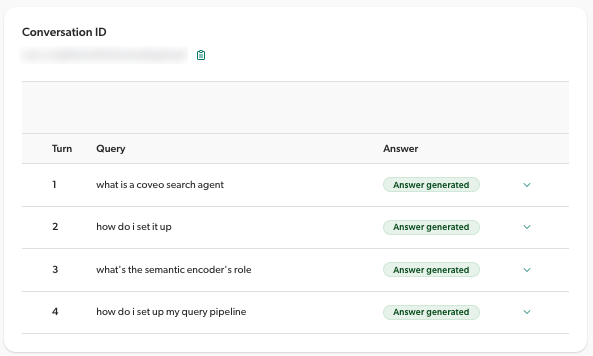
The complete conversation history, including the initial query and answer, as well as any follow-up queries and answers.
 Note
NoteThe Conversation Inspector shows data for both multi-turn and single-turn Search Agent configurations. By default, the Coveo Search Agent provides a multi-turn conversational search experience that supports follow-up questions. If instead you’ve configured your Search Agent to provide a standard single-turn search experience that generates only one answer for the initial query, the conversation consists of a single query and answer.
-
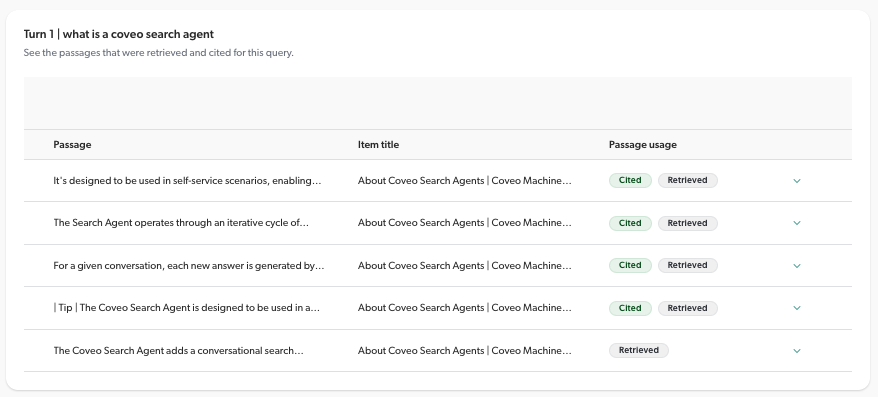
The passages from your dataset that were retrieved and used to generate an answer. If an answer wasn’t generated for a query, you can still see the passages that were retrieved for that query.
-
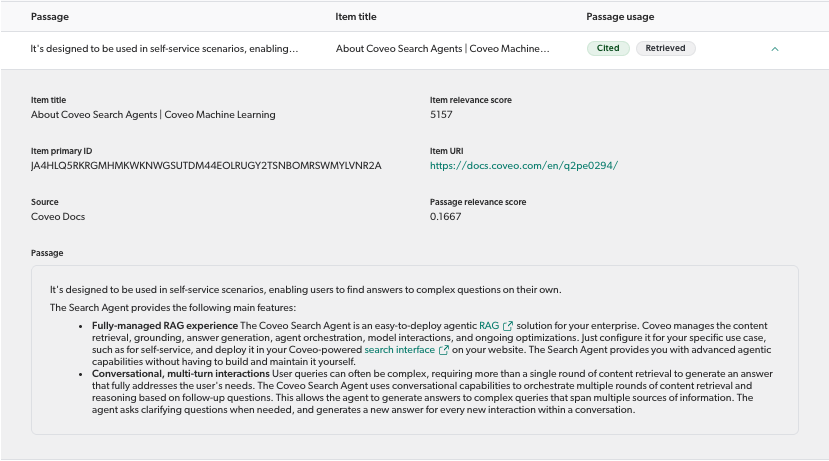
When displaying answers and passages, the Conversation Inspector also provides additional supporting information such as answer citations, the source item for a specific passage, and the relevance score for each passage.
Prerequisites
-
Enable Search Agent debug mode: To inspect Coveo Search Agent answers using the Conversation Inspector, you must Enable Search Agent debug mode in your browser before starting the conversation that you’ll later want to inspect.

The Conversation Inspector can only retrieve and display data for conversations that meet the following requirements:
-
Search Agent debug mode was enabled for the conversation.
Before starting a conversation that you want to inspect later, make sure debug mode is enabled. Otherwise, the Conversation Inspector won’t be able to retrieve the conversation data.
-
The conversation occurred within the last 48 hours.
Conversation data is retained for 48 hours from the start of the conversation. Once the 48 hours have passed, the Conversation Inspector can no longer retrieve the conversation data.
-
-
Conversation ID: The Conversation Inspector uses the conversation ID to retrieve the conversation data. Have the conversation IDs of the conversations you want to inspect ready before accessing the Conversation Inspector. For more information, see How to get the conversation ID.
-
Access to data in the Conversation Inspector: Make sure you have the necessary permissions to view conversation data in the Conversation Inspector.

|
The Conversation testing workflow shows how each prerequisite applies in the recommended testing workflow. |
Conversation testing workflow
You can use the Conversation Inspector to inspect all answers generated in a conversation when using a Coveo Search Agent. To do so, however, you need to have the conversation ID for the conversation you want to inspect, and Search Agent debug mode must have been enabled before the conversation started.
This section details the recommended workflow to make sure you’ll be able to inspect the conversation answers and details later using the Conversation Inspector.
-
Access the search interface where the Coveo Search Agent is deployed.
-
Enable Search Agent debug mode in your browser.
NoteYou won’t be able to retrieve the conversation data in the Conversation Inspector if debug mode wasn’t enabled before the conversation started.
-
Open your web browser’s developer tools. You’ll need this to retrieve the conversation ID, which you’ll need if you want to inspect the conversation later in the Conversation Inspector. The developer tools must be open before the conversation starts.
-
Enter an initial query in the search interface to generate an answer from the Search Agent.
NoteIf an answer wasn’t generated for the initial query, a conversation ID is still created for that query. You can use the conversation ID in the Conversation Inspector to inspect the passages that were retrieved for the query to help troubleshoot why an answer wasn’t generated.
-
Get the conversation ID for the active conversation from your browser’s developer tools. Keep it for later use in the Conversation Inspector.
NoteFor search interfaces created using the Coveo hosted search page builder or the Coveo Atomic library, the conversationID appears at the top of an active conversation when Search Agent debug mode is enabled. Click
 to copy the conversation ID and keep it for later use in the Conversation Inspector.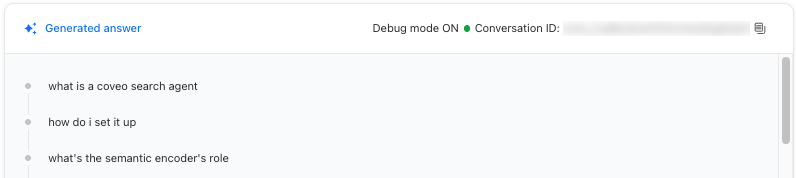
If a conversation has ended and you didn’t copy its conversation ID, you can either re-create the conversation and get the new ID, or use the Visit Browser in the Coveo Administration Console later to get the conversation ID. You’ll need one of the queries used in the conversation to search for and retrieve the conversation ID in the Visit Browser.
-
If the Search Agent is configured to allow follow-up questions, ask follow-up questions to generate multiple turns of answers in the conversation. The conversation ID remains the same for all turns in a conversation.
-
Start as many new conversations as needed, making sure to copy the conversation ID for each conversation.
-
Once you have all the conversation IDs for the conversations you want to review, inspect them in the Conversation Inspector.
The Conversation Inspector can only retrieve and display data for conversations that meet the following requirements:
-
Search Agent debug mode was enabled for the conversation.
Before starting a conversation that you want to inspect later, make sure debug mode is enabled. Otherwise, the Conversation Inspector won’t be able to retrieve the conversation data.
-
The conversation occurred within the last 48 hours.
Conversation data is retained for 48 hours from the start of the conversation. Once the 48 hours have passed, the Conversation Inspector can no longer retrieve the conversation data.
-
-
(Optional) Make improvements to your implementation based on your findings in the Conversation Inspector to optimize the generative answering experience.
Inspect a conversation
This section explains how to use the Conversation Inspector to see all the answers that were generated for a given conversation when using the Coveo Search Agent. It also explains how to see the passages that were retrieved for a specific query in the conversation, including when no answer was generated.
-
Access the Conversation Inspector (platform-ca | platform-eu | platform-au) page of the Coveo Administration Console.
NoteThe
View all contentprivilege is required to access the Conversation Inspector and see conversation data. -
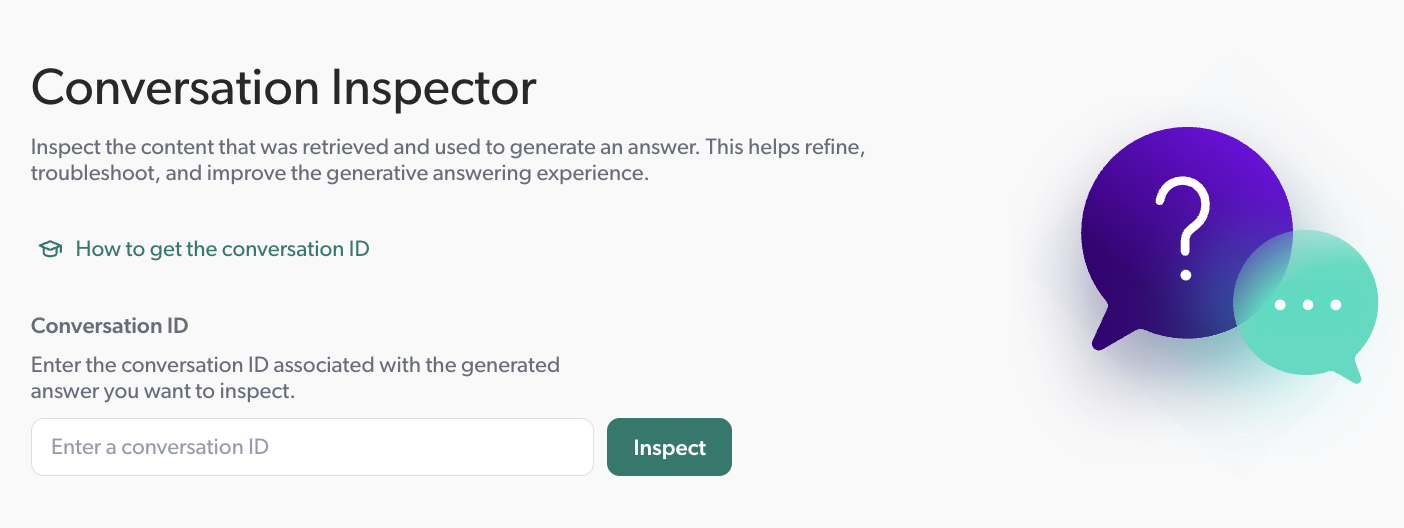
Enter the Conversation ID associated with the conversation you want to inspect.
See How to get the conversation ID for information.
-
Click Inspect.
The Conversation Inspector can only retrieve and display data for conversations that meet the following requirements:
-
Search Agent debug mode was enabled for the conversation.
Before starting a conversation that you want to inspect later, make sure debug mode is enabled. Otherwise, the Conversation Inspector won’t be able to retrieve the conversation data.
-
The conversation occurred within the last 48 hours.
Conversation data is retained for 48 hours from the start of the conversation. Once the 48 hours have passed, the Conversation Inspector can no longer retrieve the conversation data.
-
-
The conversation query list appears. It contains the query submitted for each turn of the conversation, in chronological order. Each query also includes a tag indicating whether an answer was generated.
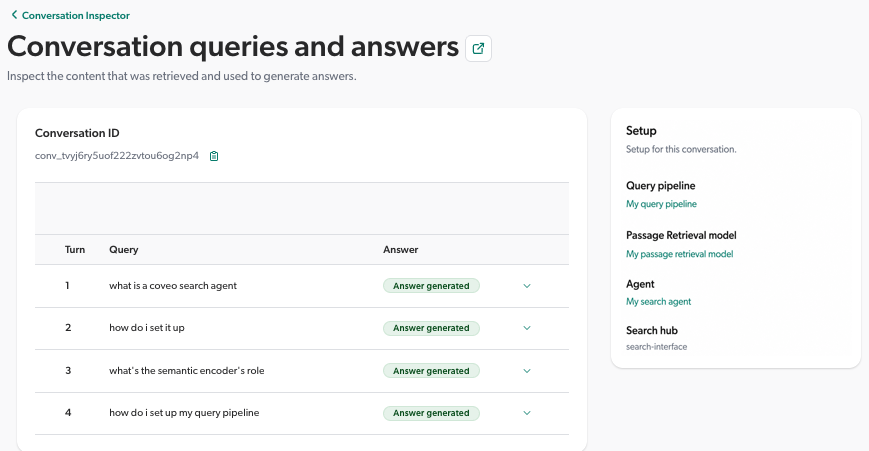
The Setup card shows your implementation configuration for the conversation. It highlights the configured query pipeline, the Passage Retrieval (CPR) model that’s used by the Search Agent, the Search Agent, and the search hub where the conversation took place. Click the query pipeline, CPR model, or Search Agent to open it in the Coveo Administration Console.
NoteDepending on your implementation configuration, the Setup card may not display query pipeline or search hub information. When this information isn’t available,
This information wasn’t received by the Search Agentappears.Query pipeline information appears in the Setup card only when the pipeline value is included in the search request sent to the Search Agent, that is, only when the pipeline is set in and enforced by the search interface. If no pipeline appears in the Setup card, a query pipeline was still used to process the query, as every query is processed through a query pipeline. For example, a pipeline can be enforced through a search token or resolved through condition-based pipeline routing. In these cases, the pipeline wouldn’t appear in the Setup card. If no value appears in the Setup card, refer to your implementation configuration to determine which query pipeline was used for the conversation. For more information see, Routing rules.
A search hub doesn’t appear in the Setup card if a search hub value isn’t specified in your search interface configuration. For more information see, About the search hub.
-
You can do the following:
-
See the retrieved and cited passages. If an answer was generated, you’ll see the retrieved passages for the query and the passages that were used to generate the answer (cited). If an answer wasn’t generated, you’ll see the retrieved passages, which can help you troubleshoot why an answer wasn’t generated.
-
(Optional) Make improvements to your implementation based on your findings in the Conversation Inspector to optimize the generative answering experience.
See a generated answer
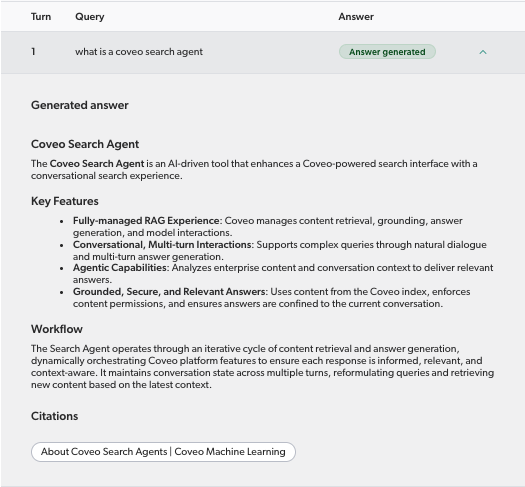
If a query generated an answer, you can see the full answer and the citations.
-
In the conversation query list, click
 for the answer you want to see.
Citations show the items that contain the passages that were used to generate the answer. Hover over a citation to view the item details, or click a citation to open the item.
-
(Optional) Inspect the passages that were retrieved and used to generate the answer.
See the retrieved and cited passages
See the passages that were retrieved and used by the Search Agent when generating the answer. You can also see the passages that were retrieved for a query that didn’t generate an answer, which can be helpful to troubleshoot why an answer wasn’t generated. The Conversation Inspector shows information about both the retrieved passages and their corresponding items.
To provide the most relevant answers, the Search Agent uses a two-stage content retrieval process. In the first stage, it retrieves the items that are most relevant to the query from the index. In the second stage, it identifies the most relevant passages within those retrieved items. For more information on Search Agent content retrieval, see Answer generation overview.
-
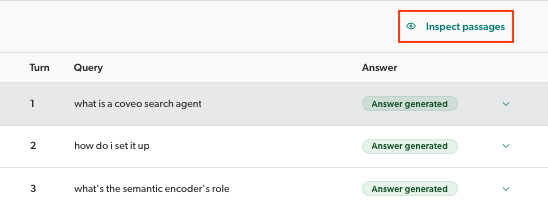
In the conversation query list, click the query row corresponding to the answer you want to inspect.
-
Click Inspect passages in the Action bar.
 Note
NoteThis action isn’t available if passages weren’t retrieved for the query. This can happen, for example, if no relevant passages were retrieved, or if a system error occurred during the content retrieval process.
-
The passage list appears. The list shows all the passages that were cited or retrieved for that query.
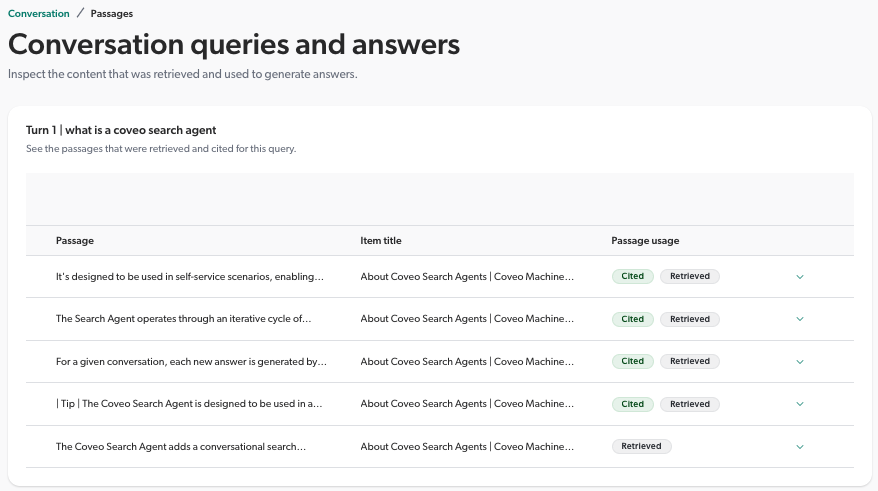
The passage list shows the following information:
-
Passage: Shows a preview of the passage text.
-
Item title: The title of the item that contains the passage.
Open the item in the Content Browser of the Coveo Administration Console to inspect the indexed item properties. To do so, click the row for the item you want to inspect, and then click View item in Content Browser in the Action bar. The Execute queries privilege is required to view items in the Content Browser.

-
Passage usage: This column helps you quickly identify the passages that were used to generate the answer among all retrieved passages. A passage can have one of the following tag states:
NoteCitedpassages are referenced by citations in the generated answer.-
CitedRetrieved: The passage was retrieved this turn and used to generate the answer. -
Cited: The passage was used to generate the answer. It was retrieved in a previous turn and re-used by the Search Agent. -
Retrieved: The passage was retrieved this turn, but wasn’t used to generate the answer.
-
-
-
Click
for the passage details you want to see.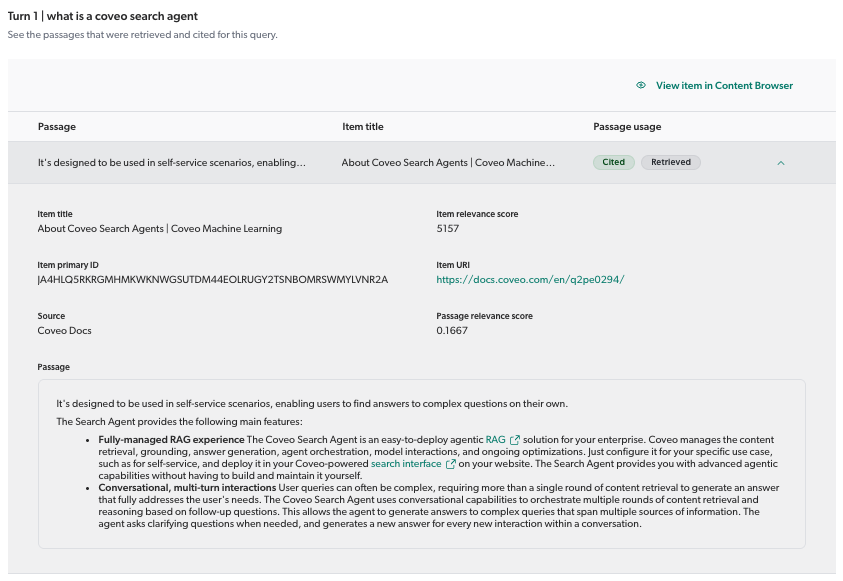
The passage details include the following information:
-
Item title: The title of the indexed item that contains the passage.
-
Item primary ID: The globally unique identifier, within your Coveo organization, of the indexed item that contains the passage.
-
Source: The source that’s used to index the item that contains the passage.
-
Item relevance score: The relevance score of the item retrieved during first-stage content retrieval.
-
Item URI: A clickable link that opens the item in the location specified by the URI.
-
Passage relevance score: The relevance score of the passage retrieved during second-stage content retrieval.
-
Passage: Shows the full passage text.
NoteIf the CPR model that’s used with the Search Agent uses structure-aware chunking, the model may merge two or more retrieved passages to create a single more coherent passage in a process called passage merging. The passage shown here is the final passage after CPR model processing. This may be the original chunk as extracted by the model when it built and created the embeddings, or the merged passage.
-
How to improve your implementation
After using the Conversation Inspector to inspect the answers generated by your Search Agent, you may want to make improvements to your implementation to optimize the generative answering experience.
|
|
Note
The following are general suggestions for improving your Search Agent implementation. While they may not all apply to your specific situation, they can help you identify potential areas for improvement. |
-
Modify the content that you use for the CPR model. Some examples of changes you might want to consider:
-
Update your content so it includes the most up-to-date information.
-
Create a new item to fill an identified gap in your content.
-
See the best practices for how to optimize your dataset content for CPR.
-
-
Add a custom behavior to customize how the Search Agent behaves when generating answers based on a specific condition. Custom behaviors give you greater control over the Search Agent output and let you better align its actions with your business logic and requirements. For example, you can add behavior to comply with industry regulations or legal requirements, or to add restrictions so that answers don’t mention specific products or competitors.
-
Modify the maximum number of items that the CPR model considers when retrieving passages. For example, you can decrease this value if you find that answers are being generated using text from low relevance items.
NoteThis value is set in the Search Agent configuration, and can’t be modified once the Search Agent is created, so you’d need to create a new Search Agent to change the value.
-
If your CPR model is set to use the fixed-size chunking strategy, consider switching to structure-aware chunking, which is specifically optimized for large language models and RAG systems. Structure-aware chunking improves the semantic alignment between the query intent and the passages retrieved by the CPR model.
-
Modify the configuration of the query pipeline that’s associated with the search interface. This requires a good understanding of how the query pipeline configuration and rules impact search results. See also Supported parameters and query pipeline features.
Reference
This reference section provides information related to the following topics:
-
How to enable Search Agent debug mode: Debug mode must be enabled in your web browser before starting the conversation that you’ll later want to inspect in the Conversation Inspector.
-
How to get the conversation ID: To inspect a conversation’s answers and retrieved passages in the Conversation Inspector, you need the conversation ID.
-
Required privileges: The privileges required to access the Conversation Inspector and view conversation data.
Enable Search Agent debug mode
Search Agent debug mode must be enabled in your web browser before starting the conversation that you’ll later want to inspect in the Conversation Inspector. If you don’t enable debug mode before starting the conversation, the Conversation Inspector won’t be able to retrieve and show the conversation data.
|
|
Note
See Conversation testing workflow for the recommended workflow for testing and inspecting your Coveo Search Agent implementation. |
To enable Search Agent debug mode in your web browser
-
Access the search interface where the Search Agent is deployed.
-
In your web browser, add one of the following cookies for your search interface.
NoteFor instructions on how to add a cookie in your specific web browser, click the corresponding link below:
-
For a search interface that’s not in Salesforce, add a cookie named
Coveo-SearchAgentDebug. -
For a search interface in Salesforce:
-
Add a cookie named
LSKey-CoveoV2$Coveo-SearchAgentDebugif you integrated the search interface using either the Coveo Console Hosted Search Page or Coveo Community Hosted Search Page component. -
Add a cookie named
LSKey-c$Coveo-SearchAgentDebugif you created a custom search interface using the Coveo Quantic library.
-
-
-
Set the cookie’s
valuefield to any non-empty value.
NoteBy default, the cookie’s expiration is set to
Session, meaning the cookie remains valid only for the current browser session and is removed when the browser is closed. You can set a custom expiration date for the cookie if you want debug mode to be enabled across multiple browser sessions.ExampleIn Google Chrome’s Developer Tools, add the
Coveo-SearchAgentDebugcookie with a value oftruein the Application tab under Storage > Cookies for yourhttps://mysearch.interface.comsearch interface that uses the Coveo Search Agent.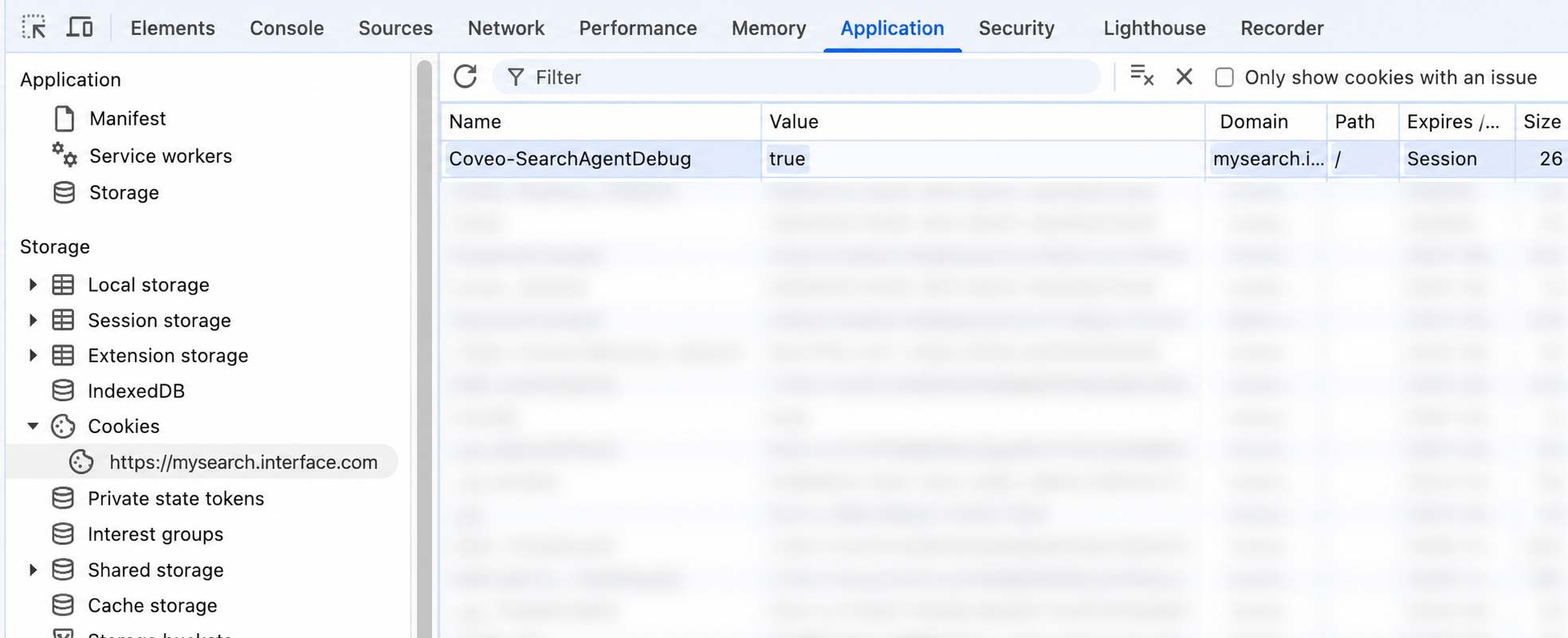
How to get the conversation ID
To retrieve and display conversation data, the Conversation Inspector requires the ID of the conversation you want to inspect. Without a conversation ID, you won’t be able to use the Conversation Inspector.
The easiest way to get the conversation ID is while the conversation is active in your search interface. For more information, see Get the ID for an active conversation.
If you didn’t copy the conversation ID when the conversation was active, you can still get the ID later using the Visit Browser in the Coveo Administration Console.
|
|
Note
See Conversation testing workflow for the recommended workflow for testing and inspecting your Coveo Search Agent implementation. |
|
|
The Conversation Inspector can only retrieve and display data for conversations that meet the following requirements:
|
Get the ID for an active conversation
Use the browser’s developer tools to get the conversation ID for an active conversation. The developer tools must be open before the conversation starts.
If an answer wasn’t generated for an initial query, you can still use this method to get the conversation ID for that query. You can later use the conversation ID to inspect the passages that were retrieved for that query, which can help you troubleshoot why an answer wasn’t generated.
|
|
Note
For search interfaces created using the Coveo hosted search page builder or the Coveo Atomic library, the conversationID appears at the top of an active conversation when Search Agent debug mode is enabled.
Click
|
To get the conversation ID using the browser’s developer tools
-
Open your web browser’s developer tools.
NoteThis article uses the Google Chrome developer tools. For browser-specific information, see:
-
Select the Network tab.
-
Enter an initial query to generate an answer. This starts a new conversation and creates a unique conversation ID.
NoteEven if the initial query does not generate an answer, a conversation ID is still created. You can use this ID to inspect the passages that were retrieved for the query.
-
In the developer tools window, under the Name column, click the
answerevent stream request for that query.
NoteThe
answerevent stream still appears for the query even if the initial query didn’t generate an answer. -
In the EventStream tab, copy the threadId value, which is the conversation ID. The conversation ID format is either
conv_<alphanumeric_string>orans_<alphanumeric_string>depending on if your Search Agent is set to allow follow-up questions or not as set by the Conversational AI option.
Get the conversation ID using the Visit Browser
Use the Visit Browser in the Coveo Administration Console to retrieve the conversation ID for any conversation when using a Coveo Search Agent.
This method is especially useful if a conversation has already ended and you didn’t copy its ID while it was active. You can also use this method to retrieve the conversation ID for an initial query that didn’t generate an answer, since a conversation ID is still created even when an answer isn’t generated.
You’ll need the query, or one of the queries in a multi-turn conversation, as that’s what you’ll use to pull up the conversation in the Visit Browser.
To get a conversation ID using the Visit Browser
-
Go to the Visit Browser (platform-ca | platform-eu | platform-au) page in the Coveo Administration Console.
-
Add an inclusion filter for the query using
an eventora search event.ExampleTo find the conversation ID for a conversation that includes the query
What is cpr, add the following inclusion filter in the Visit Browser: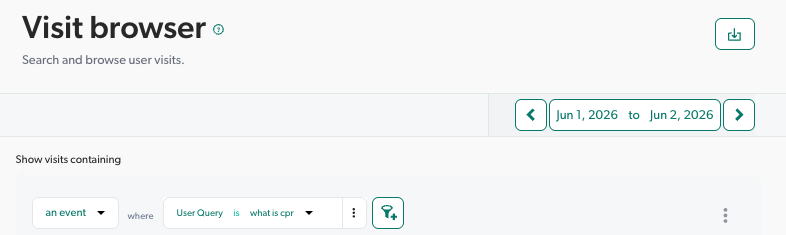
-
Make sure the date range includes the date when the conversation took place.
-
Expand the
generatedAnswerStreamEndevent for the query. The conversation ID appears undergeneratedAnswerId, but it also includes the turn number at the end of the ID. Copy just the conversation ID without the turn number, which is the part of the ID before the last underscore (_).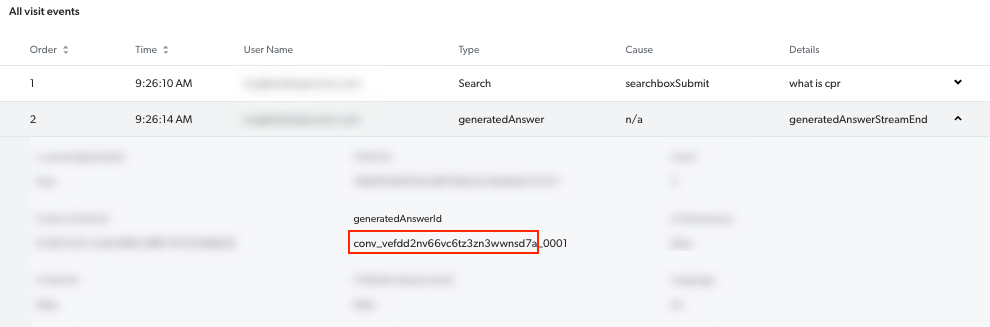
Required privileges
The following table indicates the privileges required for members to access and view conversation data in the Conversation Inspector (see Manage privileges and Privilege reference).
| Action | Service - Domain | Required access level |
|---|---|---|
Access the Conversation Inspector |
Search - View all content |
Allowed |
Organization - Organization |
View |