Set advanced ART model configurations using the API
Set advanced ART model configurations using the API

The Machine Learning Advanced Model Configurations API lets you manage the following advanced configurations for your ART model:
To set an advanced configuration using the API

|
You can also get a list of advanced configuration files currently used by the model, or delete a configuration file from the model. |
Prerequisites
-
An ART model in your Coveo organization.
-
You have the required privileges to edit a model.
Create or update an advanced configuration file
Setting an advanced configuration using the API requires an advanced configuration file.
You can create a new configuration file from scratch, or download an existing file that you previously uploaded to a model to edit its configuration.
-
If required, to edit an advanced configuration file that’s currently used by a model, first download the file using the Swagger UI as follows:
-
Access the Advanced Model Configurations section of the Swagger UI that’s associated with your Coveo organization region (US | CA | EU | AU).
-
Click Authorize and authenticate using your Coveo organization account credentials.
 Note
NoteThe Coveo organization account you use for authentication must have the Machine learning - Models - Edit privilege.
-
Use the
configs/{configurationType}GET operation to download an existing configuration file that you want to edit: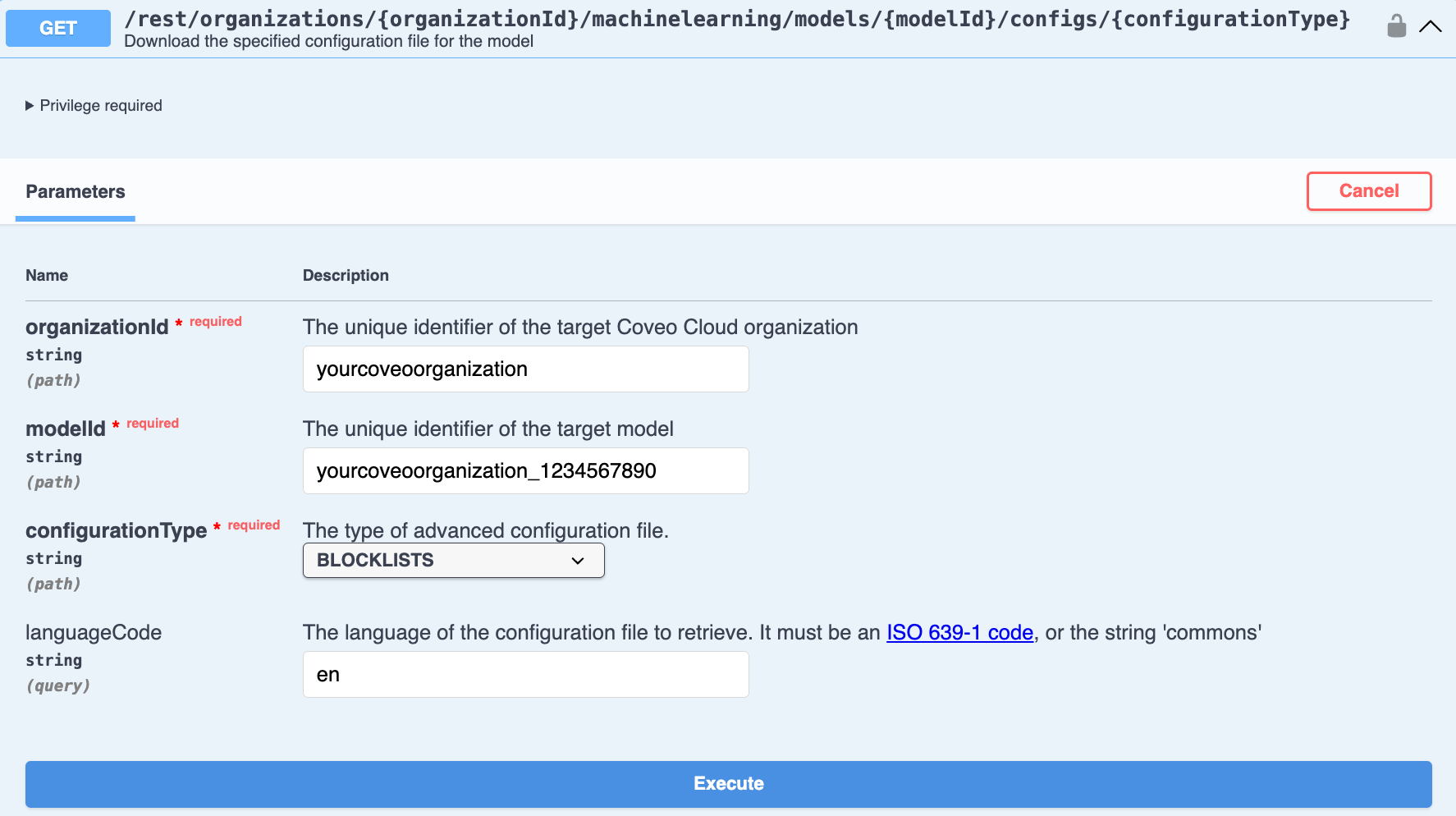
-
Enter the required parameters for the model and configuration type that you want to download.
-
Once you’ve entered the parameters, click Execute.
-
Click Download file in the response body to download the file.
-
-
-
Use your preferred text editor to either modify the downloaded advanced configuration file or create a new file from scratch. The advanced configuration file must not exceed 10 MB. The configuration file requirements and formatting depends on the configuration type:
-
Upload the advanced configuration file to the model.
Upload an advanced configuration file
Once you’ve created the configuration file, use the Swagger UI to upload it to a model to apply the advanced configuration to that model.
The advanced configuration file must not exceed 10 MB.
-
Access the Advanced Model Configurations section of the Swagger UI that’s associated with your Coveo organization region (US | CA | EU | AU).
-
Click Authorize and authenticate using your Coveo organization account credentials.
NoteThe Coveo organization account you use for authentication must have the Machine learning - Models - Edit privilege.
-
Use the
configs/{configurationType}PUT operation to upload a configuration file to the model that you want to configure: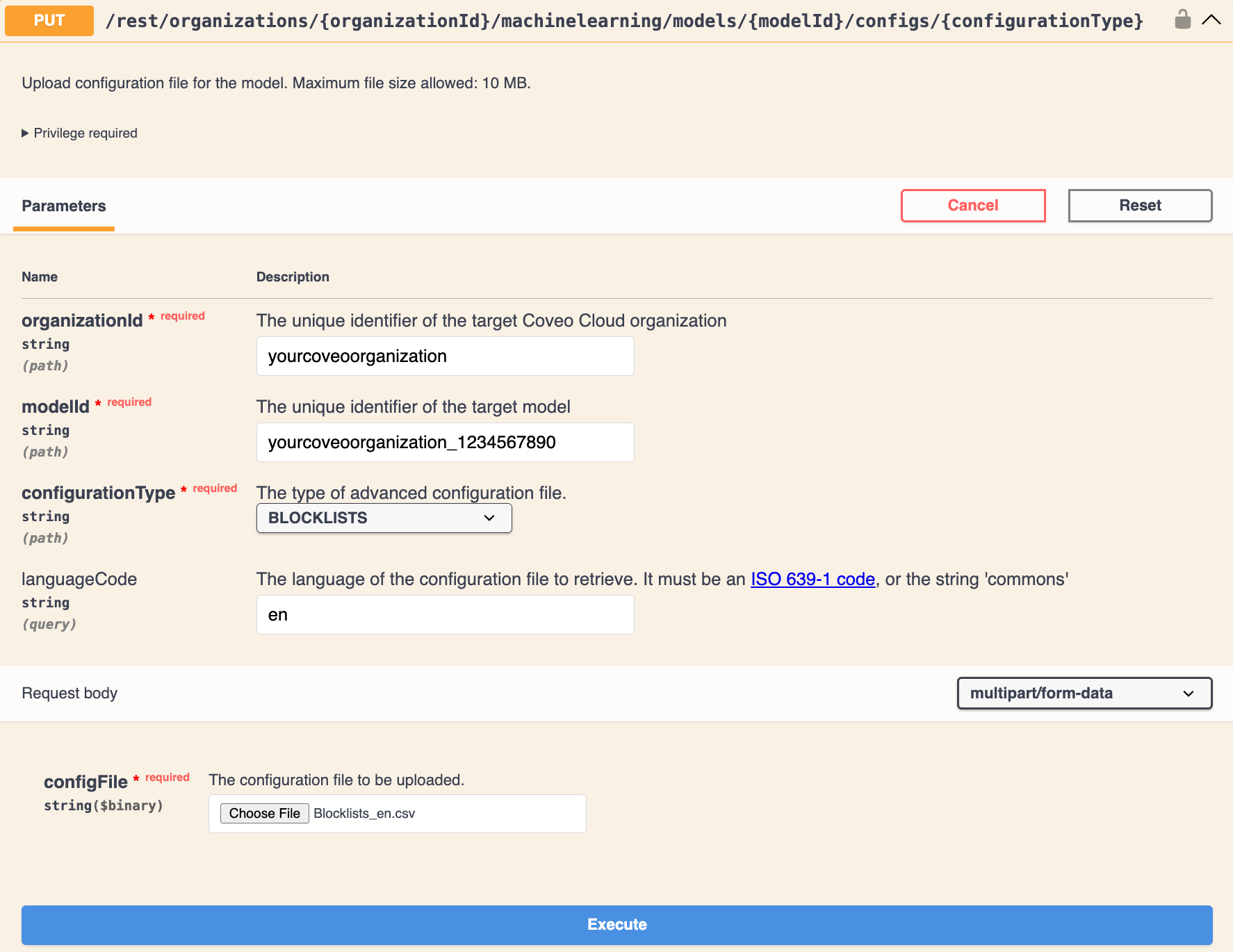
-
Enter the required parameters for the model to which you want to upload the file, as well as the configuration type.
-
For configFile, click Choose File to select the configuration file.
-
Click Execute.
-
Reference
Blocklist
Configure a blocklist file that lists the terms to be ignored by the model.
If a blocklisted term appears in a query, the model ignores the entire query. This means the model won’t use the query to learn from, and the query won’t be used by the model to influence the relevance of results.
|
|
Note
A blocklist shouldn’t be used for language-based filtering, such as to specify terms using a language that you don’t want the model to learn from. Instead, to restrict the model to a specific language, use a custom filter. |
A blocklist is meant to prevent queries that contain undesirable terms, such as to protect against offensive words or for brand protection, from influencing a model output.
Blocklist file configuration
The blocklist file must be a UTF-8 encoded CSV file, with each term listed as a separate row in a single column.
Once the blocklist file is ready, you can upload it to your model.
|
|
Note
The CSV file must contain only the terms to block, and shouldn’t contain headers.
Every term in the file is treated as a term to block.
In the example CSV file below, |
Stop words
Configure a stop words file that lists the words to be ignored by the model when analyzing user queries.
Stop words are typically common words, such as articles (a, an, the, etc.), prepositions (on, in, at, etc.), and pronouns (he, she, it, etc.). This is done to reduce the impact of common words on the relevance of the model output. However, given a lack of sufficient relevant content, there’s the possibility that the output of your model is influenced by stop words.
You configured a stop words file that contains the following terms: do, I, my, for, the.
A user performs the following query: How do I change my password for the intranet.
Since the stop words file contains the words do, I, my, for, and the, the query is analyzed as follows by the model:
how change password intranet.
Stop words file configuration
The stop words file must be a UTF-8 encoded CSV file, with each word listed as a separate row in a single column.
Once the stop words file is ready, you can upload it to your model.
|
|
Note
The CSV file must contain only a list of stop words, and shouldn’t contain headers.
Every term in the file is treated as a stop word.
In the example CSV file below, |
how
a
in
to
for
on
the
and
I
is
of
do
can
not
or
isn'tRetrieve a list of advanced configuration files used by the model
Get a list of advanced configuration files currently used by a model.
-
Access the Advanced Model Configurations section of the Swagger UI that’s associated with your Coveo organization region (US | CA | EU | AU).
-
Click Authorize and authenticate using your Coveo organization account credentials.
NoteThe Coveo organization account you use for authentication must have the Machine learning - Models - View privilege.
-
Use the
configs/statusGET operation to get a list of advanced configuration files currently used by a model: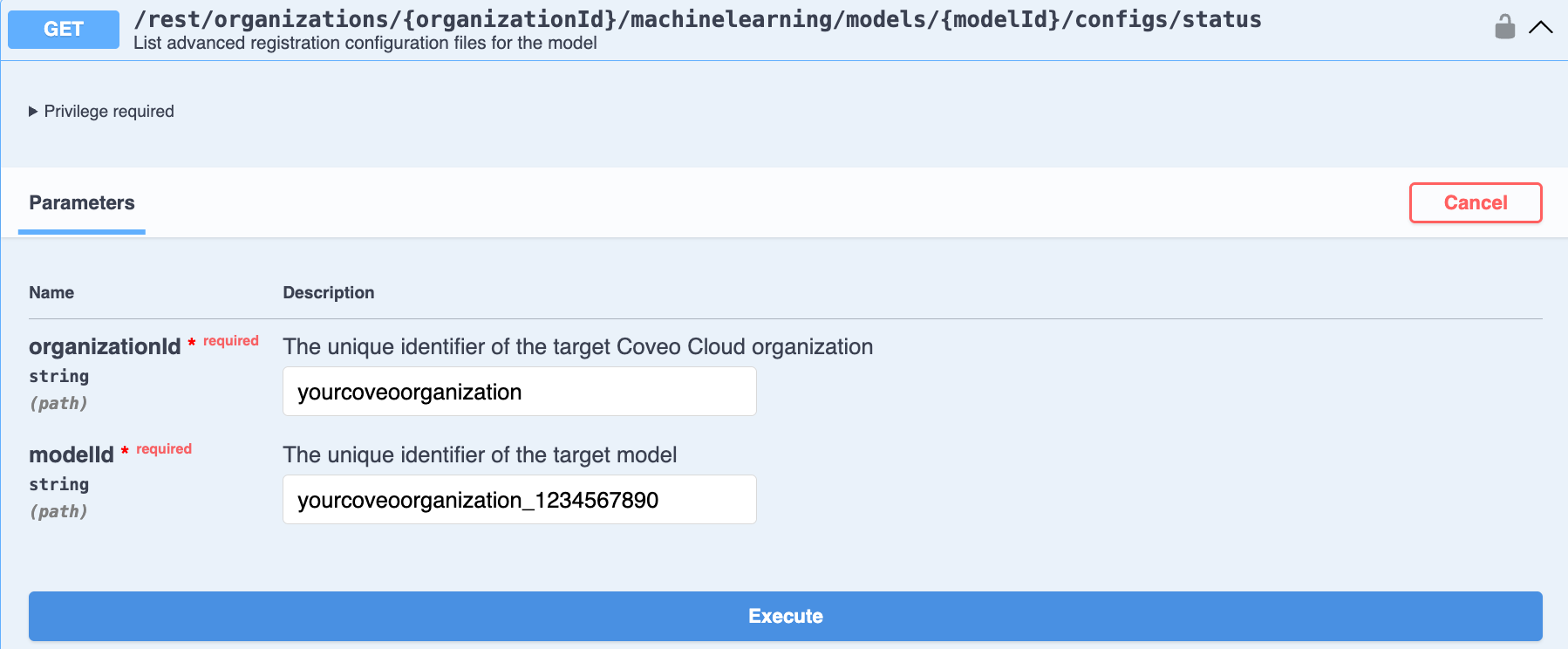
-
Enter the required parameters for the model.
-
Click Execute. The response body shows a list of the advanced configuration files currently used by the model.
-
Delete an advanced configuration file from a model
Delete an advanced configuration file attached to a model.
-
Access the Advanced Model Configurations section of the Swagger UI that’s associated with your Coveo organization region (US | CA | EU | AU).
-
Click Authorize and authenticate using your Coveo organization account credentials.
NoteThe Coveo organization account you use for authentication must have the Machine learning - Models - Edit privilege.
-
Use the
configs/{configurationType}DELETE operation to delete an advanced configuration file attached to a model: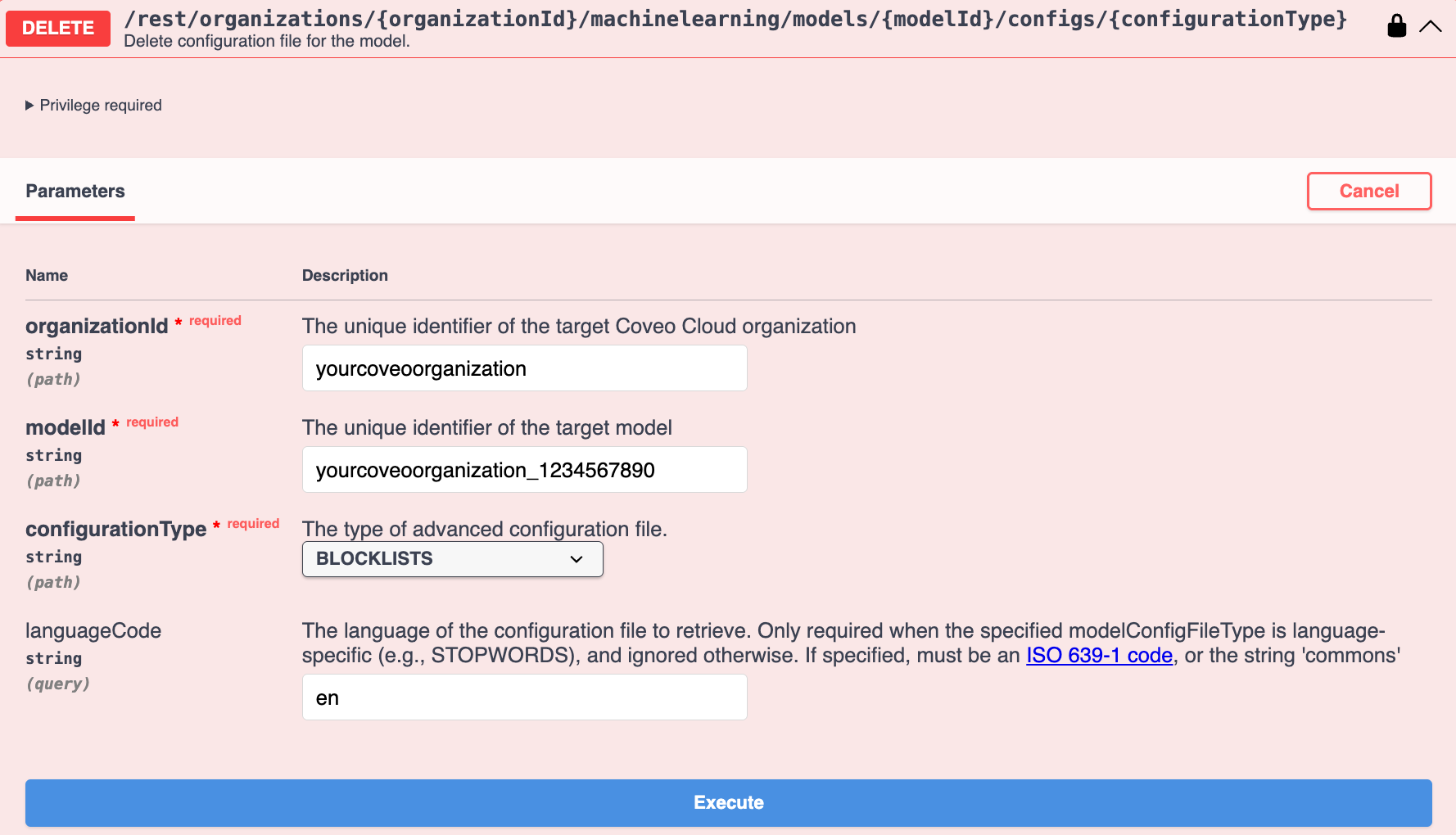
-
Enter the required parameters for the model and configuration type.
-
Click Execute. The response body shows a list of the advanced configuration files currently used by the model.
-
Advanced model configuration API parameters
The following parameters are used in the advanced model configuration API. Not all parameters are required for every request. The parameters to use depend on the specific operation being performed.
configurationType (string) - required
Parameter type: query
The type of advanced configuration file. Available values are:
-
BLOCKLISTS -
STOPWORDS -
DEFAULT_QUERIES
|
|
Note
The DEFAULT_QUERIES configuration doesn’t apply to this model and has no effect on its behavior. |
languageCode (string) - optional
Parameter type: query
The language of the configuration file.
It must be an ISO 639-1 code, or the string commons.

|
For a configuration file that uses the For example, your model processes queries in English ( |
modelId (string) - required
Parameter type: path
The unique identifier of the target model (see Review model information).
myOrganization_topclicks_22ec9966_0f8b_4adc_967d_65219552192a
organizationId (string) - required
Parameter type: path
a1b2c3d4e5cvoorg
configFile (file) - required
|
|
Note
This applies only when uploading a model’s advanced configuration file. |
Parameter type: formData
The configuration file to be uploaded.
Required privileges
The following table indicates the privileges required to manage models (see Manage privileges and Privilege reference).
| Action | Service | Domain | Required access level |
|---|---|---|---|
View models |
Machine Learning |
Models |
View |
Organization |
Organization |
View |
|
Search |
Query pipelines |
View |
|
Edit models |
Machine Learning |
Models |
Edit |
Organization |
Organization |
View |
|
Search |
Query pipelines |
View |