Troubleshooting Quick view issues
Troubleshooting Quick view issues

The Quick view lets you inspect an item’s rendered content directly in the Content Browser (platform-ca | platform-eu | platform-au) without leaving the Coveo Administration Console. Issues can range from missing or broken content to unexpected rendering behavior, depending on the source type and how the original content is structured.
The following sections cover specific symptoms and their resolutions:
"Quick view" tab is missing

|
Context and symptoms

Likely cause and resolutionCause Your file type default action for the given file extension may be set to Resolution
|
Missing or unexpected item content
If you have items missing part of their expected content or displaying unexpected content in the Quick view tab, check the following cases for cause and resolution guidelines:
Web scraping issue
|
|
Context and symptoms
You’ve indexed content using a Web source or a Sitemap source.
Likely cause and resolutionCause A web scraping configuration may be removing the missing sections. Resolution On the Sources (platform-ca | platform-eu | platform-au) page, review your source’s web scraping configurations:
See the Web source or Sitemap source documentation for details on these settings. |
Indexing pipeline extension issue
|
|
Context and symptoms
Likely cause and resolutionCause An indexing pipeline extension (IPE) may be removing the missing sections. Resolution Review the logs for the items affected by the extensions. Make necessary adjustments to the extension script or conditions. |
Quick view displays HTML tags
|
|
Context and symptoms
In the Content Browser (platform-ca | platform-eu | platform-au), an item’s Quick view displays HTML tags that come from the original content system. Likely cause and resolutionCause Coveo interprets the item’s body as text rather than HTML. Resolution |
Quick view displays authentication page
|
|
Context and symptoms
You’ve indexed content using a Web source or a Sitemap source.
Likely cause and resolutionCauses This is likely due to one of the following:
Resolution First make sure that the source’s authentication information is accurate and properly set up:
If the Quick view still displays the authentication page, consider making the following adjustments:
See the Web source or Sitemap source documentation for details on these settings. |
Dynamic content is missing
|
|
Context and symptoms
You’ve indexed content using a Web source or a Sitemap source.
Likely cause and resolutionCause The source may be crawling your page before all its dynamic content is rendered. Resolution On the Sources (platform-ca | platform-eu | platform-au) page, open your source. On the Advanced settings subtab, make sure Execute JavaScript on pages is enabled. Increase the Time the crawler waits before considering a page as fully rendered value, if necessary. See the Web source or Sitemap source documentation for details on these settings. |
PDF is copy-protected
|
|
Context and symptoms
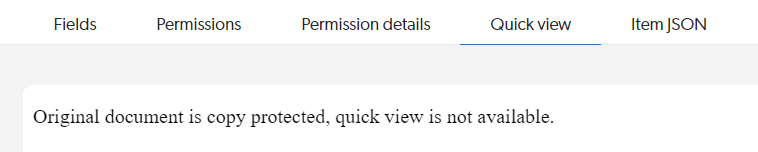
When viewing a PDF item in the Content Browser (platform-ca | platform-eu | platform-au), you notice the following:
Likely cause and resolutionCause The PDF is password-protected. 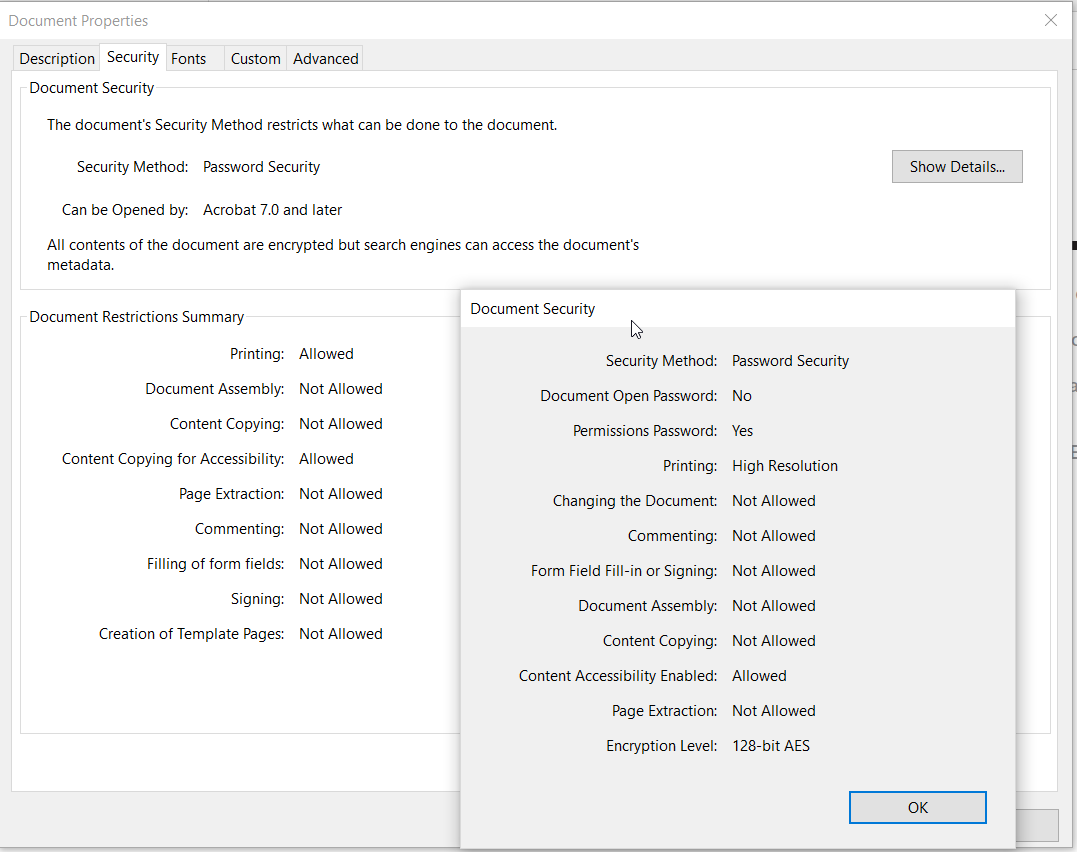
Therefore, the source can’t retrieve the document binary content it needs to generate the description and the Quick view. Resolution
|
SharePoint Online content is missing
|
|
Context and symptoms
You’ve indexed SharePoint Online pages using a SharePoint Online source. In the Quick view of a page item, the content added using the Embed web part isn’t displayed. Likely cause and resolutionCause The For example, if you embed a YouTube video in a SharePoint Online page, the video isn’t displayed in the Quick view.
Only information about the video included in the Resolution The described behavior is the expected one. As a workaround, you may consider integrating the content of the external page into the SharePoint Online page, in a text section or comment. |
SharePoint Online site items show HTML tags or unexpected characters
|
|
Context and symptoms
When accessing the Quick view of a page item, HTML tags or unexpected characters are displayed. Likely cause and resolutionCause The SharePoint Online connector retrieves the Resolution A possible solution may be to replace the web part (for example, the Code Snippet web part) with a more basic one in the SharePoint Online page. |
Images are broken
|
|
Context and symptoms
In the Quick view of an item, images are broken. 
Likely cause and resolutionCause The connector retrieves web page HTML as is and doesn’t retrieve the images referenced in the HTML.
The Content Browser Quick view displays this HTML without any alteration.
This means it doesn’t replace relative paths, such as Images that require authentication to be viewed also appear broken when browsing the web page item Quick view in the Content Browser. Resolution None. This is a known limitation of the Content Browser Quick view. The Quick view is intended to provide a preview of the item content, not a full rendering of the web page.
To view the full web page, users can open the original document by clicking the item |
Quick view doesn’t play YouTube videos
|
|
Context and symptoms
You’ve indexed content using a YouTube source.
When reviewing a video item’s Quick view in the Content Browser (platform-ca | platform-eu | platform-au), the Quick view displays the video’s description, but the player reads 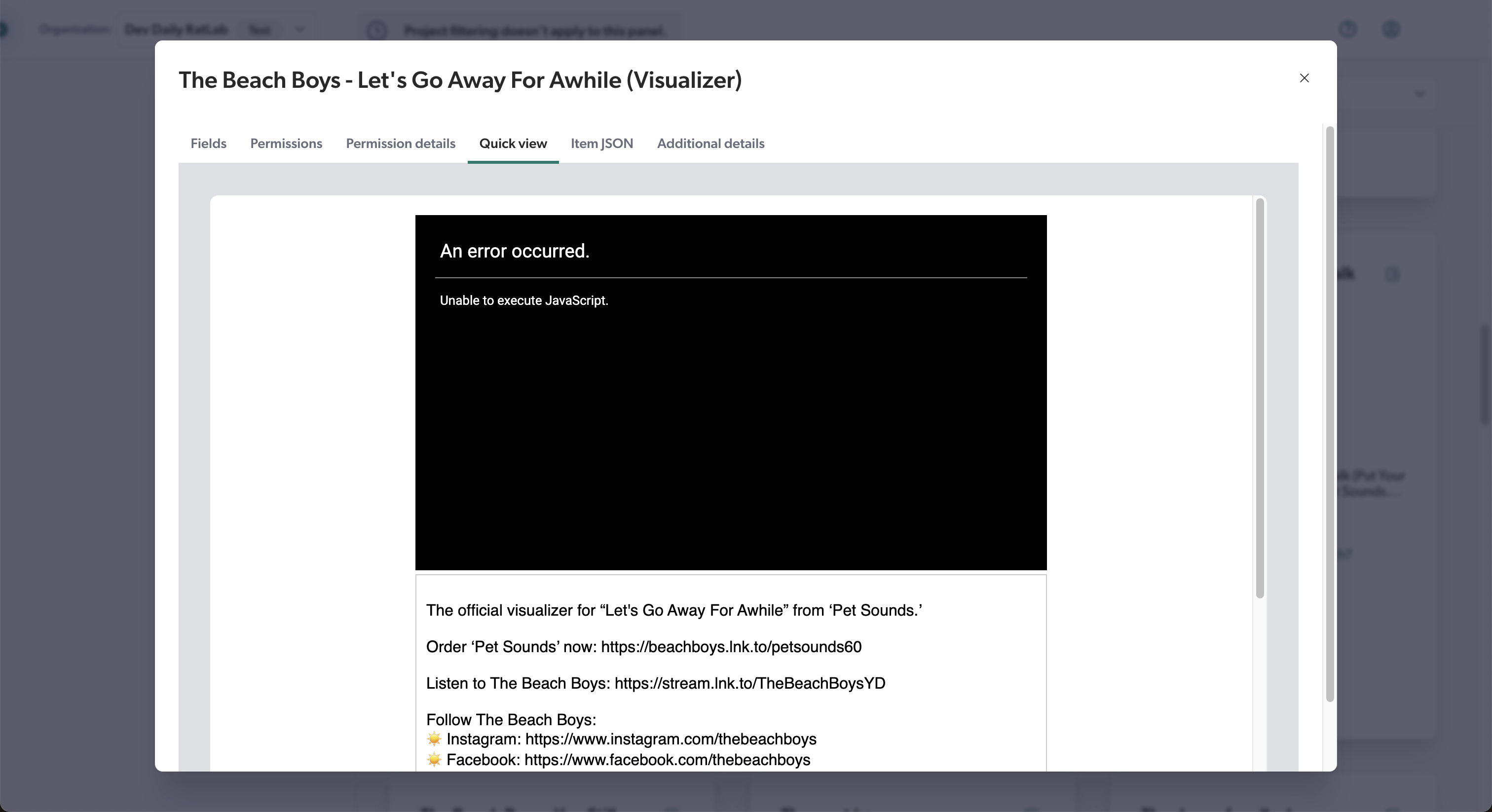
Likely cause and resolutionCause This is expected. YouTube videos can’t be played in the Quick view tab for security reasons. Resolution To play a video, close the item properties panel. Back in the Content Browser, select the item, and then click Open in the Action bar. This will open YouTube in a new tab. |