Monitor the Crawling Module
Monitor the Crawling Module

After completing the Crawling Module deployment process, you should monitor your Crawling Module instances to ensure they’re running properly and indexing content as expected.
Several monitoring tools are available:
-
The Crawling Modules (platform-ca | platform-eu | platform-au) page of the Coveo Administration Console, which displays when each instance last communicated with the Coveo Platform, its current version, and more. See About the Crawling Modules page for details.
-
A deployment dashboard that displays the state of each component and worker in your Crawling Module instance. This dashboard is available at http://localhost:5000/ or any other port selected for Maestro. See About the deployment dashboard for details.
-
A notification feature you can set up to be informed when the Crawling Module stops reporting to the Coveo Platform for three consecutive days.
-
The Activity Browser (platform-ca | platform-eu | platform-au) page of the Coveo Administration Console, which lets you review the activities related to the Crawling Module.
About Crawling Module updates
The Crawling Modules (platform-ca | platform-eu | platform-au) page of the Coveo Administration Console shows the latest version of the Crawling Module available, the version your instance is currently using, and when it was last updated.
The Crawling Module update process is automatic. As a result, your instance benefits from the latest features and software updates, and is prevented from becoming incompatible with the most recent Coveo Platform update.
To stay up to date, the Crawling Module periodically polls Coveo for a new version. If an update is available, it will be downloaded and installed within 24 hours, at the scheduled update time. The default time is 11:00 PM in the host server’s time zone.
Since the update process is automatic, you don’t need to launch it manually, unless it fails. In such a case, the Crawling Modules (platform-ca | platform-eu | platform-au) page reports the issue, and you can either try to update manually or contact the Coveo Support team.

|
Subscribe to notifications to be informed when the Crawling Module is down or obsolete. |
About the Crawling Modules page
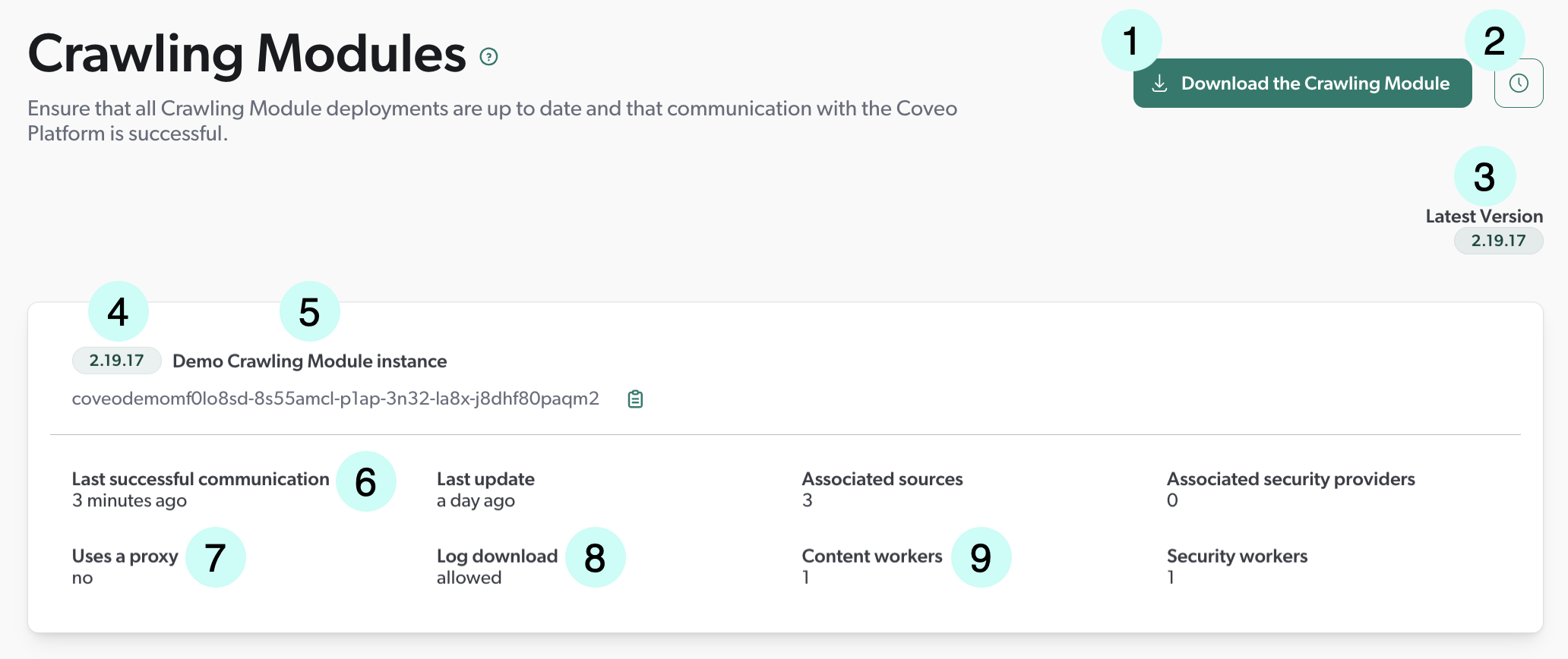
The Crawling Modules (platform-ca | platform-eu | platform-au) page displays the state of the communication between the Coveo Platform and each of your Crawling Module instances, along with other information.
1 |
Download and deploy the Crawling Module on another server to index more content. |
2 |
Review Crawling Module-related activities for investigation or troubleshooting purposes. |
3 |
The Latest version is the version number of the most recent Maestro update. See Maestro release notes for details on the changes in this version. |
4 |
If your Crawling Module doesn’t use the latest Maestro version, update it as soon as possible so that it keeps indexing your content. |
5 |
Each Crawling Module instance is identified by a default name, which you can change in the instance’s Maestro configuration. |
6 |
The Crawling Module sends a status update to the Coveo Platform every five minutes. |
7 |
Update your proxy settings in the Crawling Module’s Maestro configuration. |
8 |
If this feature is enabled, you can download your Crawling Module logs through this page or the Activity Browser (platform-ca | platform-eu | platform-au). |
9 |
Read about adding workers to determine whether you need more. |
10 |
Download the Crawling Module logs. This button is visible when the feature is enabled. |
About the deployment dashboard
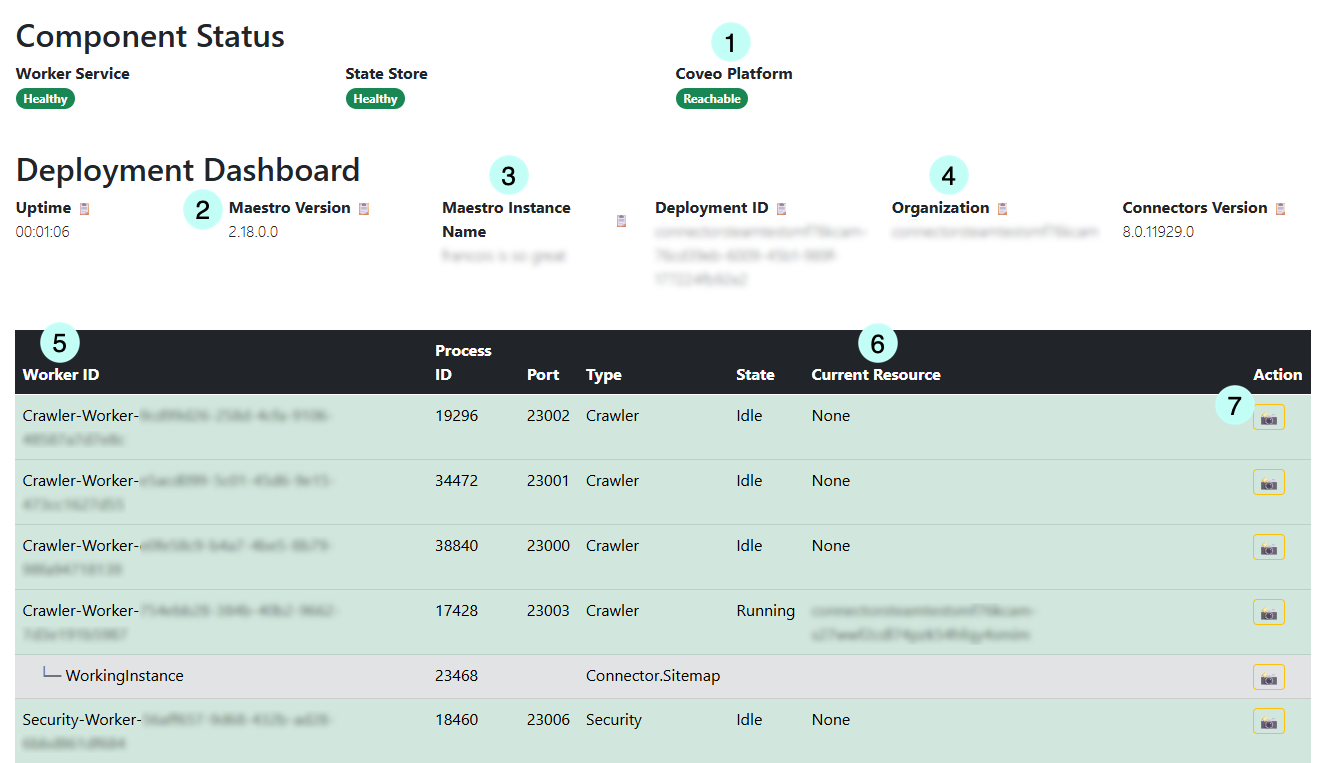
The deployment dashboard displays the state of each component and worker of a Crawling Module instance, along with other information.
It’s available at http://localhost:5000/ or any other port selected for Maestro.
It’s also available from the Windows Start menu under Coveo Crawling Module.
1 |
The Crawling Module sends a status update to the Coveo Platform every five minutes. |
2 |
If your Crawling Module doesn’t use the latest Maestro version, update it as soon as possible so that it keeps indexing your content. The latest version appears on the Crawling Modules (platform-ca | platform-eu | platform-au) page of the Coveo Administration Console and in the Maestro release notes. |
3 |
Each Crawling Module instance is identified by a default name, which you can change in the instance’s Maestro configuration. |
4 |
The ID of the Coveo organization linked to your Crawling Module. |
5 |
|
6 |
The Current resource column displays the ID of the source or security identity provider where the worker sends the data it processes. |
7 |
Click the camera icon to save a memory dump of the worker onto your server for troubleshooting purposes.
The dump is saved in the |
Subscribe to Crawling Module notifications
You can subscribe to notifications to be informed when the Crawling Module stops reporting to the Coveo Platform for three consecutive days. This can be due to the Crawling Module being outdated, its host server being shut down, a lack of Internet access, a communication issue, etc.
When the Crawling Module can’t communicate with the Coveo Platform, it can’t index your content changes. As a result, the content in your Coveo-powered search interface becomes outdated compared to your actual data.
Subscribing to notifications ensures you’re informed early, so you can act and minimize the impact on your search results.
To receive a notification when the Crawling Module is outdated and deactivated
On the Notifications (platform-ca | platform-eu | platform-au) page, create a notification with the following JSON filter:
{
  "content": {},
  "operations": [
    "DISABLE"
  ],
  "resourceTypes": [
    "CRAWLING_MODULE"
  ],
  "resultTypes": [
    "*"
  ]
}
Required privileges
The following table indicates the privileges required to view the Crawling Modules (platform-ca | platform-eu | platform-au) page.
See Sources: required privileges for the additional privileges required to add and edit Crawling Module sources.
| Action | Service | Domain | Required access level |
|---|---|---|---|
|
Content |
Crawling Module |
View |
Security identities provider |
View |
||
Sources |
View |
||
Organization |
Organization |
View |

|
A member with the View access level on the Activities domain can access the Activity Browser. This member can therefore see all activities taking place in the organization, including those from Coveo Administration Console pages that they can’t access. |