GraphQL API source permission configuration
GraphQL API source permission configuration

When writing your GraphQL API source JSON configuration, you can choose to index the access permissions securing your content and replicate them in your Coveo-powered search interface. As a result, through your search interface, authenticated users only see the items that they’re allowed to access within the indexed repository. Anonymous and unauthenticated users are impossible to relate to a security identity in this repository, so they can’t access the source content. For details on the permission evaluation process, see Management of security identities and item permissions.
If, in your content system, access permissions are saved as item metadata, you can index them with one of the following methods. The method to use depends on your permission system.
-
If your permission system doesn’t use group security identities and identifies security identities with email addresses, you could index your permission data through your source configuration only. This option works if your permission system is relatively straightforward and doesn’t change frequently, as an update operation is required whenever your permission system is modified (user addition/deletion or access permission modification) to keep your source’s permission system identical to your application’s. Check the source configuration documentation for an example of permissions indexed directly in the source configuration.
-
If your permission system is more complex, in addition to a source configuration that retrieves item permissions, you must provide a permission configuration defining how Coveo should retrieve the relationships of the security identities indexed thanks to your source configuration. This allows Coveo to define the effective permissions of each item.
In either case, on the Content security tab of the Add a GraphQL API source panel, you must select the Same users and groups as in your content system option. The difference is, if you choose option 1, you don’t need to provide a separate JSON permission configuration. However, with option 2, you must instruct Coveo on how to extract the users from the groups that have been identified as allowed or denied access to your indexed items.
Your workflow with option 2 should be the following:
-
In your source configuration, you provide a
PermissionTypevalue. This value identifies the configuration that the security identity provider should use to extract the relationships of the security identities indexed thanks to your source configuration. -
On the Content security tab, you provide at least one
permissionSubQueriesobject for eachPermissionTypespecified in your source configuration. This object must contain the parameters of a query Coveo should make to your application to retrieve the relationships of the security identities indexed thanks to your source configuration. -
Depending on the information returned in your application’s JSON response, you may need to add additional
permissionSubQueriesobjects orPermissionsFromMetadataobjects to retrieve all user security identities in each group identity.
For example, let’s say you want to index a GitHub repository.
With the following source configuration, you would index the repository specified under path as well as the list of teams that are allowed to access this repository.
{
  "services": [
    {
      "url": "https://api.github.com",
      "headers": {
        "accept": "application/vnd.github.v3+json",
        "User-Agent": "PostmanRuntime/7.29.0"
      },
      "authentication": {
        "username": "@username",
        "password": "@password",
        "forceBasicAuthentication": "true"
      },
      "endpoints": [
        {
          "path": "/repos/mycompany/teamsandbox",
          "method": "GET",
          "itemPath": "",
          "itemType": "Repo",
          "uri": "%[coveo_url]/repo/%[id]",
          "clickableUri": "%[url]",
          "title": "%[full_name]",
          "modifiedDate": "%[updated_at]",
          "body": "%[description]",
          "metadata": {
            "default_branch": "%[default_branch]"
          },
          "permissions": [
            {
              "name": "AllowedMemberLevel",
              "permissionsSets": [
                {
                  "name": "AllowedMembersSet",
                  "isAnonymousAllowed": "false",
                  "PermissionSubQueries": [
                    {
                      "path": "/repos/mycompany/teamsandbox/teams",
                      "method": "GET",
                      "itemPath": "",
                      "isAllowedMember": "true",
                      "name": "%[name]",
                      "permissionType": "GithubGroups",
                      "type": "Group",
                      "optional": "false",
                      "additionalInfo": {
                        "members_url": "%[url]/members"
                      }
                    }
                  ]
                }
              ]
            }
          ]
        }
      ]
    }
  ]
}
Next, you would need to extract the users of each team group with a PermissionSubQueries object, and then associate these users with an email address, either using another PermissionSubQueries object or with a PermissionsFromMetadata object.
The following permission configurations showcase each option.
In this specific case, the results of these two configurations are identical.
-
With an additional
permissionSubQueriesobject:{ "url": "https://api.github.com", "headers": { "accept": "application/vnd.github.v3+json", "User-Agent": "PostmanRuntime/7.29.0" }, "authentication": { "username": "@username", "password": "@password", "forceBasicAuthentication": "true" }, "Identities": { "GithubGroups": { "PermissionSubQueries": [{ "ItemPath": "", "Path": "%[coveo_parent.members_url]", "Method": "GET", "Name": "%[login]", "additionalInfo": { "url": "%[url]" }, "Type": "User", "PermissionType": "GithubUsers" } ] }, "GithubUsers": { "PermissionSubQueries": [{ "ItemPath": "", "Path": "%[coveo_parent.url]", "Method": "GET", "Name": "%[login]@example.com", "Type": "User" } ] } } } -
With a
PermissionsFromMetadataobject:{ "url": "https://api.github.com", "headers": { "accept": "application/vnd.github.v3+json", "User-Agent": "PostmanRuntime/7.29.0" }, "authentication": { "username": "@username", "password": "@password", "forceBasicAuthentication": "true" }, "Identities": { "GithubGroups": { "PermissionSubQueries": [{ "ItemPath": "", "Path": "%[coveo_parent.members_url]", "Method": "GET", "Name": "%[id]", "additionalInfo": { "userlogin": "%[login]" }, "Type": "User", "PermissionType": "GithubUsers" } ] }, "GithubUsers": { "PermissionsFromMetadata": [{ "Name": "%[coveo_parent.userlogin]@example.com", "Type": "User" } ] } } }
When working on your GraphQL API source, you may also want to refer to the following articles:
Table of contents
To help you jump to the right section, here’s a hierarchical and alphabetical list of all supported arrays, objects, and parameters. Alternatively, click one of the main topics and capabilities below.
Show table of contents
| Hierarchical list | Alphabetical list |
|---|---|
|
|
Show main topics and capabilities
Url (string, required)
The Url value is the service URL of the web application from which you want to retrieve permission data.
Example: "Url": "https://example.com/api/v1"
Identities (object, required)
The Identities object contains objects named after the PermissionType parameter values specified in your source configuration.
Their name allows Coveo to link the identities retrieved thanks to the source configuration PermissionsSets and PermissionSubqueries arrays with the desired extraction instructions.
The key is the PermissionType value specified either in your source configuration or in a PermissionSubQueries object of your JSON permission configuration.
In either case, the PermissionType value allows Coveo to link the identities retrieved in one place to its relationships extracted in another.
Each key in the Identities object is associated with an object that contains a permissionSubQueries array.
This array includes the information that the security provider will use to get your permission data and the relationships of a security identity.
It also includes mapping information, that is, how Coveo should store this data.
Example
In your source JSON configuration, you retrieve some group security identities allowed to access items.
You also want to index the relationships of these security identities, that is, the group members, so you provide a permission JSON configuration.
To link your source JSON configuration with your permission JSON configuration, you specify a PermissionType value in your source JSON configuration.
This value is extractgroupmembers.
So, if your API returns engineers@example.com as a group security identity, the security identity provider will use the details under extractgroupmembers to make a query to get the members of this group.
"AllowedMembers": [
  {
    "Name": "%[groupemail]",
    "Type": "Group",
    "PermissionType": "extractgroupmembers",
    "Condition": "%[field] == value",
    "AdditionalInfo": {
      "title": "%[customMetadata]"
    }
  }
]
Then, in your permission JSON configuration, you use extractgroupmembers as a key under Identities.
The value of this key is an object of details allowing the security identity provider to extract the relationships of the security identities retrieved thanks to your source JSON configuration.
In other words, the security identity provider will use the details under extractgroupmembers to make a query to get members of engineers@example.com, that is, the mechanicalteam@example.com and electricalteam@example.com groups.
The member extraction object contains "permissionType": "extractmembers2".
This means that, once it has extracted the members of the group identities, the security identity provider must then use the details under extractmembers2 to extract the relationships of the extracted identities.
"identities": {
  "extractgroupmembers": {
    "permissionSubQueries": [
      {
        "path": "string",
        "method": "GET",
        "headers": {
          "key": "value"
        },
        "queryParameters": {
          "key": "value"
        },
        "itemPath": "string | %[string]",
        "paging": {
          "key": "value"
        },
        "name": "%[fullname]",
        "permissionType": "extractmembers2",
        "type": "group",
        "additionalInfo": {
          "key": "value"
        }
      }
    ]
},
  "extractmembers2": {
    "permissionSubQueries": [
      {
        "path": "string",
        "method": "GET",
        "headers": {
          "key": "value"
        },
        "queryParameters": {
          "key": "value"
        },
        "itemPath": "string | %[string]",
        "paging": {
          "key": "value"
        },
        "name": "%[fullname]",
        "type": "user",
        "additionalInfo": {
          "key": "value"
        }
      }
    ]
  }
}
As a result, Coveo makes another query to get the members of the mechanicalteam@example.com and electricalteam@example.com groups.
The API returns user security identities, such as jsmith@example.com and ballen@example.com.
This means that search page users logging in with one of these email addresses will be allowed to access the indexed content through a Coveo-powered search page.
PermissionSubQueries (array, required)
Identities > PermissionSubQueries
In the PermissionSubQueries array, each object represents a query that Coveo will make to retrieve your permission data and extract the relationships of a security identity.
It is an alternative to the PermissionsFromMetadata object.
Example
{
  "url": "https://api.example.com",
  "authentication": {
    "username": "@username",
    "password": "@password",
    "forceBasicAuthentication": "true"
  },
  "Identities": {
    "GithubGroups": {
      "PermissionSubQueries": [
        {
          "ItemPath": "",
          "Path": "%[coveo_parent.members_url]",
          "Method": "GET",
          "headers": {
            "User-Agent": "PostmanRuntime/7.29.0"
          },
          "Name": "%[login]",
          "additionalInfo": {
            "url": "%[url]"
          },
          "Type": "User",
          "PermissionType": "ExtractUsers"
        }
      ]
    },
    "ExtractUsers": {
      "PermissionSubQueries": [
        {
          "ItemPath": "",
          "Path": "%[coveo_parent.url]",
          "Method": "GET",
          "headers": {
            "User-Agent": "PostmanRuntime/7.29.0"
          },
          "Name": "%[login]@example.com",
          "Type": "User"
        }
      ]
    }
  }
}
In each object, specify the parameters of the query to make.
Objects of the PermissionSubQueries array support:
Method (string enum, required)
Identities > PermissionSubQueries > Method
The HTTP method to use to fetch the resource.
Possible values are GET, POST, and PUT.
See the API documentation of the application to make searchable to determine which one you should use.
Example: "method": "GET"
Member Name (string, required)
Identities > PermissionSubQueries > Name
The name of the extracted member security identity. Email addresses and Active Directory usernames are supported.
Dynamic values are supported.

|
Note
By default, the source uses an Email Security Provider and therefore expects an email address under |
Path (string, required)
Identities > PermissionSubQueries > Path
The relative path to the desired permission data endpoint.
Example: "Path": "accesspermissions/groups/supportagents"
Member Type (string enum, required)
Identities > PermissionSubQueries > Type
The type of member.
Allowed values are User, Group, and VirtualGroup.
For more information on these types of security identities, see Coveo management of security identities and item permissions.
AdditionalInfo (object)
Identities > PermissionSubQueries > AdditionalInfo
AdditionalInfo can be used to enrich a security identity with custom information to make it unique.
For example, if two users have the same name, AdditionalInfo lets you specify more information about each user, like their employee ID.
This custom information is part of the security identity, just like its name and its type.
Each key in the AdditionalInfo object represents the name of a piece of metadata, while the corresponding value is the value path (simple path or JSONPath) in your API’s JSON response.
Dynamic values are supported.
You can use coveo_parent to refer to the information retrieved with the AdditionalInfo object of a permission subquery in your source configuration.
Example
Your source configuration contains the following Permissions object, which indicates that members of the Support Agents group should be allowed to access the indexed content:
"Permissions": [
  {
    "Name": "Permission Level 1",
    "PermissionsSets": [
      {
        "Name": "Permission Set 1",
        "AllowedMembers": [
          {
            "Name": "Support Agents",
            "Type": "Group",
            "PermissionType": "MyPermissionType2",
            "AdditionalInfo": {
              "group_id": "00841"
            }
          }
        ],
      }
    ]
  }
]
To extract the members of this group, you provide the following permission configuration.
Therefore, the security identity provider will use the group_id you specified in the source configuration to make an API request and obtain the group members.
Then, the security provider will refer to the user instructions to retrieve the desired information on the extracted group members.
"identities": {
  "group": {
    "permissionSubQueries": [
      {
        "path": "/group/%[coveo_parent.group_id]/members",
        "method": "GET",
        "itemPath": "members",
        "permissionType": "user",
        "name": "%[username]",
        "type": "User",
        "additionalInfo": {
          "user_id": "%[user_id]"
        }
      }
    ]
  },
  "user": {
    "permissionSubQueries": [
      {
        "path": "/users/%[user_id]",
        "method": "GET",
        "itemPath": "user",
        "name": "%[email]",
        "type": "User"
      }
    ]
  }
}
Permission Condition (string)
Identities > PermissionSubQueries > Condition
The Condition value is a condition that must resolve to true for the security identity specified in Name to be resolved, that is, extracted by the security identity provider.
As a result, the permission applies.
When the condition resolves to false, the security identity is not resolved and the corresponding permission doesn’t apply.
Adding a condition to your permission subquery object is optional.
To write your condition, use the same syntax as for indexing pipeline extension conditions.
Conditions can be assembled using the following operators: AND, OR, Exists, NOT, >, and <.
Parentheses are also supported to specify operation order.
The metadata fields in your condition must either be defined in the Metadata object of the source configuration or referenced with raw.
You can specify an array if the metadata refers to a multi-value field in your repository.
Dynamic values are also supported.
For more information on sources that index permissions and on how Coveo handles these permissions, see Coveo management of security identities and item permissions.
ItemPath (string)
Identities > PermissionSubQueries > ItemPath
To index items or permissions, Coveo needs to know where to find this data in your API’s JSON response.
By default, Coveo assumes that the data to index is at the root level of the JSON response. In such case, you don’t have to provide a location.
If your data isn’t at the root level of the JSON response, you must specify its path using JSONPath syntax.
Use ItemPath if your API returns the list of items or permissions as a series of objects.
If your API returns the list in an array, use StringItemPath instead.
Read more on ItemPath vs. StringItemPath
Most APIs return items or permissions as a series of objects such as:
{
  "allowed": [
    {
      "email": "jsmith@example.com"
    },
    {
      "email": "ballen@example.com"
    }
  ]
}
In such a case, you would use ItemPath to extract permissions.
However, if your API rather returns items or permissions as strings in a JSON array, you should use StringItemPath instead.
{
  "allowed": ["jsmith@example.com", "ballen@example.com"]
}|
|
Note
|
Example
If your API’s response looks like this:
{
  "count": 8,
  "entries": [
    {
      "results": [
        { "id": 1, "name": "Caroline" },
        { "id": 2, "name": "Marcella" },
        { "id": 3, "name": "Susie" },
        { "id": 4, "name": "Rhonda" },
        { "id": 5, "name": "Wendy" },
        { "id": 6, "name": "Barbara Ann" },
        { "id": 7, "name": "Deirdre" },
        { "id": 8, "name": "Lynda" }
      ]
    }
  ]
}
Then your source configuration should contain the following:
"ItemPath": "entries[0].results"This tells Coveo to index the results array of the first entries object in the JSON response.
Optional (Boolean)
Identities > PermissionSubQueries > Optional
The Optional value indicates whether the specified Condition is optional when there is no match.
In other words, if the condition doesn’t resolve to true for any of the members extracted of a group, the security identity provider either:
-
Resolves no security identity if you set
"optional": false. As a result, none of the group member identities is considered as allowed to access the indexed content. -
Resolves all security identities in the group if you set
"optional": true, and therefore all security identities in the group are considered as allowed to access the indexed content.
Default value is false.
PayloadJsonContent (string)
Identities > PermissionSubQueries > PayloadJsonContent
The content to send as a POST request body. This can be either of the following:
-
A placeholder for a GraphQL query that you’ll enter separately, in the GraphQL queries section.
-
An escaped JSON string.
We highly encourage you to use a placeholder, as the escaped JSON is harder to read and edit due to the large number of backslashes.
Either way, you may want to use a GraphQL-to-JSON conversion tool such as Data Fetcher’s to help you write your queries.
The Content-Type header is automatically set to application/json.
Dynamic values are supported.
|
|
Notes
|
PayloadParameters (object)
Identities > PermissionSubQueries > PayloadParameters
A key-value list of HTTP parameters to add to the payload.
Each value can be either a number, string, Boolean, or a placeholder for a GraphQL query that you’ll enter separately, in the GraphQL queries section.
This property can only be used in a POST request.
The parameters are sent as URL-encoded data in the request body.
The Content-Type header is automatically set to application/x-www-form-urlencoded.
Dynamic values are supported.
Dynamic time expressions are supported.
|
|
Notes
|
Examples:
Basic example
"PayloadParameters": {
  "type": "post",
  "expand": "true",
  "id": 120
}
Authentication with an API key as a payload parameter
If your API requires Coveo to authenticate with an API key as the value of the api_key payload parameter, you must enter this key in the Authentication section of the Add a GraphQL API source panel.
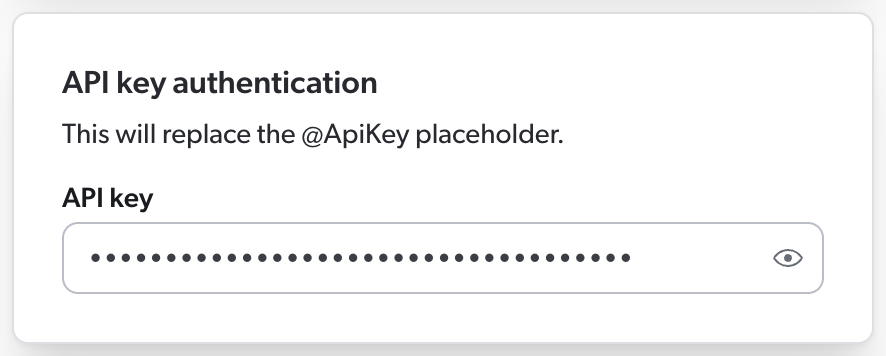
Then, in your source JSON configuration, you must use the @ApiKey placeholder to refer to this key.
This ensures that your API key is encrypted rather than stored in clear text in the source JSON configuration, where other Administration Console users could access it.
When Coveo processes the source configuration, it replaces the placeholder with the actual key you entered in the panel.
Your source configuration could therefore look like this.
"PermissionSubQueries": [
{
"ItemPath": "",
"Path": "%[coveo_parent.members_url]",
"Method": "POST",
"Name": "%[login]",
"additionalInfo": {
"url": "%[url]"
},
"Type": "User",
"PermissionType": "SystemUsers",
"PayloadParameters": {
"api_key": "@ApiKey"  }
}
]
}
}
] |
api_key is the name of the payload parameter that your API expects to contain the API key. |
As a result, Coveo sends the following HTTP request to the API:
POST /users HTTP/1.1
Host: https://example.com/api/v1
api_key=Az4adfSyBhZX8fTThUJ4Kb2TC3Ax0RshgrZtUiqM |
Az4adfSyBhZX8fTThUJ4Kb2TC3Ax0RshgrZtUiqM is the API key you entered in the source panel. |
PermissionType (string)
Identities > PermissionSubQueries > PermissionType
The PermissionType value in a permission subquery indicates which extraction instructions Coveo should use to extract the relationships of the security identities retrieved thanks to this subquery.
It leads to a different object under the Identities object.
Example
"Identities": {
  "GithubGroups": {
    "PermissionSubQueries": [
      {
        "ItemPath": "",
        "Path": "%[coveo_parent.members_url]",
        "Method": "GET",
        "Name": "%[login]",
        "additionalInfo": {
          "url": "%[url]"
        },
      "Type": "User",
      "PermissionType": "GithubUsers"
      }
    ]
  },
    "GithubUsers": {
      "PermissionSubQueries": [
        {
        "ItemPath": "",
        "Path": "%[coveo_parent.url]",
        "Method": "GET",
        "Name": "%[login]@example.com",
        "Type": "User"
      }
      ]
    }
  }
QueryParameters (object)
Identities > PermissionSubQueries > QueryParameters
A key-value list of HTTP parameters to add to the query. Each value can be either a number, string, or Boolean.
Dynamic values are supported.
Example:
"QueryParameters": {
  "type": "post",
  "expand": "true",
  "id": 120
}
IsAllowedMember (Boolean)
Identities > PermissionSubQueries > IsAllowedMember
The IsAllowedMember property indicates whether the specified member is allowed to access the item.
Default value is false.
For more information on sources that index permissions and on how Coveo handles these permissions, see Coveo management of security identities and item permissions.
StringItemPath (string)
Identities > PermissionSubQueries > StringItemPath
To index items or permissions, Coveo needs to know where to find this data in your API’s JSON response.
By default, Coveo assumes that the data to index is at the root level of the JSON response. In such case, you don’t have to provide a location.
If the items aren’t at the root level of the JSON response, you must specify the path to the items with JSONPath syntax.
Use StringItemPath if your API returns the list of items or identities in an array.
If your API returns the list as a series of objects, use ItemPath instead.
Read more on StringItemPath vs. ItemPath
Most APIs return items or permissions as a series of objects such as:
{
  "allowed": [
    {
      "email": "jsmith@example.com"
    },
    {
      "email": "ballen@example.com"
    }
  ]
}
In such a case, you would use ItemPath to extract permissions.
However, if your API rather returns items or permissions as strings in a JSON array, you should use StringItemPath instead.
{
  "allowed": ["jsmith@example.com", "ballen@example.com"]
}|
|
Note
|
When you use StringItemPath in a permission subquery, use value %[item] to tell Coveo where you want to store each of the identities extracted from the permission array.
In that permission context, the Name property is an appropriate place.
Example
If you expect your API to return items or permissions in an array such as:
{
  "users": ["jsmith@example.com", "ballen@example.com"]
}
Your source configuration should contain "StringItemPath": "users".
In a permission subquery, to index the extracted user identities under Name, also add: "Name": %[item].
Your permission subquery therefore looks as follows:
"permissionSubQueries": [
  {
    "StringItemPath": "users",
    "Path": "item/location",
    "Method": "GET",
    "Name": "%[item]",
    "Type": "User",
    "IsAllowedMember": true
  }
]
PermissionsFromMetadata (object)
Identities > PermissionsFromMetadata
The PermissionsFromMetadata object is an alternative to the PermissionSubQueries object.
It fetches security identity relationship data, typically the security identities that are children of a group.
This data is crucial to retrieve if you want to replicate the application’s permission system in Coveo.
Include a PermissionsFromMetadata object in your source permission configuration when the two following conditions are met:
-
The permission data extracted with your source configuration is susceptible to contain group security identities.
-
The metadata of these identities contains information on their children.
Leverage PermissionsFromMetadata to avoid unnecessary new queries to the application you’re indexing.
The following is an example of a permission configuration in such a scenario:
{
  "url": "https://api.github.com",
  "authentication": {
    "username": "@username",
    "password": "@password",
    "forceBasicAuthentication": "true"
  },
  "Identities": {
    "GithubGroups": {
      "PermissionSubQueries": [{
        "ItemPath": "",
        "Path": "%[coveo_parent.members_url]",
        "Method": "GET",
        "headers": {
          "accept": "application/vnd.github.v3+json",
          "User-Agent": "PostmanRuntime/7.29.0"
        },
        "Name": "%[id]",
        "additionalInfo": {
          "userlogin": "%[login]"
        },
        "Type": "User",
        "PermissionType": "GithubUsers"
      }
      ]
    },
    "GithubUsers": {
      "PermissionsFromMetadata": [{
        "Name": "%[coveo_parent.userlogin]@example.com",
        "Type": "User"
      }
      ]
    }
  }
}
Conversely, a second PermissionSubQueries object should be used when Coveo only receives a PermissionType value and must make a new query to retrieve the children of a group security identity.
For more information on sources that index permissions and on how Coveo handles these permissions, see Coveo management of security identities and item permissions.
In a PermissionsFromMetadata object, you must use the coveo_parent dynamic value.
In this context, the parent item is the security identity indexed thanks to your source configuration.
The PermissionsFromMetadata object contains a subset of the fields from the PermissionSubQueries object configuration:
Authentication (object)
If your API service requires Coveo to authenticate, you must enter the necessary credentials in the Authentication section of the Add a GraphQL API source panel.
Then, in your JSON configuration, you must specify how Coveo should use these credentials to authenticate with the API.
If your API uses password-based or OAuth 2.0 authentication, you must use the Authentication object, which contains the information Coveo will use to authenticate to the service.
What if my API uses API keys?
If your API uses API keys for authentication, Coveo will typically need to provide such a key in an HTTP header, as a query parameter, or as a payload parameter.
You therefore don’t need an Authentication object in your JSON configuration.
In the Authentication object, you’ll use a placeholder starting with @ to refer to the credentials you entered in the panel.
This ensures that your credentials are encrypted rather than stored in clear text in the JSON configuration, where other Administration Console users could access them.
Then, when Coveo processes the JSON configuration, it replaces the placeholders with the actual credentials you entered in the panel.
The following table shows the objects and placeholders you must include in your configuration, depending on the type of authentication your API uses:
| Authentication type | Use placeholders in | Placeholders to use |
|---|---|---|
Basic, HTTP, Kerberos, or NTLM (password-based) |
|
|
OAuth 2.0 |
|
|
API key |
|
|
As indicated in the table above, API key placeholders don’t appear in the Authentication object.
If your API authenticates with API keys, see the sections listed in the table for examples with API key placeholders.
Authentication properties specified at the top level apply to your permission sub-queries, and sub-queries underneath them.
Typically, you don’t need to override the configuration you entered at the service level further down in the JSON configuration, as the same authentication method applies to the entire application content.
Examples:
Basic, HTTP, Kerberos, or NTLM
If your API uses password-based authentication, you must enter the username and password in the Authentication section of the Add a GraphQL API source panel.
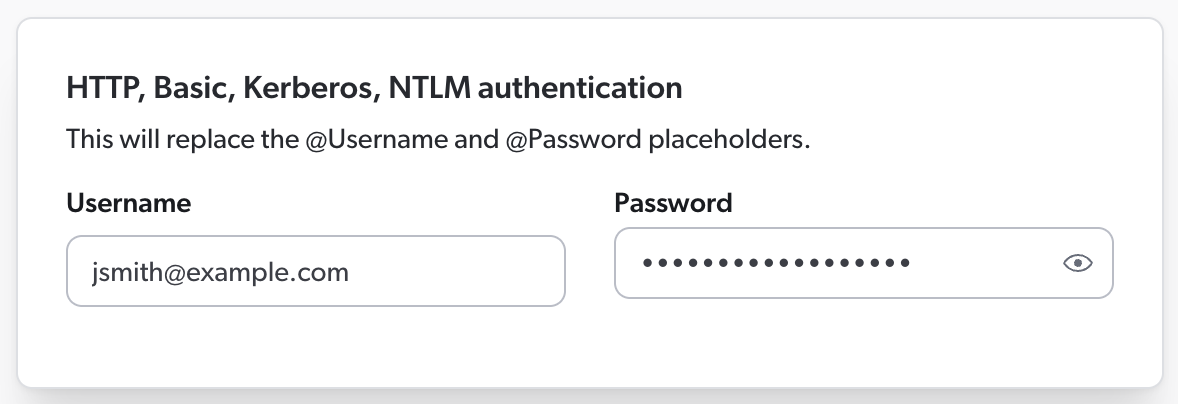
Then, in your JSON configuration, you must use the @Username and @Password placeholders to refer to these credentials.
Your Authentication object therefore looks like this:
"Authentication": {
  "Username": "@Username",
  "Password": "@Password",
  "ForceBasicAuthentication": "true"
}
OAuth 2.0
If your API uses OAuth 2.0 authentication, you must enter the client ID, client secret, and refresh token in the Authentication section of the Add a GraphQL API source panel.
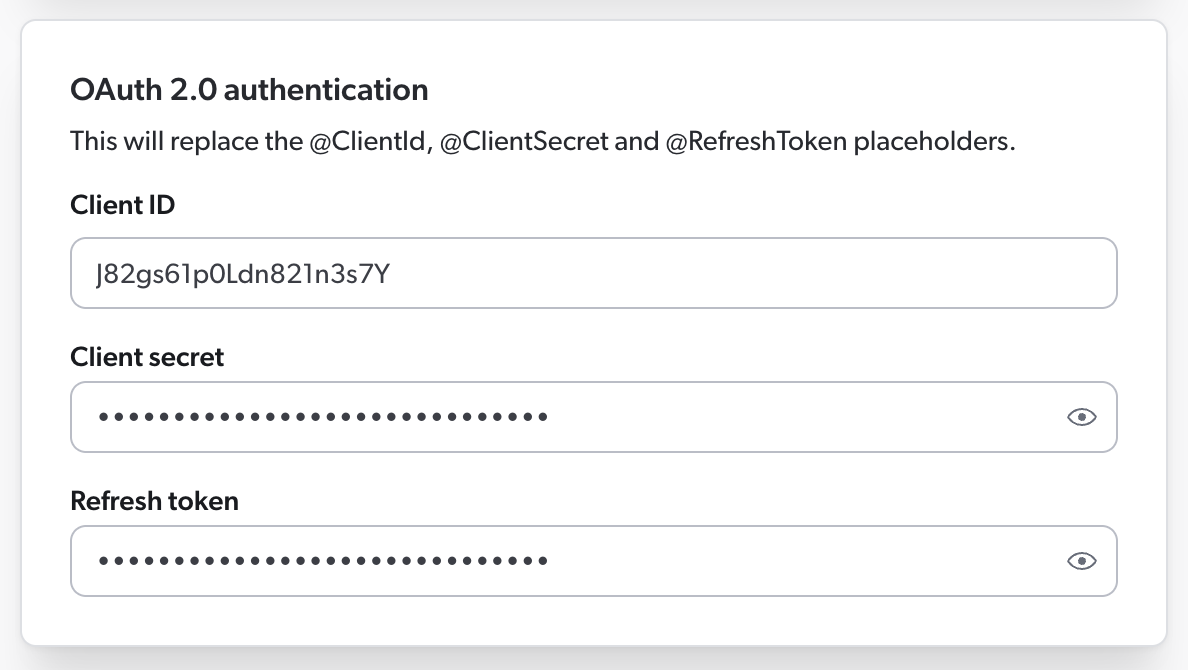
Then, in your JSON configuration, you must use the @ClientId, @ClientSecret, and @RefreshToken placeholders to refer to this information.
Your Authentication object could therefore look like this:
"Authentication": {
 "OAuth": {
   "Query": {
     "RefreshUrl": "https://example.com/token",
     "Method": "POST",
     "Parameters": {
       "grant_type": {
         "Type": "Payload",
         "Value": "refresh_token"
       },
       "client_id": {
         "Type": "Payload",
         "Value": "@ClientId"
       },
       "client_secret": {
         "Type": "Payload",
         "Value": "@ClientSecret"
       },
       "refresh_token": {
         "Type": "Payload",
         "Value": "@RefreshToken",
         "IsRefreshToken": true
       }
     }
  }
 }
}
The Authentication object supports the following properties:
-
OAuth(required if authenticating with OAuth 2.0)
Username (string)
Authentication > Username
Username used to log in to the service.
You can use @Username to retrieve the value specified in the Add a GraphQL API Source panel.
Password (string)
Authentication > Password
Password used to log in to the service.
This property can be empty even though a Username is specified.
You can use @Password to retrieve the value specified in the Add a GraphQL API Source panel.
Domain (string)
Authentication > Domain
Domain name to use when authenticating to a NTLM or Kerberos protected server.
ForceBasicAuthentication (Boolean)
Authentication > ForceBasicAuthentication
Whether to force a basic HTTP header in the request.
The default value is false.
OAuth (object)
Authentication > OAuth
If your application requires OAuth 2.0 authentication, add an OAuth object to your source configuration.
Your OAuth object must contain a Query object.
Coveo will use the information in the Query object to make an authentication query to your application.
Optionally, your OAuth object may also contain a Response object.
In this object, you may include properties such as AccessToken, TokenType, and ExpiresIn, whose values indicate where Coveo will find the corresponding information when parsing the API’s response.
The Response object may also include the AuthorizationHeader property, whose value is the name of the authorization header that Coveo should use when querying your API for content.

|
Enter your client ID, client secret, and refresh token in the Add a GraphQL API source panel and use the This allows you to keep your confidential information encrypted and obfuscated, thus preventing other Administration Console users to access it. 
|
Example:
"OAuth": {
  "Query": {
    "RefreshUrl": "https://example.com/token",
    "Method": "POST",
    "Parameters": {
      "grant_type": {
        "Type": "Payload",
        "Value": "refresh_token"
      },
      "refresh_token": {
        "Type": "Payload",
        "Value": "@RefreshToken",
        "IsRefreshToken": true
      },
      "client_id": {
        "Type": "Payload",
        "Value": "@ClientId"
      },
      "client_secret": {
        "Type": "Payload",
        "Value": "@ClientSecret"
      }
    }
  },
  "Response": {
    "AccessToken": "access_token",
    "SupportsRefreshToken" : "true",
    "RefreshToken": "refresh_token",
    "ExpiresIn": "expires_in",
    "TokenType": "token_type"
  }
}
The OAuth object supports the following properties:
-
Query(required)
Query (object, required)
Authentication > OAuth > Query
If your application requires OAuth 2.0 authentication, you must add an OAuth object to your source configuration.
Your OAuth object must contain a Query object.
Coveo will use the information in the Query object to make an authentication query to your application.
|
|
Enter your client ID, client secret, and refresh token in the Add a GraphQL API source panel and use the This allows you to keep your confidential information encrypted and obfuscated, thus preventing other Administration Console users to access it.
|
Example:
"Query": {
  "RefreshUrl": "https://example.com/token",
  "Method": "POST",
  "Parameters": {
    "grant_type": {
      "Type": "Payload",
      "Value": "refresh_token"
    },
    "refresh_token": {
      "Type": "Payload",
      "Value": "@RefreshToken",
      "IsRefreshToken": true
    },
    "client_id": {
      "Type": "Payload",
      "Value": "@ClientId"
    },
    "client_secret": {
      "Type": "Payload",
      "Value": "@ClientSecret"
    }
  }
}
The Query object supports the following properties:
-
RefreshUrl(required)
RefreshUrl (string, required)
Authentication > OAuth > Query > RefreshUrl
If your application requires OAuth 2.0 authentication, your Query object must include a RefreshUrl property.
The RefreshUrl value must be a URL that Coveo will use to refresh its access token.
Example
"Query": {
  "RefreshUrl": "https://example.com/token",
  "Method": "POST",
  "Parameters": {
    "grant_type": {
      "Type": "Payload",
      "Value": "refresh_token"
    },
    "refresh_token": {
      "Type": "Payload",
      "Value": "@RefreshToken",
      "IsRefreshToken": true
    },
    "client_id": {
      "Type": "Payload",
      "Value": "@ClientId"
    },
    "client_secret": {
      "Type": "Payload",
      "Value": "@ClientSecret"
    }
  }
}
OAuth query Headers (object)
Authentication > OAuth > Query > Headers
If your application requires OAuth 2.0 authentication, your Query object can optionally include a Headers object.
When making an authentication query to your application, Coveo will add these HTTP headers to its request.
|
|
Note
By default, Coveo automatically sets the Content-Type header to |
|
|
To keep your header value encrypted and obfuscated, use a placeholder in your 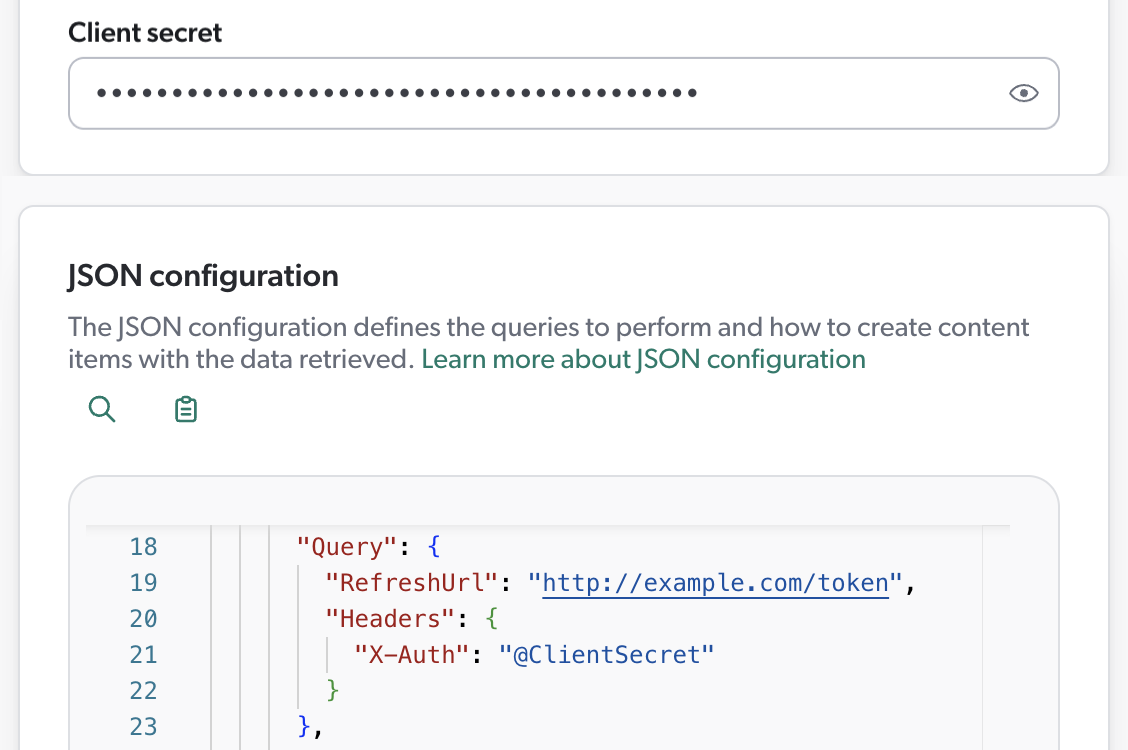
|
OAuth query Method (string enum)
Authentication > OAuth > Query > Method
If your application requires OAuth 2.0 authentication, your Query object can optionally include a Method property.
The Method property specifies the HTTP method that Coveo should use when refreshing its token.
Default is POST.
Example
"Query": {
  "RefreshUrl": "https://example.com/token",
  "Method": "POST",
  "Parameters": {
    "grant_type": {
      "Type": "Payload",
      "Value": "refresh_token"
    },
    "refresh_token": {
      "Type": "Payload",
      "Value": "@RefreshToken",
      "IsRefreshToken": true
    },
    "client_id": {
      "Type": "Payload",
      "Value": "@ClientId"
    },
    "client_secret": {
      "Type": "Payload",
      "Value": "@ClientSecret"
    }
  }
}
OAuth query Parameters (object)
Authentication > OAuth > Query > Parameters
If your application requires OAuth 2.0 authentication, your Query object can optionally include query parameters for Coveo to use.
Each object in the Parameters object represents a parameter to include in Coveo’s authentication request to your application.
Each object should contain a "Type" and a "Value" property.
The Type property indicates how to include the parameter in the request.
Possible values for this property are query or payload.
If you include a refresh_token object, you must add a IsRefreshToken property with a value of true to this object.
Moreover, if this refresh token is single-use, make sure to specify it by adding "UsingSingleUseRefreshToken": true to your OAuth object.
|
|
Enter your client ID, client secret, and refresh token in the Add a GraphQL API source panel and use the This allows you to keep your confidential information encrypted and obfuscated, thus preventing other Administration Console users to access it.
|
Example:
"Authentication": {
  "OAuth": {
    "UsingSingleUseRefreshToken": true,
    "Query": {
      "RefreshUrl": "https://auth.example.com/oauth/token",
      "Method": "POST",
      "Parameters": {
        "grant_type": {
          "Type": "Payload",
          "Value": "refresh_token"
        },
        "refresh_token": {
          "Type": "Payload",
          "Value": "@RefreshToken",
          "IsRefreshToken": true
        },
        "client_id": {
          "Type": "Payload",
          "Value": "@ClientId"
        },
        "client_secret": {
          "Type": "Payload",
          "Value": "@ClientSecret"
        }
      }
    }
  }
}
OAuth query PayloadContentType (string enum)
Authentication > OAuth > Query > PayloadContentType
If your application requires OAuth 2.0 authentication, your Query object can optionally include a PayloadContentType property.
When making OAuth 2.0 queries, Coveo automatically sets the Content-Type header to application/json.
You can change it to application/x-www-form-urlencoded by adding "PayloadContentType": "FormUrlEncoded" to your Query object.
|
|
Note
In either case, you don’t need to add a Content-Type header to the |
Default is json.
Example
"Query": {
  "RefreshUrl": "https://example.com/token",
  "Method": "POST",
  "PayloadContentType": "FormUrlEncoded"
}
Response (object)
Authentication > OAuth > Response
If your application requires OAuth 2.0 authentication, you can optionally add a Response object to your OAuth object.
The Response object contains, among other things, the properties that Coveo must extract from the authentication server’s response.
The value of each property represents the path to the corresponding value in the response.
In the Response object, you may also enter other authentication parameters, such as the AuthorizationHeader and SupportsRefreshToken properties.
Example:
If the authentication server’s response looks like this:
HTTP/1.1 200 OK
Content-Type: application/json
{
"access_token": "jOs0PoLKm61sd6h49",
"refresh_token": "QpMas-tuI9bvFp01-Xxpl04gC_0m",
"token_type": "bearer",
"expires_in": 86400
}Then your Response object should look like this:
"Response": {
  "AccessToken": "access_token",
  "SupportsRefreshToken" : "true",
  "RefreshToken": "refresh_token",
  "ExpiresIn": "expires_in",
  "TokenType": "token_type"
}
The Response object supports the following properties:
AccessToken (string)
Authentication > OAuth > Response > AccessToken
If your application requires OAuth 2.0 authentication, you can optionally add a Response object to your OAuth object.
Coveo will then extract the information from the API’s response using the values specified in the Response object.
In the Response object, you can add the AccessToken property to specify the path to the access token in the API’s response.
Default is access_token.
Example
If the authentication server’s response looks like this:
HTTP/1.1 200 OK
Content-Type: application/json
{
"access_token": "jOs0PoLKm61sd6h49",
"refresh_token": "QpMas-tuI9bvFp01-Xxpl04gC_0m",
"token_type": "bearer",
"expires_in": 86400
}Then your Response object should look like this:
"Response": {
  "AccessToken": "access_token",
  "SupportsRefreshToken" : "true",
  "RefreshToken": "refresh_token",
  "ExpiresIn": "expires_in",
  "TokenType": "token_type"
}
SupportsRefreshToken (Boolean)
Authentication > OAuth > Response > SupportsRefreshToken
If your application requires OAuth 2.0 authentication, you can optionally add a Response object to your OAuth object.
In the Response object, you can add the SupportsRefreshToken property to indicate whether your application’s OAuth 2.0 flow supports refresh tokens.
Default is true.
Example
If the authentication server’s response looks like this:
HTTP/1.1 200 OK
Content-Type: application/json
{
"access_token": "jOs0PoLKm61sd6h49",
"refresh_token": "QpMas-tuI9bvFp01-Xxpl04gC_0m",
"token_type": "bearer",
"expires_in": 86400
}Then your Response object should look like this:
"Response": {
  "AccessToken": "access_token",
  "SupportsRefreshToken" : "true",
  "RefreshToken": "refresh_token",
  "ExpiresIn": "expires_in",
  "TokenType": "token_type"
}
RefreshToken (string)
Authentication > OAuth > Response > RefreshToken
If your application requires OAuth 2.0 authentication, you can optionally add a Response object to your OAuth object.
Coveo will then extract the information from the API’s response using the values specified in the Response object.
In the Response object, you can add the AccessToken property to specify the path to the refresh token in the API’s response.
Default is refresh_token.
Example
If the authentication server’s response looks like this:
HTTP/1.1 200 OK
Content-Type: application/json
{
"access_token": "jOs0PoLKm61sd6h49",
"refresh_token": "QpMas-tuI9bvFp01-Xxpl04gC_0m",
"token_type": "bearer",
"expires_in": 86400
}Then your Response object should look like this:
"Response": {
  "AccessToken": "access_token",
  "SupportsRefreshToken" : "true",
  "RefreshToken": "refresh_token",
  "ExpiresIn": "expires_in",
  "TokenType": "token_type"
}
ExpiresIn (string)
Authentication > OAuth > Response > ExpiresIn
If your application requires OAuth 2.0 authentication, you can optionally add a Response object to your OAuth object.
Coveo will then extract the information from the API’s response using the values specified in the Response object.
In the Response object, you can add the ExpiresIn property to specify the path to the refresh token expiration delay in the API’s response.
Default is expires_in.
If the API’s response doesn’t contain an expiration delay, use the ExpiresInDefaultValue property instead.
Example
If the authentication server’s response looks like this:
HTTP/1.1 200 OK
Content-Type: application/json
{
"access_token": "jOs0PoLKm61sd6h49",
"refresh_token": "QpMas-tuI9bvFp01-Xxpl04gC_0m",
"token_type": "bearer",
"expires_in": 86400
}Then your Response object should look like this:
"Response": {
  "AccessToken": "access_token",
  "SupportsRefreshToken" : "true",
  "RefreshToken": "refresh_token",
  "ExpiresIn": "expires_in",
  "TokenType": "token_type"
}
ExpiresInDefaultValue (number)
Authentication > OAuth > Response > ExpiresInDefaultValue
If your application requires OAuth 2.0 authentication, you can optionally add a Response object to your OAuth object.
Coveo will then extract the information from the API’s response using the values specified in the Response object.
Typically, the authentication server will return an expiration delay for its refresh token, which you can extract with the ExpiresIn property.
However, if the API’s response doesn’t include an expiration delay, you can add the ExpiresInDefaultValue property to your Response object.
The ExpiresInDefaultValue value specifies the number of seconds after which Coveo should consider the refresh token expired.
Default is 3600.
Example:
"Response": {
  "AccessToken": "access_token",
  "SupportsRefreshToken" : "true",
  "RefreshToken": "refresh_token",
  "ExpiresInDefaultValue": 1800,
  "TokenType": "token_type"
}
TokenType (string)
Authentication > OAuth > Response > TokenType
If your application requires OAuth 2.0 authentication, you can optionally add a Response object to your OAuth object.
Coveo will then extract the information from the API’s response using the values specified in the Response object.
In the Response object, you can add the ExpiresIn property to specify the path to the token type in the API’s response.
Default is token_type.
If the response doesn’t specify a token type or if it’s invalid or inappropriate, Coveo will use Bearer by default.
If you want a different default value, use the TokenTypeDefaultValue property instead.
Example
If the authentication server’s response looks like this:
HTTP/1.1 200 OK
Content-Type: application/json
{
"access_token": "jOs0PoLKm61sd6h49",
"refresh_token": "QpMas-tuI9bvFp01-Xxpl04gC_0m",
"token_type": "bearer",
"expires_in": 86400
}Then your Response object should look like this:
"Response": {
  "AccessToken": "access_token",
  "SupportsRefreshToken" : "true",
  "RefreshToken": "refresh_token",
  "ExpiresIn": "expires_in",
  "TokenType": "token_type"
}
TokenTypeDefaultValue (string)
Authentication > OAuth > Response > TokenTypeDefaultValue
If your application requires OAuth 2.0 authentication, you can optionally add a Response object to your OAuth object.
Coveo will then extract the information from the API’s response using the values specified in the Response object.
Typically, the authentication server will return a token type, which you can extract with the TokenType property.
If the API’s response doesn’t specify a token type, or if the token type is invalid or inappropriate, Coveo will use Bearer by default.
However, if you want Coveo to use a different default token type, you can specify it by the TokenTypeDefaultValue property to your Response object.
AuthorizationHeader (string)
Authentication > OAuth > Response > AuthorizationHeader
If your application requires OAuth 2.0 authentication, you can optionally add a Response object to your OAuth object.
In the Response object, you can add the AuthorizationHeader property to indicate the name of the authorization header that Coveo should use to provide its access token when querying your API for content.
Refer to your API’s documentation for the header name to use.
Default is Authorization.
|
|
Notes
Coveo automatically adds the specified authorization header to its content requests to your application.
Do not add this header to the |
Example:
If your API documentation specifies that the access token must be provided in a header named X-ACCESS-TOKEN, then your Response object should specify it like this:
"Response": {
  "AccessToken": "access_token",
  "SupportsRefreshToken" : "true",
  "RefreshToken": "refresh_token",
  "ExpiresIn": "expires_in",
  "TokenType": "token_type",
  "AuthorizationHeader": "X-ACCESS-TOKEN"
}
As a result, when making content requests to your application, Coveo will automatically include an X-ACCESS-TOKEN header with the access token value.
{
  "headers": {
    "Content-Type": "application/json",
    "X-ACCESS-TOKEN": "123456789abcdef"
  }
}
UsingSingleUseRefreshToken (Boolean)
Authentication > OAuth > UsingSingleUseRefreshToken
Set UsingSingleUseRefreshToken to true to indicate that the refresh token used by the source to authenticate to your application is single-use.
Default is false.
A single-use refresh token expires after it’s been used.
When setting UsingSingleUseRefreshToken to true, make sure to include a refresh_token query parameter in your OAuth query.
Example
"Authentication": {
  "OAuth": {
    "UsingSingleUseRefreshToken": true,
    "Query": {
      "RefreshUrl": "https://auth.example.com/oauth/token",
      "Method": "POST",
      "Parameters": {
        "grant_type": {
          "Type": "Payload",
          "Value": "refresh_token"
        },
        "client_id": {
          "Type": "Payload",
          "Value": "@ClientId"
        },
        "client_secret": {
          "Type": "Payload",
          "Value": "@ClientSecret"
        },
        "refresh_token": {
          "Type": "Payload",
          "Value": "@RefreshToken",
          "IsRefreshToken": true
        }
      }
    }
  }
}
Headers (object)
A key-value list of HTTP headers to add to the query. Each value can be either a number, string, or Boolean.
The Headers object is inheritable.
|
|
Note
Unlike a browser or a tool such as Postman, Coveo doesn’t automatically add a |
Examples:
Basic example
"Headers": {
  "accept": "application/vnd.github.v3+json",
  "User-Agent": "PostmanRuntime/7.29.0"
}
Authentication with an API key in the Authorization HTTP header
If your API requires Coveo to authenticate with an API key in the Authorization HTTP header, you must enter this key in the Authentication section of the Add a GraphQL API source panel.
Then, in your source JSON configuration, you must use the @ApiKey placeholder to refer to this key.
This ensures that your API key is encrypted rather than stored in clear text in the source JSON configuration, where other Administration Console users could access it.
When Coveo processes the source configuration, it replaces the placeholder with the actual key you entered in the panel.
Your source configuration could therefore look like this.
{
  "Services": [
    {
      "Url": "https://example.com/api/v1",
      "Headers": {
        "Authorization": "Bearer @ApiKey"
      },
      "Endpoints": [
        {
          "Path": "/users",
          "Method": "GET",
          "ItemType": "User",
          "Uri": "%[coveo_url]/users/%[id]",
          "ClickableUri": "%[coveo_url]/users/%[id]"
        }
      ]
    }
  ]
} |
Bearer is the authorization type and is most commonly used with OAuth 2.0 tokens.
If your API requires a different authorization type, replace Bearer with the appropriate type. |
As a result, Coveo sends the following HTTP request to the API:
GET /users HTTP/1.1
Host: https://example.com/api/v1
Authorization: Bearer Az4adfSyBhZX8fTThUJ4Kb2TC3Ax0RshgrZtUiqM |
Az4adfSyBhZX8fTThUJ4Kb2TC3Ax0RshgrZtUiqM is the API key you entered in the source panel. |
Authentication with an API key in a custom HTTP header
If your API requires Coveo to authenticate with an API key in the custom HTTP header X-Api-Key, you must enter this key in the Authentication section of the Add a GraphQL API source panel.
Then, in your source JSON configuration, you use the @ApiKey placeholder to refer to this key.
This ensures that your API key is encrypted rather than stored in clear text in the source JSON configuration, where other Administration Console users could access it.
When Coveo processes the source configuration, it replaces the placeholder with the actual key you entered in the panel.
Your source configuration could therefore look like this.
{
  "Services": [
    {
      "Url": "https://example.com/api/v1",
      "Headers": {
        "X-Api-Key": "@ApiKey"
      },
      "Endpoints": [
        {
          "Path": "/users",
          "Method": "GET",
          "ItemType": "User",
          "Uri": "%[coveo_url]/users/%[id]",
          "ClickableUri": "%[coveo_url]/users/%[id]"
        }
      ]
    }
  ]
} |
X-Api-Key is the name of the custom header that your API expects to contain the API key. |
As a result, Coveo sends the following HTTP request to the API:
GET /users HTTP/1.1
Host: https://example.com/api/v1
X-Api-Key: Az4adfSyBhZX8fTThUJ4Kb2TC3Ax0RshgrZtUiqM |
Az4adfSyBhZX8fTThUJ4Kb2TC3Ax0RshgrZtUiqM is the API key you entered in the source panel. |
Paging (object)
In the Paging object, specify how you want the content to be paged.
When building your object from scratch, we recommend starting with the OffsetType property.
The Paging object is inheritable.
When you set it at the top level, the Paging object applies to all permission subqueries by default.
However, you can disable inheritance using the DoNotInherit property at the top level.
This may help speed up the crawling process.
You can also override the top-level configuration by setting the Paging object again at the permission subquery level.
In your GraphQL query, make sure to include tokens @pageSize and @offset.
Coveo will replace @pageSize with the value of the pageSize property of your paging configuration.
Similarly, @offset will be replaced with the value extracted from the response using either the NextPageKey or the OffsetStart property, depending on the paging method selected in OffsetType.
Example:
{
  "paging": {
    "pageSize": 10,
    "offsetType": "cursor",
    "nextPageKey": "data.user.pullRequests.pageInfo.endCursor",
    "DoNotInherit": true
  },
  "PayloadJsonContent": "@MyFirstQuery"
}
The Paging object supports the following properties:
-
OffsetType(required) -
PageSize(required)
OffsetType (string enum, required)
Paging > OffsetType
When configuring your source to request paginated content, you must specify how your API paginates its content. Coveo needs this information to build its page request URLs in the appropriate format. You can typically find it in your API’s documentation.
The OffsetType property is a string enum that specifies the type of pagination your API uses.
The value to specify depends on your API’s pagination technique, just like the properties you’ll need to add to your Paging object.
| Pagination technique |
OffsetType value |
Properties to add to the Paging object |
|---|---|---|
Page-based |
|
|
Offset-based |
|
|
URL-based |
|
|
Cursor-based |
|
|
Examples:
Page-based pagination
Your API expects request URLs in a format such as https://example.com/api/item?limit=100&pageNumber=0 for the first page, and https://example.com/api/item?limit=100&pageNumber=1 for the second page.
With these URLs, Coveo would request the first page (page 0), and then increment the page number by 1 to request the second page, and so on.
In this case, your Paging object should look like this:
{
  "Paging": {
    "PageSize": 100,
    "OffsetStart": 0,
    "OffsetType": "page",
    "Parameters": {
        "Limit": "limit",
        "Offset": "pageNumber"
    }
  }
}
Offset-based pagination
Your API expects request URLs in a format such as https://example.com/api/item?limit=100&start=0 for the first page, and https://example.com/api/item?limit=100&start=100 for the second page.
With these URLs, Coveo would request the 100 first items starting from item 0, and then the 100 next items, starting from item 100.
In this case, your Paging object should look like this:
{
  "Paging": {
    "PageSize": 100,
    "OffsetStart": 0,
    "OffsetType": "item",
    "Parameters": {
        "Limit": "limit",
        "Offset": "start"
    }
  }
}
URL-based pagination
Your API expects request URLs in a format such as https://example.com/api/item?limit=8 for the first page, and https://example.com/api/item?page=3d170d80d8n3n2342c328s for the second page.
In this context, Coveo would request the first page, and then the next page using the URL provided in the nextPage value in the JSON response.
In this case, if your API returns the following first page:
{
  "nextPage": "https://example.com/api/item?page=3d170d80d8n3n2342c328s",
  "items": [
    { "id": 1, "name": "Caroline" },
    { "id": 2, "name": "Marcella" },
    { "id": 3, "name": "Susie" },
    { "id": 4, "name": "Rhonda" },
    { "id": 5, "name": "Wendy" },
    { "id": 6, "name": "Barbara" },
    { "id": 7, "name": "Deirdre" },
    { "id": 8, "name": "Lynda" }
  ]
}
Then your Paging object should look like this:
{
  "Paging": {
    "PageSize": 8,
    "NextPageKey": "nextPage",
    "OffsetType": "url",
    "Parameters": {
        "Limit": "limit"
    }
  }
}
Cursor-based pagination
Your API expects request URLs in a format such as https://example.com/api/item?limit=8 for the first page, and https://example.com/api/item?limit=8&nextPageToken=3d170d80-7b3b-4377 for the second page.
With these URLs, Coveo would request the 8 first items, and then the next page using the token provided in the NextPageId value in the JSON response.
In this case, if your API returns the following first page:
{
  "nextPageId": "3d170d80-7b3b-4377",
  "items": [
    { "id": 1, "name": "Caroline" },
    { "id": 2, "name": "Marcella" },
    { "id": 3, "name": "Susie" },
    { "id": 4, "name": "Rhonda" },
    { "id": 5, "name": "Wendy" },
    { "id": 6, "name": "Barbara" },
    { "id": 7, "name": "Deirdre" },
    { "id": 8, "name": "Lynda" }
  ]
}
Then your Paging object should look like this:
{
  "Paging": {
    "PageSize": 8,
    "NextPageKey": "NextPageId",
    "OffsetType": "cursor",
    "Parameters": {
        "Limit": "limit",
        "Offset": "nextPageToken"
    }
  }
}
PageSize (number, required)
Paging > PageSize
The number of items to fetch per page.
Example: With paging URL https://example.com/api/item?position=0&quantity=50, your JSON configuration should include "PageSize": 50.
DoNotInherit (Boolean)
Paging > DoNotInherit
Whether to prevent your Paging configuration from being inherited.
This can be useful for preventing paging on PermissionSubqueries, which is known to slow down the crawling process.
The default value is false.
NextPageKey (string)
Paging > NextPageKey
When the OffsetType value is "url" or "cursor", provide the path (simple path or JSONPath) to the key representing the value of the next page reference, that is, either the next page URL or the next page cursor.
The NextPageKey property isn’t required when the OffsetType value is page or item.
Example: "NextPageKey": "NextPageLink"
OffsetStart (number)
Paging > OffsetStart
Offset of the first page to fetch.
This property is required when the OffsetType value is "page" or "item".
Example: Your first paging URL is https://example.com/api/item?position=0&quantity=50.
If you want to retrieve all items except items 1 to 50, your paging configuration must include "OffsetStart": 1.
TotalCountHeaderKey (string)
Paging > TotalCountHeaderKey
The name of an HTTP header whose value represents the total number of items retrieved through the API call. This property is useful when Coveo makes an API call to a page that doesn’t exist, causing an error to be returned.
However, when using this property, you must be sure that the total always matches the actual number of security identity relationships returned by your API, as Coveo’s crawler uses this total as an indication to stop. Should the expected total be lower than the actual number of relationships returned, Coveo won’t index the remaining relationships.
On the other hand, if the expected total is higher than the actual number of relationships returned, Coveo’s crawler will throw an error after 10 empty pages.
In such a case, you can download the activity logs to review the TotalCountKey value that Coveo retrieved, and then adjust your source configuration accordingly.
Example: "TotalCountHeaderKey": "x-total-count"
TotalCountKey (string)
Paging > TotalCountKey
The path (simple path or JSONPath) to a response body property representing the total number of items retrieved through the API call. This property is useful when Coveo makes an API call to a page that doesn’t exist, causing an error to be returned.
However, when using this property, you must be sure that the total always matches the actual number of security identity relationships returned by your API, as Coveo’s crawler uses this total as an indication to stop. Should the expected total be lower than the actual number of relationships returned, Coveo won’t index the remaining relationships.
On the other hand, if the expected total is higher than the actual number of relationships returned, Coveo’s crawler will throw an error after 10 empty pages.
In such a case, you can download the activity logs to review the TotalCountKey value that Coveo retrieved, and then adjust your source configuration accordingly.
Example: "TotalCountKey": "retrievedContent.totalCount"
RetryableHttpErrorCodes (string)
When crawling your permission data, Coveo may encounter an HTTP error and stop.
However, some APIs may be unreliable and expected to occasionally return a temporary error.
In such case, you can use the RetryableHttpErrorCodes property to have Coveo retry the request and continue crawling.
This may be especially useful when the temporary error code returned by your API is non-standard.
Use a semicolon (;) to separate error codes.
Example: "RetryableHttpErrorCodes": "404;418".
This property is inheritable.
When you set it at the top level, it will apply to all subqueries.
You can override the top-level configuration by setting the RetryableHttpErrorCodes property again at the subquery level.
RetryableHttpErrorCodes is an alternative to the SkippableErrorCodes property.
SkippableErrorCodes (string)
When crawling your permission data, Coveo may encounter an HTTP error and stop.
However, some APIs may be expected to always return an error in a specific circumstance and to never return data after this error.
In such case, you can use the SkippableErrorCodes property to have Coveo ignore the error and continue crawling.
For example, you can use this property if your API returns a 400 error when pagination can’t return any more data.
Use a semicolon (;) to separate error codes.
Example: "SkippableErrorCodes": "500;404;403"

|
We strongly discourage using the For example, if your API sometimes returns data and sometimes returns an error instead, you should not use this property to avoid interruptions. If a temporary error is ignored, security identity relationships that were returned and processed before the error will be considered as deleted. As a result, Coveo will delete these permissions from your organization, and they won’t apply to your content anymore. The missing relationships will only be reindexed at the next update operation where Coveo doesn’t encounter the error. If you know your API is unreliable, you should instead use the |
This property is inheritable.
When you set it at the top level, it will apply to all subqueries.
You can override the top-level configuration by setting the SkippableErrorCodes property again at the subquery level.