Review item properties
Review item properties

In the Coveo Administration Console, the Content Browser (platform-ca | platform-eu | platform-au) is a search page showing all items in your index. Selecting an item and clicking Properties in the Action bar opens a panel showing this item’s details, such as its fields and values, and access permissions.
The properties panel allows you to ensure that items have the expected fields and values as well as the correct permissions so that restricted information can only be accessed by the authorized users. This is especially useful when troubleshooting search and content access issues.
Alternatively, to review security identities, their state, and their relationships without looking at a specific item, check the Security Identities (platform-ca | platform-eu | platform-au) page instead. This page presents security identities by provider rather than by item.
Review an item’s fields and values
In the Content Browser (platform-ca | platform-eu | platform-au), selecting an item and clicking Properties in the Action bar opens a panel showing this item’s properties.
The Fields tab lists fields defined on the item, along with their values. It also displays the Primary ID, which uniquely identifies the item in your index.
You can also review the item’s fields and values in JSON format in the Item JSON tab.
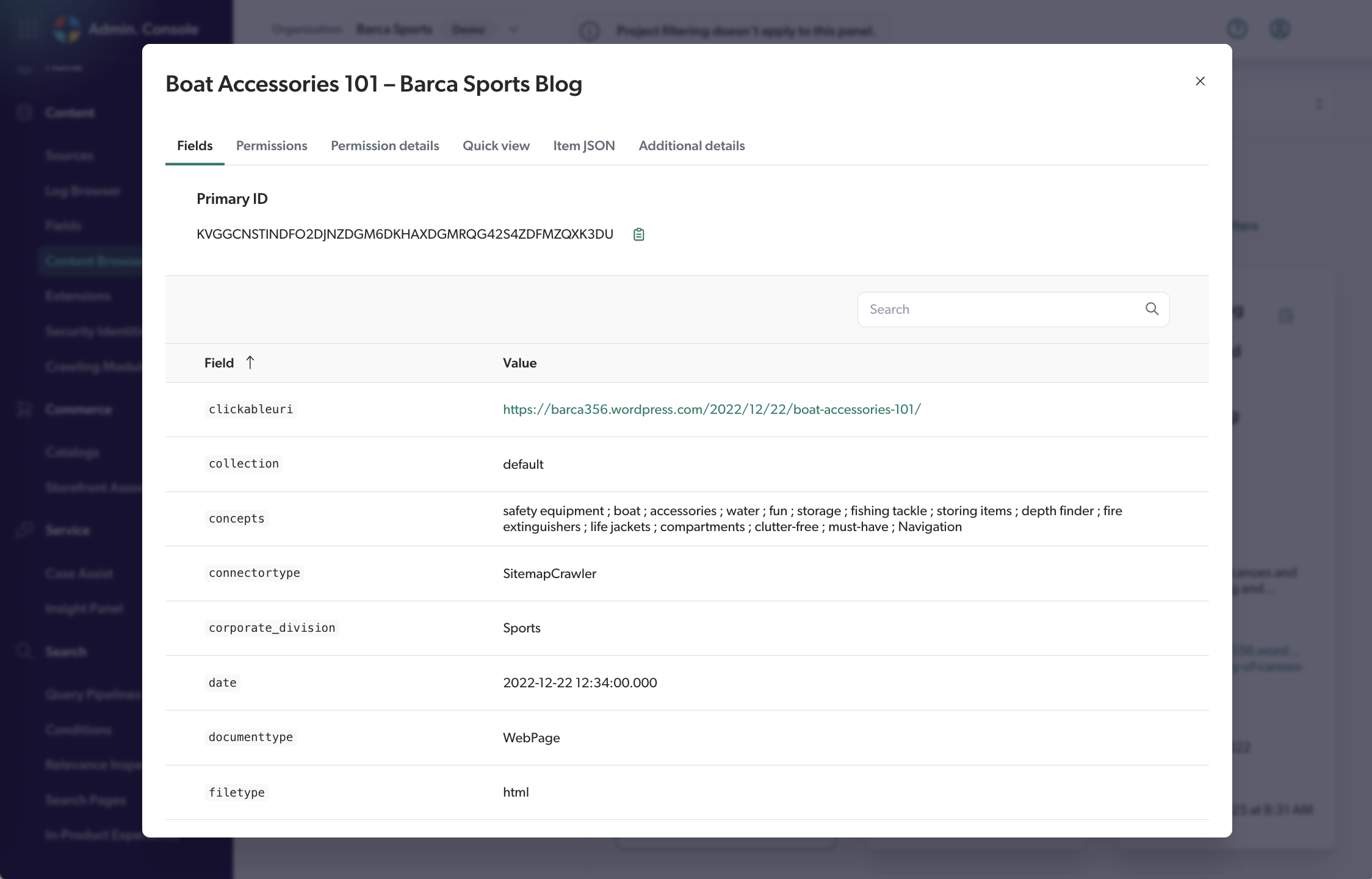
To appear on the Fields tab, a field must have the Displayable in results option enabled.
The fields displayed can also vary from one item to another for different reasons:
-
Each source type has its own standard source fields, so items from different sources have different built-in fields. See Field origin to learn more.
-
To be displayed, a field must have a value. The indexing process may populate a field only for relevant items, based on their content and metadata. For example, the
authorfield may be populated for text-based items, but not for images. As a result, theauthorfield isn’t displayed for image items. Similarly, Coveo populates thelanguagefield only if it recognizes the item’s language.
Review an item’s effective permissions
In the Content Browser (platform-ca | platform-eu | platform-au), selecting an item and clicking Properties in the Action bar opens a panel showing this item’s properties.
If your source is configured to index item permissions, the item properties panel displays two tabs related to permissions:
-
The Permissions tab lists the item’s effective permissions, that is, the security identities that are allowed or denied to view the item in their search results. You can filter them by state or permission type (allowed or denied).
-
The Permission details tab shows the permission model of the item in its original system the last time the item source was updated. You can also inspect the access rights of a specific search interface user, for example, to determine through which relationships the user is granted access to the item.
For more information on sources that index permissions and on how Coveo handles these permissions, see Coveo management of security identities and item permissions.
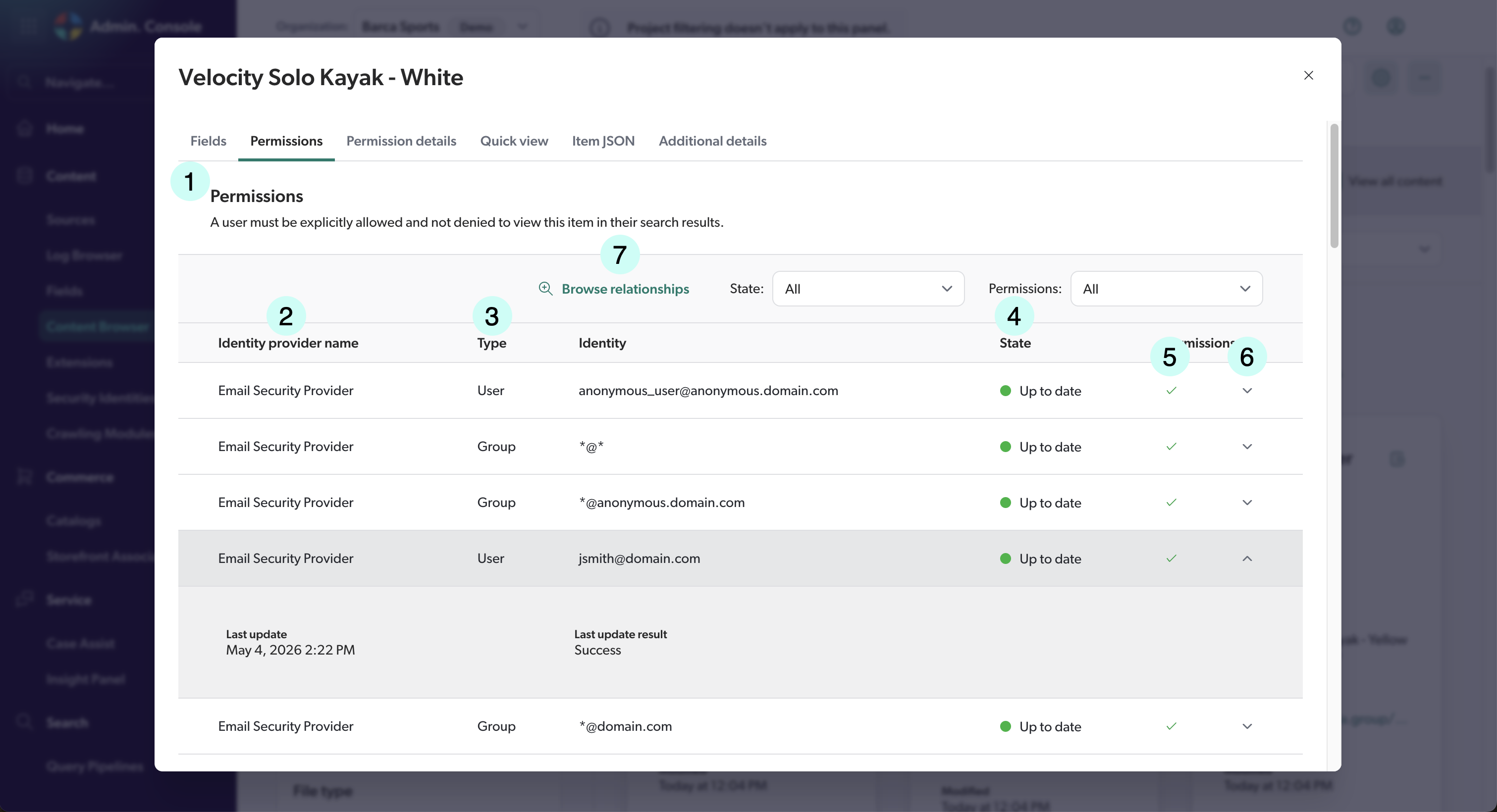
1 |
The top of the tab displays the item’s permission status, which indicates who can view the item in their search results. |
2 |
The name of the security identity provider the identity belongs to. The security providers used in your Coveo organization are listed on the Security Identities (platform-ca | platform-eu | platform-au) page. |
3 |
The type of the security identity, which can be either User, Group, or Virtual group. |
4 |
The state of the security identity. Identities that aren’t up to date may cause access issues. |
5 |
|
6 |
Click |
7 |
When you select a security identity, the Browse relationships button appears in the Action bar. This button leads to the Security identity relationship browser page, which lists the parents and children of the selected identity. This information is especially useful when investigating content access issues that are due to the effective permissions of an item. For details on this feature, see Browse the relationships of an identity. |


The data in the Permissions and Permission details tabs is updated when:
-
The item permission model is updated. This occurs at the same time as the source content update.
-
A security identity that’s part of this permission model is updated. By default, security identities are updated once a day.
-
A user that wasn’t previously known by the security identity cache performs their first query.
For more information on sources that index permissions and on how Coveo handles these permissions, see Coveo management of security identities and item permissions.
About the permission status
In the Content Browser (platform-ca | platform-eu | platform-au), you can select an item to view its properties. The top of the Permissions tab shows the item’s permission status, which indicates who can view the item in search results based on the effective permissions of the item.
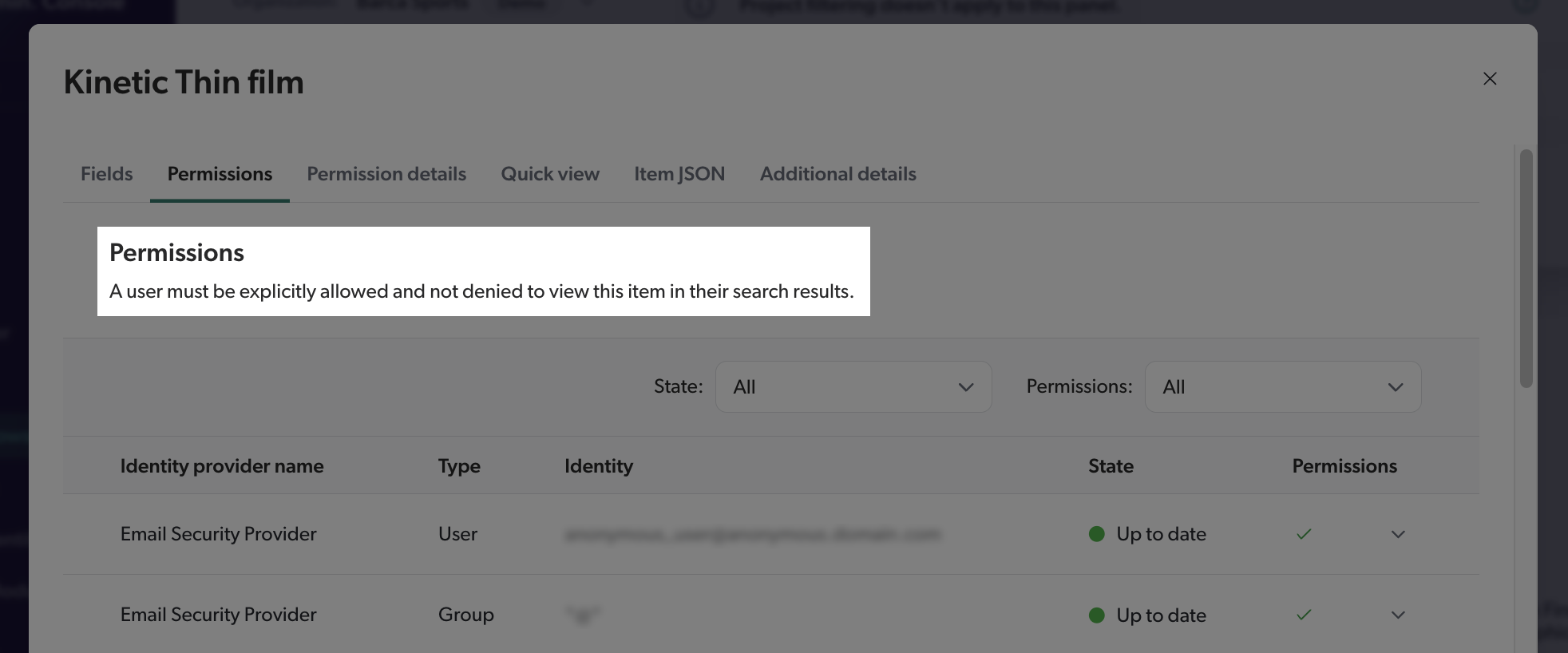
Permission status details
| Displayed status | Details |
|---|---|
A user must be explicitly allowed and not denied to view this item in search results. |
To view the selected item, a user must:
|
All users can view this item in search results. |
This item is public. Users don’t have to be authenticated to view this item. Anyone that can access your search page can also access this item. |
All users can view this item in search results, except explicitly denied users. |
This item is public. Users don’t have to be authenticated to view this item. Anyone that can access your search page can also access this item, except users that are explicitly marked as denied. |
No user can currently view this item in search results. Review the "Permission details" tab or contact Coveo Support to troubleshoot the issue. |
Users must be authenticated to access this item, but no security identity is allowed to access the item. |
Review an item’s permission model
A permission model is a structure that defines the permissions applicable to an individual item. Coveo builds a permission model based on the access control rules that apply to the item in its original system.
A permission model consists of one or more permission levels, which contain one or more permission sets, which themselves contain security identities. This architecture defines who will be able to view the item in the search results. The list of all security identities in the permission model and their respective permissions (allowed or denied) is called the effective permissions of the item.
In the Content Browser (platform-ca | platform-eu | platform-au), selecting an item and clicking Properties in the Action bar opens a panel showing this item’s properties. If your source is configured to index item permissions, the Permission details tab of this panel shows the permission model of the item, while the Permissions tab shows the resulting effective permissions of the item.
For example, if your content system states that only a specific group of identities is allowed to view a given item, the Permission details tab will show this rule. Meanwhile, the Permissions tab will list the identities in this group and will indicate that they’re allowed to view the item in search results.
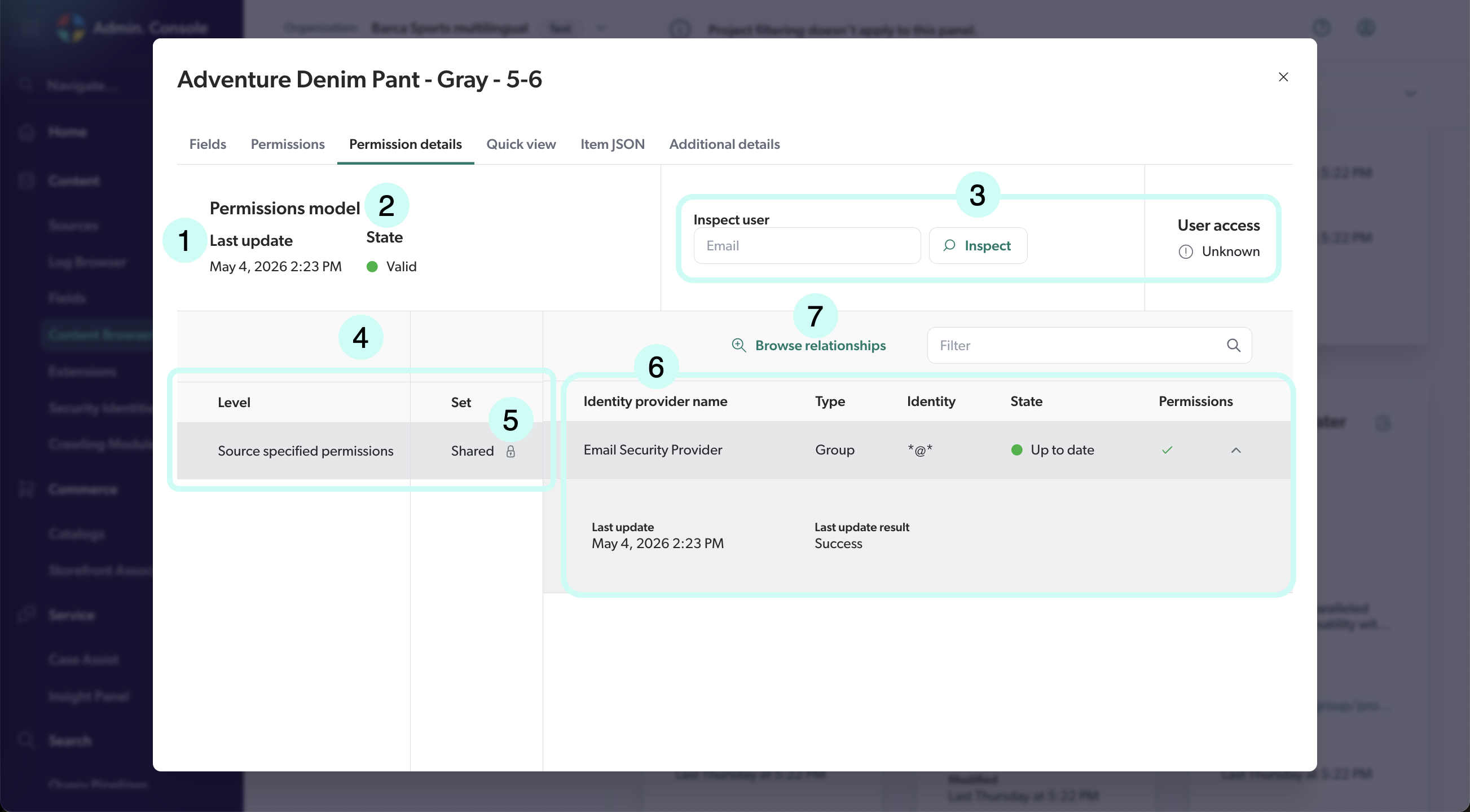
1 |
Permission models are updated at the same time as your indexed content. To troubleshoot content access issues, start by updating your source, as the permission model may not reflect recent changes in the original system. |
2 |
The state of the permission model, which indicates whether the permission model is up to date and can be used to determine item access rights. |
3 |
Enter the email address of a search interface user to check whether they can access the item in search results.
The permission model below is also updated to show through which permission level, permission set, and security identity relationships the user is granted ( |
4 |
The name of the permission levels and sets assigned to the item. When available, these names hint at the level or set origin in the item system (for example, Sharing Permissions, Administrator Set, etc.). Otherwise, Coveo generates names. |
5 |
Next to the permission set name, an icon indicates whether users represented by anonymous identities are allowed ( |
6 |
The right part of the table lists the security identities in each permission set, along with their security identity provider, type, state, and whether it’s allowed or not to access the item.
Click |
7 |
When you select a security identity, the Browse relationships button appears in the Action bar. This button leads to the Security identity relationship browser page, which lists the parents and children of the selected identity. This information is especially useful when investigating content access issues that are due to the effective permissions of an item. For details on this feature, see Browse the relationships of an identity. |


The data in the Permissions and Permission details tabs is updated when:
-
The item permission model is updated. This occurs at the same time as the source content update.
-
A security identity that’s part of this permission model is updated. By default, security identities are updated once a day.
-
A user that wasn’t previously known by the security identity cache performs their first query.
For more information on sources that index permissions and on how Coveo handles these permissions, see Coveo management of security identities and item permissions.
About the permission model state
A permission model's state indicates whether it’s up to date and can be used to determine item access rights, or if it has an issue that prevents it from being used. The state of a permission model is especially important to consider when troubleshooting permission issues, as a permission model in error or incomplete may be expected to grant or deny access to an item, but won’t be able to do so until its issue is resolved.
| Update result | Description | Action to take |
|---|---|---|
Valid |
Permission model updated. All identities in the permission model are valid and up to date. |
None |
Pending |
Permission model not updated yet. |
If the permission model is still not updated after several days, contact Coveo Support for help. |
Incomplete |
Permission model updated. However, one of the following is true:
The effective |
Check the Permissions tab to determine which identities are out of date, in error, or disabled. If you can’t see the problematic identities, contact Coveo Support. |
Warning |
The permission model has been updated, but at least one denied entity is out of date. The |
Check the Permissions tab to determine which identities are out of date and solve this issue immediately. Contact Coveo Support for help. |
In error |
Permission model updated. However, permission level 0 contains at least one denied identity that was not successfully updated. The item won’t be displayed in the search results to prevent security holes. |
Check the Permissions tab to determine which identities are out of date or in error. If you can’t see the problematic identities, contact Coveo Support. |
Troubleshooting content access issues
In the Permissions and Permission details tabs of an item's properties in the Content Browser (platform-ca | platform-eu | platform-au), you can review the item’s effective permissions and permission model. They’re helpful when troubleshooting content access issues, such as:
-
A user accessing an item they shouldn’t be able to access through your search interface.
-
An item not being visible to a user when it should be.
The first step to troubleshoot content access issues is to ensure that the permission model accurately reflects the item’s current access rules in its original system. To do this, update the item’s source. On the Sources (platform-ca | platform-eu | platform-au) page, select the source that indexes the item, and then click Refresh, Rescan, or Rebuild in the Action bar. Coveo will retrieve the latest access control rules from the original system and update the permission model accordingly, which may solve the issue if the permission model was outdated.
If the permission model is still inaccurate after a source update, check its state and the last update result of the security identities in the Permission details tab. A permission model or security identity that isn’t operational may be expected to grant or deny access to the item, but won’t be able to do so until its issue is resolved. If the issue persists, contact Coveo Support.
Once your permission model is up to date, you can inspect the access rights of a specific user to determine through which permission level, permission set, and security identity relationships the user is granted or denied access to the item. This can help you identify the root cause of the issue, such as:
-
An unexpected or missing permission level or set.
-
An unexpected or missing relationship between identities.
-
An unexpected or missing identity in the permission model.
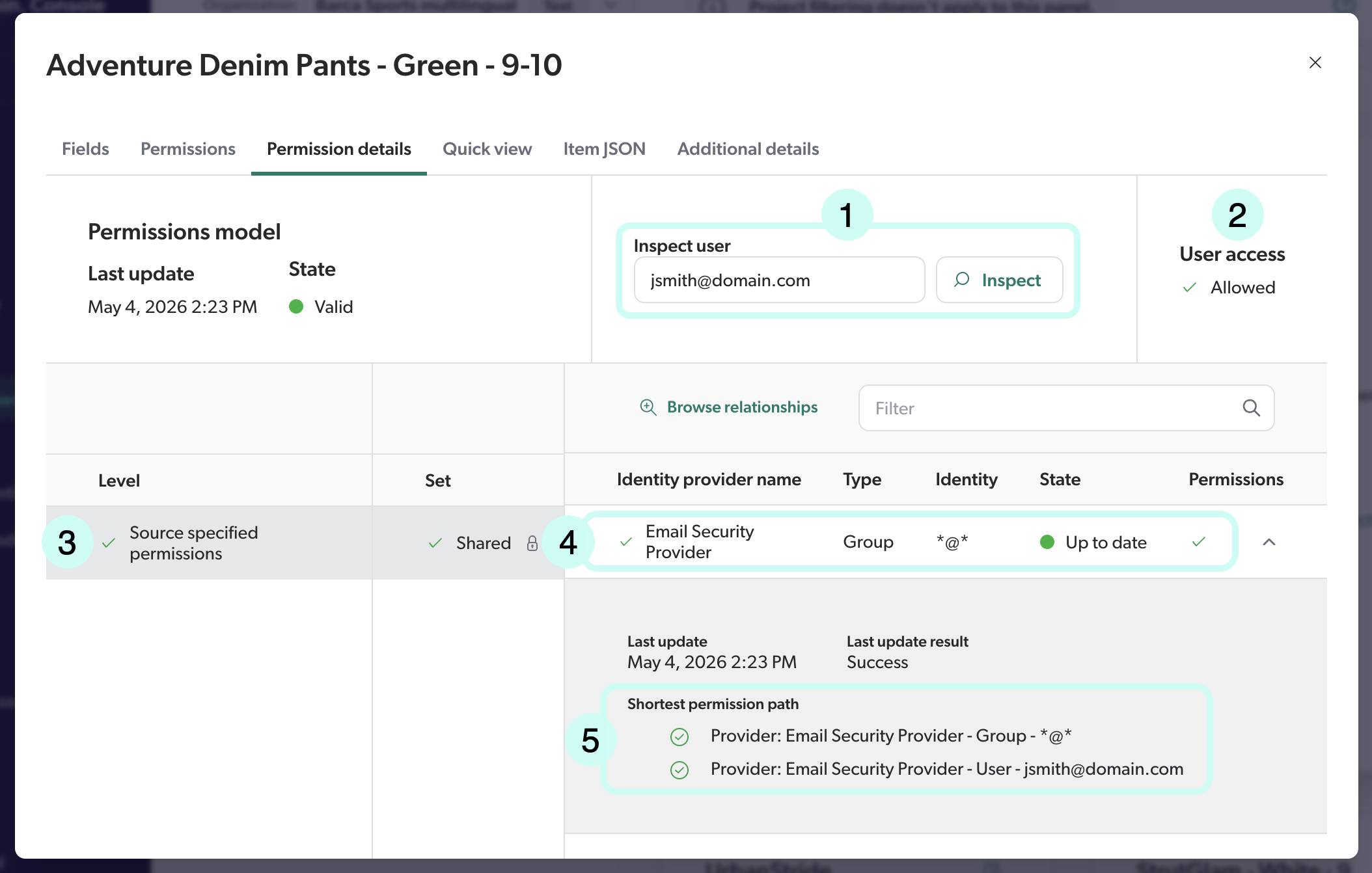
1 |
Enter the email address representing the user, and then click Inspect. |
2 |
Whether this user can access the item in search results, according to the item’s effective permissions.
|
3 |
A |
4 |
Select a level and set to view the identities they contain. The right portion of the panel then displays the security identities in this set to which the user is related. Like in the Permissions tab, you can review the state of the identity. |
5 |
Click an identity to display through which parent/child relationships the user ends up in the item’s effective permissions. Like in the Permissions tab, you can review the result of the identity’s last update. |
For more information on sources that index permissions and on how Coveo handles these permissions, see Coveo management of security identities and item permissions.
About identity states
In the Content Browser (platform-ca | platform-eu | platform-au), you can select an item to view its properties. The Permissions and Permission details tabs show the security identities associated with an item and their respective state.
A security identity's state indicates whether it’s up to date and can be used to grant or deny access to items, or if it has an issue, such as being disabled or not updated yet. The state of a security identity is especially important to consider when troubleshooting permission issues, as an identity that isn’t up to date or is in error may be expected to grant or deny access to an item, but won’t be able to do so until its issue is resolved.
Identity state details
| State | Details | Action to take |
|---|---|---|
Not updated |
This security identity hasn’t been updated yet. |
None. Wait for the first automatic update, which should start within a few days. |
In error |
The last update failed with an error. The security identity’s relationships are cleared. |
Check Last update result for more information. Once the issue is fixed, update the identity again. |
Out of date |
The last update failed, but the security identity has previously been updated successfully. |
Check Last update result for more information. Once the issue is fixed, update the identity again. |
Disabled |
This security identity may have been deleted in its original system. The security identity’s relationships are cleared. |
None. This security identity will be re-enabled next time Coveo encounters it. |
Up to date |
The security identity was successfully updated. No issue encountered. |
None. |
You can also get an identity’s state from the Security Identities (platform-ca | platform-eu | platform-au) page, which presents security identities by provider rather than by item.
About update results
In the Content Browser (platform-ca | platform-eu | platform-au), you can select an item to view its properties. The Permissions and Permission details tabs list the security identities associated with an item and the result of the last update for each identity.
A security identity update is the process during which Coveo’s security identity cache retrieves the latest information about a security identity from the indexed system, such as its name, type, and relationships with other identities. This process is crucial for Coveo to resolve identity relationships and replicate the original system’s access control rules within its search interfaces, ensuring that users only see content they’re allowed to access.
Last update result details
| Last update result | Description |
|---|---|
Success |
The security identity was successfully updated. |
None |
The security identity hasn’t been updated yet. |
Access denied |
Coveo’s security identity provider couldn’t access the indexed system to update the security identity. |
Timed out |
A timeout error occurred while Coveo’s security identity provider was accessing the indexed system to update the security identity. |
Entity is invalid |
The security identity is invalid, for example due to an inadequate format or configuration. Alternatively, it may no longer exist in the indexed system. |
Entity is unavailable |
The security identity update failed. |
Security provider is unavailable |
The security identity provider couldn’t be found. |
Security provider is unreachable |
The security identity provider can’t be reached. |
Security provider isn’t ready |
The security identity provider isn’t ready to provide the requested information. Try again later. |
Unexpected error |
An unexpected error occurred while updating the security identity. Contact Coveo Support for help. |
You can also get an identity’s last update result from the Security Identities (platform-ca | platform-eu | platform-au) page, which presents security identities by provider rather than by item.
Preview an item with the "Quick view" tab
In the Content Browser (platform-ca | platform-eu | platform-au), selecting an item and clicking Properties in the Action bar opens a panel showing this item’s properties. These properties include a Quick view tab that helps you review the item’s content.
Whether a preview is available for an item depends on the source configuration and the item content. If a preview isn’t available, you can build one from the item’s metadata.
If you encounter issues with the Quick view, such as unexpected or missing content, see Troubleshooting Quick view issues.

|
Note
The maximum supported item size is 10,000 bytes. |
Review an item’s details
On the Content Browser (platform-ca | platform-eu | platform-au) page, click an item and then click Properties in the Action bar. In the panel that appears, select the Additional details tab.
The Additional details tab shows additional details about the item, such as the source that indexed it and the date of the last indexing. It also includes the item URI and the item unique ID, which can be useful for troubleshooting purposes.

|
Since the item unique ID and URI may contain sensitive information, they should only be used for troubleshooting purposes and not shared with others. If you need to share a unique item identifier, use the primary ID instead. This ID is available in the Fields tab and doesn’t contain sensitive information. |
Required privileges
The following table indicates the privileges required to use the Content Browser (platform-ca | platform-eu | platform-au) page and view associated data, such as item properties and permissions. See Manage privileges and Privilege reference for details.
There’s nothing editable in the Content Browser. However, you must have the Allowed access level on the Execute queries domain to access the page.
| Action | Service | Domain | Required access level |
|---|---|---|---|
Use the Content Browser and view its data |
Analytics |
Analytics data |
View |
Dimensions |
View |
||
Content |
Fields |
View |
|
Security identities |
View |
||
Sources |
View |
||
Organization |
Organization |
View |
|
Search |
Execute queries |
Allowed |
|
View all content |
Allowed |
||
View dictionary fields in the Content Browser |
All of the above, plus: |
||
Search |
Explore dictionary fields |
View |
|