Manage dimensions on custom metadata
Manage dimensions on custom metadata

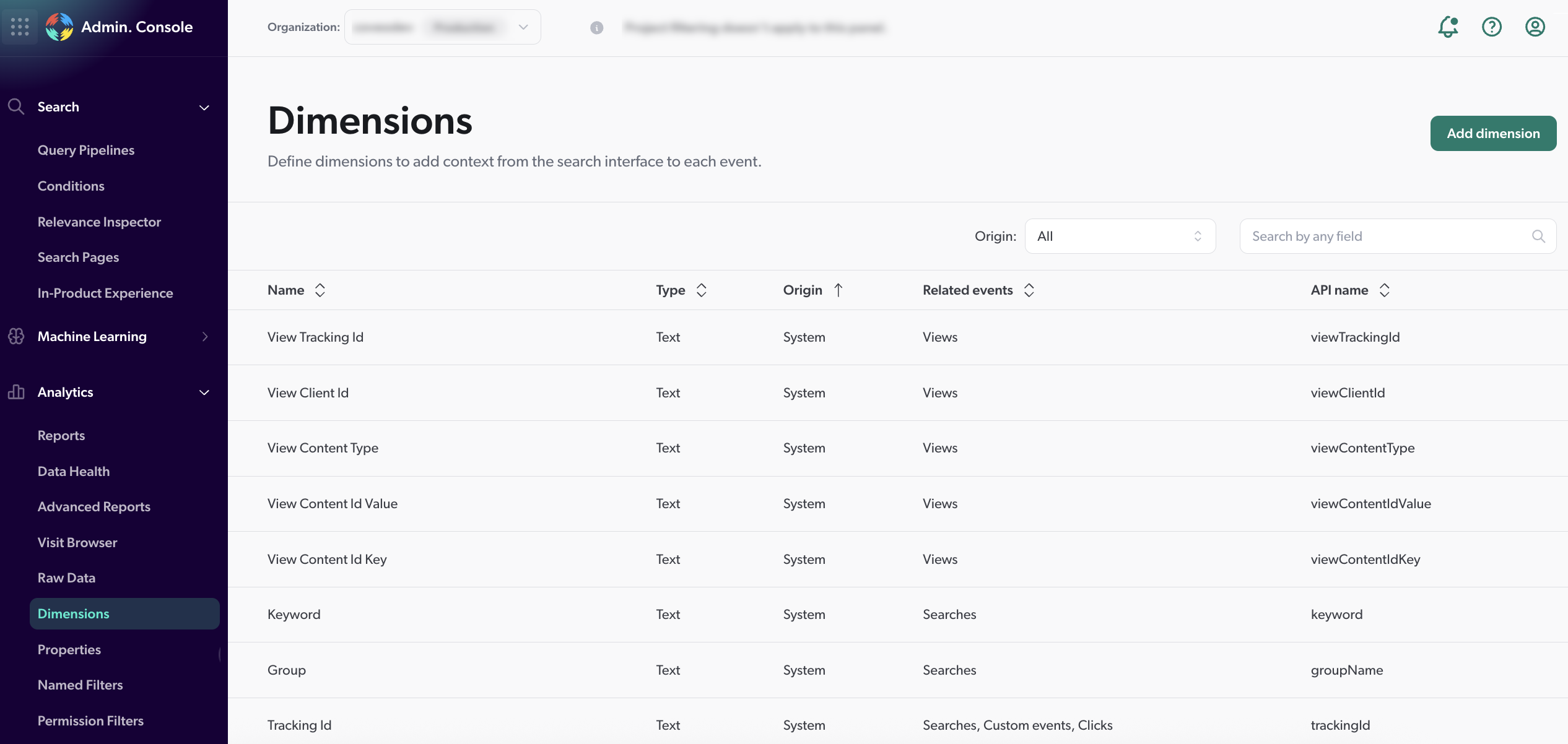
This article shows you how to create and manage custom dimensions in the Coveo Administration Console to track additional metadata. Your Coveo organization includes standard dimensions by default. The Dimensions (platform-ca | platform-eu | platform-au) page lets you extend analytics to track the metrics that matter most to your use case.
Custom dimensions help you capture specific information from your search interfaces that aligns with your business needs, enabling more detailed reporting and analysis. This capability helps track custom user interactions, A/B test variations, or any application-specific data that helps you understand search behavior in your unique context.
-
As a support manager, you’ve noticed that a lot of customers are submitting support tickets for issues that are already addressed in your knowledge base.
You decide to track the usage of your case deflection component. To do so, you create a new dimension that you name
Case Deflection Usageto track user interactions with the component.After a month, you create a report including the new dimension and realize that the component isn’t as interactive as you hoped. You then apply a few changes, such as making the case deflection component more prominent on your support page.
As a result, your ticket submissions drop as users can now find answers faster.
-
You learn that third-party cookies are being deprecated, and you want to make sure that all your search hubs are compliant.
To find out whether any of your search hubs are still leveraging third-party cookies, you want to create a custom report, but first, you must create a custom dimension specifically for this purpose.
You create a new dimension named
Third-party cookies, and then include it in your report. After assessing the report, you discover two hubs are indeed still using third-party cookies, and you update them to ensure that they’re leveraging the client ID instead.As a result, your search hubs are now compliant with the new regulations.
Prerequisites
-
You must have the required privileges.
-
Your implementation must already send custom metadata.

|
Note
Custom metadata can only be leveraged when using the UA Protocol. If your Coveo implementation uses the Event Protocol, custom metadata shouldn’t be added to a report since they won’t function as expected. |
Add dimensions on custom metadata
-
On the Dimensions (platform-ca | platform-eu | platform-au) page, click Add dimension.
-
In the Display name field, enter a name for the dimension, for example,
Generated answer.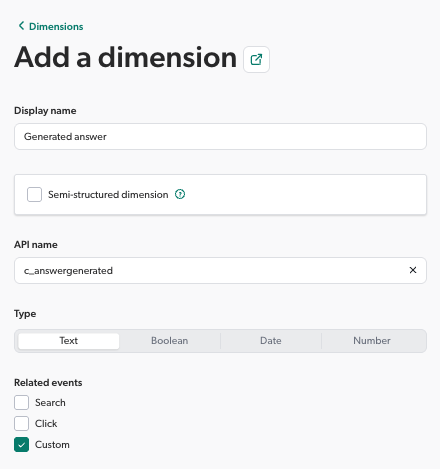
-
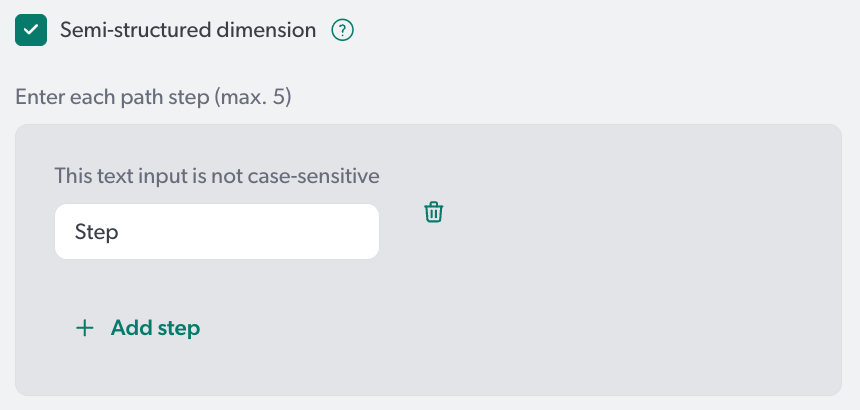
(Optional) To create a semi-structured dimension, select the Semi-structured dimension checkbox.
-
In the Step field that appears, enter the applicable path step. To add another step, click Add step.
-
-
Click the API name field and do one of the following:
-
Select one of the API names that have no associated dimensions.
-
Start writing, and then select one of the suggested values as you type.
-
Enter one of the available API names or create a new one by typing it in.
-
Enter a custom API name as instructed by Coveo documentation for a specific purpose. For example, enter
c_answergeneratedto create the dimension used for Search Agent reports.
NoteIf you selected the Semi-structured dimension checkbox and then entered one or several path steps, those steps will be automatically added to the API name dropdown menu. In this case, select the API name that matches the path steps instead of modifying it manually.
-
-
Under Type, select the desired value type.
NoteCustom dimensions of the Date type support epoch timestamp values in milliseconds (13-digit format), for example,
1685557608944. -
Under Related events, select at least one of the available category checkboxes.
-
Click Add dimension.
 Leading practices
-
For every dimension you create, you can review the number of unique dimension values with the Unique [Dimension Name] metric that’s automatically created.
-
For every numeric dimension you create, you can measure the dimension value total and average value as well the minimum and maximum values using the following metrics that are automatically created: Average [Dimension Name], [Dimension Name] Maximum, [Dimension Name] Minimum, and [Dimension Name] Sum.
-
After a dimension is created, only the display name can be edited. To further define a custom dimension that you’ve already created (for example, adding the semi-structured dimension option), create a new dimension with the desired configuration and then delete the initial one.
-
Edit a user-defined dimension name
-
On the Dimensions (platform-ca | platform-eu | platform-au) page, click the user-defined dimension that you want to edit, and then Edit in the Action bar.
-
In the Edit a dimension panel, click the Display name box and then change the display name.
-
Click Save.
View dimensions
View the details of a user-defined dimension.
-
On the Dimensions (platform-ca | platform-eu | platform-au) page, click the user-defined dimension that you want to view.
-
In the View a dimension panel that appears, review the dimension details.
Review dimension management activities
As part of your duties, you may need to review activities related to dimensions for investigation or troubleshooting purposes.
To do so, in the upper-right corner of the Dimensions (platform-ca | platform-eu | platform-au) page, click  .
.
See Review resource activity for details on activities and alternative ways to access this information.
Delete a user-defined dimension
-
On the Dimensions (platform-ca | platform-eu | platform-au) page, click the user-defined dimension that you want to remove, and then click Delete in the Action bar.
-
In the confirmation prompt that appears, click Delete.
Required privileges
The following table indicates the required privileges to view and edit elements of the Dimensions (platform-ca | platform-eu | platform-au) page and associated panels (see Manage privileges and Privilege reference).
| Action | Service | Domain | Required access level |
|---|---|---|---|
View dimensions |
Analytics |
Analytics data |
View |
Dimensions |
View |
||
Organization |
Organization |
View |
|
Edit dimensions |
Analytics |
Analytics data |
View |
Dimensions |
Edit |
||
Organization |
Organization |
View |
|
Access the Activity Browser and view all organization activities |
Organization |
Activity |
View |
Organization |
View |

|
A member with the View access level on the Activities domain can access the Activity Browser. This member can therefore see all activities taking place in the organization, including those from Coveo Administration Console pages that they can’t access. |
What’s next
Create reports using your new dimensions to analyze search behavior.