Set up an answer configuration
Set up an answer configuration


|
The Coveo Knowledge Hub is currently available as a beta to early-access customers only. Contact your Account Manager for early access to this feature. |
This article covers how administrators and knowledge managers can set up an answer configuration, the required connection between an RGA-enabled search interface and the Knowledge Hub's Answer Manager. With an answer configuration, you can view feedback on your RGA-generated answers and create rules to manage the generated answers.
Answer configurations are created and managed in the Answer Manager, and each answer configuration is associated with a specific RGA-enabled search interface. Feedback that’s collected for generated answers in a search interface appears in the associated answer configuration in the Answer Manager. Rules that you create in an answer configuration apply only to the generated answers in the associated search interface.

|
Why you need an answer configuration
In the improving your RGA implementation through answer evaluation workflow, an answer configuration is required to view answer feedback and create rules to manage your generated answers. 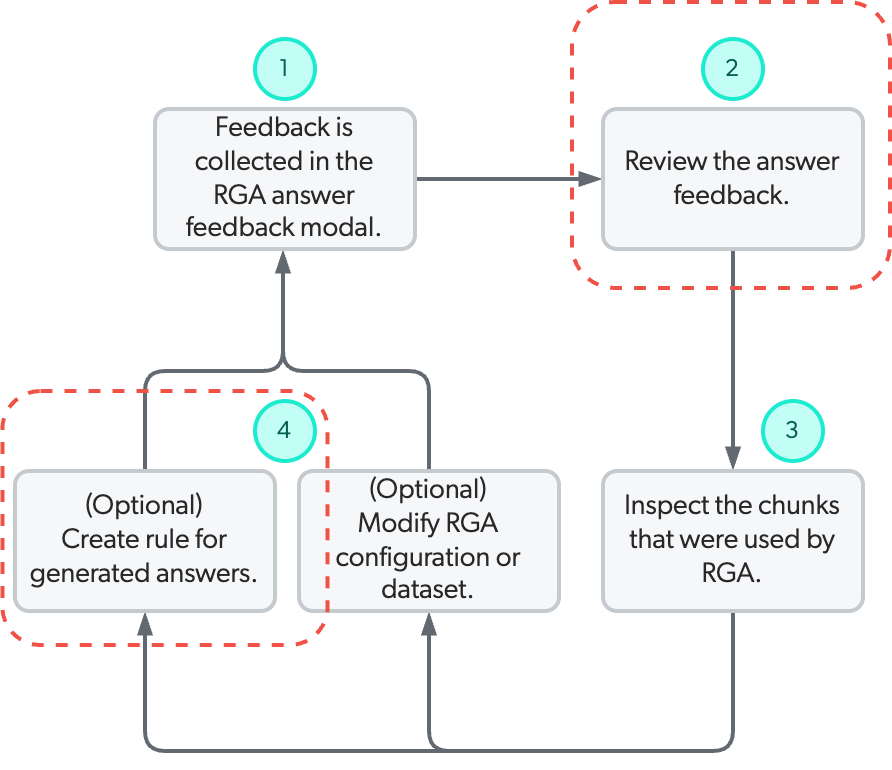
|
To set up an answer configuration for your RGA-enabled search interface
-
Associate the answer configuration with your RGA-enabled search interface.
-
Override the
qandlqquery parameters (if you’re using an RGA-enabled Hosted Insight Panel).
Prerequisites
Before you begin, make sure you have the following:
-
An RGA implementation that includes an RGA-enabled search interface.
-
The required privileges to create an answer configuration in the Knowledge Hub.
Create an answer configuration
Create an answer configuration to view answer feedback and create rules to manage your RGA-generated answers.

|
Note
|
-
Access the Knowledge Hub by selecting Knowledge Hub in the application picker in the Coveo Administration Console header.

-
In the Knowledge Hub navigation menu, select Answer Manager.
-
Click Add configuration.
-
Enter a descriptive Name for your configuration.
-
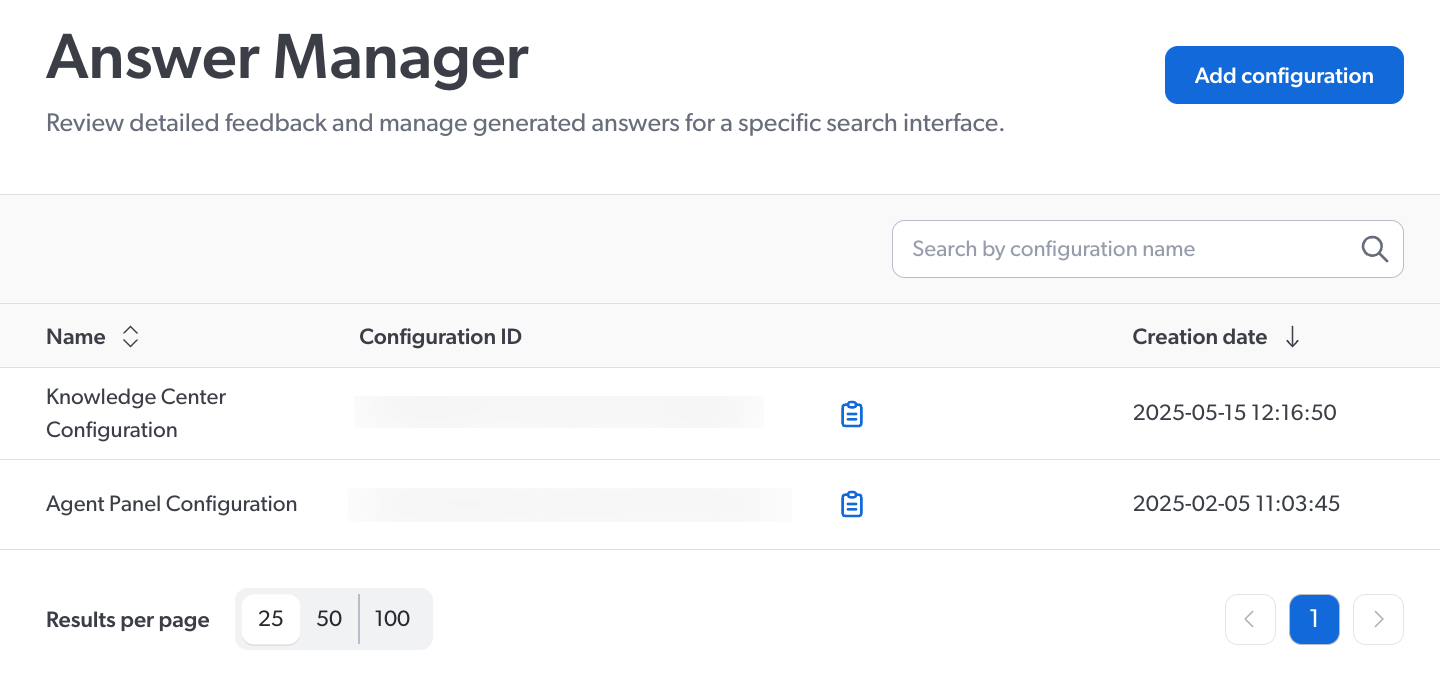
Click Add. The new answer configuration appears in the list of configurations.
-
If your RGA-enabled search interface is a custom search interface that was created using the Coveo Atomic library, Coveo Headless library, or Quantic library, copy the Configuration ID of the newly created answer configuration. You’ll need the configuration ID to associate the answer configuration with your search interface. The configuration ID isn’t required if you created a Coveo hosted search interface using the Search Page builder, In-Product Experience (IPX) builder, or Insight Panel builder.

-
Associate your answer configuration with your RGA-enabled search interface.
Rename an answer configuration
You can change the name of an existing answer configuration.
-
Access the Knowledge Hub by selecting Knowledge Hub in the application picker in the Coveo Administration Console header.
-
In the Knowledge Hub navigation menu, select Answer Manager.
-
Click the answer configuration you want to rename from the list.
-
In the Action bar, click Rename.
-
Modify the Name as needed.
-
Click Save to apply your changes.
Delete an answer configuration
You can delete an answer configuration when it’s no longer needed.
|
|
|
-
Access the Knowledge Hub by selecting Knowledge Hub in the application picker in the Coveo Administration Console header.
-
In the Knowledge Hub navigation menu, select Answer Manager.
-
Click the answer configuration you want to delete from the list.
-
In the Action bar, click Delete.
-
In the confirmation prompt that appears, click Delete again to confirm.
Associate an answer configuration with a search interface
When you associate an answer configuration with an RGA-enabled search interface, you can:
-
View the feedback for the answers that are generated in that search interface. The feedback is collected and available to view in the associated answer configuration in the Answer Manager.
NoteAn answer configuration shows only the feedback that’s collected after you associate it with the search interface.
-
Create rules to manage the search interface’s generated answers. For example, you can create a rule that prevents an answer from being generated based on the presence of specific words in a query. Rules that you create impact the generated answers only in the associated search interface.
How to associate an answer configuration with a search interface depends on how you created your RGA-enabled search interface:
-
If you created a Coveo hosted search interface using one of the search interface builders (Search Page builder, In-Product Experience (IPX) builder, or Hosted Insight Panel builder), see Coveo hosted search interface.
-
If you created a custom search page using the Coveo Atomic library, Coveo Headless library, or Quantic library, see Custom search interface.
Coveo hosted search interface
If you created a Coveo hosted search interface using one of the Coveo builders, the association is made directly in the builder settings.
-
Select the answer configuration that you want to associate with the search interface in the appropriate builder settings:
-
Notes
-
If the Hosted Insight Panel is integrated in Salesforce, the answer configuration association requires Coveo for Salesforce v6.3 or later.
-
In Coveo for Salesforce v6.6 and later, a Generate Answer button is displayed by default in the Hosted Insight Panel when an answer configuration is associated with your RGA-enabled Hosted Insight Panel configuration. When a query is empty, this button allows service agents to generate answers based on the context of the case they’re viewing or editing.
-
-
Add an
answerAPIcondition to the search interface’s query pipeline. -
Override the
qandlqquery parameters (if you’re using an RGA-enabled Hosted Insight Panel).
Custom search interface
If you created a custom search page using the Coveo Atomic library, Coveo Headless library, or Quantic library, associate the answer configuration with the search interface using the configuration ID.
-
Add the Configuration ID of the answer configuration to your search interface as follows:
-
For Atomic search pages, enter the configuration ID in the
answerConfigurationIdproperty of theatomic-generated-answercomponent.
NoteAssociation with an answer configuration requires Atomic v2.79.1+.
-
For Quantic search pages, enter the configuration ID in the
answerConfigurationIdproperty of theQuanticGeneratedAnswercomponent.
NoteAssociation with an answer configuration requires Quantic v3.10.0+.
-
For Headless search pages, enter the configuration ID in the
answerConfigurationIdproperty of theGeneratedAnswercontroller.
NoteAssociation with an answer configuration requires Headless v2.80.6+.
-
-
Add an
answerAPIcondition to the search interface’s query pipeline. -
Override the
qandlqquery parameters (if you’re using an RGA-enabled Hosted Insight Panel).
Add an answerAPI condition to the query pipeline
When an RGA-enabled search interface is associated with an answer configuration, you must add an answerAPI condition for the RGA model in the associated query pipeline.
This condition ensures that the generative queries per month (GQPM) aren’t duplicated for queries that use your RGA model.
To add the condition, see Prevent duplicate GQPM when using the Answer Manager.
|
|
If an RGA-enabled search interface is no longer associated with an answer configuration, remove the |
Override the q and lq query parameters
When an RGA-enabled Hosted Insight Panel is associated with an answer configuration, you must override the q and lq parameters of the query pipeline that’s associated with your Hosted Insight Panel configuration.
Overriding these parameters ensures that when a query is empty, the Generate Answer button that’s part of the Hosted Insight Panel can display answers based on the context of the case being worked on.
To override the q and lq parameters
-
On the Query Pipelines (platform-ca | platform-eu | platform-au) page, click the query pipeline to which the Hosted Insight Panel is associated, and then click Edit components in the Action bar.
-
On the subpage that appears, select the Advanced tab, and then click Query parameters on the left side of the page.
-
On the Query parameters tab, add a rule overriding the basic query expression (
q) parameter value as follows:-
Click Add query parameter rule.
-
On the Add a query parameter rule subpage, select q (basic query expression), and then click Next.
-
Under q (basic query expression), enter
<@+ $context.Case_Subject +@>. -
Under Condition, create a condition that includes the following sub-conditions:
-
QUERY Is Empty -
context[answerAPI] Is TrueThis condition ensures the query override only applies to Answer API requests made when the Generate Answer button is clicked in the Hosted Insight Panel. It doesn’t affect or alter the behavior of regular search requests made using the search box.
-
-
Click Add rule
-
-
On the Query parameters tab, add a rule overriding the large query expression (
lq) parameter value as follows:-
Click Add query parameter rule.
-
On the Add a query parameter rule subpage, select lq (large query expression), and then click Next.
-
Under lq (large query expression), enter
<@+ $context.Case_Description +@>. -
Under Condition, create a condition that includes the following sub-conditions:
-
QUERY Is Empty -
context[answerAPI] Is TrueThis condition ensures the query override only applies to Answer API requests made when the Generate Answer button is clicked in the Hosted Insight Panel. It doesn’t affect or alter the behavior of regular search requests made using the search box.
-
-
Click Add rule.
-
Your Query Parameter rules should look like this:

Required privileges
The following table indicates the privileges required to access the Coveo Knowledge Hub, and view or edit elements of the Answer Manager and associated panels (see Manage privileges and Privilege reference).
|
|
Both the Edit and View access level on the Answer manager domain allows the member to view all generated answers for which feedback exists in an answer configuration in the Answer Manager. This may include content to which the member may not have access to otherwise through the repository’s permission system. Exercise caution when granting this privilege to members. |
| Action | Service | Domain | Required access level |
|---|---|---|---|
Access the Coveo Knowledge Hub |
Knowledge |
Knowledge hub |
Allowed |
Organization |
Organization |
View |
|
|
Knowledge |
Answer manager |
View |
|
Knowledge |
Answer manager |
Edit |