Create a Coveo search interface project
Create a Coveo search interface project

This is for:
DeveloperThis article explains how to scaffold a Coveo-powered search interface project with npm create @coveo/ui, the command-line tool that generates a project from Coveo’s official samples.
Use it to start a new Coveo Atomic or Coveo Headless implementation or to create a working reference project for experimentation.
Generated projects run immediately against Coveo’s public sample organization, so you don’t need an organization ID, API key, or search token to see a working search or commerce interface. Once the project runs, you can point it at your own organization.

|
Notes
|
Prerequisites
-
Node.js 22.12 or later, or 24.11 or later.
-
npm or pnpm. The tool detects the package manager you use to run the command and uses it to install dependencies.
Create a project
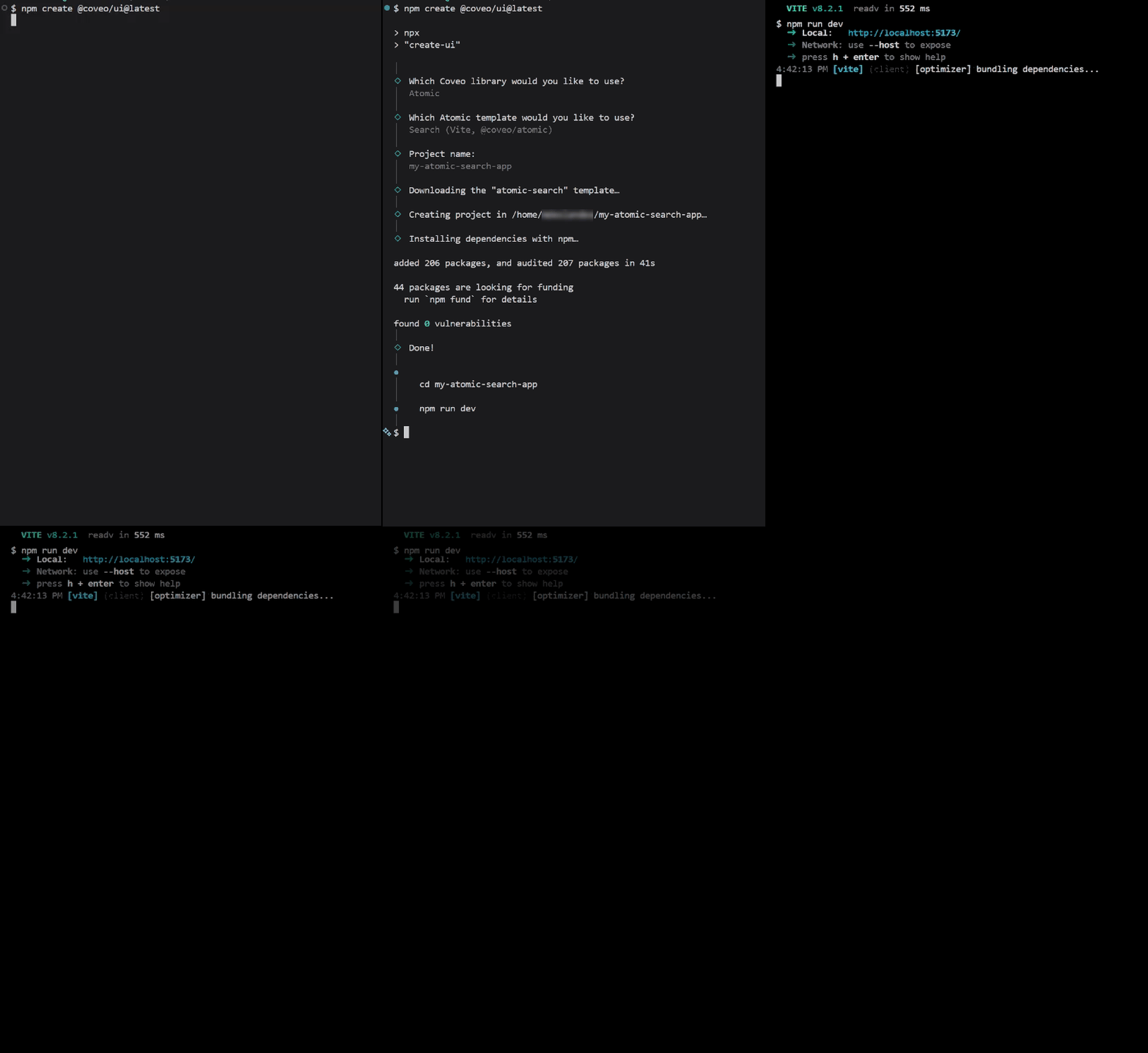
-
In a terminal, navigate to the folder in which you want to create your project.
-
Run the following command:
npm create @coveo/ui@latest -
When prompted, select the Coveo library and template you want to use, and then enter a project name.
You can also skip the prompts by providing the project name and template values directly:
npm create @coveo/ui@latest my-new-app -- --template headless-search-reactThe tool prompts only for omitted values.
-
Navigate to your new project folder.
cd my-new-app -
Start your project.
npm run dev
Your browser opens the new interface, which queries the Coveo sample organization.
Command reference
The following table lists the arguments and options available for npm create @coveo/ui.
| Argument or option | Description |
|---|---|
|
Name of the project and the directory where it’s created, resolved relative to the current directory. If you omit it, the tool prompts you for a name. |
|
Template to scaffold. If you omit it, the tool prompts you to select one. |
|
Version of the sample to scaffold, specified as a semantic version (for example, |
|
Prints links to the Coveo documentation without scaffolding a project. |
|
Prints usage information, the full list of templates, and examples. |
|
|
Note
Pin a version when you need to reproduce an issue with a specific library version. Otherwise, omit |
Available interface templates
Each template is a Coveo-maintained sample published to npm.
--template value |
Library | Use case | Framework |
|---|---|---|---|
|
Atomic |
Search |
Vite |
|
Atomic |
Commerce |
Vite |
|
Atomic |
Search |
React |
|
Atomic |
Commerce |
React |
|
Headless |
Search |
Vite |
|
Headless |
Commerce |
Vite |
|
Headless |
Search |
React |
|
Headless |
Commerce |
React |
|
Headless SSR |
Commerce |
Next.js |
|
Headless SSR |
Commerce |
Express |
The template list evolves as Coveo publishes new samples. To see the templates currently available, run the following:
npm create @coveo/ui@latest -- --helpTroubleshooting
If project creation fails, review the error message and apply the corresponding solution that follows.
- Unknown template "<NAME>"
-
The template name is misspelled or doesn’t exist. Run
npm create @coveo/ui@latest -- --helpto list the valid values. - Template "<NAME>" version "<VERSION>" is not available
-
The requested version was never published for this sample, or it predates the version in which the sample first appeared. Omit
--template-versionto use the latest version. The tool doesn’t scaffold a project when this error occurs. - Target directory "<NAME>" already exists and is not empty
-
Use a different project name or empty the target directory.
- Dependency installation failed
-
The project files were created, but dependencies weren’t installed. Run
npm install(or the equivalent command for your package manager) in the project folder.
The tool also writes a local crash report if an unexpected failure occurs.
You can submit the report using npx @coveo/create-ui report <REFERENCE>.
Nothing is sent unless you submit the report.
You can disable crash reporting by setting the DO_NOT_TRACK environment variable.
Project metadata
The tool writes a .coveo/create-ui.json file in your new project that records the template, sample version, tool version, creation date, @coveo/* dependency versions, and Node.js and package manager versions used.
The file contains only tool non-sensitive metadata and remains in your project.
If the tool can’t write the file, the scaffolding process still succeeds, and the tool prints a warning.
Connect your project to your own organization
The generated project uses the Coveo sample organization, so you can start learning and prototyping immediately.
To query your own content, replace the sample organization ID and access token in the project’s Coveo configuration, as described in the Coveo Atomic and Coveo Headless documentation.
What’s next?
Customize the interface to meet your needs:
-
Add or update facets to filter on fields relevant to your use case.
-
Update result templates to display the information your users need.
-
Add components to leverage the full range of Coveo’s relevance capabilities.
For implementation guidance, see the documentation for your selected Coveo library: