Configure a search interface for the Search Agent
Configure a search interface for the Search Agent


|
Coveo Conversational Search is a paid product extension that enables the Coveo Search Agent. Contact Coveo Sales or your Account Manager to add Coveo Conversational Search to your organization license. |
To add conversational search using the Coveo Search Agent, add the Search Agent component to your Coveo-powered search interface.
For information on the Search Agent component, see Search Agent component features.

|
For complete implementation steps for the Coveo Search Agent, see Search Agent implementation overview. |
|
|
Use the Conversation Inspector to analyze the answers generated by your Search Agent. It provides visibility into every answer generated throughout a multi-turn conversation. You can also view the retrieved passages for each query, including when no answer was generated, making it easier to troubleshoot retrieval and answer-generation issues. |
Add the Search Agent component
You can enable the Search Agent component for a Coveo hosted search interface that was created using the simple builder, and for a custom Coveo-powered search interface that was created using the Coveo Atomic library, Coveo Headless library, or Coveo Quantic library.
Coveo hosted search interface
If you’re using a Coveo hosted search interface that was created using the hosted search page builder, enable the Agent option in the builder configuration to add the Search Agent component to the search interface.
Custom search interface
If you’re using a custom Coveo-powered search interface, enable the Search Agent component as specified in Coveo Atomic search page, Coveo Headless search page, or Coveo Quantic search page.

|
Note
Integration with a Coveo JavaScript Search Framework search interface requires a custom Search Agent component. Coveo maintains and supports a Search Agent component only for Coveo Atomic, Coveo Headless, and Coveo Quantic. Contact your Account Manager to enable a Search Agent component in a Coveo JavaScript Search Framework search interface. |
Coveo Atomic search page
This section explains how to add the Search Agent component to a custom Coveo-powered search interface built using the Coveo Atomic library.
|
|
Requires Atomic version 3.49.0 or later.
Although the |
-
Add the
atomic-generated-answercomponent to your search interface. -
Associate your Search Agent with the search interface by specifying the agent ID using the
agent-idproperty on theatomic-generated-answercomponent.
To get the Search Agent ID, on the Agents (platform-ca | platform-eu | platform-au) page of the Coveo Administration Console, click the Search Agent, and then click View.
ExampleIf your Search Agent ID is
123456789ABCDEFG, you would add the following code to your search interface:<atomic-generated-answer agent-id="123456789ABCDEFG"> </atomic-generated-answer>
Coveo Headless search page
This section explains how to add the Search Agent component to a custom Coveo-powered search interface built using the Coveo Headless library.
|
|
Requires Headless version 3.44.0 or later.
Although the |
-
Add the
GeneratedAnswercontroller to your search interface. -
Associate your Search Agent with the search interface by passing the
agentIdproperty inGeneratedAnswerPropswhen callingbuildGeneratedAnswer.
To get the Search Agent ID, on the Agents (platform-ca | platform-eu | platform-au) page of the Coveo Administration Console, click the Search Agent, and then click View.
Coveo Quantic search page
This section explains how to add the Search Agent component to a Coveo for Salesforce interface built using the Quantic library.
|
|
Requires Quantic version 3.42.0 or later.
Although the |
-
Add the
QuanticGeneratedAnswercomponent to your search interface. -
Associate your Search Agent with the search interface by specifying the agent ID using the
agent-idproperty on theQuanticGeneratedAnswercomponent.
To get the Search Agent ID, on the Agents (platform-ca | platform-eu | platform-au) page of the Coveo Administration Console, click the Search Agent, and then click View.
ExampleIf your Search Agent ID is
123456789ABCDEFG, you would add the following code to your search interface:<c-quantic-generated-answer agent-id="123456789ABCDEFG"> </c-quantic-generated-answer>
|
|
Note
Coveo recommends that you use the |
Search interface authentication
The API key that you use to authenticate your search interface must have the Execute agent queries privilege for queries to be sent to the Search Agent and for answers to be generated and displayed in the search interface.
For a search interface with public content that doesn’t require any authentication, use the Anonymous search or Search pages API key templates to create the API key that you’ll add to your search interface.
These templates have the required Execute agent queries privilege.
If your search interface requires authentication, your server-side code must use the Authenticated search API key to generate a search token for each user session.
All generated search tokens include the required Execute agent queries privilege.

|
Never expose an Authenticated search API key in client-side code. |
For more information on search interface authentication, see Add a simple hosted search page to a website for the hosted search page, or Implementation guide for a custom Atomic search interface.
|
|
Note
For existing workflows that use an Anonymous search or Search pages API key, or that generate a search token via the Authenticated search API key, the |
Search Agent component features
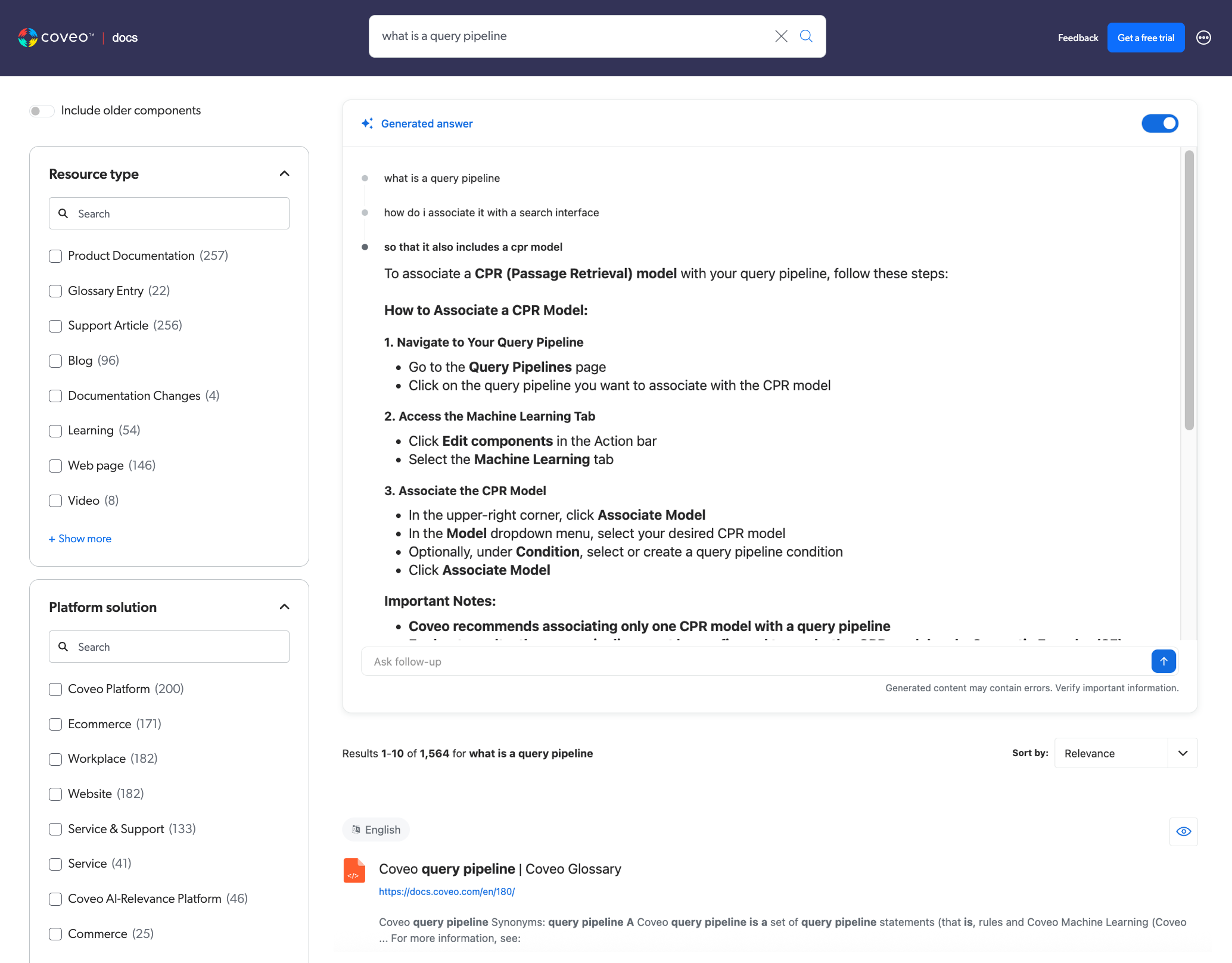
The Search Agent component adds a conversational search with generative answering experience to your Coveo-powered search interface.
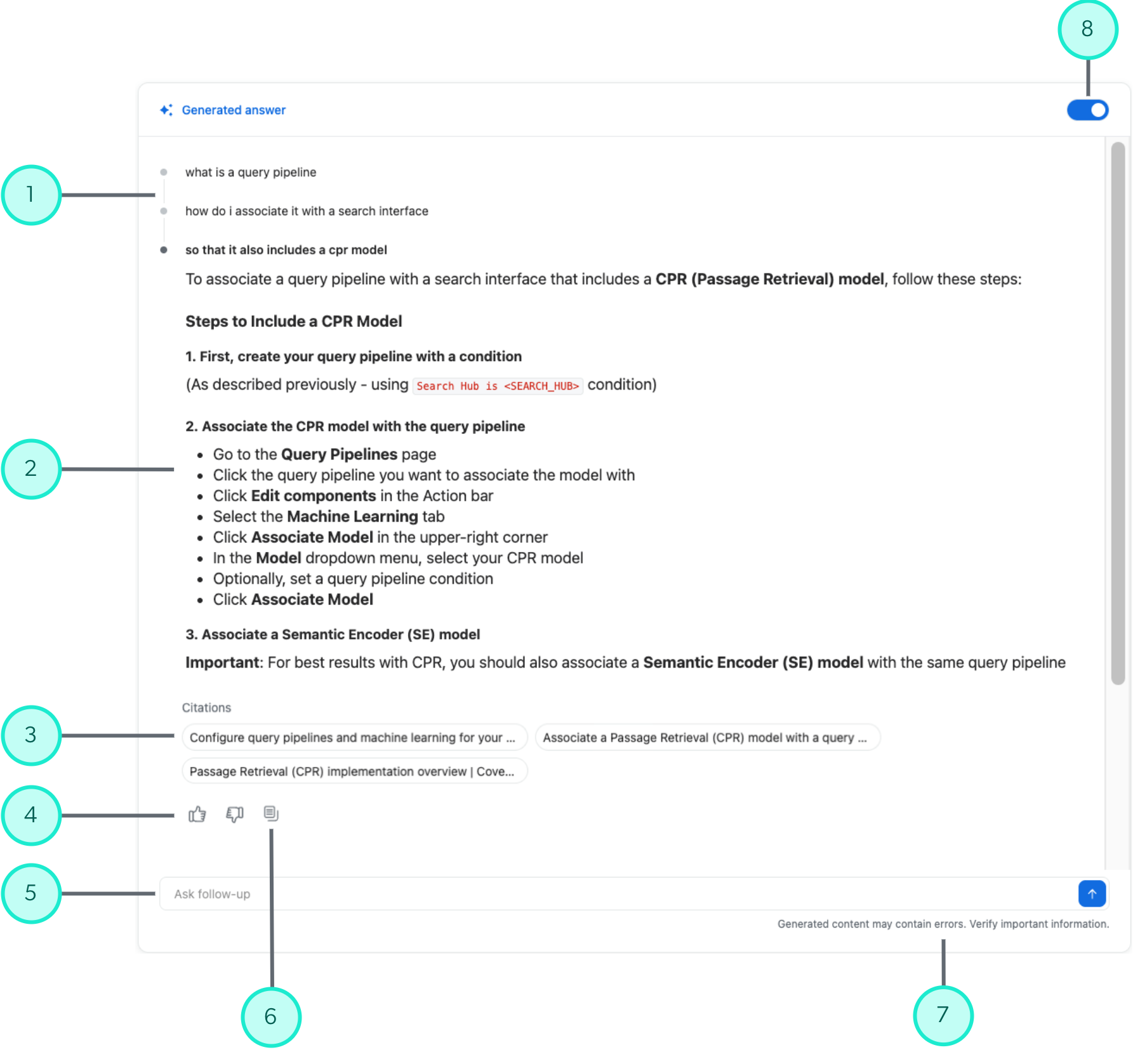
1 |
The initial query and any previous follow-up queries in the conversation. Click a previous query to view its generated answer.
|
||||
2 |
The generated answer for the current query.
|
||||
3 |
Citations highlight the items that contain the passages that were used to generate the answer. Hover over a citation to view the passage, or click a citation to open the item. |
||||
4 |
Users can click a thumbs-up or thumbs-down icon to provide feedback on the generated answer. |
||||
5 |
The conversational search box where users can enter a follow-up query.
|
||||
6 |
A copy button lets users copy the generated answer to their clipboard. |
||||
7 |
A disclaimer advises the user to verify important information in the generated answer. |
||||
8 |
Users can choose to show or hide the Search Agent component in their search interface. Answers are still generated even when the component is hidden, and showing the component reveals the generated answer. |
Inline links in generated answers
A generated answer can include inline links that come directly from passages in your indexed content. Follow these best practices for links in your indexed content to avoid broken links in generated answers.
Best practice for links
To avoid broken links in generated answers, links in your indexed content should be stored as absolute links in the index, such as https://example.com/en/page, instead of relative links, such as /en/page.
In generated answers, links are reproduced exactly as they’re stored in your index. An absolute URL includes its own scheme and host, so it always resolves to the intended destination. But a relative URL doesn’t include a host, so the browser resolves it relative to the page where the answer is displayed, which is your search page. Because your search page may not be the same origin as the page where the content was originally published, the link may resolve incorrectly and result in a broken link when clicked from the generated answer.
This commonly affects content where source systems store site-relative links, such as SharePoint Online content.
For example, SharePoint Online content often stores links such as /sites/MySite/SitePages/MyPage.aspx.
When that link appears in a generated answer rendered on your search page, the web browser resolves it against the search page origin (for example, https://search.cloud.coveo.com/sites/...) instead of your SharePoint domain (https://mytenant.sharepoint.com/sites/...).
Using absolute links in your indexed content ensures that links in generated answers always resolve correctly. For information, see How to resolve broken links in generated answers.
How to resolve broken links in generated answers
If your indexed content contains relative links, and those links aren’t resolving correctly in generated answers, you can do the following to fix the issue:
-
Use an indexing pipeline extension (IPE) to convert relative links to absolute links
NoteTo write an IPE’s Python script for custom processing, you should have at least basic Python development skills.
You can choose to use one or both of these methods depending on your content and needs.
Update your original content to use absolute links
The simplest way to ensure that links in generated answers always resolve correctly is to update your original content to use absolute links instead of relative links.
After updating and re-indexing your original content, the links will be stored in your index as absolute URLs and will resolve correctly when used in generated answers.
However, manually updating your original content may not always be feasible, especially if you have a large volume of content or are using a source system such as SharePoint, which uses relative links by design. In this case, you can use an indexing pipeline extension (IPE) to convert relative links to absolute links during the indexing process.
Use an indexing pipeline extension (IPE) to convert relative links to absolute links
You can use an indexing pipeline extension (IPE) to convert relative links to absolute when indexing your source content. An IPE is essentially a custom Python script that runs during the indexing process that customizes how source items are indexed.
To use an IPE to convert relative links to absolute links
-
Notes
-
When creating the IPE, select Body Markdown as the data stream to process. The CPR model uses this data stream to generate the passages that are used by the Search Agent. For more information, see Chunking data stream.
-
The IPE will process items only in the sources you specify. Create a Python script that converts relative link targets to absolute ones using the correct base URL for that source. If a source includes items with different base URLs, adapt your Python script accordingly so that each source link resolves to the correct base URL.
-
-
Apply the IPE to one or more sources in your Coveo organization.
NoteWhen applying the IPE to a source, select the Post-conversion stage.