Use hierarchical facets
Use hierarchical facets

This is for:
DeveloperIf some items in your index follow a logical hierarchical structure, you may want to display a facet that allows end users to navigate your item hierarchy accordingly.
This article explains how to use the DynamicHierarchicalFacet (or the CategoryFacet) component to do so.

|
Note
The This component works in a similar fashion to the older |
To use the DynamicHierarchicalFacet (or CategoryFacet) component in a search interface
-
Ensure that your index contains field with the Multi-value facet option enabled and representing the item hierarchy. The field values must have the following form
the;the|path;the|path|to;the|path|to|given;the|path|to|given|item;, where the delimiting character is|. -
Include the component in your HTML page.
ExampleYou have indexed the following file system:
c:\
user1\
   folder1\
      text1.txt
   folder2\
      text2.txt
      folder3\
      text3.txt
The
@parentfolderscontains values representing the path to each of those items in the file system hierarchy.Item @parentfoldersfield valuetext1.txt
c;c|user1;c|user1|folder1;text2.txt
c;c|user1;c|user1|folder2;text3.txt
c;c|user1;c|user1|folder2;c|user1|folder2|folder3;In your search page, you include the
CoveoDynamicHierarchicalFacetcomponent.<div class="CoveoDynamicHierarchicalFacet" data-title="Folder" data-field="@parentfolders"></div>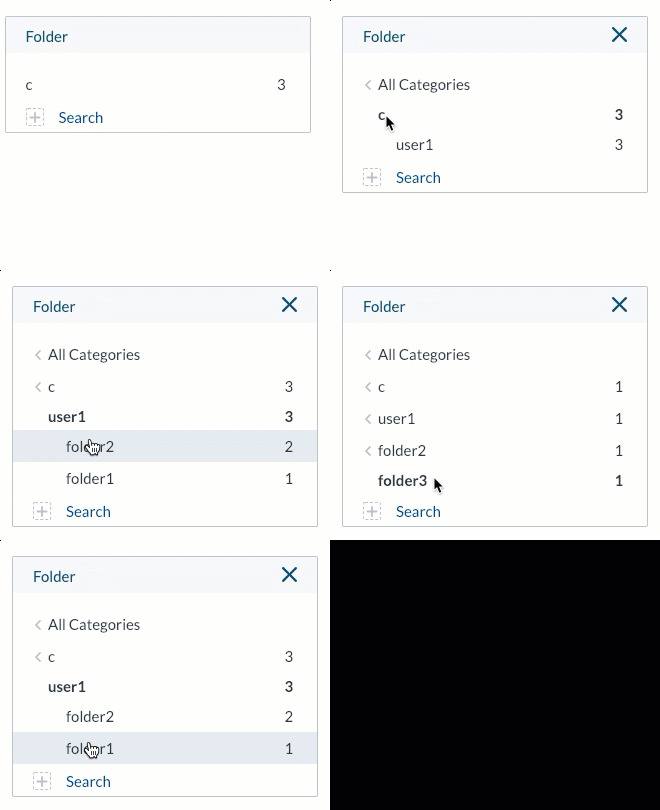
Navigating and filtering
You can only select one value at a time in a hierarchical facet. This is because those facets are meant to ease navigation through hierarchically organized content (for example, exploring product categories), as opposed to applying multiple hierarchical filters.
You have a search page for your store, where you sell electronics and office supplies.
You use a hierarchical facet titled Product Category on the @productcategory multi-value field.
This allows your end users to navigate the product hierarchy.

To refine result filtering, create dependent facets on the target hierarchical facet values.
You want the Brand facet to show when users select paper in your hierarchical facet, and you want the Pen Type facet to show when users select pen in your hierarchical facet.
<div id="search" class="CoveoSearchInterface">
  <!-- ... -->
  <div class="coveo-facet-column">
      <div class="CoveoDynamicHierarchicalFacet"
         data-title="Product Category"
         data-field="@productcategory"></div>
      <div id="brand_facet"
         class="CoveoDynamicFacet"
         data-title="Brand"
         data-field="@brand"></div>
      <div id="pentype_facet"
         class="CoveoDynamicFacet"
         data-title="Pen Type"
         data-field="@pentype"></div>
  </div>
  <!-- ... -->
</div>
<script>
// ...
document.addEventListener('DOMContentLoaded', function () {
// ...
const root = document.getElementById("search");
function isSelectedInParent(value) {
return (parentFacet) => {
const id = parentFacet.options.id;
const selected = parentFacet.queryStateModel.get(`f:${id}`);
return selected.includes(value);
}
}
Coveo.init(root, {
brand_facet: {
dependsOn: "@productcategory",
dependsOnCondition: isSelectedInParent("paper")
},
pentype_facet: {
dependsOn: "@productcategory",
dependsOnCondition: isSelectedInParent("pen")
}
});
});
</script>
Setting the base path
|
|
Note
The |
When all items in a hierarchical relationship resolve to a unique common ancestor, you may want to use the basePath option of the CategoryFacet component to eliminate this redundancy.
<div class="CoveoCategoryFacet" data-title="Folder"
     data-field="@parentfolders" data-base-path="c,user1"></div>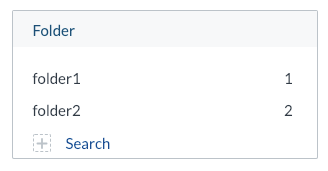
|
|
Note
When using Data Categories in Coveo for Salesforce, you can add the |