Reporting on notification clicks
Reporting on notification clicks

When you implement trigger rules using the Notify method that display links to users, you need to track how users interact with those links to measure their effectiveness.
What are notification clicks?
Notification clicks are user interactions with links displayed by trigger rules using the Notify method in your search interface. They differ from regular result clicks as they don’t originate from search results returned by the query. Instead, they’re generated by trigger rules based on the query content or context. When a user performs a query that matches a notify trigger rule’s conditions, the search interface displays a notification containing a message and optionally one or more links. If the user clicks a link in that notification, it’s a notification click.
Track notification clicks
Track notification clicks when you need to measure the effectiveness of your notify trigger rules and understand how users respond to the information you surface.
Common use cases include:
-
Measuring alert effectiveness.
Track whether users click warning or disclaimer links to assess if important information is reaching them.
-
Tracking engagement with recommendations.
Monitor how often users follow links to suggested resources or alternative search paths.
-
Monitoring response to guidance.
Measure user engagement with help content, best practices, or procedural links surfaced through notifications.
-
Evaluating content promotion.
Determine if promoted resources (new features, documentation updates, training materials) are generating interest.
The approach to capturing notification click data differs depending on whether the links redirect to items in your index or to external resources (that is, resources that aren’t in your index).
Links to indexed items.
When notification links redirect to items in the index, log these clicks as regular click events.
These clicks are taken into account in the Search Event Clickthrough metric and Coveo Machine Learning (Coveo ML) Automatic Relevance Tuning (ART) models can learn from them.
Links to external resources.
When notification links redirect to external resources, the best approach is to log these clicks as custom events.
Since the resources aren’t in your index, you don’t have all the information necessary to send the required request body properties to the Coveo UA Write API. Therefore, you can’t log these clicks as regular click events.
When logging notification clicks as custom events, consider that:
-
These events can’t be used by Coveo ML ART models.
-
To calculate the Search Event Clickthrough rate related to these clicks, use report cards. The default Search Event Clickthrough metric can’t be used since clicks logged as custom events aren’t considered as regular click events from a Coveo Analytics perspective.
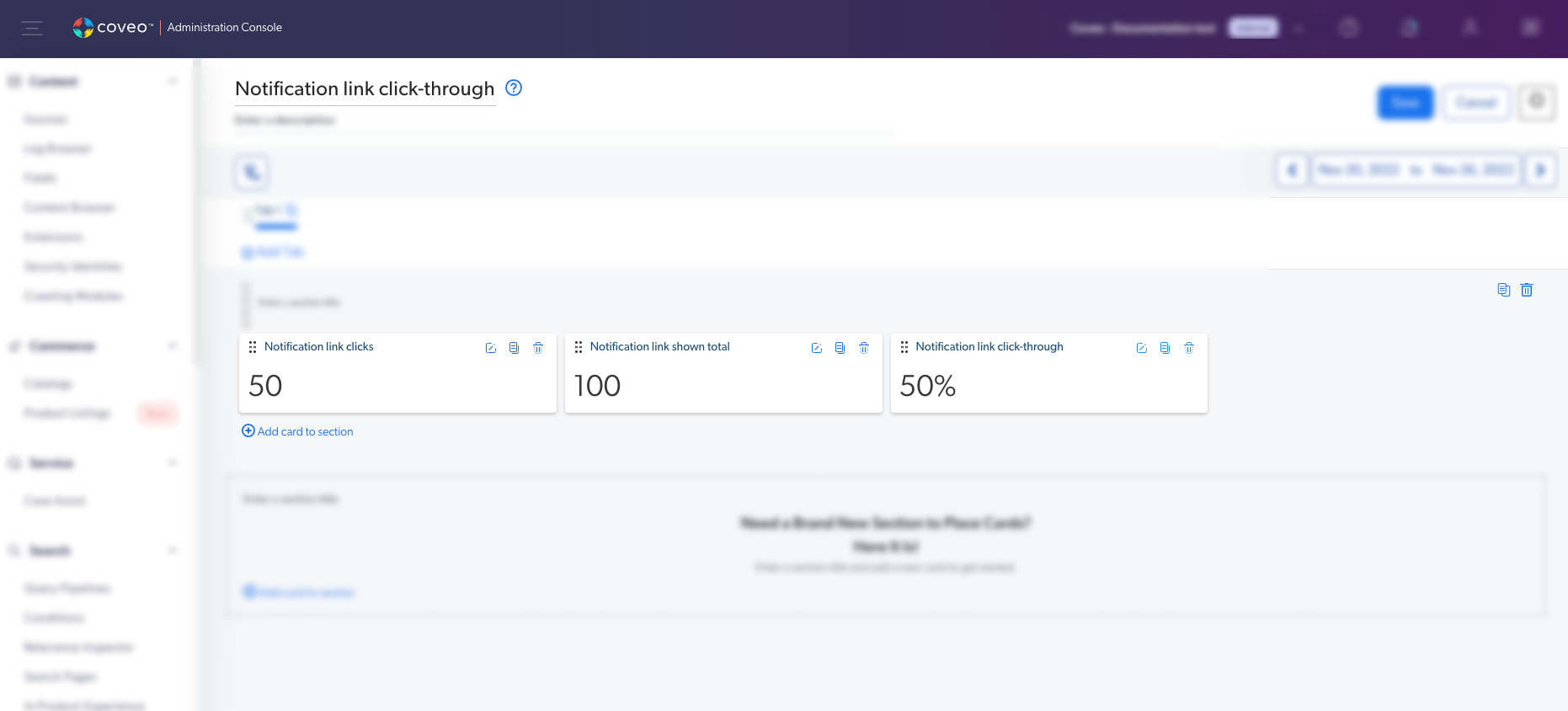
To calculate the clickthrough rate for notification clicks logged as custom events, create metric cards for query count, click count, and a calculated clickthrough rate (click count / query count * 100).
 Leading practice
Consider adding these external resources to your Coveo index. This way, you could use these clicks to feed Coveo ML ART models and a default metric to report on the clickthrough rate.
What’s next
Create report cards in your Coveo Analytics reports to track notification effectiveness.