Shopify collection sync
Shopify collection sync


|
The collection sync feature is available in early access. Contact your Coveo account representative to request access. |
Once your Shopify product catalog is synced with the Coveo Platform, you can sync your Shopify collections using the Coveo AI Search & Discovery app.
Syncing your Shopify collections allows you to add merchandising rules, ranking controls, filters, and AI optimization to your collections through the use of product listing pages (PLPs). These capabilities will be reflected in your Shopify storefront. You’ll also have access to detailed reporting metrics.
During the catalog sync, the app retrieves each collection’s product membership from Shopify and transfers it to Coveo, meaning that all collection types are supported to the exception of variant collections. See the trouble shooting section for more information on this issue.
Prerequisites
Before syncing your collections:
-
Link your Shopify store to a Coveo organization.
-
Sync your Shopify product catalog with Coveo.
-
Publish the collections that you want to sync to your Shopify online store.
Information about indexing your Shopify product catalog is found in the indexing article.
Sync your collections
The collection sync is done through the Coveo AI Search & Discovery app located in the Shopify admin.
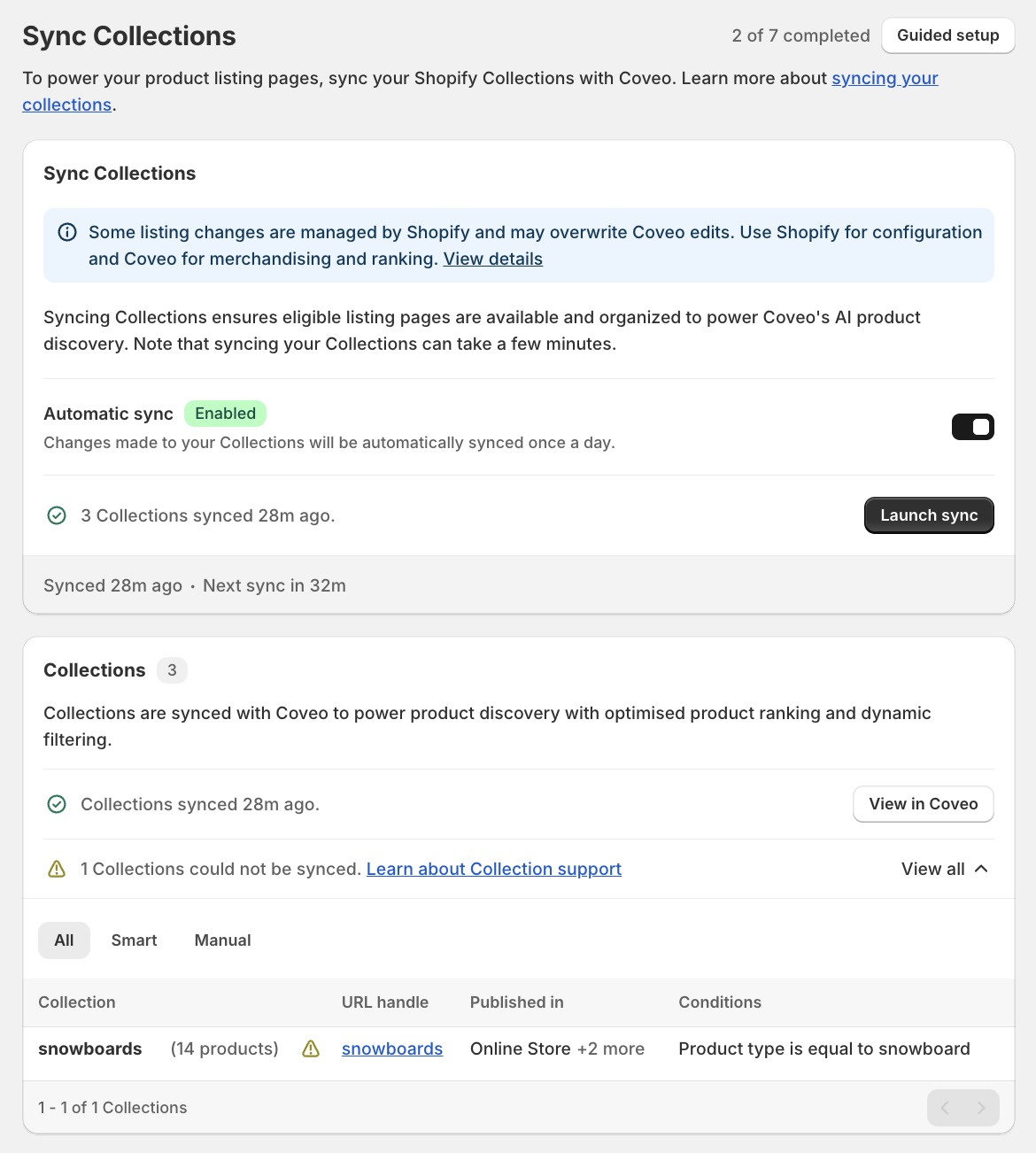
Syncs are launched from the Collection page. Here are the following launch options:
-
Automatic sync: When enabled, this option initiates a collection sync every hour.
-
Manual sync: Click Launch sync to launch a manual collection sync. This can be done regardless of whether the
Automatic syncoption is active.
Review the sync status
Once a collection sync is requested, the collection list and their sync status is displayed on the Collection page.
-
For a successfully synced collection, click View in Coveo to open the PLP manager in the CMH.
-
If a collection couldn’t be synced, click View all to review a summary and a quick diagnosis for the collection.
Work with synced collections in the CMH
After a collection is synced, open its PLP in the CMH to create filter and ranking rules that control product placement and visibility. You can also manage the facets available to visitors and use reporting metrics to evaluate the PLP’s performance.
|
|
Any updates made to the page settings in the PLP’s Configuration tab will be overwritten during the next collection sync. To edit this section, update the information in Shopify. It will be transferred to the PLPs during the sync. |
More information on PLPs can be found by consulting the Product listings manager article.
Troubleshooting
Context and symptoms: A collection can’t be synced
Cause 1: The shp_collections_ids field is not available.
Collection sync relies on the shp_collections_ids field, which records which collections include each product.
If this field isn’t available in the Coveo Platform, collections can’t be synced.
Resolution 1
Ensure that the collection is published to your Shopify online store. Then sync your product catalog to make the field available in Coveo, and sync your collections again.
Information about indexing your Shopify product catalog is found in the indexing article.
Cause 2: The collection targets individual product variants.
Collections that target individual product variants aren’t supported. For example, a collection might include only the variants under a certain price or only a particular color variant. Because Coveo tracks collection membership at the product level, the app can’t accurately sync a collection that includes specific variants rather than whole products.
When a collection targets individual variants, it’s identified as unsupported on the Collection sync page and no corresponding PLP is created in the CMH.
Resolution 2
To sync the collection, rebuild it in Shopify so that it targets whole products, and then sync your collections again.