About IPX Recommendations (IPXRECS)
About IPX Recommendations (IPXRECS)

Coveo Machine Learning (Coveo ML) IPX Recommendation (IPXRECS) models provide recommended content to users in a Coveo In-Product Experience (IPX) search interface based on previous user activity.
The IPXRECS model learns from repeated occurrences of search and click events from previous user sessions in the IPX interface. The IPXRECS model then generates relevant document recommendations based on the commonly clicked documents of users visiting certain URLs.
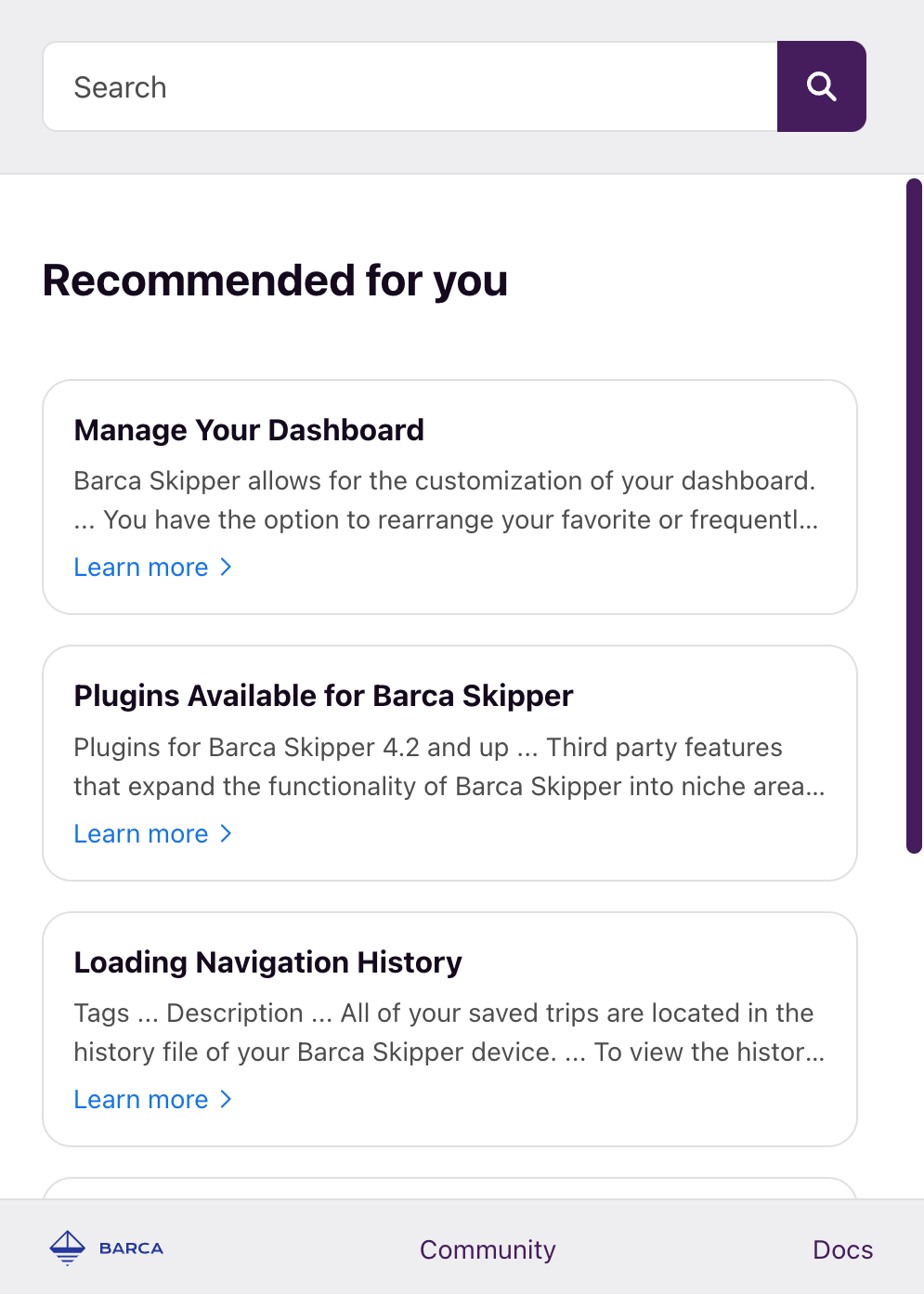
The recommendations appear when the IPX search interface loads on the web page or application. This is usually when a user opens an IPX interface, but it can also be when the IPX interface reloads. The list of recommendations is based on the URL at the time when the IPX interface loads. When a query is performed, the recommendations are replaced by search results, and the recommendations will only reappear if the IPX interface is reloaded.

|
Note
The IPX search interface lists a maximum of 5 item recommendations. If there are less than 5 recommendations available for the given URL, only the available recommendations are shown. |
Automatic model configuration
When you create an IPX search interface, an IPX Recommendation (IPXRECS) model is automatically created and associated with a query pipeline that the IPX interface uses specifically for recommendations. The IPXRECS model is preconfigured to rebuild and learn from new data on a weekly schedule, based on when the model is created.
|
|
Notes
|

Learn more about the IPX query pipelines and ML model configuration.
Manage an IPXRECS model
See how to edit, delete, and review information for your IPX Recommendation (IPXRECS) model.
Edit an IPXRECS model
Because of the automatic configuration of the IPXRECS model, you can only rename it or associate it with a different project when editing the model.
-
On the Models (platform-ca | platform-eu | platform-au) page, click the model you want to edit, and then click Edit in the Action bar.
-
On the subpage that opens, select the Configuration tab.
-
Under Name, edit the model’s display name.
-
(Optional) Use the Project selector to associate your model with one or more projects.
-
Click Save.
Delete an IPXRECS model
|
|
Notes
|
-
On the Models (platform-ca | platform-eu | platform-au) page, click the ML model that you want to delete, and then click More > Delete in the Action bar.
-
In the panel that appears, click Delete.
Project association prompts
A machine learning model is a resource you can associate with a project. Resources associated with a project can require confirmation when you modify them. These confirmation prompts help prevent accidental changes that could affect a Coveo implementation.
Deleting a resource always requires confirmation, whether it’s associated with a project or not. When the resource is associated with projects, the confirmation prompt lists those projects.
Review model information
On the Models (platform-ca | platform-eu | platform-au) page, click the desired model, and then click View in the Action bar. For more information, see Reviewing model information.