Badge manager
Badge manager

This is for:
Merchandiser

|
Contact your Coveo representative to enable the Badge manager in your Coveo organization. |
The Badge manager in the Coveo Merchandising Hub (CMH) lets you highlight products with contextual messages that influence shopper behavior. You define badge rules, assign them to placements across your storefront, and control which badges appear and when. Badges don’t appear to shoppers until you publish them.
Why use product badges?
Badges show relevant product context right in the shopping flow. They help shoppers notice important products and understand why they’re worth considering.
Common use cases:
-
Signal popularity to drive urgency: social proof badges like "25 bought in the last 24 hours" or "Trending" show what other shoppers are buying.
-
Surface product features: Product attribute badges like "New Arrival", "Award-Winning", or "On Sale" highlight catalog properties that influence purchase decisions.
-
Encourage immediate action: Scarcity badges like "Low Stock" or "Only 3 left" create urgency when inventory is limited.
social proof badges have been shown to increase the revenue generated per site visitor. By managing badges directly in the CMH, you can create and update them without developer support and deploy changes immediately.
-
A merchandiser creates a "Best Seller" badge for products that have been purchased more than 100 times in the last week to draw attention to them and encourage customers to consider them.
-
A merchandiser creates a "Limited Stock" badge for products with fewer than 10 items remaining to create a sense of urgency and encourage faster purchase decisions.
Prerequisites
To use the Badge manager, you need:
-
Access to the Coveo Merchandising Hub (CMH) with permissions to view and edit badge settings.
-
A Commerce API implementation that supports the placements where you want to display badges.
-
A compatible version of Headless (version 3.24.1 or later recommended).
-
A storefront configured to render badges on product cards.
-
The Badge manager entitlement enabled for your Coveo organization.
What you can do with the Badge manager
The Badge manager provides comprehensive control over when, where, and how badges appear on your storefront. You can define badge rules to target specific products, customize their appearance and content, and manage their display priority to ensure the most impactful messages reach shoppers.
Define badge rules
Each badge is powered by a single rule that determines which products qualify. You can create one of the following rule types:
-
Attribute-based rules that target products based on catalog data information.
For example, you can badge products that have a discount, or products marked as "New".
-
social proof rules that target products based on real-time shopper engagement.
You can select an engagement attribute (views, add to carts, or purchases), choose a time window (in the last hour, last 24 hours, last 48 hours, last 3 days, or last week), and set a threshold. For example, show a "Popular" badge on products with more than 50 views in the last 24 hours.
See Badges for detailed instructions.
Customize content and style
For each badge, you configure:
-
Badge text with support for dynamic metrics that insert real values. Supported metrics are
{{purchases}},{{addToCarts}}, and{{views}}. For example, "{{purchases}}bought in the last 24 hours" would display a "9 bought in the last 24 hours" badge. -
Colors for background and font to match your storefront design.
-
Image URL to display an icon alongside or instead of text.
 Note
NoteThe Image URL must reference an image hosted externally, such as on a CMS, DAM, or other content repository. Coveo doesn’t host images on customers' behalf.
-
Localized variants so badge copy is accurate for each locale.
How displayed badges are prioritized
The Badge manager checks badges in the order you define in the placement configuration. When a product qualifies for multiple badges, the system displays the first badge whose rule matches that product. If the highest-priority badge doesn’t match a specific product, the system automatically falls back to the next eligible badge in the priority order. This priority cascade continues until the maximum number of badges per product (set in the placement) is reached or no more eligible badges exist. If no badges match a product, no badge is displayed on that product.
This priority cascade system ensures the most important messages reach shoppers, maximizes badge coverage across your product catalog, and handles edge cases where products qualify for multiple badges.
To get the best results from your badge strategy:
-
Prioritize business-critical badges: Place badges that create urgency or scarcity (such as "Low Stock" or "Limited Time") higher in the priority order than other badges.
-
Use the cascade for coverage: Create fallback badges that increase coverage without requiring manual product tagging. For example, if a "Best Seller" badge doesn’t match, fall back to a "Popular" badge.
-
Monitor and refine: Use analytics data to track badge performance and adjust your priority order over time based on what drives the most engagement.
See Placements for detailed instructions on managing placement priority.
How badges reach your storefront
Badges are organized into placements, which are locations on your storefront where badges appear.
There are two types of placements:
-
Linked placements: Badge data is automatically included with product information when your storefront requests products from Commerce API. They’re typically used on products returned on search results and PLPs.
-
Standalone placements: Badge data is requested separately from product information, giving you more control over when and how badges load. Typically used on PDPs.
See Placements for details about placement types and how they work.
Each placement defines the maximum number of badges that can appear per product. These constraints are typically configured by your implementation team and ensure badges fit within your storefront design.
Implementing badges on your storefront
Your development team implements badge display using the Coveo Headless library or Atomic components:
-
Linked placements: Badges are automatically included in product discovery responses. Implementing a placement consists of displaying the badge data from product results.
-
Standalone placements: These placements require the
ProductEnrichmentcontroller (Headless 3.37.0+ for CSR, 3.40.0+ for SSR) to fetch badges for specific products. See implementation details for client-side rendering (CSR) or server-side rendering (SSR).
For alternative implementations, badges can be fetched directly using the Commerce API.
Configuring placement IDs on your storefront
When you create a placement in the CMH, the system generates a unique placement ID. To display the badges from that placement on your storefront, you must configure this placement ID in your storefront implementation.
|
|
Note
Work with your implementation team to access and configure placement IDs in your storefront. The exact configuration interface depends on your storefront platform and implementation. |
Your storefront typically provides configuration settings for three badge placement categories:
-
Search pages: Badges displayed in search results
-
product listing pages (PLPs): Badges displayed on product listing and category pages
-
product detail pages (PDPs): Badges displayed on individual product detail pages
For each category, you can enter the placement ID generated by the CMH. This connects the placement you configured with the specific location on your storefront.
If you don’t configure a placement ID for a category, your storefront uses the default badge behavior defined in your implementation. After entering or updating placement IDs in your storefront configuration, save the changes and reload the page to apply the new placement settings.
Once a badge is published in the CMH and the placement ID is configured on your storefront, badges are immediately available in Commerce API responses, and your development team can render them.
Badge manager interface
The Badge manager main page is accessed through the CMH interface and provides merchandisers with an overview of all configured badges and placements for a specific property.
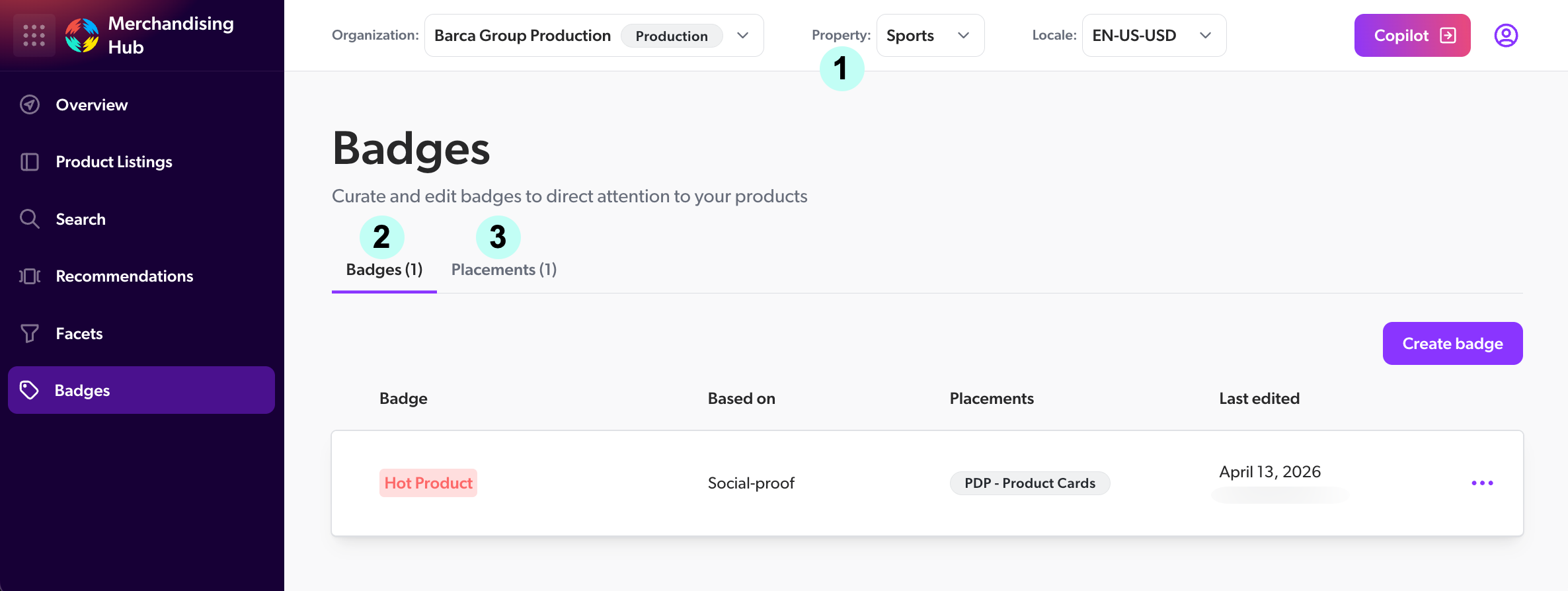
1 |
The Property selector lets merchandisers select the property that the badges will be applied to. See Property and locale selectors for more information about properties. |
2 |
The Badges tab lets merchandisers view, create, and manage badges for the selected property. See Badges for detailed instructions. |
3 |
The Placements tab lets merchandisers view and create placements to determine where badges are displayed on different pages. See Placements for detailed instructions. |
What’s next?
-
Placements - Learn how to create and manage badge placements to control where badges appear on your storefront.
-
Badges - Learn how to create and manage product badges with rules, content, and styling.