Integrate a hosted search page in SAP Service Cloud V2
Integrate a hosted search page in SAP Service Cloud V2

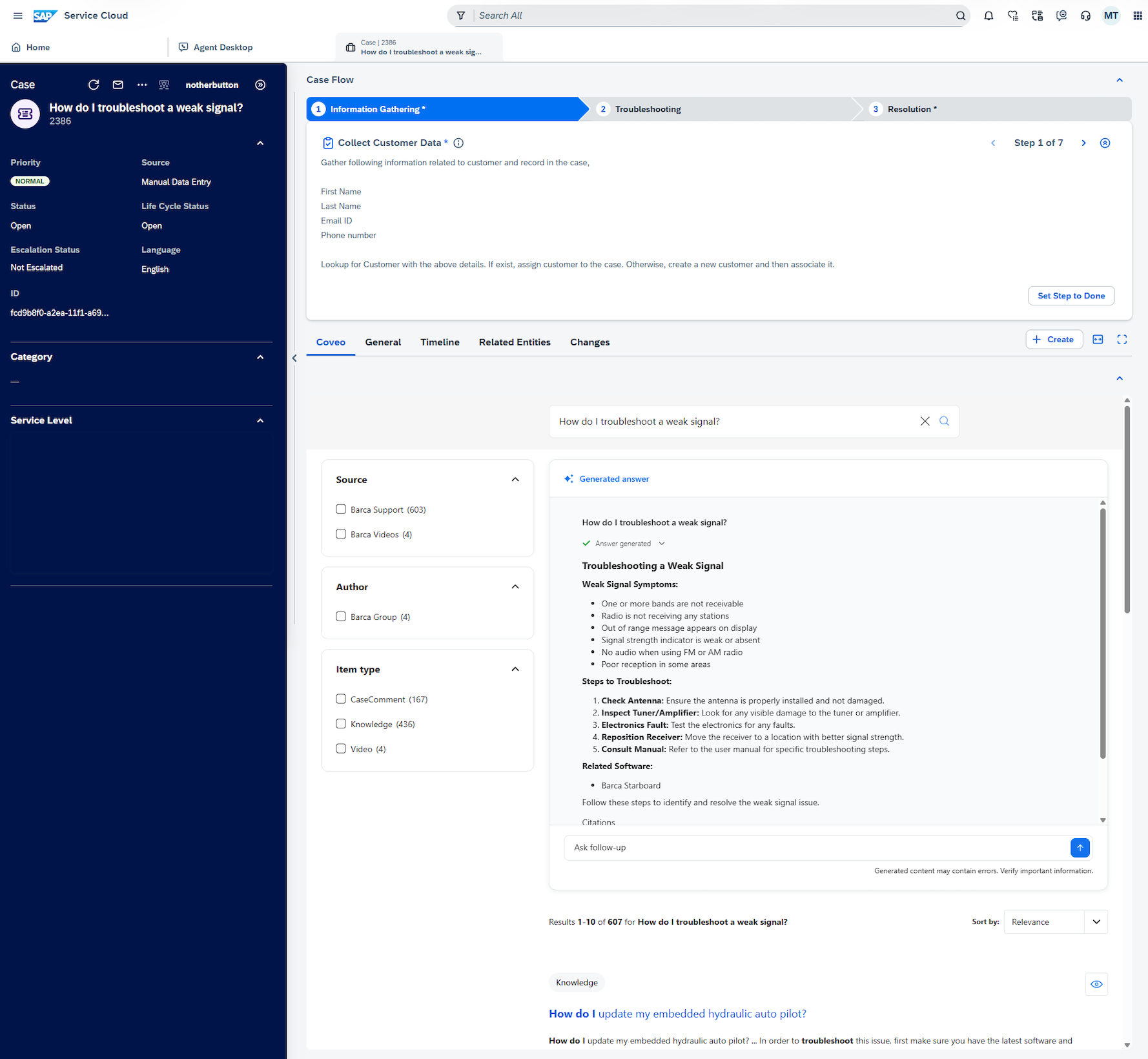
This article explains how to integrate a Coveo hosted search page in SAP Service Cloud V2. It’s intended for administrators responsible for managing and setting up hosted search pages in SAP Service Cloud V2.
Prerequisites
Before you begin, confirm you have the following:
-
A hosted search page in your Coveo organization.
-
The required privileges to view or edit elements of the Search Pages (platform-ca | platform-eu | platform-au) page and associated panels in the Coveo Administration Console.
-
The Modify authentication provider privilege to manage SAML authentication.
To integrate a Coveo hosted search page in SAP Service Cloud V2
-
Configure a SAML identity provider to enable single sign-on within SAP Service Cloud V2.
-
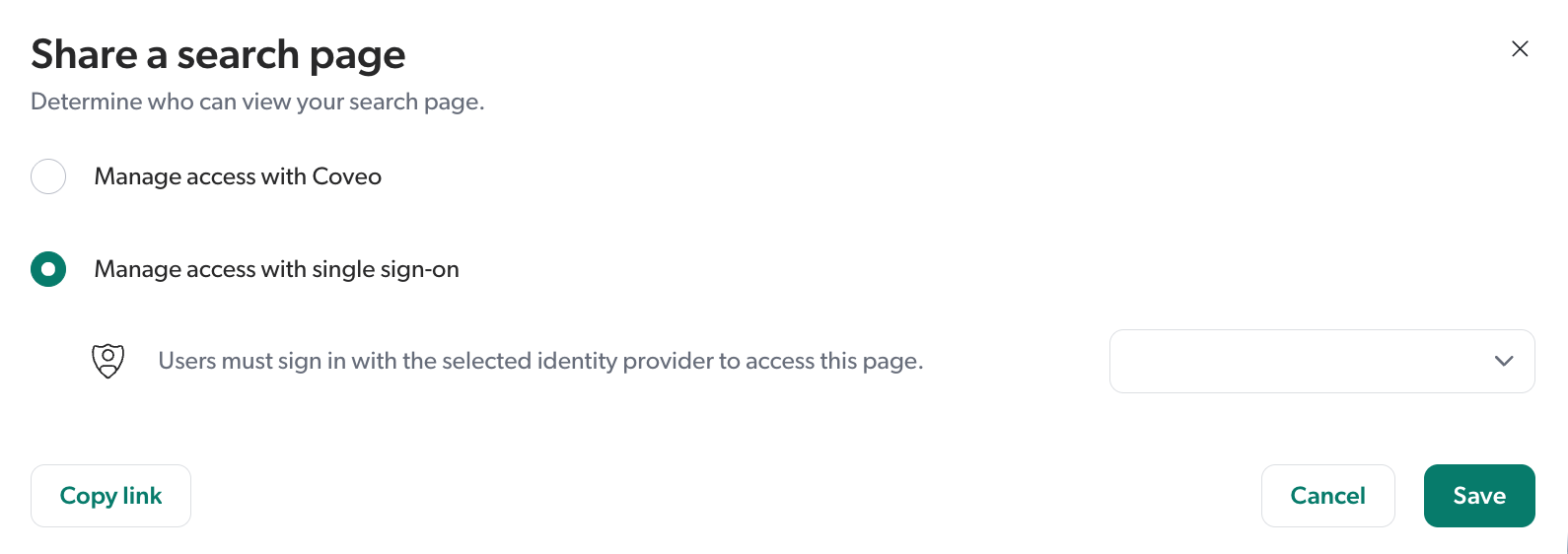
Share your hosted search page using the Manage access with single sign-on option.
-
Under Manage access with single sign-on, select an identity provider from the dropdown list.
-
Click Copy link to copy the URL of your hosted search page to your clipboard. You’ll need it to create an HTML mashup in the next step.
-
Save your changes.
-
-
Create an HTML mashup to embed your hosted search page within SAP Service Cloud V2.
-
Under General information, enter a mashup name.
-
From the Manage Permissions dropdown, select Clipboard to allow the mashup to access your system’s clipboard.
-
Under Input Parameters, paste the URL of your hosted search page that you copied in the previous step.
-
Save your changes.
-
-
Add your HTML mashup to a custom section or tab to complete the integration of your hosted search page within SAP Service Cloud V2.