Leverage geolocalization
Leverage geolocalization

This is for:
DeveloperThe Coveo JavaScript Search Framework allows you to use geospatial data (latitude and longitude) in your indexed content to optimize search results based on the location of the end user (or a reference location).
The end user searches for a restaurant. The index returns the closest results based on the current location of the end user.
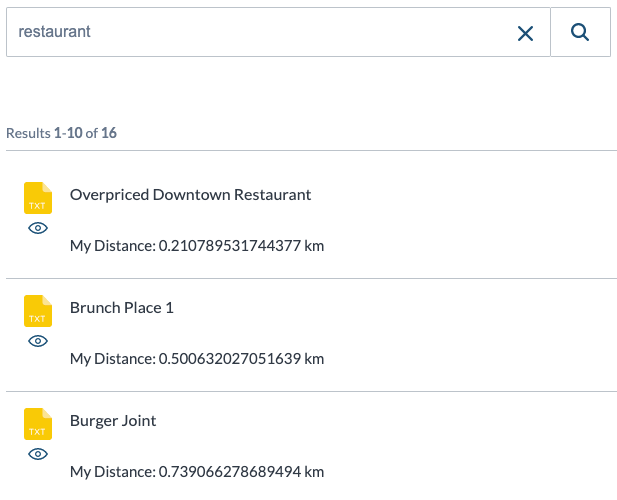
This article provides several examples of how you can use geolocalized results within your search interfaces.

|
Note
Geolocation is resource-intensive and can increase query duration. It’s not recommended with a large index, unless you filter items beforehand (for example, with a constant query expression (cq)). |
Requesting distance information
You can add the DistanceResources component anywhere in your search interface.
The component will then calculate the distance between the location of the end user and each geolocalized item.
These calculations are performed at query time and the distances are added to the dynamic field that you specify with the distanceField option.
This component doesn’t add geospatial data to your indexed content, so you will have to add latitude and longitude fields for each geolocalized item in your index.
When configuring the DistanceResources component, specify the names of these fields using the latitudeField and longitudeField component options.
Configuring geolocalized results using the geolocation service of the end user’s web browser.
<div id="search" class="CoveoSearchInterface">
  <!-- ... -->
  <div class="CoveoDistanceResources"
      data-distance-field="@mydistance"
      data-use-navigator="true"
      data-latitude-field="@latitude"
      data-longitude-field="@longitude"></div>
  <!-- ... -->
</div>|
|
Note
There are three options for setting the location of the end user:
|
Sample use cases
Sort search results by distance
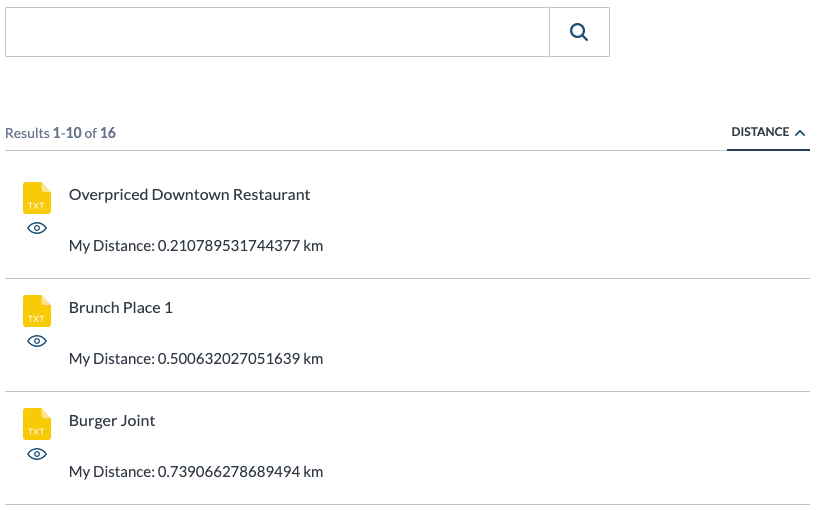
You can add a Sort component to your search interface, which will sort the results based on the distance between their indexed geolocation and that of the end user.
<div id="search" class="CoveoSearchInterface">
  <!-- ... -->
  <div class="CoveoDistanceResources" data-distance-field="@mydistance" data-use-navigator="true" data-latitude-field="@latitude" data-longitude-field="@longitude"></div>
  <!-- ... -->
  <div class="coveo-main-section">
    <!-- ... -->
    <div class="coveo-results-column">
      <!-- ... -->
      <div class="coveo-results-header">
        <!-- ... -->
        <div class="coveo-sort-section">
          <span class="CoveoSort coveo-distance-disabled" data-sort-criteria="@mydistance ascending" data-caption="Distance"></span>
        </div>
        <!-- ... -->
      </div>
      <!-- ... -->
    </div>
    <!-- ... -->
  </div>
  <!-- ... -->
</div>|
|
Note
The |
A result list sorted by distance:
Filter search results by distance
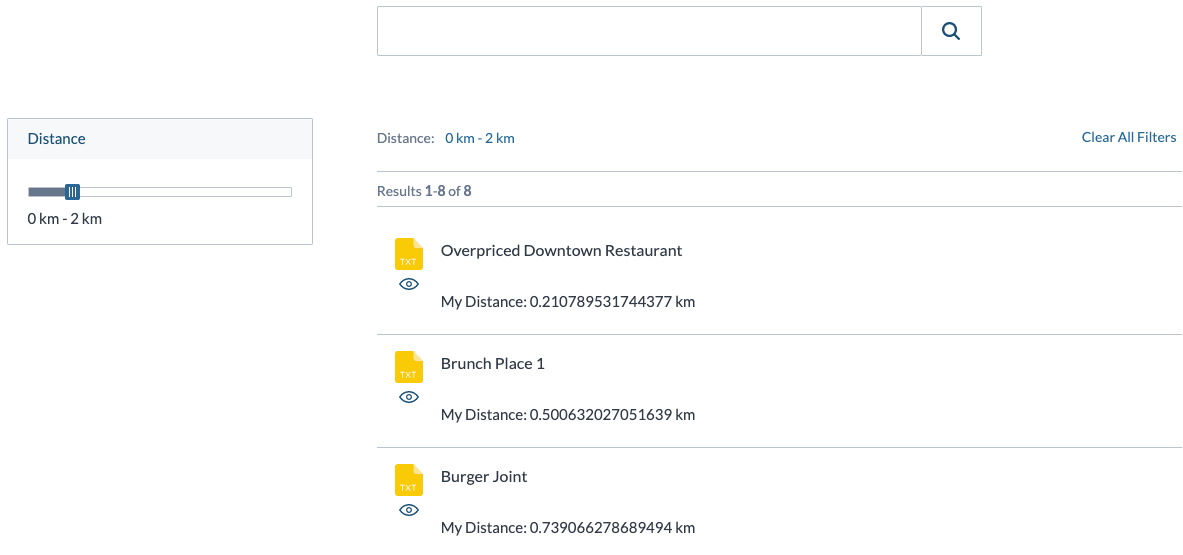
You can add a FacetSlider component to your search interface to allow the end user to filter search results based on a range of values.
<div id="search" class="CoveoSearchInterface">
  <!-- ... -->
  <div class="CoveoDistanceResources" data-distance-field="@mydistance" data-use-navigator="true" data-latitude-field="@latitude" data-longitude-field="@longitude"></div>
  <!-- ... -->
  <div class="coveo-main-section">
    <!-- ... -->
    <div class="coveo-facet-column">
      <div class="CoveoFacetSlider coveo-distance-disabled" data-title="Distance" data-field="@mydistance" data-start="0" data-end="10" data-display-as-value-unit-sign="km"></div>
    </div>
    <!-- ... -->
  </div>
  <!-- ... -->
</div>|
|
Note
|
A result list filtered by distance:
Boost search results by distance
You can use a query ranking function (QRF) in the query pipeline to boost results based on the distance between their indexed geolocation and that of the end user.
|
|
Note
If you’re only using distance to rank items, you can improve performance by directly calling the |
-
In the Coveo Administration Console, on the Query Pipelines (platform-ca | platform-eu | platform-au) page, click the target query pipeline, and then click Edit components in the Action bar, or create a new one.
-
Select the Advanced tab, and then select Filters.
-
Click Add filter rule. The Add a filter rule panel appears.
-
Click the Query parameter dropdown menu, and then select advanced query (
aq). -
In the Query filter input, add a query ranking function to boost the search results based on distance (see $qrf).
Example$qrf(expression: '100 * -sqrt(@mydistance)') -
Click Add rule.