Set advanced model configurations using the API
Set advanced model configurations using the API

The Coveo Machine Learning (Coveo ML) Advanced Model Configurations API lets you set an advanced configurations for a model using configuration files.
To set an advanced configuration using the API

|
You can also get a list of advanced configuration files currently used by a model, or delete a configuration file from a model. |
Create or update an advanced configuration file
Setting an advanced configuration using the API requires an advanced configuration file.
The advanced configuration file must be 10 MB or smaller.
You can create a new configuration file from scratch, or download an existing file that you previously uploaded to a model to edit its configuration.
-
If required, to edit an advanced configuration file that’s currently used by a model, first download the file using the Swagger UI as follows:
-
Access the Advanced Model Configurations section of the Swagger UI that’s associated with your Coveo organization region (US | CA | EU | AU).
-
Click Authorize and authenticate using your Coveo organization account credentials.
 Note
NoteThe Coveo organization account you use for authentication must have the Machine learning - Models - Edit privilege.
-
Use the
configs/{configurationType}GET operation to download an existing configuration file that you want to edit: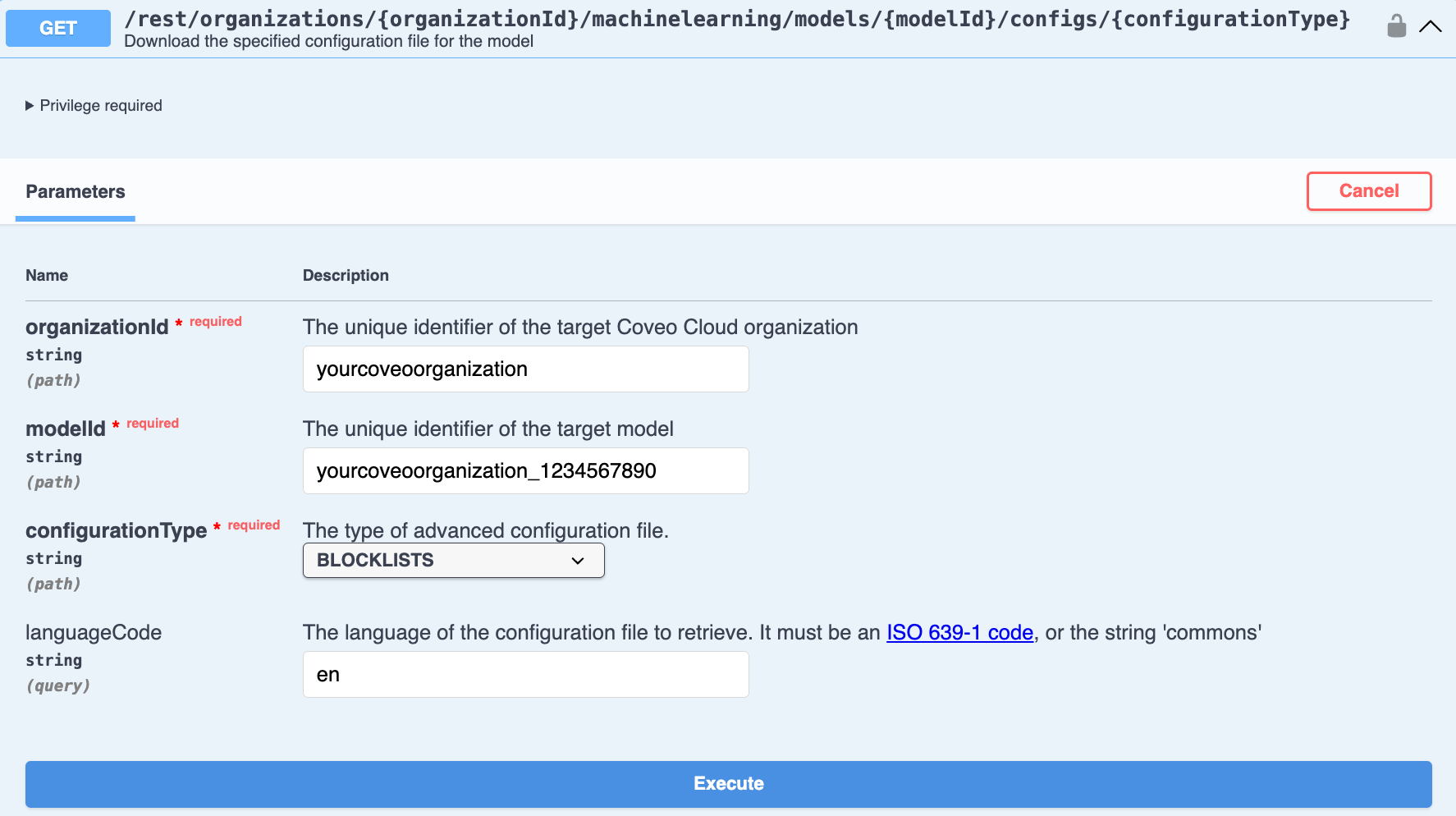
-
Enter the required parameters for the model and configuration type that you want to download.
-
Once you’ve entered the parameters, click Execute.
-
Click Download file in the response body to download the file.
-
-
-
Use your preferred text editor to either modify the downloaded advanced configuration file or create a new file from scratch. The configuration file requirements and formatting depends on the configuration type:
-
Upload the advanced configuration file to the model.
Upload an advanced configuration file
Once you’ve created the configuration file, use the Swagger UI to upload it to a model to apply the advanced configuration to that model.
The advanced configuration file must be 10 MB or smaller.
-
Access the Advanced Model Configurations section of the Swagger UI that’s associated with your Coveo organization region (US | CA | EU | AU).
-
Click Authorize and authenticate using your Coveo organization account credentials.
NoteThe Coveo organization account you use for authentication must have the Machine learning - Models - Edit privilege.
-
Use the
configs/{configurationType}PUT operation to upload a configuration file to the model that you want to configure: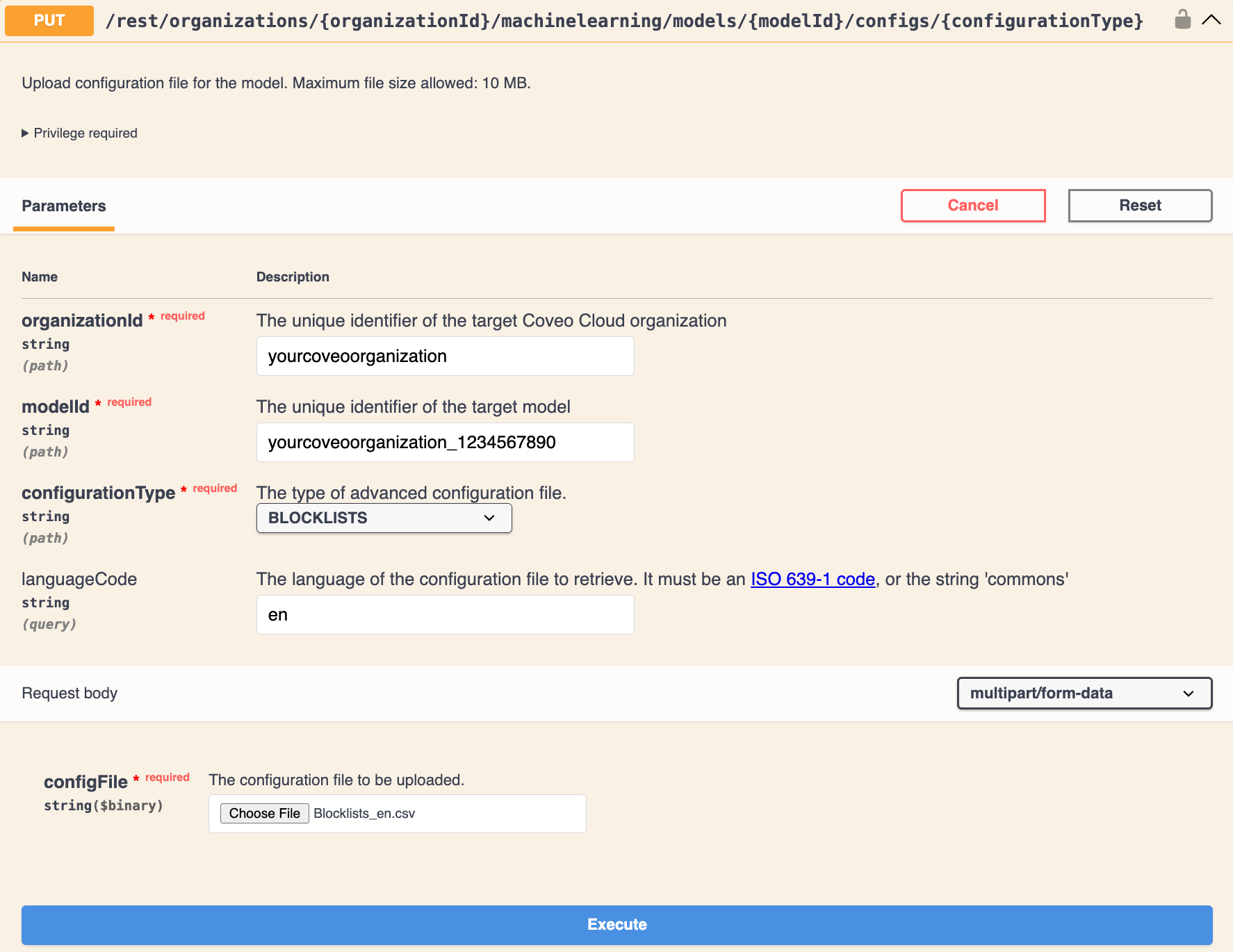
-
Enter the required parameters for the model to which you want to upload the file, as well as the configuration type.
-
For configFile, click Choose File to select the configuration file.
-
Click Execute.
-
Advanced model configuration API parameters
configurationType (string) - required
Parameter type: query
The type of advanced configuration file. Available values are:
languageCode (string) - optional
Parameter type: query
The language of the configuration file.
It must be an ISO 639-1 code, or the string commons.

|
For a configuration file that uses the For example, your model processes queries in English ( |
modelId (string) - required
Parameter type: path
The unique identifier of the target model (see Review model information).
myOrganization_topclicks_22ec9966_0f8b_4adc_967d_65219552192a
organizationId (string) - required
Parameter type: path
The unique identifier of the target Coveo organization (see Retrieve the organization ID).
myorg6j53h4
configFile (file) - required
|
|
Note
This applies only when uploading a model’s advanced configuration file. |
Parameter type: formData
The configuration file to be uploaded.
To learn how to set up your configuration file, click the appropriate link: