Configure a search interface for the Search Agent
Configure a search interface for the Search Agent


|
Beta feature
Coveo Search Agent is currently available as a beta offering. Contact your Customer Success Manager for access to this feature. Your use of this feature is subject to the beta and pre-release terms of your agreement with Coveo, including any applicable beta or pre-release provisions therein. To the extent your agreement does not contain specific beta or pre-release terms, Section 8 (Beta Features) of the Coveo Customer Agreement shall apply. This feature is provided "as-is," without warranty or SLA coverage, and may be modified, suspended, or discontinued at any time. You should not use this feature to process sensitive or regulated data. |
To add conversational search using the Coveo Search Agent, add the Search Agent component to your Coveo-powered search interface.
For information on the Search Agent component, see Search Agent component features.

|
Note
For complete implementation steps for the Coveo Search Agent, see Search Agent implementation overview. |
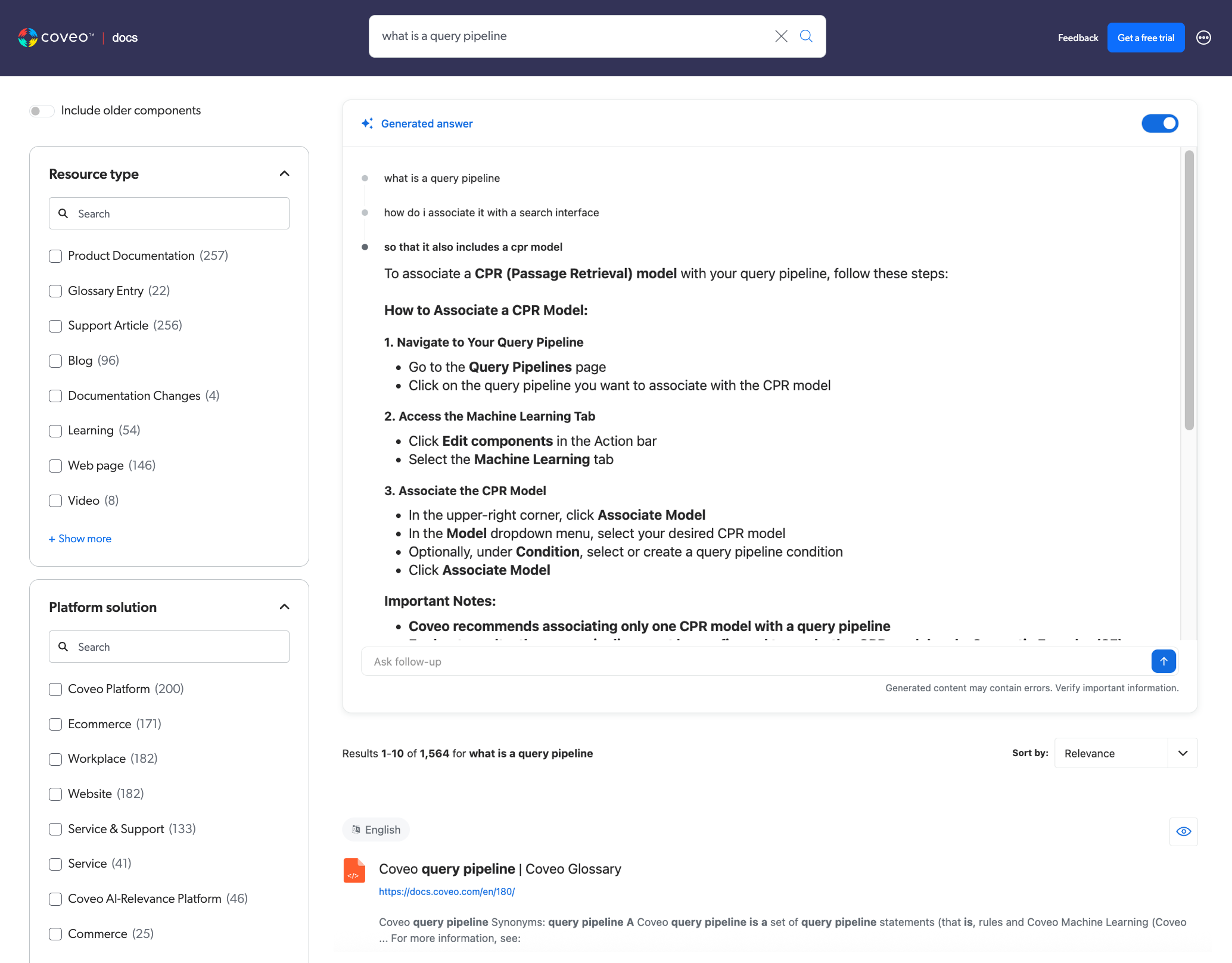
Add the Search Agent component
You can enable the Search Agent component for a Coveo hosted search interface that was created using the simple builder, and for a custom Coveo-powered search interface that was created using the Coveo Atomic library.
Coveo hosted search interface
If you’re using a Coveo hosted search interface that was created using the hosted search page builder, enable the Agent option in the builder configuration to add the Search Agent component to the search interface.
Custom search interface
If you’re using a custom Coveo-powered search interface that was created using the Coveo Atomic library:
-
Add the
atomic-generated-answercomponent to your search interface. -
Associate your Search Agent with the search interface by specifying the agent ID using the
agent-idproperty on theatomic-generated-answercomponent.
To get the Search Agent ID, on the Agents (platform-ca | platform-eu | platform-au) page of the Coveo Administration Console, click the Search Agent, and then click View.
If your Search Agent ID is 123456789ABCDEFG, you would add the following code to your search interface:
<atomic-generated-answer agent-id="123456789ABCDEFG">
</atomic-generated-answer>
Search interface authentication
The API key that you use to authenticate your search interface must have the Execute agent queries privilege for queries to be sent to the Search Agent and for answers to be generated and displayed in the search interface.
For a search interface with public content that doesn’t require any authentication, use the Anonymous search or Search pages API key templates to create the API key that you’ll add to your search interface.
These templates have the required Execute agent queries privilege.
If your search interface requires authentication, your server-side code must use the Authenticated search API key to generate a search token for each user session.
All generated search tokens include the required Execute agent queries privilege.

|
Never expose an Authenticated search API key in client-side code. |
For more information on search interface authentication, see Add a simple hosted search page to a website for the hosted search page, or Implementation guide for a custom Atomic search interface.
|
|
Note
For existing workflows that use an Anonymous search or Search pages API key, or that generate a search token via the Authenticated search API key, the |
Search Agent component features
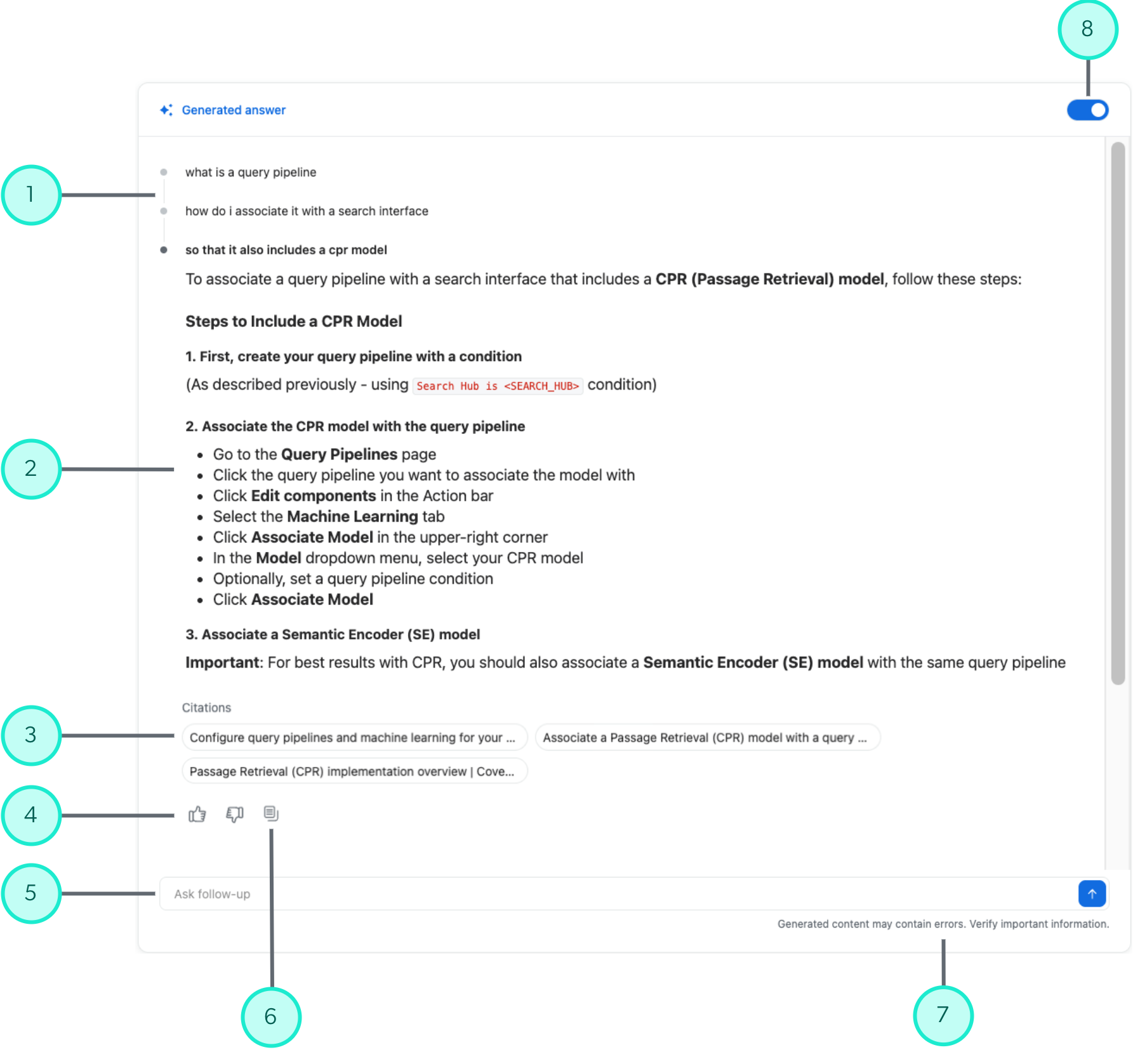
The Search Agent component adds a conversational search with generative answering experience to your Coveo-powered search interface.
1 |
The initial query and any previous follow-up queries in the conversation. Click a previous query to view its generated answer.
|
||
2 |
The generated answer for the current query. |
||
3 |
Citations highlight the items that contain the passages that were used to generate the answer. Hover over a citation to view the passage, or click a citation to open the item. |
||
4 |
Users can click a thumbs-up or thumbs-down icon to provide feedback on the generated answer. |
||
5 |
The conversational search box where users can enter a follow-up query.
|
||
6 |
A copy button lets users copy the generated answer to their clipboard. |
||
7 |
A disclaimer advises the user to verify important information in the generated answer. |
||
8 |
Users can choose to show or hide the Search Agent component in their search interface. Answers are still generated even when the component is hidden, and showing the component reveals the generated answer. |
 Very useful
 Not really
 Very useful
 Not really