About the storefront preview
About the storefront preview

This is for:
Merchandiser

|
The storefront preview feature is currently in closed beta and only available to early access customers. Contact your Account Manager to request access. |
The storefront preview feature allows merchandisers using the Coveo Merchandising Hub (CMH) to explore how their Coveo configurations affect search results and product listing pages. It displays product results and facet information together so you can review the experience for a selected property and locale.
Access the storefront preview
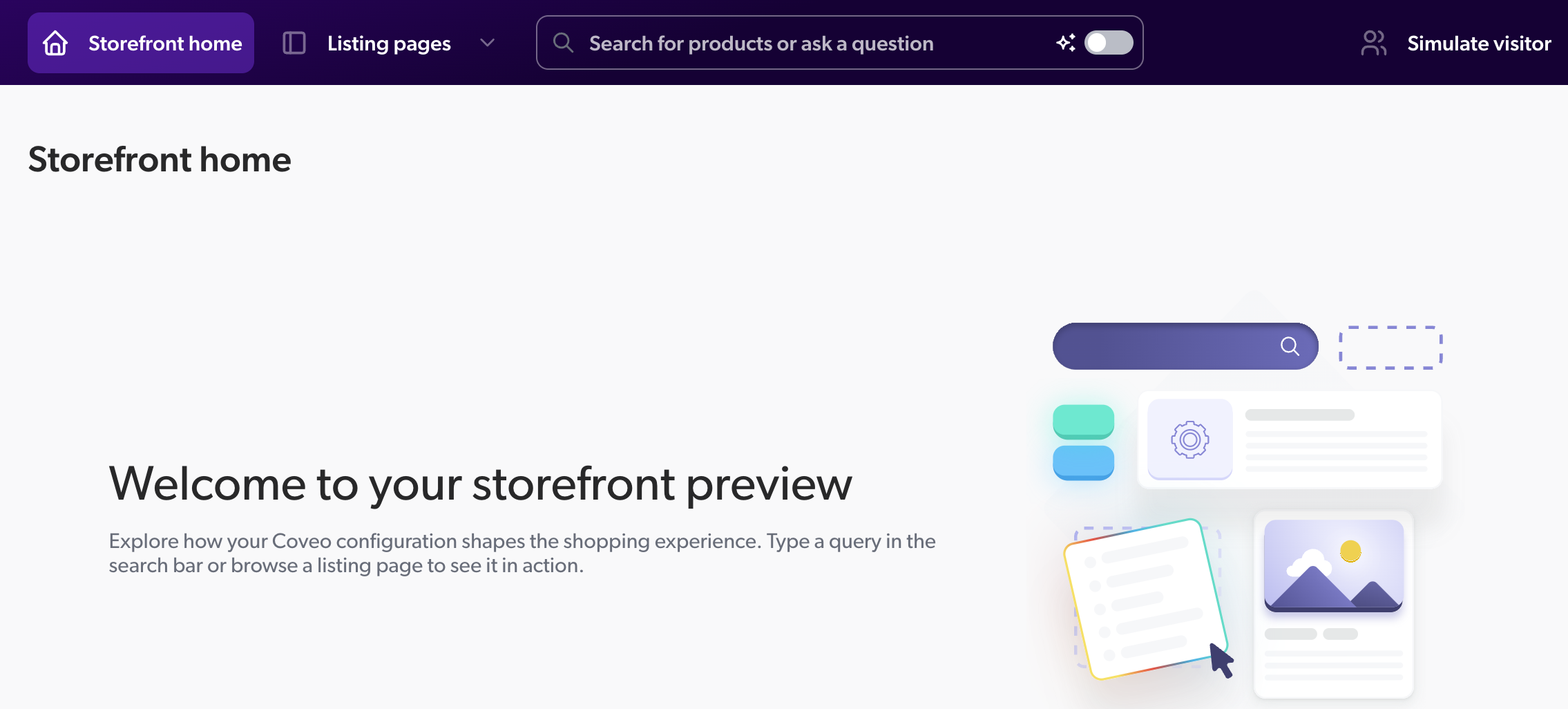
This feature is accessible from the CMH. Select the Storefront preview button, located at the bottom of the left navigation panel. This takes you to the Storefront home page, from which you can test queries or preview a product listing page.
Explore your product results
Start from the Storefront home page and use the property and locale selectors to identify the storefront experience you’re previewing. Use them to move between the available configurations and review results in the relevant language, country, and currency context.
Choose how you want to explore your products:
-
Search for products. Enter a query in the search bar to review the results for a search term.
-
Browse a listing page. Open the Listing pages menu to find and select a product listing page.
Both methods return product cards that display details such as the product’s name, price, and identifier, along with their position in the results. Use the available facets to filter the results.
The Shopping Assistant
Use the conversational Shopping Assistant to help you in your exploration.
To access this option, do one of the following:
-
Activate the Ask Shopping Assistant switch next to the search bar.
-
Enter a query that contains at least four words in the search bar.
The returned items appear as product cards that display item details.
Simulate a visitor
Select Simulate visitor in the upper-right corner of the page to preview the shopping experience using selected visitor attributes. Use this feature to review how your configuration applies to different visitors.
-
Use Future view date to see search results and listings as they will appear on a future date, when date-driven rules apply. Note that the property’s time zone will be used for the simulation.