Tracing HTTPS Communications Issued by Sitecore
Tracing HTTPS Communications Issued by Sitecore
Sometimes, it’s very handy to monitor the outgoing traffic from a Sitecore instance to various other services, such as the Admin Service or Coveo Cloud.
This article explains how to use Fiddler for this purpose.
Step 1: Configure Fiddler as the Proxy
-
Enable HTTPS decryption.
-
In Fiddler menu, select .
-
Select the HTTPS tab.
-
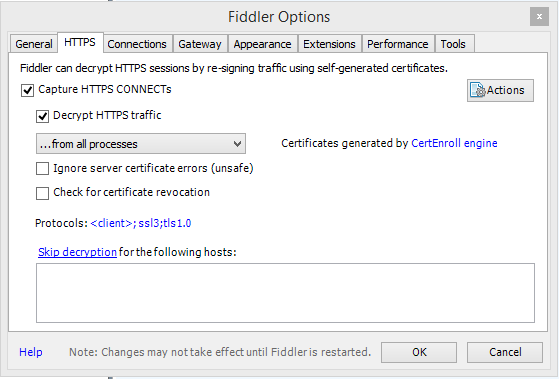
Check the Capture HTTPS CONNECTs checkbox.
-
Check the Decrypt HTTPS traffic checkbox.
-
When prompted, authorize the Fiddler certificate.
-
Close the dialog.
-
-
(Optional) You can enable filters to only monitor calls made to specific hosts.
 Note
NoteWhen using Coveo for Sitecore in an on-premises environment, don’t use filters. In this case, ignore the following sub-steps and jump to Step 2: Configure Sitecore to Use the Proxy
-
Select the Filters tab on the right side of the screen.
-
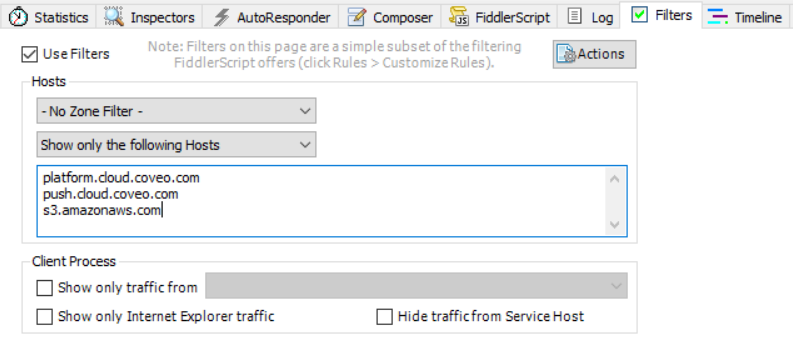
Check the Use Filters checkbox.
-
In the Hosts section.
-
Set the first dropdown menu to No Zone Filter.
-
Set the second dropdown menu to Show only the following Hosts.
-
In the text area, enter the following host names. For example, to monitor calls made to Coveo Cloud, use these host names:
-
platform.cloud.coveo.com -
push.cloud.coveo.com -
s3.amazonaws.com
-
-
Click the Changes not yet saved label to apply the changes.

-
-
Step 2: Configure Sitecore to Use the Proxy
|
|
Note
Fiddler must be running. Otherwise, the Sitecore instance won’t be able to perform any outgoing request. |
-
Edit the Sitecore
web.configfile. -
Add the following XML snippet as a peer to the existing
system.netelement.<system.net> <defaultProxy enabled = "true" useDefaultCredentials = "true"> <proxy autoDetect="false" bypassonlocal="false" proxyaddress="http://127.0.0.1:8888" usesystemdefault="false" /> </defaultProxy> </system.net> -
Save the
web.configfile. -
Recycle the Application Pool.
Step 3: Capturing the Traffic
-
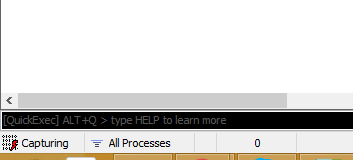
Ensure that Fiddler is capturing traffic. Look at the capture indicator at the lower-left corner of the window. Use the F12 key to toggle capture.
-
In Sitecore, perform the action you want to monitor.
-
As the task progresses, you should see the network traces appear in Fiddler.
-
Once the task completes, save all the Fiddler sessions as a .saz file.

Make sure to revert the proxy setting in the Sitecore configuration before you close Fiddler.