Using Sitecore Items for a Component Properties Using the Coveo for Sitecore Legacy Search UI Framework
Using Sitecore Items for a Component Properties Using the Coveo for Sitecore Legacy Search UI Framework
This article covers how to use Sitecore items as a source for Coveo components.
Inserting a Facets Folder Template
-
Pick or create a folder in the content tree that will serve as a configuration folder for all of your components.
-
Insert a new item from template, and navigate to
/templates/CoveoModule/Search/Facets. Insert a newFacets Folder.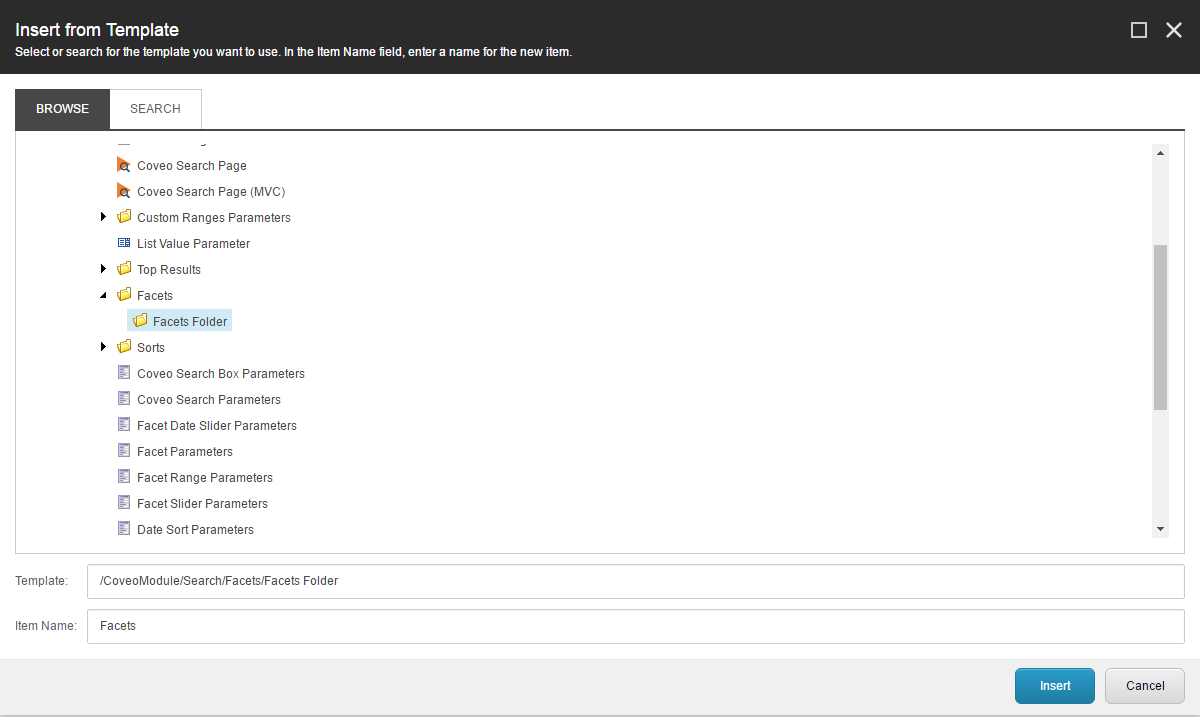
-
Insert a new item in this folder. The quick actions should be configured with some of the possible Facet Parameters.
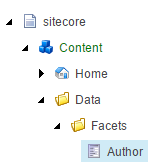
For a list of parameters and which component uses them, see List of Available Component Parameters.
Inserting a Sorts Folder Template
-
Pick or create a folder in the content tree that will serve as a configuration folder for all of your components.
-
Insert a new item from template, and navigate to
/templates/CoveoModule/Search/Sorts. Insert a newSorts Folder.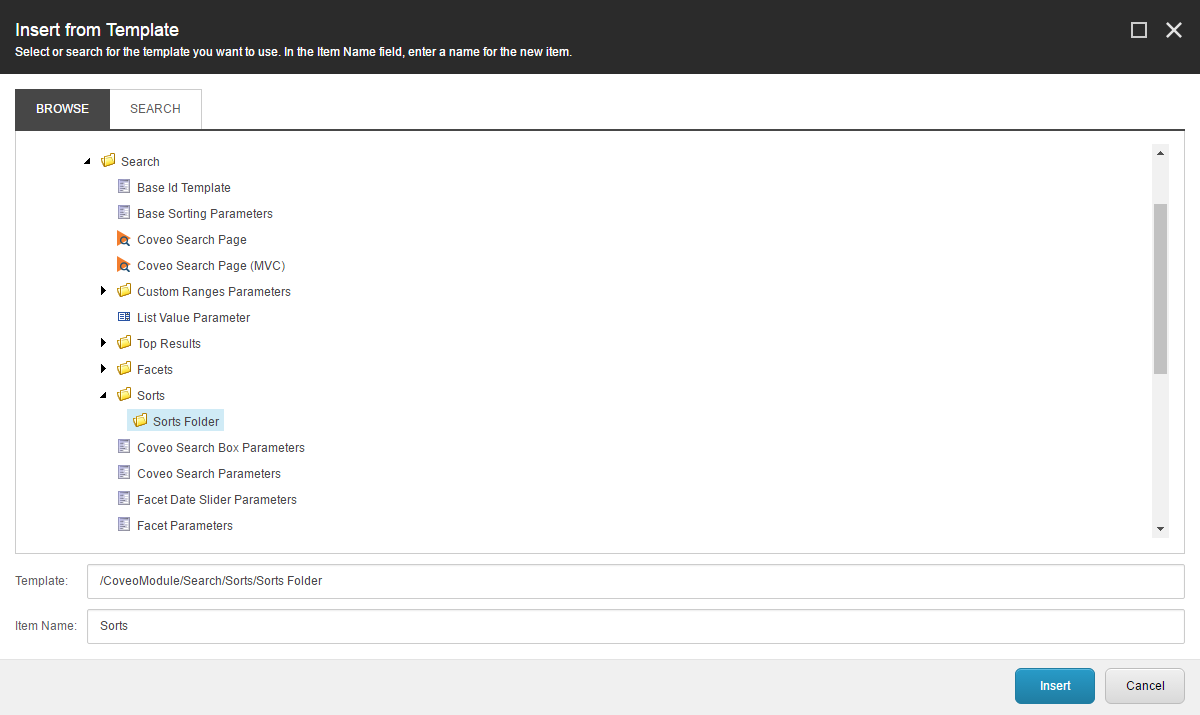
-
Insert a new item from this folder. The quick actions should be configured with some of the possible Sort Parameters.
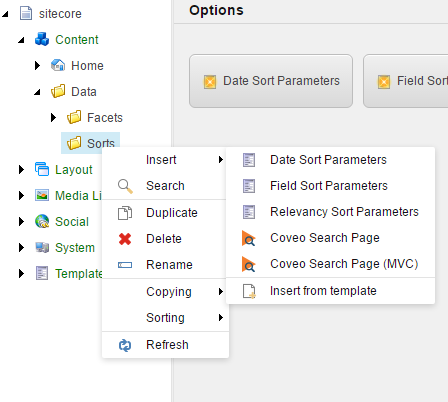
For a list of parameters and which component uses them, see Understanding the Components' Parameters.
Add a New Component Based on a Parameter Item
-
Add a new Facet or Sort component, and open its control properties
-
Find the Data Source field in the General section, and click Browse.
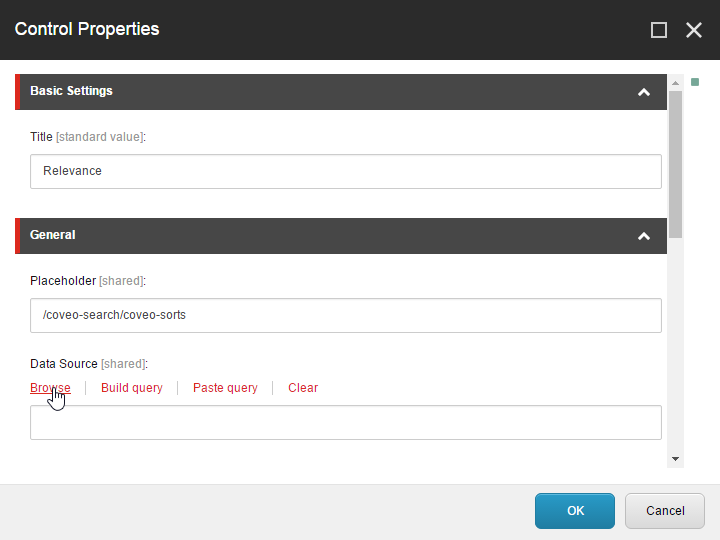
-
Select the corresponding parameter item and click OK.
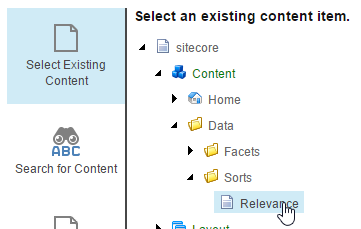
-
Click OK again. Your item is now set using the parameter item.
Linking an Existing Component With a Parameter Item
-
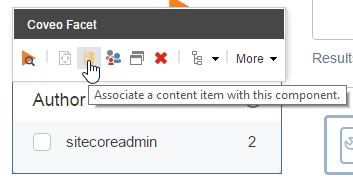
In the Experience Editor, click the Facet or Sort component.
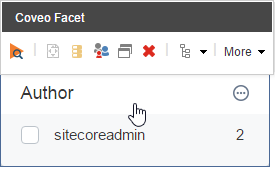
-
Click Associate Content.
-
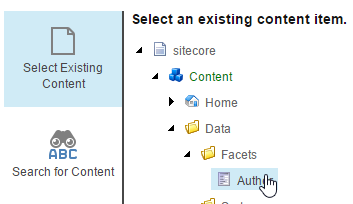
Select the corresponding parameter item and click OK.
-
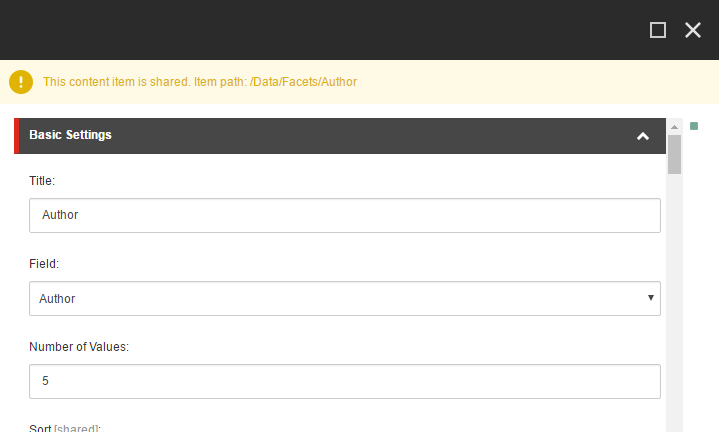
When editing properties, it should now show a message saying the item is shared.