Link a Coveo Tab Component to Other Components Using the Coveo for Sitecore Legacy Search Ui Framework
Link a Coveo Tab Component to Other Components Using the Coveo for Sitecore Legacy Search Ui Framework
This page explains how to link a Tab Component in a Coveo-Powered Search Page to other components.
This lets you hide components on your page based on the current selected tab.
Set Up Your Components to Exclude
There are two ways for configurable components to be excluded from a tab component. You can either use an existing Coveo parameters template, or create your own rendering parameter.
Using Existing Coveo Parameters Templates
For Coveo Facet and Coveo Sort components, see Using Sitecore Items for a Component Properties to set up your component properties.
Creating Your Own Rendering Parameter That Can Be Excluded
-
Create a new template or use an existing one.
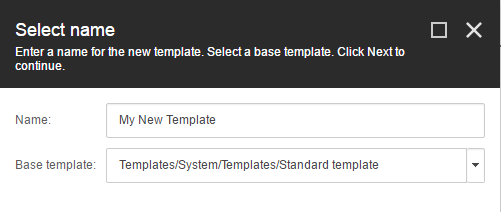
-
On the Content tab, in the Data section, select the Base Id Template, located in the
/templates/CoveoModulefolder.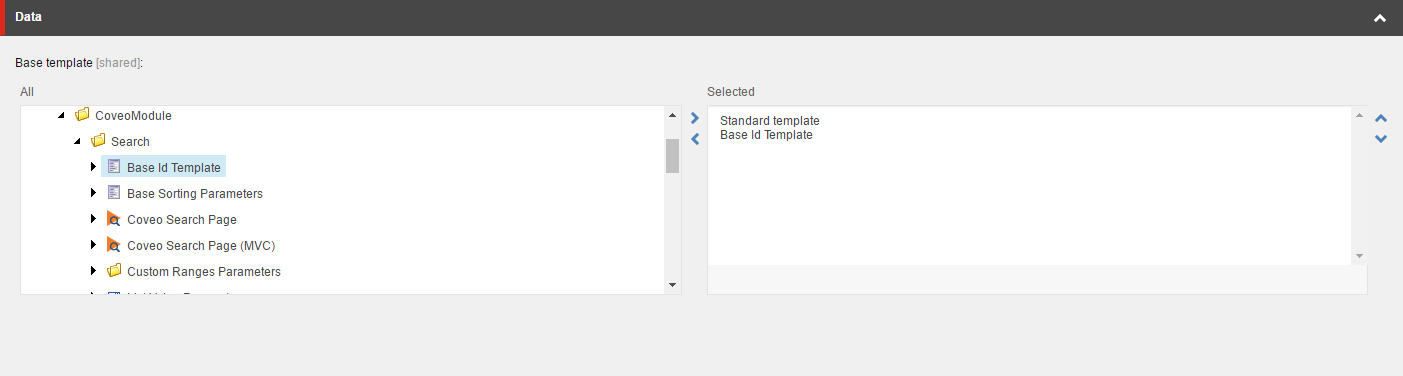
-
It’s now possible to insert a new item based on this template. Every item created using this template can be selected in the Tab components Exclude Components property.
Choosing Which Component to Exclude in Your Tab
-
Edit the tab properties by opening a Coveo Tab and clicking Edit Properties.
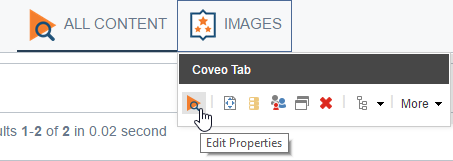
-
Get to the Exclude Components section.
-
Navigate in the tree to the item you want to exclude.
-
Double-click it, or click the right arrow to select the item. It should appear on the right side, in the Selected section.
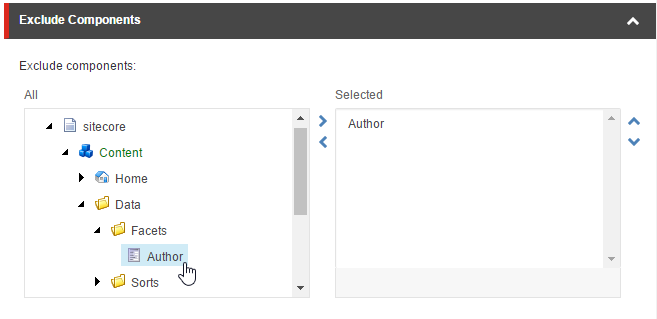
-
Click OK.
-
Save your page, and wait for it to refresh.
-
Select the tab. The excluded component should now be hidden.
Before |
After |
image:https://docs.coveo.com/en/assets/images/archived/35061776.png[Search interface before excluding a component from a tab |
Coveo for Sitecore 4] |
image:https://docs.coveo.com/en/assets/images/archived/35061777.png[Search interface after excluding a component from the selected tab |
Coveo for Sitecore 4] |
JavaScript Binding
It’s also possible to bind your elements using JavaScript.
This is useful to hide any component with an ID on your page without resorting to Rendering Parameters.
Coveo.$(function() {
    var tabId = "myTabId";
    var excludedItemIds = ["hiddenComponentId","anotherComponentId"];
    CoveoForSitecore.tabsBinding.excludeItemsIdsInTab(excludedItemIds, tabId);
});
The excludedItemIds property is an array containing every ID you want to hide when the tab associated with tabId is selected.
Given the following example:
<div class="coveo-tabs-section">
    <a id="showEverythingTab" class="CoveoTab" data-icon="no-icon"></a>
    <a id="myTabId" class="CoveoTab" data-icon="no-icon"></a>
</div>
<div id="content">
    <div id="hiddenComponentId">
        Some hidden content
    </div>
    <div>
        Other content
    </div>
</div>
<script>
    Coveo.$(function() {
        var tabId = "myTabId";
        var excludedItemIds = ["hiddenComponentId","anotherComponentId"];
        CoveoForSitecore.tabsBinding.excludeItemsIdsInTab(excludedItemIds, tabId);
    });
</script>
When the showEverythingTab is selected, the content section will show:
Some hidden content
Other content
While selecting myTabId, it will only show:
Other content