Custom Multi-Sort tutorial - Integrating the component
Custom Multi-Sort tutorial - Integrating the component
This page covers how to integrate our custom component in any existing Search Interface.
Inserting the Component in the Required Placeholder
Since our component is a sort component, we want to be able to insert it in the Coveo Sorts placeholder.
-
In the Content Editor, under sitecore > Layout > Placeholder Settings, create a new folder named Coveo Hive Custom
-
Right-click this folder, and select Insert From Template.
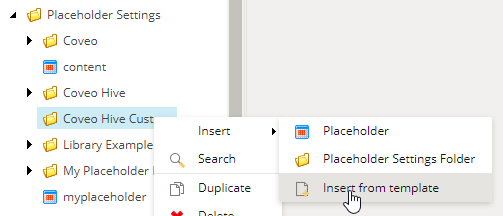
-
Under templates > Coveo Hive > Structure, select Placeholder Extender. Change its name to Multi Sort Placeholder Extension.
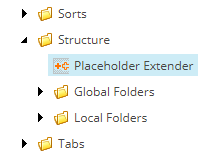
-
In the Placeholder Setting field, select the Sorts placeholder, located under Coveo Hive> Sorts.
-
In the Allowed Controls field, select your custom Multi Sort rendering.
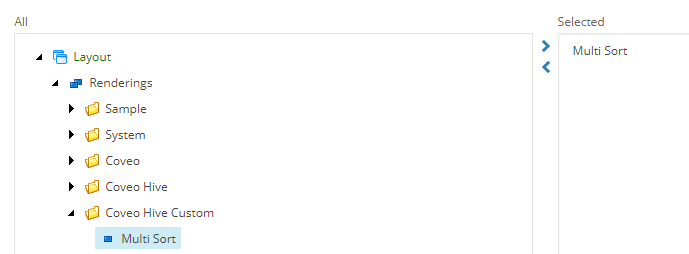
This adds the custom component in the allowed renderings for the default Sorts placeholder.
Inserting the Component in the Search Interface
The following steps are used to insert our custom component into an existing Search Interface.
Get into the Experience Editor, in a Coveo for Sitecore Hive Search Interface of your choice.
-
Find a sort component, and click Navigate to Parent.
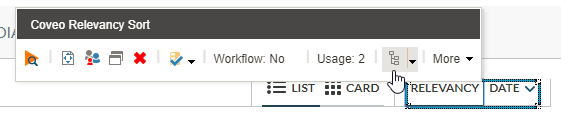
-
This is select the Sorts placeholder, which we patched in the previous steps.
-
-
Click Add to Here.
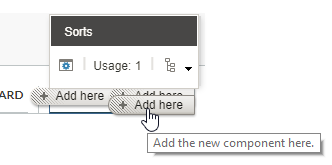
-
You should see your new component. Select it, and click Select.
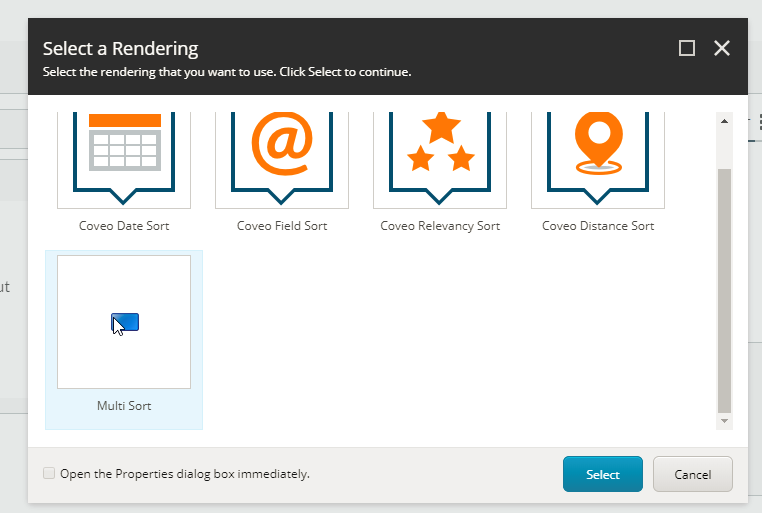
-
Click Change Associated Content.
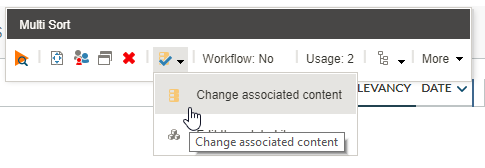
-
Create a new Data Source for this component and click OK. For this example, we’ll place it in our local Sorts Parameters Folder.
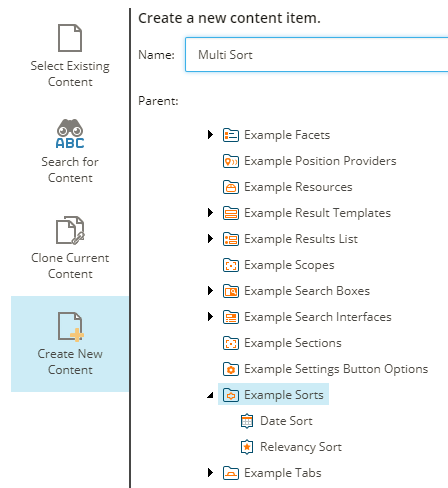
-
Save the page.
Result
You should now see this component
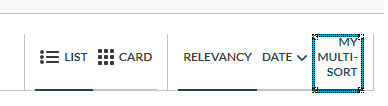
In the next step, we’ll add some options for this component.