Upgrading from June 2016 to July 2016
Upgrading from June 2016 to July 2016

|
For the best Coveo for Sitecore experience, always follow the Leading Practices When Upgrading Coveo for Sitecore. |
This section describes how to upgrade Coveo for Sitecore 4.0 from the June 2016 to the July 2016 release.
Step 1: Upgrade Coveo Services
-
Upgrade Coveo Enterprise Search (CES) to the June 2016 release. For more details, see Upgrading CES.
-
Install the minor release of Coveo Enterprise Search (CES) to the July 2016 version.
-
Upgrade Coveo Search API to the May 2016 release. Follow the normal steps of the installation wizard.
Step 2: Upgrade Coveo for Sitecore
|
|
Ensure that the Microsoft MVC security update MS14-059 is installed on every Sitecore host in your environment. |
|
|
If you’re using the Coveo Admin Service in secure mode, read this notice before installing the package. In the |
-
Log into the Sitecore Desktop.
-
Access the Installation Wizard (Sitecore Start Menu > Development Tools > Installation Wizard).
-
Install the Coveo for Sitecore .zip package.
-
When prompted to overwrite files, click Yes to all.
-
When prompted to overwrite items, select Overwrite, then click Apply to all.
 Note
NoteYou might be prompted twice with this question. Select the Overwrite option and click Apply to all both times.
-
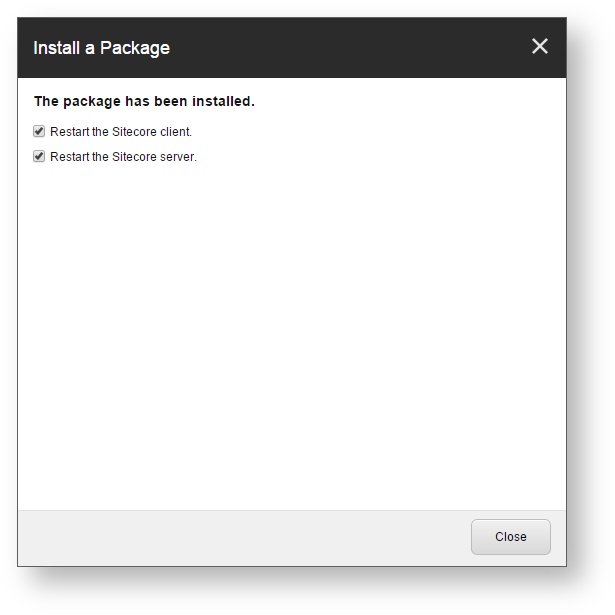
Once the installation is completed, make sure that you restart both the Sitecore client and server.
Step 3: Manually Update the Coveo Search Provider Configuration File
Merging Your Modifications into the Configuration Files
Since upgrading Coveo for Sitecore modifies the Coveo Search Provider configuration files (Coveo.SearchProvider.config.example and Coveo.SearchProvider.Custom.config.example) with the latest fixes and enhancements, you need to manually merge these modifications into your current configuration files (Coveo.SearchProvider.config and Coveo.SearchProvider.Custom.config).
This method allows you to keep your own customization intact, while still benefiting from the latest enhancements brought in the product.
You can use a merge tool such as WinMerge to do that.
Step 1: Upgrade Coveo for Sitecore
|
|
Ensure that the Microsoft MVC security update MS14-059 is installed on every Sitecore host in your environment. |
-
Log into the Sitecore Desktop.
-
Access the Installation Wizard (Sitecore Start Menu > Development Tools > Installation Wizard).
-
Install the Coveo for Sitecore .zip package.
-
When prompted to overwrite files, click Yes to all.
-
When prompted to overwrite items, select Overwrite, then click Apply to all.
NoteYou might be prompted twice with this question. Select the Overwrite option and click Apply to all both times.
-
Once the installation is completed, make sure that you restart both the Sitecore client and server.
Step 2: Manually Update the Coveo Search Provider Configuration File
Merging Your Modifications into the Configuration Files
Since upgrading Coveo for Sitecore modifies the Coveo Search Provider configuration files (Coveo.SearchProvider.config.example and Coveo.SearchProvider.Custom.config.example) with the latest fixes and enhancements, you need to manually merge these modifications into your current configuration files (Coveo.SearchProvider.config and Coveo.SearchProvider.Custom.config).
This method allows you to keep your own customization intact, while still benefiting from the latest enhancements brought in the product.
You can use a merge tool such as WinMerge to do that.
Manually Modify the Layout Files
The CoveoForSitecore.js file has been rewritten to TypeScript.
The legacy JavaScript file is still available in the installation package but won’t be improved anymore.
You can either:
-
Keep the legacy file, or
-
Update to the new file
Keep the Legacy File
-
In every copy of the resources files:
CoveoSearchResources.ascx,SearchViewResources.cshtml, etc, replace theCoveoForSitecore.jsdependency withCoveoForSitecoreLegacy.js.<script type="text/javascript" src="/Coveo/js/CoveoForSitecoreLegacy.js"></script>
Update to the New File
-
In every copy of the resources files:
CoveoSearchResources.ascx,SearchViewResources.cshtml, etc, replace theCoveoForSitecore.jsdependency withCoveoForSitecore.min.js.<script type="text/javascript" src="/Coveo/js/CoveoForSitecore.min.js"></script> -
In every copy of the layout files:
CoveoOmniboxResultList.ascxandOmniboxResultListView.cshtml, replace the initialization call with the JS component:
  <span class="CoveoForSitecoreOmniboxResultList"
        data-header-title='<%= Model.HeaderTitle %>'
        data-query-expression='<%= Model.AdditionalExpression %>'
        data-number-of-results='<%= Model.NumberOfResults %>'
        data-result-template-id='<%= Model.Id %>'>
</span> <span class="CoveoForSitecoreOmniboxResultList"
data-header-title='@(Html.Raw(Model.HeaderTitle))'
data-query-expression='@(Html.Raw(Model.AdditionalExpression))'
data-number-of-results='@Model.NumberOfResults'
data-result-template-id='@Model.Id'>
</span>Manually Modify the Search Renderings Files
To support adding many Coveo Search components on the same search page, Search component were given an ID.
This ID is generated automatically by Coveo and can be edited to be more friendly in the properties of search components.
If you duplicated any of the search components (CoveoSearch.ascx for Web Forms or SearchView.cshtml for MVC), you need to manually merge file modifications into your current rendering files.
This method allows you to keep your own customization intact, while still benefiting from the latest enhancements brought in the product.
You can use a merge tool such as WinMerge to do that.
Changes to look for:
-
The term
searchhas been replaced according to the following table:June 2016 release July 2016 release (Web Forms) July 2016 release (MVC) <div id="search" . . . ><div id="<%= Model.Id %>" . . . ><div id="@Model.Id" . . . >Coveo.$('#search')Coveo.$('#<%= Model.Id %>')Coveo.$('#@Model.Id') -
New properties were added to the searchbox.
Manually Modify the Configuration Files
The following modifications detail what has changed between the June 2016 and July 2016 releases in the .example files.
Coveo.SearchProvider.config
Directly under the coveo node, at the beginning of the section, add the following:
<caches>
  <fieldsCache type="Coveo.Framework.Caching.FieldsCache, Coveo.Framework" singleInstance="true" />
</caches>
Under the coveo/defaultIndexConfiguration node, set the activeDirectorySecurityProvider element to the following, if empty:
<activeDirectorySecurityProviderName>Coveo for Sitecore Active Directory</activeDirectorySecurityProviderName>Sitecore 8.0
Under the coveo/defaultIndexConfiguration node, before the <exclude hint="list:ExcludeField"> node, add the following:
<exclude hint="list:ExcludeTemplate">
 <mediaFolder>{FE5DD826-48C6-436D-B87A-7C4210C7413B}</mediaFolder>
 <bucketFolder>{ADB6CA4F-03EF-4F47-B9AC-9CE2BA53FF97}</bucketFolder>
</exclude>
For every crawler, in every Coveo index, add the name attribute in the crawler node.
There are two crawlers in every index by default;
one is named ContentCrawler, and the second one is named MediaLibraryCrawler.
This is what the crawlers in the Coveo_master_index node look like after the modification:
<crawler name="ContentCrawler" type="Coveo.SearchProvider.CoveoItemCrawler, Coveo.SearchProviderBase">
  <database>master</database>
  <root>/sitecore/content</root>
  <stopOnError>true</stopOnError>
</crawler>
<crawler name="MediaLibraryCrawler" type="Coveo.SearchProvider.CoveoItemCrawler, Coveo.SearchProviderBase">
  <database>master</database>
  <root>/sitecore/media library/files</root>
  <stopOnError>true</stopOnError>
</crawler>
Sitecore 8.1
Under the coveo/defaultIndexConfiguration node, before the <exclude hint="list:AddExcludedField"> node, add the following:
<exclude hint="list:AddExcludedTemplate">
 <mediaFolder>{FE5DD826-48C6-436D-B87A-7C4210C7413B}</mediaFolder>
 <bucketFolder>{ADB6CA4F-03EF-4F47-B9AC-9CE2BA53FF97}</bucketFolder>
</exclude>
For every crawler, in every Coveo index, add the name attribute in the crawler node.
There are two crawlers in every index by default;
one is named ContentCrawler, and the second one is named MediaLibraryCrawler.
This is what the crawlers in the Coveo_master_index node look like after the modification:
<crawler name="ContentCrawler" type="Sitecore.ContentSearch.SitecoreItemCrawler, Sitecore.ContentSearch">
  <database>master</database>
  <root>/sitecore/content</root>
  <stopOnError>true</stopOnError>
</crawler>
<crawler name="MediaLibraryCrawler" type="Sitecore.ContentSearch.SitecoreItemCrawler, Sitecore.ContentSearch">
  <database>master</database>
  <root>/sitecore/media library/files</root>
  <stopOnError>true</stopOnError>
</crawler>
SwitchMasterToWeb.Coveo.config
Under the sitecore/scheduling node, add the following:
<agent name="CoveoCleanUpAfterRebuild">
  <patch:delete />
</agent>