Troubleshooting Guide - Cloud Issues
Troubleshooting Guide - Cloud Issues
This article is intended for developers and administrators who need an in-depth view of the interactions occurring between the services involved with Coveo for Sitecore when using Coveo Cloud.
Topology of Services and Components
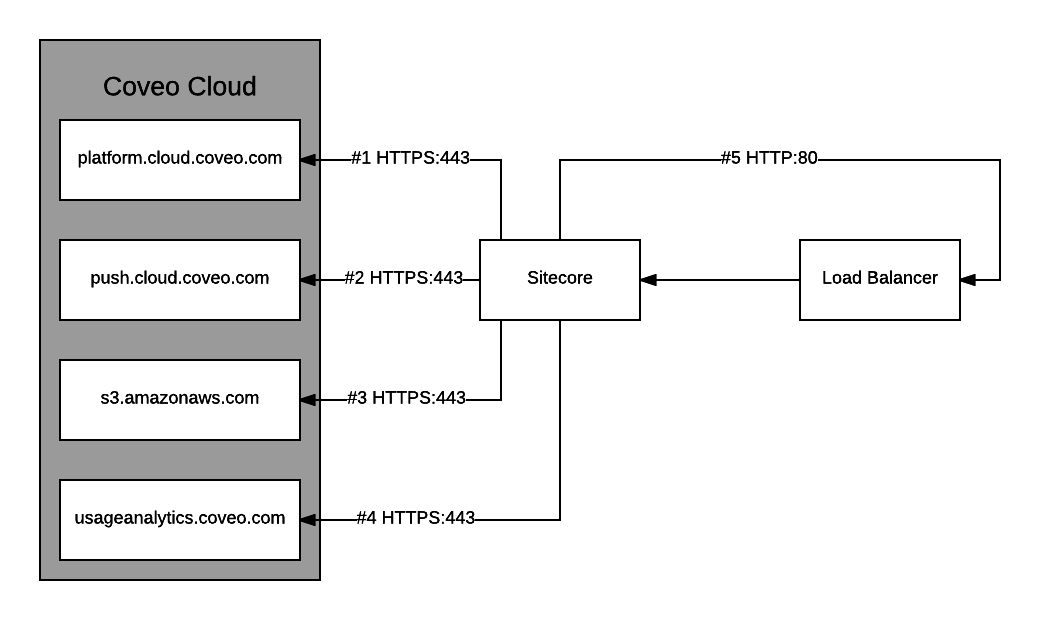

|
Note
Sitecore has to accept connections from Coveo Cloud to expand the Sitecore roles and users (see Validate that Coveo Cloud Can Reach Sitecore). |
Validating Routes #1-4 (from Sitecore to Coveo Cloud)
| Source | Sitecore |
|---|---|
| Destination |
|
| Protocol | HTTPS |
| Port | 443 |
The routes are used for these purposes:
-
platform.cloud.coveo.com: To manage the Coveo Cloud resources such as creating sources, fields and performing search requests.
-
push.cloud.coveo.com: To push documents and permissions to Coveo Cloud.
-
s3.amazonaws.com: To push documents and permissions to Coveo Cloud.
-
usageanalytics.coveo.com: To send Coveo for Sitecore activity statistics to Coveo.
To validate the route:
-
On the Sitecore server, open a web browser and access each of the destinations mentioned above (for example,
https://platform.cloud.coveo.com). -
You should be able to reach each URL.
Validating Route #5 (from Sitecore to Sitecore through the Load Balancer)
| Source | Sitecore |
|---|---|
| Destination | Load Balancer |
| Protocol | HTTPS |
| Port | 80 (or 443) |
The route is used when performing LINQ queries and by the HtmlContentInBodyWithRequestsProcessor to retrieve the HTML quickview.
To validate the route:

|
If Sitecore is secure, the protocol is HTTPS and port is 443. |
-
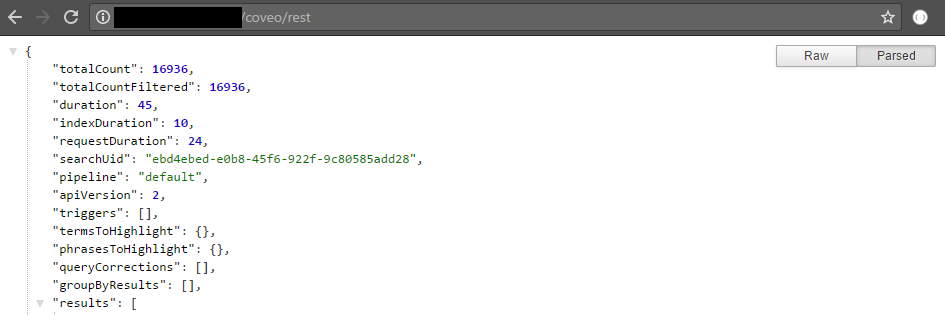
From the Sitecore server, open a web browser and access
http://<SITECORE_LOAD_BALANCER>/coveo/rest. -
You should get an output similar to this:
Validate that Coveo Cloud Can Reach Sitecore
| Source | Coveo Cloud (see Coveo Cloud IP addresses to allowlist) |
|---|---|
| Destination | Sitecore |
| Protocol | HTTP (or HTTPS) |
| Port | 80 (or 443) |
|
|
If Sitecore is secure, the protocol is HTTPS and port is 443. |
-
Verify in your firewall configuration that the required port (80 or 443, depending on your configuration) is open.