Silently Activating Coveo for Sitecore
Silently Activating Coveo for Sitecore
In some circumstances, for example when creating many Sitecore servers, you will want to silently activate and configure Coveo for Sitecore. This can be done using a REST API to set the different configuration usually entered with the installation wizard.
You can also see the documentation for the provided calls by accessing the Swagger UI available under http://<INSTANCE_HOSTNAME>/coveo/api/config/docs/index.
Prerequisites
-
A running instance of Sitecore.
 Note
NoteFor an extensive list of Sitecore supported versions, see Supported Sitecore Versions and Dependencies.
-
ASP.NET MVC 4.0 or MVC 5.0 installed on your Sitecore server:
NoteTo configure MVC while installing Sitecore, see Sitecore MVC Developer’s Reference Guide. If you have already installed Sitecore and you now want to enable MVC manually, see Sitecore MVC Playground Part 1: Enable MVC.
-
For Sitecore 7.2 instances only:
-
Add the assembly bindings below in your
Web.configfile, in theruntime/assemblyBindingnode.<dependentAssembly> <assemblyIdentity name="System.Web.Http" publicKeyToken="31bf3856ad364e35" xmlns="urn:schemas-microsoft-com:asm.v1" /> <bindingRedirect oldVersion="1.0.0.0-5.0.0.0" newVersion="5.1.0.0" xmlns="urn:schemas-microsoft-com:asm.v1" /> </dependentAssembly> <dependentAssembly> <assemblyIdentity name="System.Web.Http.WebHost" publicKeyToken="31bf3856ad364e35" xmlns="urn:schemas-microsoft-com:asm.v1" /> <bindingRedirect oldVersion="1.0.0.0-5.0.0.0" newVersion="5.1.0.0" xmlns="urn:schemas-microsoft-com:asm.v1" /> </dependentAssembly> <dependentAssembly> <assemblyIdentity name="System.Net.Http.Formatting" publicKeyToken="31bf3856ad364e35" xmlns="urn:schemas-microsoft-com:asm.v1" /> <bindingRedirect oldVersion="1.0.0.0-5.0.0.0" newVersion="5.1.0.0" xmlns="urn:schemas-microsoft-com:asm.v1" /> </dependentAssembly>-
In the
App_Config/Include/Coveofolder, open fileCoveo.Service.Api.ConfigService.config. -
Uncomment the
sitecoreelement as shown below and save your changes.<sitecore> <pipelines> <initialize> <processor type="Coveo.Service.Api.ConfigService.Processors.InitializeConfigServiceApiRoutes, Coveo.Service.Api.ConfigService" /> <processor type="Coveo.Service.Api.ConfigService.Processors.InitializeConfigServiceSwagger, Coveo.Service.Api.ConfigService" /> <processor type="Coveo.Service.Api.Framework.Processors.InitializeCoveoApiErrorFilter, Coveo.Service.Api.Framework" /> </initialize> </pipelines> </sitecore> -
In the
App_Config/Include/Coveofolder, open fileCoveo.Service.Api.IndexService.config. -
Uncomment the
pipelineselement as shown below and save your changes.<pipelines> <initialize> <processor type="Coveo.Service.Api.IndexService.Processors.InitializeIndexServiceApiRoutes, Coveo.Service.Api.IndexService" /> <processor type="Coveo.Service.Api.IndexService.Processors.InitializeIndexServiceSwagger, Coveo.Service.Api.IndexService" /> <processor type="Coveo.Service.Api.Framework.Processors.InitializeCoveoApiErrorFilter, Coveo.Service.Api.Framework" /> </initialize> </pipelines>
-
-
Available Options
The Swagger endpoint provides the following options:
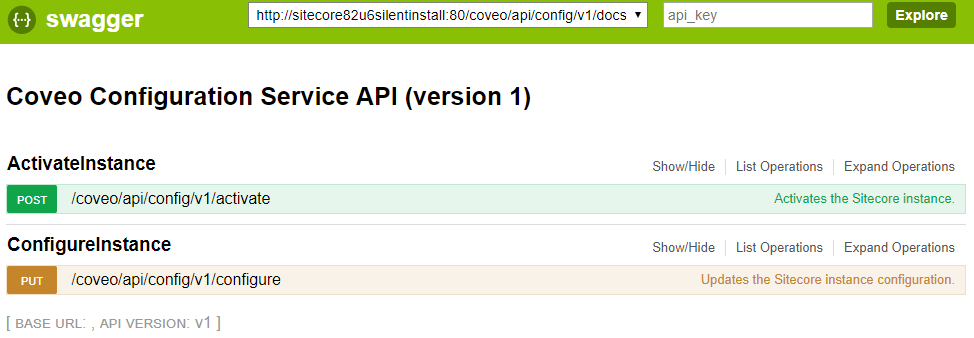
Configure
The Configure operation is used to set the different values needed for the Coveo for Sitecore configuration, for example the OrganizationId and ApiKey.
Activate
The Activate operation is used to activate Coveo for Sitecore on the Sitecore instance.
This will rename the base .example config files that come with Coveo for Sitecore to enable them.
It will also validate that all the values required have been set with Configure previously.
Version
The Version call is available under http://<INSTANCE_HOSTNAME>/coveo/api/config/version and returns that latest version of the API.
This version is used in the URL to call the other operations, for example coveo/api/config/v1/configure.
Make sure to always use a specific version in your client implementation to avoid breaking changes in future versions.
Authentication
An authentication needs to be provided using the x-scUsername and x-scPassword headers for each API operations.
Only the Version call is exempted from this.
Finding the OrganizationId value
The OrganizationId can be retrieved in the URL of your Coveo organization.

Creating an organization
If you don’t have access to an existing organization, you can create a trial organization through the Platform API - Get the organization status.

|
You need to specify the organization template for a Coveo for Sitecore trial, here are the two options:
|
Create the API keys
To configure your Sitecore instance, you’ll need 2 API keys that have different privileges: one for search activities (SearchApiKey) and the other for general configuration activities of your organization (ApiKey).
To create these API keys, you can use the Cloud Platform Administration Console (see Manage API Keys).
Privileges for the SearchApiKey
The SearchApiKey needs the following privileges (when creating the key using the Cloud Platform API):
| owner | targetDomain | type | Coveo Administration Console equivalent |
|---|---|---|---|
USAGE_ANALYTICS |
ANALYTICS_DATA |
VIEW,EDIT
|
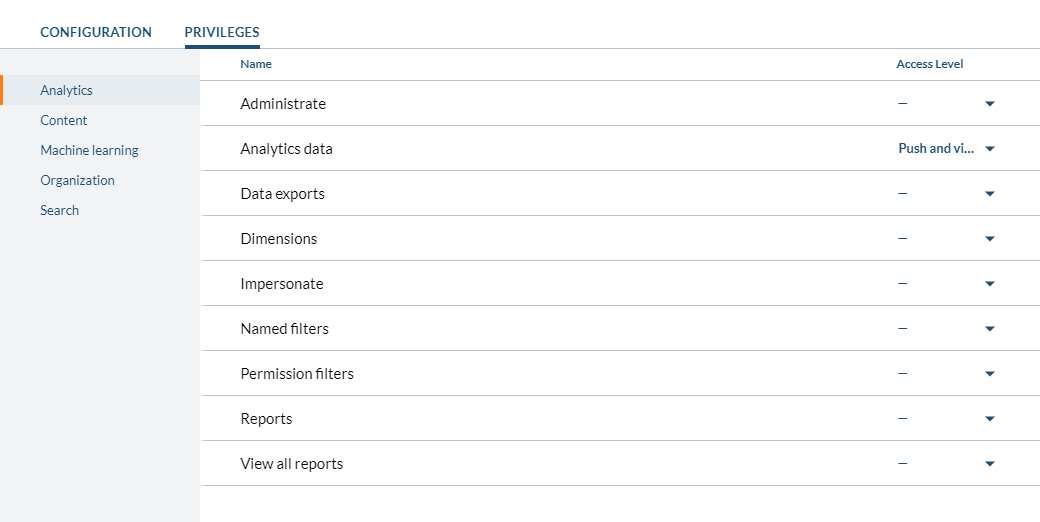
Analytics - Analytics data - Push and view |
SEARCH_API |
EXECUTE_QUERY |
Search - Execute queries - Allowed |
|
SEARCH_API |
IMPERSONATE |
Search - Impersonate - Allowed |
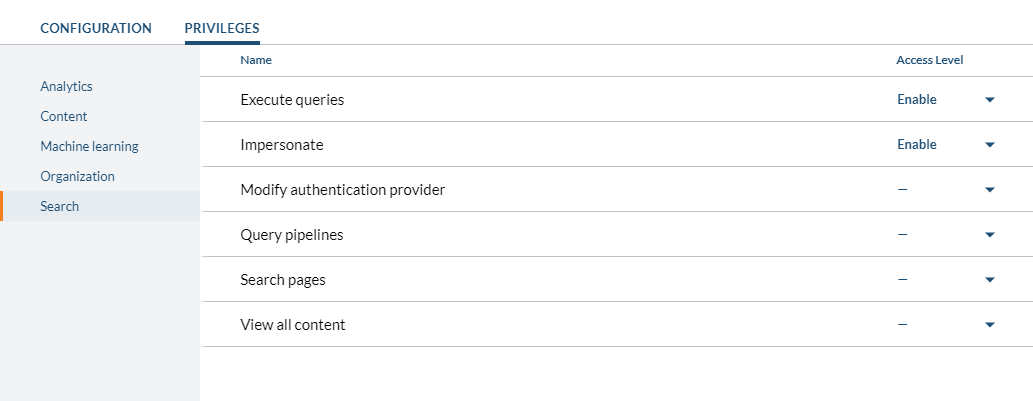
The SearchApiKey needs the following privileges (when creating the key using the Cloud Platform Administration Console):
Privileges for the ApiKey
The ApiKey needs the following privileges (when creating the key using the Cloud Platform API):
owner |
targetDomain |
type |
Coveo Administration Console equivalent |
|
|
|
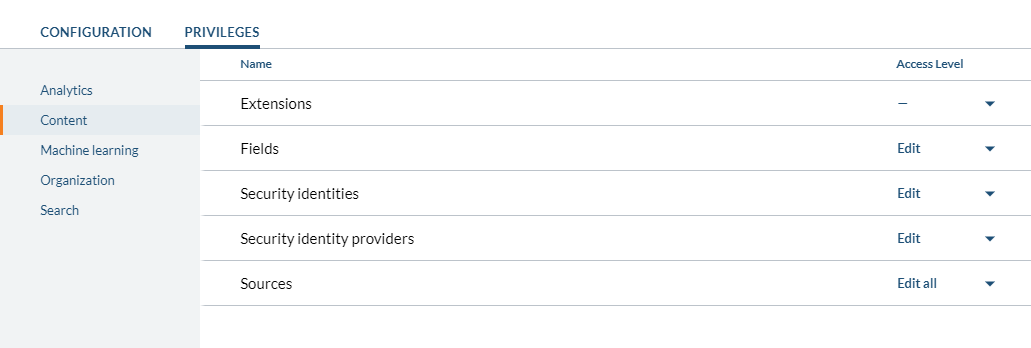
Content - Fields - Edit |
|
|
|
Content - Security identities - Edit |
|
|
|
Content - Security identity providers - Edit |
|
|
|
Content - Sources - Edit all |
|
|
|
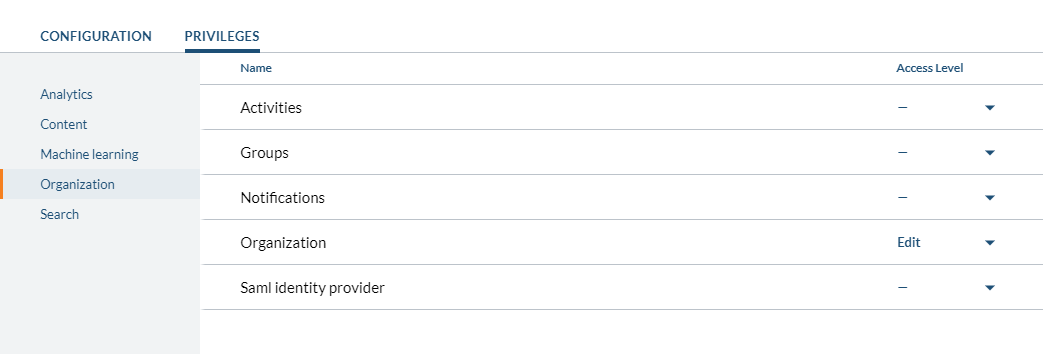
Organization - Organization - Edit |
The ApiKey needs the following privileges (when creating the key using the Cloud Platform Administration Console):