Using the Experience Explorer
Using the Experience Explorer
The Experience Explorer is a handy package that can greatly help in customizing and troubleshooting your personalization settings.
The Experience Explorer can also help you validate your Analytics rules and Automatic Boosting settings.
How to Use It
On a Sitecore page, if you switch to Edit mode, you can choose the Experience Explorer by selecting the tab Home> Preview > Explore.

It should open two tabs on the sides of your page, as such:
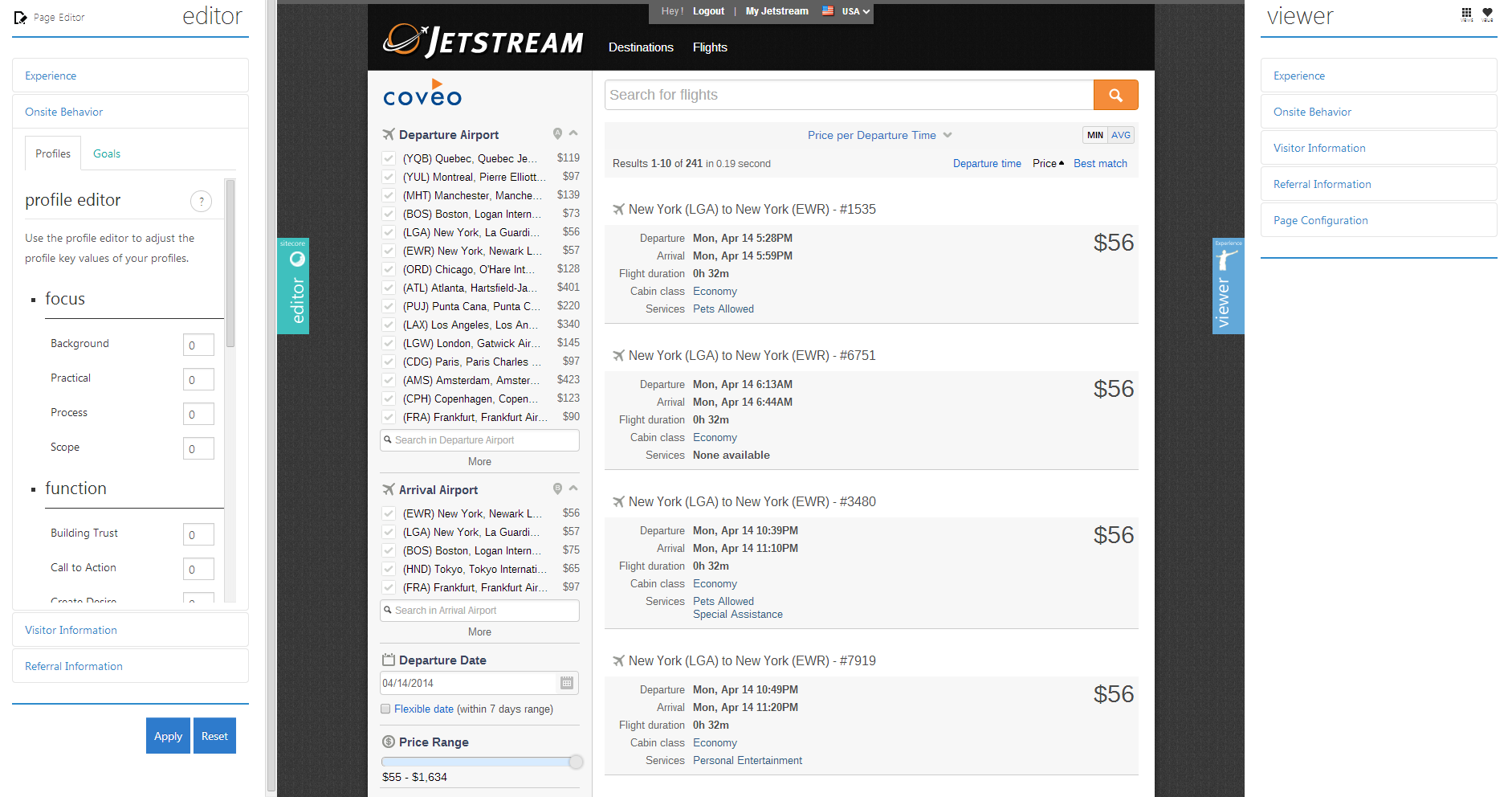
There, you can test your profiles. For example, on the left side, if you select the Onsite Behavior tab, you’re able to assign keys to the selected profile.
By clicking Apply, you should see, on the right, which pattern has been applied according to the keys you entered.
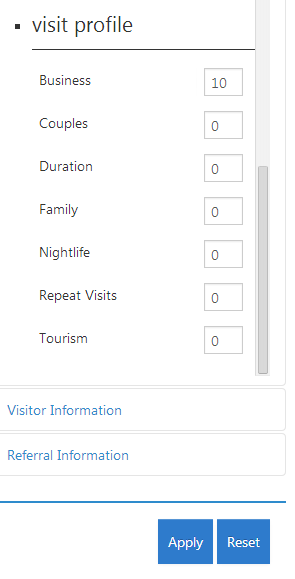
In this example, you can enter 10 in the Business key of the Visit profile :
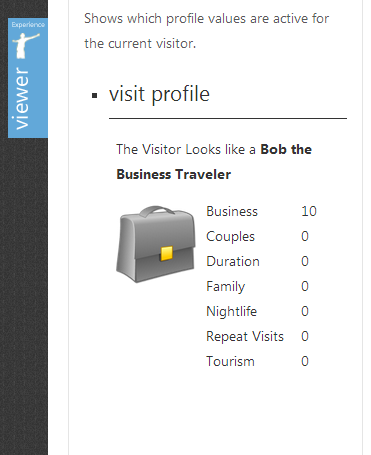
The 'Bob the Business Traveler' should be recognized as the current visit pattern when clicking Apply.
In the Editor section, there’s also the Experience tab that allows you to choose predefined presets instead of experimenting with keys.
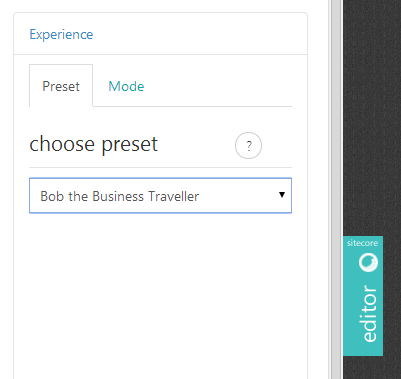
Choosing a preset and clicking Apply directly applies the preset in the Onsite Behavior on the Viewer tab.