Configuring an External Source
Configuring an External Source
It’s possible to index external content in your Sitecore instance using Coveo Enterprise Search (CES). This section explains how you can use crawlers to index an external source in CES.
In this example, the Web Pages crawler is used to index some pages from the Sitecore Experience Platform website.
-
Open the CES Administration Tool.
-
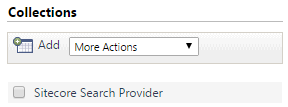
Under Index > Sources and Collections, in the Collections section on the left, click Add to add a new collection.
-
Name your collection, and then click Save. For this example, you can name it
External Content.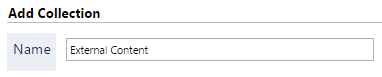
-
Under Sources, click Add to add a source to your new collection.

-
Set the parameters of your external source.
-
Name: Give your source a name. For this example, use
Sitecore Experience Platform. -
Source Type: Select
Web Pages. -
Addresses: Type in the URL from where to start crawling. For this example, you want to index the Sitecore Experience Platform section of the site, so you should enter the following address.
 Note
NoteYou can specify more than one starting address per source. In that case, enter only one address per line.
http://www.sitecore.net/en/products/sitecore-experience-platform/
-
-
Click Save. You don’t want to start building your source yet.

-
Verify that your source includes all pages under your main URL.
-
Select the Filters tab.
-
Under Filters, make sure that you see the following inclusion filter.
http://www.sitecore.net/en/products/sitecore-experience-platform/*
-
-
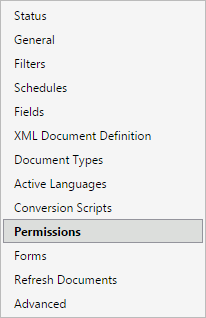
Select the Permissions tab.
-
Under Custom Permissions, next to Allowed Users, click Add.
-
Enter the following information to allow the content to be browsed in your Sitecore instance.
-
Security Provider: Choose your Sitecore instance.
-
Type: Choose Group.
-
Name: Enter
Everyone.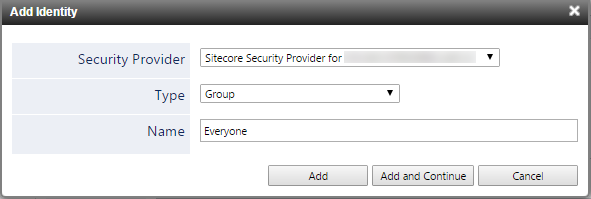
-
-
Click Add, then on Apply Changes at the bottom, and on Start at the top.
-
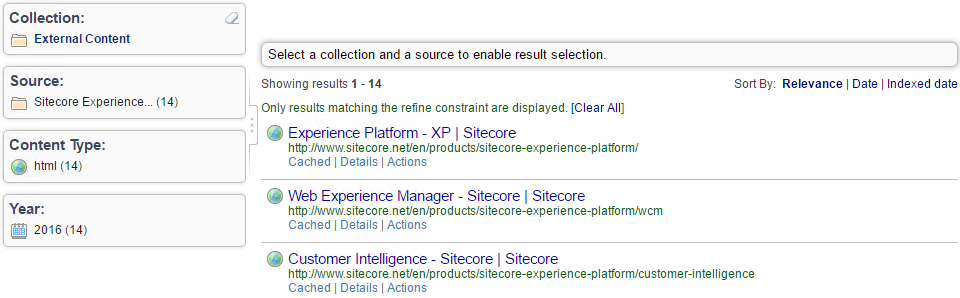
Once your source has finished building, go to Content > Index Browser, and validate that your documents are properly indexed.
It’s possible to index external content in your Sitecore instance using the Coveo Platform. This section explains how you can use crawlers to index an external source in the Cloud Platform itself.
In this example, the Web Pages crawler will be used to index some articles from the Sitecore Experience Platform website.
-
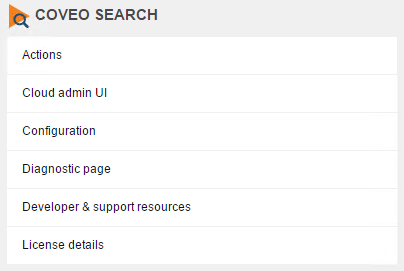
In the Sitecore Control Panel, under Coveo Search, click Cloud admin UI.
-
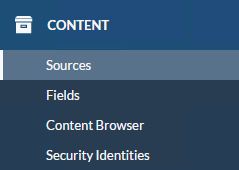
In Content > Sources, click Add source.

-
Choose the type of source you want to index. For this example, use the Web source.
-
Enter the information of the source you want to add.
-
Source Name: Type in a source name. For this example, you can use the name
Sitecore Experience Platform. -
Site URL: Type in the URL of the source you want to add. You can add several URLs to be crawled under the same Source Name. Enter the John West Blog archive. Your items will be created from links on this page.
http://www.sitecore.net/en/products/sitecore-experience-platform/
NoteThere are more settings that you could configure. For the whole list, as well as explanations on what they do, see Add a Web source.
-
Inclusion filters: Because you want to limit your indexing to a specific section of the site, you need to add an inclusion filter.
http://www.sitecore.net/en/products/sitecore-experience-platform/*
-
-
Click Add and Build. The dialog box should close, and you should see your Web source being created.

-
Once the source has been properly built, validate that the documents are indexed by clicking Content > Content Browser.
What’s next?
You can now proceed to Enabling the External Source in Sitecore.