Making a Sitecore Field Facetable
Making a Sitecore Field Facetable
A facet field can be used to create facets (see Adding Components).
It’s also required if you want to use a Sitecore field in a query with a comparator different than equals (such as contains or ends with) in the Rule Set Editor.
Making a Field Available to Select in the Facet Component
To make a Sitecore field facetable for a Hive UI Framework or Legacy Search UI Framework search page
-
Open the
Coveo.SearchProvider.Custom.configfile with a text editor. -
In the
fieldMap/fieldNamessection, add a new element like the following (you must replacemysitecorefieldwith the name of the Sitecore field):<fieldType fieldName="mysitecorefield" isFacet="true" settingType="Coveo.Framework.Configuration.FieldConfiguration, Coveo.Framework" /> Note
NoteThe
fieldMap/fieldNameselement is located in thedefaultIndexConfigurationelement. Field settings defined in thedefaultIndexConfigurationelement are applied to all indexes that reference thedefaultIndexConfigurationelement. To apply field configurations on a specific index, see Managing Fields for a Specific Index. -
To synchronize these field settings changes into your search indexes, an indexing action must be performed. Alternatively, the
/coveo/api/index/v1/indexes/synchronizeAPI POST call can be used (see Synchronize Coveo for Sitecore Configuration). -
For Legacy Search UI Framework search pages only, you also need to create a new Sitecore system facet item.
-
In the Sitecore content tree, navigate to the
sitecore/System/Settings/Buckets/Facetsfolder. -
Right-click the Facets folder and select Insert > Facet.
-
Enter a name for your new item.
-
Under the Content tab of the new item, specify a value for the
Field Namefield. TheField Namefield must be set to the name of the Sitecore field previously configured asisFacet="true"in theCoveo.SearchProvider.Custom.configfile.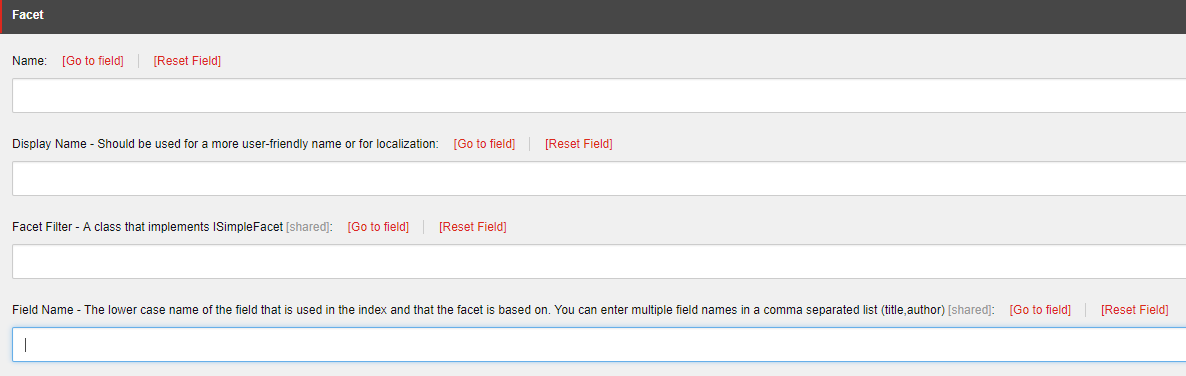
-