Enabling the External Source in Sitecore
Enabling the External Source in Sitecore

|
Note
This page assumes that you have already indexed an external source in the Coveo Enterprise Search (CES) Administration Tool. For more information on how to do that, see Configuring an External Source. |
After having indexed your external source in the CES Administration Tool, you need to enable it in Sitecore.
|
|
Note
This page assumes that you have already indexed an external source in the Cloud Coveo Platform. For more information on how to do that, see Configuring an External Source. |
After having indexed your external source in the Coveo Platform, you need to enable it in Sitecore.
To enable the source that you have just created
-
Access your Coveo-Powered Search Page item.
NoteTo learn how to create a Coveo-Powered Search Page, see Inserting and Customizing a Search Interface Component or Inserting Coveo Search Components to an Existing Item.
-
On the Publish tab, select the Experience Editor.
-
Open the Coveo Search box by clicking the page.
-
Click Edit Properties. It should be the first option.

-
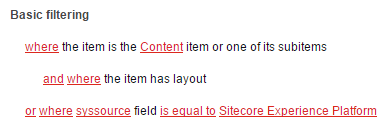
In the Control Properties panel, in Results scope, under Filter expression rules, add the rule
or where syssource field is equal to <name of your source>.
The Rule Set Editor is only available to Enterprise edition users. To learn how to add a filter expression rule programmatically, see Setting Up External Sources Programmatically.
-
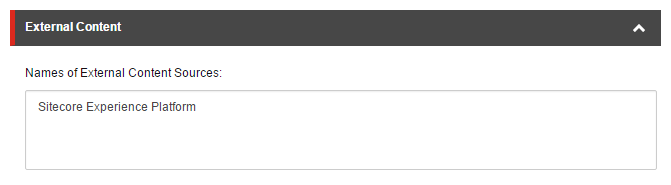
Scroll to External Content, and type in the name of your source.
-
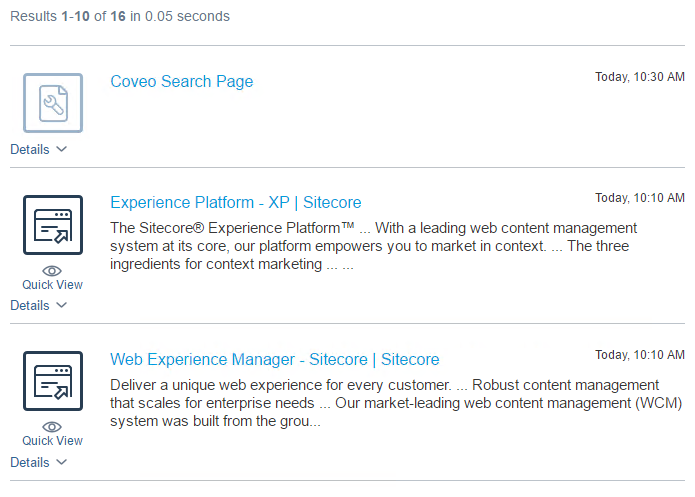
Click OK. The page should refresh, showing you results coming from Sitecore and your external source.
To enable the external source
-
Open your Coveo-powered search page (or search results page, if you’re redirecting searches from a global search box) in the Sitecore Experience Editor.
-
Select the Coveo Search Interface component.
-
In the floating toolbar, select Edit the rendering’s data source. It should be the leftmost option in the toolbar.
-
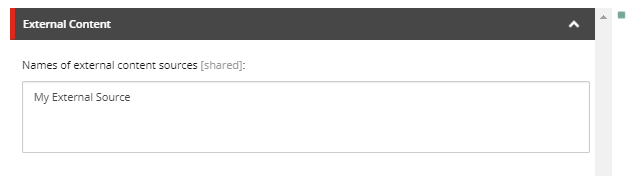
In the External Content section, type the name of your external source.
-
Click OK.
-
Save and publish your item.
-
Only if you’re using the April 2016 release of Coveo for Sitecore, add the following pipeline in your
Coveo.CloudPlatformClient.Custom.configfile, in thesitecorenode.<pipelines> <getSearchUserIdentities> <!-- The AddAnonymousEmailUserIdentity allows to retrieve the public documents from the external sources. --> <processor name="AddAnonymousEmailUserIdentity" type="Coveo.CloudPlatformClient.Processors.GetSearchUserIdentities.AddAnonymousEmailUserIdentity, Coveo.CloudPlatformClient" /> </getSearchUserIdentities> </pipelines>
Your external source is now enabled.
|
|
Depending on the filtering you have set up (for example, in the Coveo Search Interface component data source, in the Coveo Tab component data sources, or in a targeted Query Pipeline), documents from your external source may or may not appear in search results. Example
In the Coveo Search Interface component data source, you have added a If all your external source documents are being filtered out of the search results unwantedly, you need to adjust your filtering rules (see Adjusting Filtering Rules to Include External Content in Search Results). |
Adjusting Filtering Rules to Include External Content in Search Results
You might face a situation where your external content documents are unwantedly being filtered out of search results.
You might also need to specify only one or a few external sources to be included in your search results.
In both cases, you need to adjust your filtering to include a rule that uses the Coveo for Sitecore syssource field.
Documents from an external source aren’t appearing in your search results when viewing a tab you labeled All Content, in your search page.
You want your search results to include external source documents.
You have an Enterprise Cloud Coveo for Sitecore license and have isolated the issue to be the where the item has layout query filter rule set on the All Content tab data source.
To display external source documents in your All Content tab search results
-
In the Experience Editor, select the All Content tab component.
-
In the floating toolbar of the selected component, select Edit the rendering’s data source. It should be the leftmost option in the toolbar.
-
In the Query Filter section, under Filter expression rules, add the rule
or where syssource field is equal to <NAME_OF_YOUR_EXTERNAL_SOURCE>.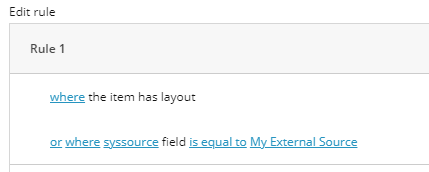
-
Save your changes.
-
Open your
Coveo.SearchProvider.Custom.configfile in a text editor. -
Locate the
/fieldMap/externalFieldselement. -
Within this element, add the following patch to change the
isSourceSpecificattribute value on thesyssourcefield name tofalse.<fieldType fieldName="syssource" > <patch:attribute name="isSourceSpecific" value="false" /> </fieldType>
NoteIf you don’t set the
syssourcefield name toisSourceSpecific="false", the field namesyssourceyou specified in your filtering rule is translated in the advanced query (aq) parameter of the search API call, as illustrated below.
Having the field name you specified translated this way makes your
orfiltering rule ineffective. -
Refresh your search page in the Experience Editor. When viewing the
All Contenttab, you should now have results coming from your external source. -
Publish your search page.
Filtering on External Collection Instead of Source
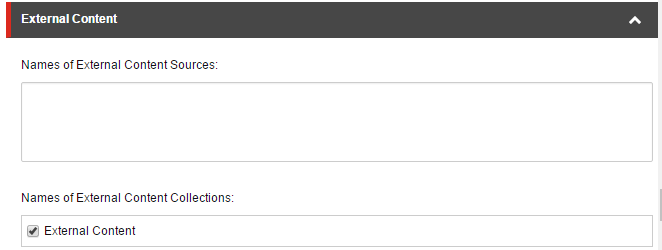
If you have many external sources in the same collection, you may want to filter them directly on the external collection instead. Filtering on the external collection shows all the documents in the sources contained in the collection.
Instead of specifying an external source name, you can choose to filter by collection in the Coveo Search component properties.
What’s next?
Now that your content is searchable in your Sitecore instance, you may want to proceed to Using External Content in Sitecore Facets.