Resources created by the Coveo app for Shopify
Resources created by the Coveo app for Shopify

When you sync your Shopify product catalog with the Coveo Platform, the Coveo AI Search & Discovery app creates or updates the following resources in your Coveo organization:
-
Sources: One GraphQL API source per market and language combination.
-
Catalog entities: One catalog entity per source.
-
Fields: A set of standard and custom fields that map product and variant metadata. This can also include optional Shopify metafields.
-
Tracking IDs and properties: One tracking ID and matching property per market.
-
Storefront associations: One storefront association per market and locale combination.
-
Query pipelines: One query pipeline per market and product discovery solution combination.
Sources
When you sync your Shopify product catalog with the Coveo Platform, the Coveo AI Search & Discovery app uses the Shopify GraphQL Admin API to retrieve your market languages, regions, and base currencies.

|
Note
Currently, the app only supports base currencies, not local currencies. |
The app then generates a set of fields in your Coveo organization and creates one GraphQL API source per market and language combination to index your products. These sources use the following naming scheme:
shopify <MARKET_NAME> <SHOP_NAME> <LANGUAGE> <CURRENCY> - <RANDOM_UUID>For example, a source could be named as follows: shopify canada docs_coveo en cad - 1c3386f2-ec73-4716-b6df-b4b7963a8743.
Every source is automatically configured for Commerce and uses the default source update schedule. The app also creates a matching catalog entity for each source and storefront associations to associate your catalog entities with your storefronts in the target locales.
Each of these sources scans your Shopify store for products and their variants, indexing the active ones. You can therefore have multiple Coveo items for a single Shopify product or variant, each corresponding to a specific market and language combination.
Example
You have three markets: the US, Canada, and a simplified "Europe" that consists of France and Germany. These markets have the following language pairings:
-
US: English
-
Canada: English, French
-
Europe: French, German
There will be five sources:

Translations
A unique source is created in the Coveo Platform for each language made available in the Shopify store. The translated fields can be viewed in the Content Browser section of the Coveo Administration Console by filtering for the relevant source.
The actual translation of the Shopify standard fields and the metafields is done within the Shopify translate and adapt app, or by using other apps that use Shopify’s native translation system.
The translations are then sent to the Coveo Platform through the Shopify GraphQL API and appear once the organization has been synced with Shopify.
|
|
Troubleshooting
Expand the following section to see the cause and solution for specific translation issues. Symptom: The translated value isn’t appearing.Cause 1: The field is based on an unstructured metafield.
Cause 2: The value for that field hasn’t been populated in Shopify for the specific language.
Cause 3: The field hasn’t been selected and synchronized through the Shopify app.
Symptom: A value is appearing in the wrong language.Cause 1: The field has no translation value in the expected language.
|
Catalog entities
A catalog entity is a commerce-specific resource that establishes a catalog data structure and enables Coveo Machine Learning (Coveo ML) and Coveo Analytics reporting.
The Coveo AI Search & Discovery app creates one catalog entity per source. Each catalog entity is based on the same name as its matching source, but is limited to 50 characters.
For example, if the source is shopify canada docs_coveo en cad - 1c3386f2-ec73-4716-b6df-b4b7963a8743, then the catalog entity would be named shopify canada docs_coveo en cad - 1c3386f2-ec73-4.
Example
You have three markets: the US, Canada, and a simplified "Europe" that consists of France and Germany. These markets have the following language pairings:
-
US: English
-
Canada: English, French
-
Europe: French, German
There will be five catalog entities to match the five sources:

Fields
In the Coveo Platform, a field is an index-wide container that holds information about each item. Every Coveo field has a unique name and a type.
When a source is created in your Coveo organization, the Coveo Platform automatically generates a set of fields (if they don’t already exist).
Some of these are default fields that are common to all sources, such as language, permanentid, and uri.
When the Coveo AI Search & Discovery app creates GraphQL API sources in your organization, it generates a set of commerce-specific fields in addition to the default fields.
The app indexes certain metadata values from your Shopify product catalog into these fields, which are classified as either Coveo standard fields or Shopify standard fields.
Besides the standard fields, you can index up to 650 additional Shopify product and variant metafields as Coveo custom fields to enhance the search experience.

|
If your metafields don’t match the Coveo field naming conventions, or if their type isn’t supported by the Coveo Platform, you won’t be able to select them in the Fields section of the Catalog sync tab of the Coveo app. Refer to the relevant sections for more information. |
In the app, you can also select which fields to use as facets in your search interfaces. When you create facets in your search interface, you can only use fields that are explicitly facet-enabled.

Field names
In the Coveo Platform, field names must:
-
Contain only lowercase letters, numbers, or underscore characters.
-
Start with a lowercase letter.
-
Be at most 255 characters in length.
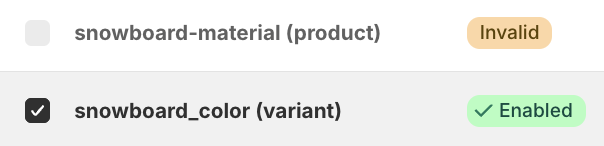
If a field name doesn’t meet these requirements, it’s tagged as Invalid and you can’t select it in the Fields section of the Catalog sync tab of the Coveo app.
Field types
In the Coveo Platform, every field is configured for a specific type of data.
You can’t manually set field types in the Coveo AI Search & Discovery app. It automatically configures fields as follows:
-
When they’re generated, Coveo standard fields and Shopify standard fields are set to the appropriate type.
-
Most structured metafields are automatically set to one of the following types when they’re indexed as Coveo custom fields:
-
String
-
Integer 64
-
Decimal
-
Date
Some Shopify metafield types aren’t yet supported by the Coveo Platform. If a structured metafield uses a type that isn’t supported by Coveo, it’s tagged as
Disabledand you can’t select it in the Fields section of the Catalog sync tab of the Coveo app.
-
-
Unstructured metafields are set to the string type.
Once a field has been created in the Coveo Platform, you can’t edit its type. To change a field's type, you’ll have to delete the field and recreate it in the Coveo Administration Console. Alternatively, you can rename the field in the app and a field with the new name will be created in your Coveo organization when you sync your Shopify product catalog with the Coveo Platform.
Coveo standard fields
When you sync your Shopify product catalog with the Coveo Platform, the app automatically indexes certain product metadata in a set of standard fields.
For example, a Shopify product’s variant identifier is indexed in the ec_product_id field.
Most of these fields use the ec_ prefix and are classified as standard commerce fields.
The only exception is objecttype, which is considered a structure field.
If these fields don’t already exist in your Coveo organization, they’re automatically generated when the app creates your sources.
In the app, the Coveo standard fields are preselected and can’t be unselected because they’re required by Coveo for Commerce features.
Expand the following section to see a table with the Coveo standard fields.
Coveo standard fields
| Name | Type | Description and source |
|---|---|---|
|
String |
The object type.
This is always |
|
String |
The name of the product. This is mapped from the variant display name. |
|
String |
The description of the product. This is mapped from the product description. |
|
String |
A short description of the product. This is mapped from the product description. |
|
String |
The brand of the product. This is mapped from the vendor. |
|
String |
The category of the product. This is mapped from the product category. |
|
String |
A collection of lower-resolution product images (in URL format) used to improve page load time. This is mapped from the variant or product image. |
|
String |
A collection of high-resolution product images (URL format) used for viewing product details. This is mapped from the variant or product image. |
|
Decimal |
The price of the product. This is mapped from the variant or compare at price. |
|
Decimal |
The promotional price of the product. This is mapped from the variant price. |
|
String |
Whether the product is in stock. This is mapped from the variant inventory quantity. |
|
String |
Groups similar products together. This is mapped from the product identifier. |
|
String |
The unique identifier of the product. This is mapped from the variant identifier. |
|
|
If any of the fields in your Coveo organization have the same names as the standard commerce fields, but their types don’t match, you’ll encounter an error: 
You can’t rename Coveo standard fields in the app, nor can you edit field types once they have been created in the Coveo Platform. You’ll have to delete and recreate them with the expected types in the Coveo Administration Console. |
Shopify standard fields
The app automatically generates several standard fields for commonly used metadata that’s specific to Shopify. Unlike the Coveo standard fields, the Shopify standard fields aren’t preselected by default, and they can be selected or unselected in the app. They can also be renamed if necessary.
Expand the following section to see a table with the Shopify standard fields.
Shopify standard fields
| Name | Type | Description and source |
|---|---|---|
|
String |
The SKU of the product or variant. This is mapped from the product or variant’s SKU field. |
|
Date |
The date and time at which the product or variant was created. This value is visible in the product or variant’s adjustment history. |
|
String |
A list of searchable keywords that are associated with the product or variant. These are mapped from the product or variant’s tags. |
|
String |
A custom category defined by the merchant. This is mapped from the product’s type field. |
|
String |
The featured media associated with the product. This is mapped from the product’s media field. |
|
Decimal |
The cost associated with the first product variant. |
Metafields
The Coveo Platform indexes Shopify metafields as Coveo fields.
You can use metafields to pass product attributes that the platform wouldn’t index otherwise. This lets you create merchandising rules that target these attributes or display them in product discovery solution interfaces.
Metafields are categorized as either structured or unstructured. Structured metafields have definitions in your Shopify storefront, while unstructured metafields don’t. Unstructured metafields are typically used by customers who exceed Shopify’s limit on metafield definitions.
One use case is leveraging metafields to pass Shopify variant option values to the index as Coveo fields. When the Coveo Platform indexes Shopify variants, the variant options aren’t stored in their own fields. To use a specific variant option, create a metafield and set it for each variant.
Expand the following sections to see examples of how to use structured and unstructured metafields to pass extra data to your Coveo index.
Structured metafield example
In the Barca storefront, The Complete Snowboard product has five color variants: Dawn, Electric, Ice, Powder, and Sunset.
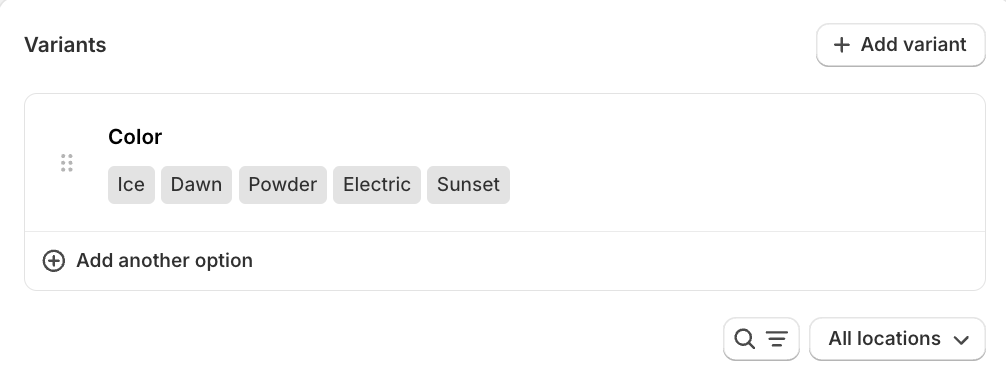
The Coveo Platform indexes the following product catalog object items:
-
The Complete Snowboard - Dawn
-
The Complete Snowboard - Electric
-
The Complete Snowboard - Ice
-
The Complete Snowboard - Powder
-
The Complete Snowboard - Sunset
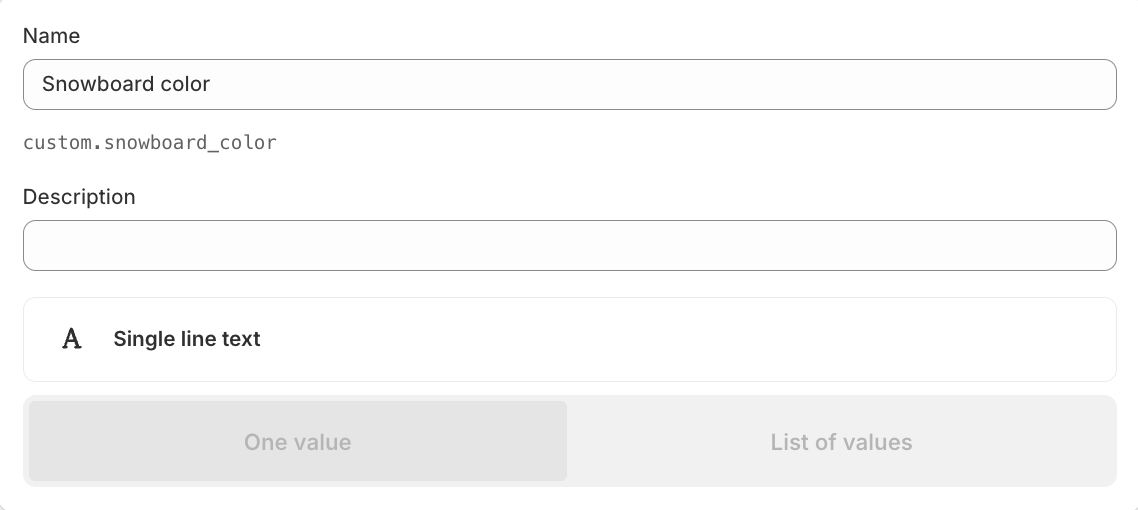
To target variants by color, you define a variant metafield called Snowboard color.
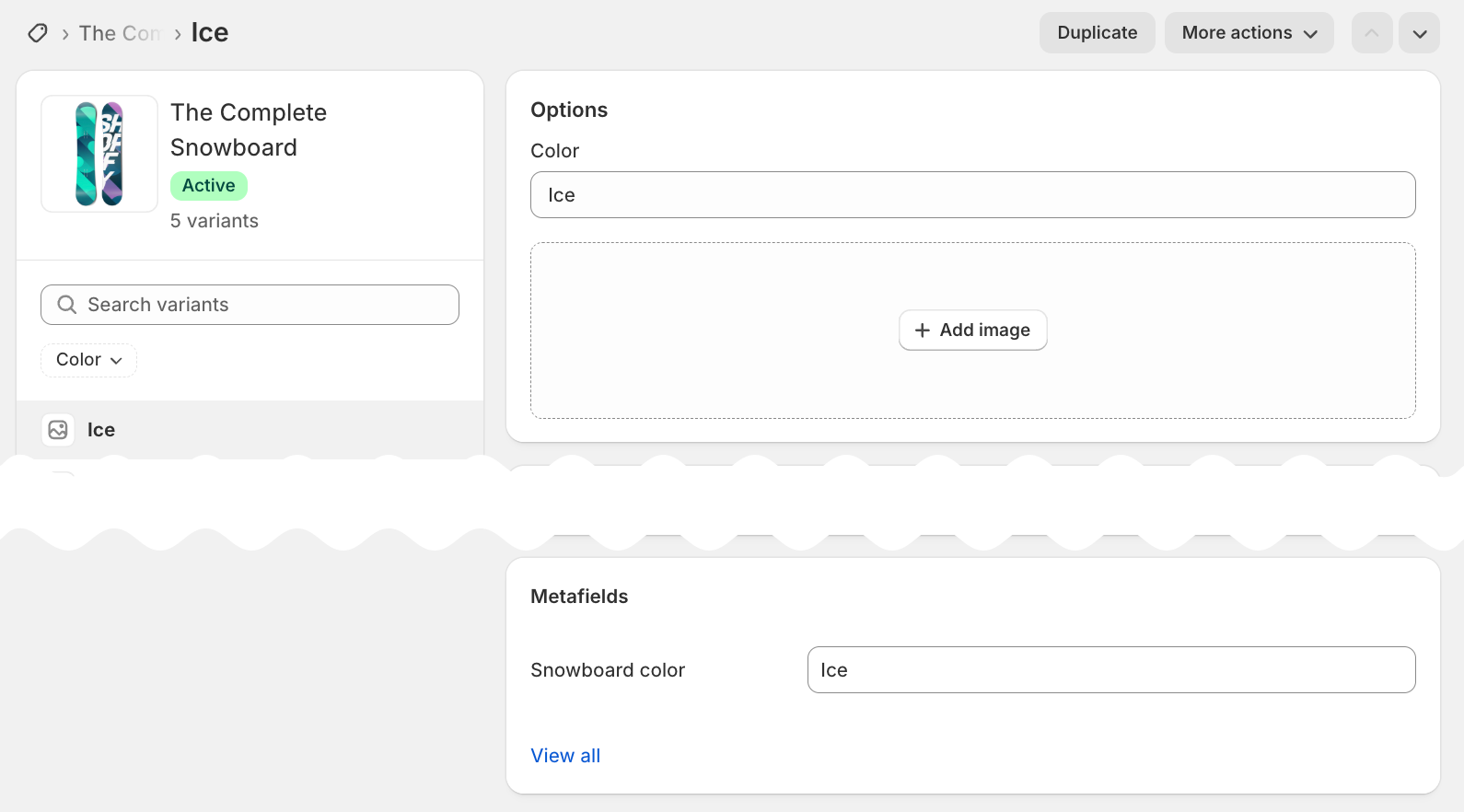
You then enter the color values in the Snowboard color metafield for each variant.
When you sync your Shopify product catalog, select the snowboard_color metafield.
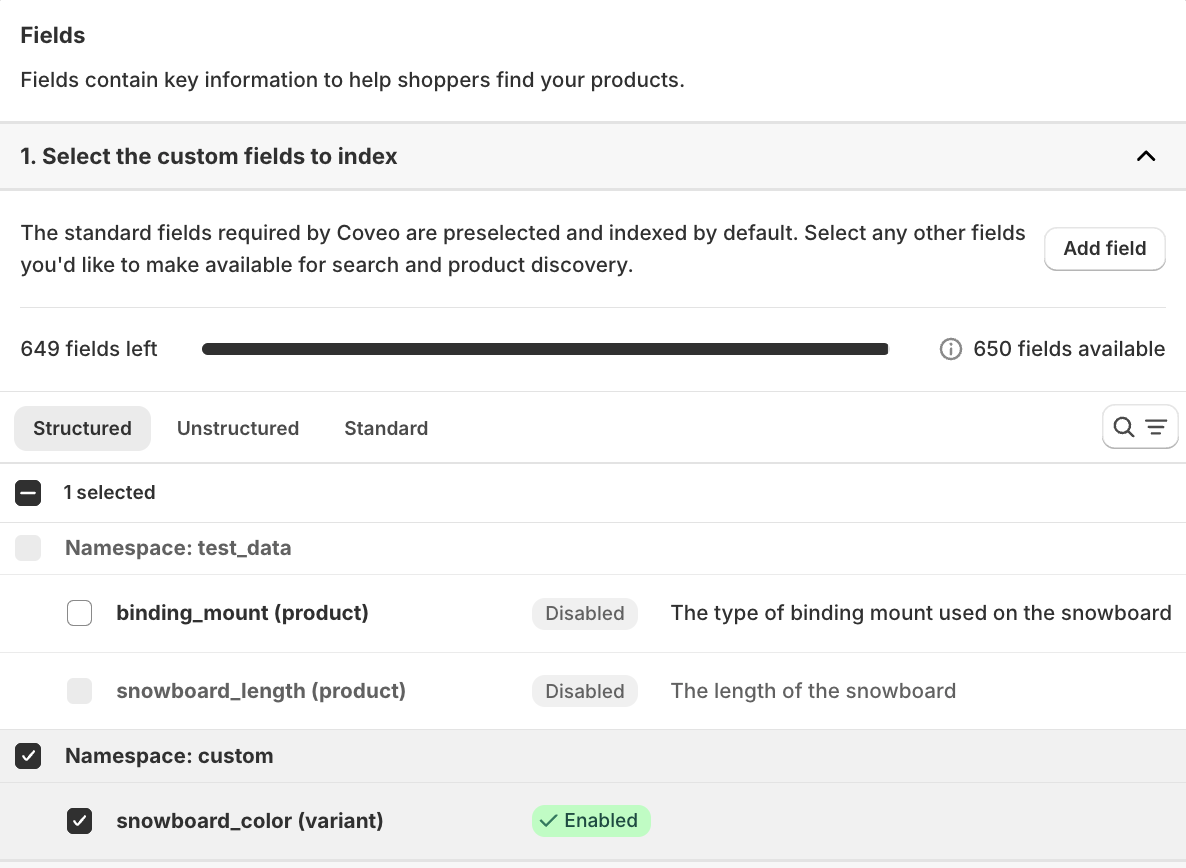
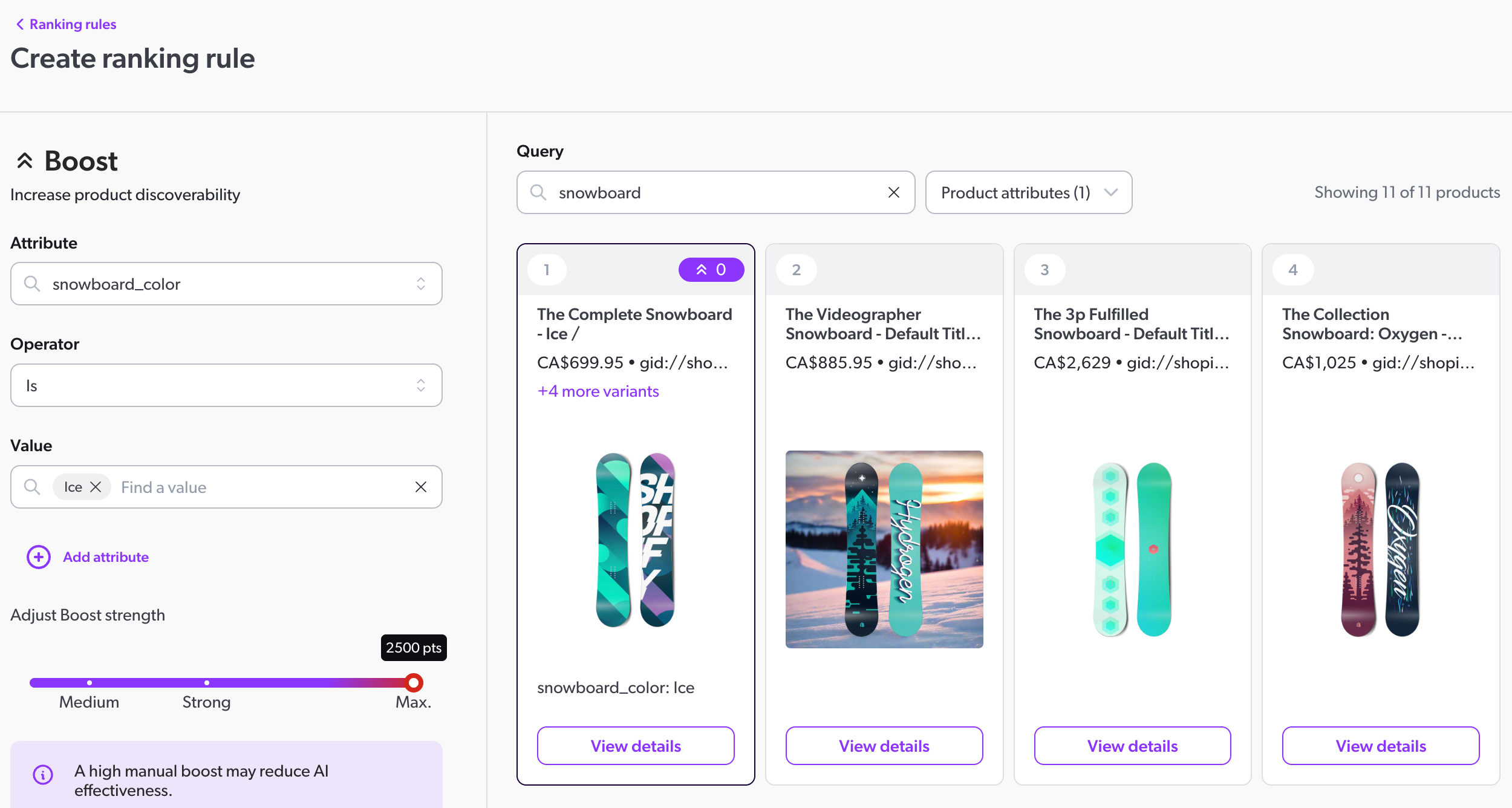
After syncing your product catalog, the five variant items in your index will each have the snowboard_color field.
You can now create a ranking rule in the CMH Search manager to boost items whose snowboard_color is Ice.
Unstructured metafield example
You want to create a merchandising rule that targets snowboards by weight, but you’ve already hit Shopify’s limit on metafield definitions.
You create an unstructured metafield in the custom namespace called snowboard_weight.

On the Catalog sync tab of the Coveo app, you click Edit Fields.

|
You can also add unstructured fields directly in the Fields section in the Catalog sync step of the guided setup process. |
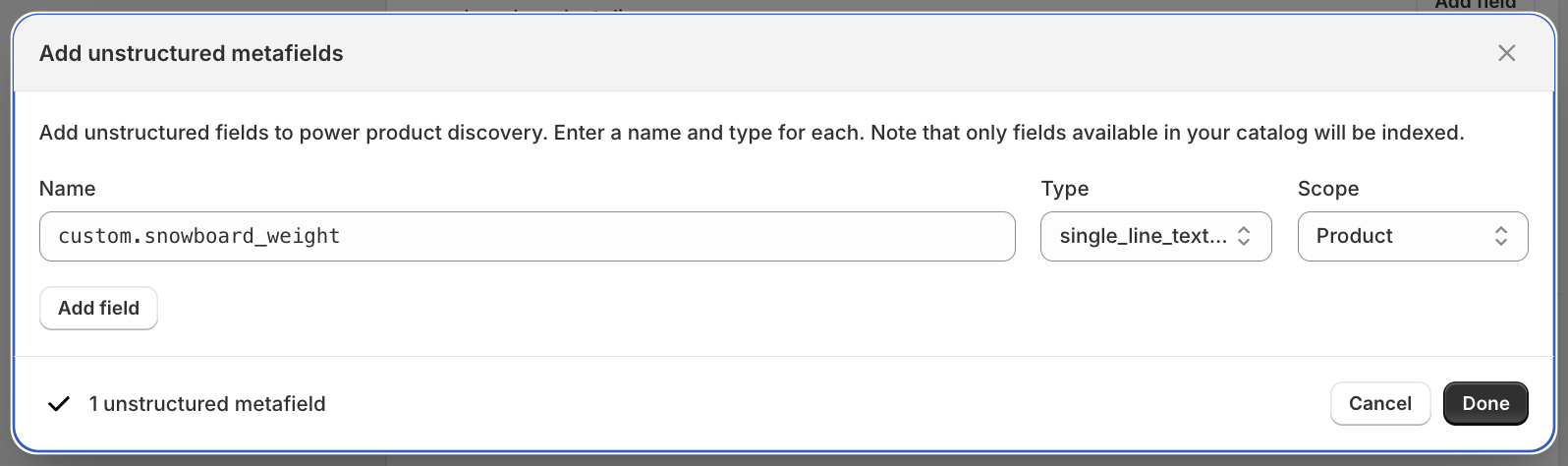
You select the Unstructured tab and click Add fields.
In the modal that appears, you enter custom.snowboard_weight and click Done.
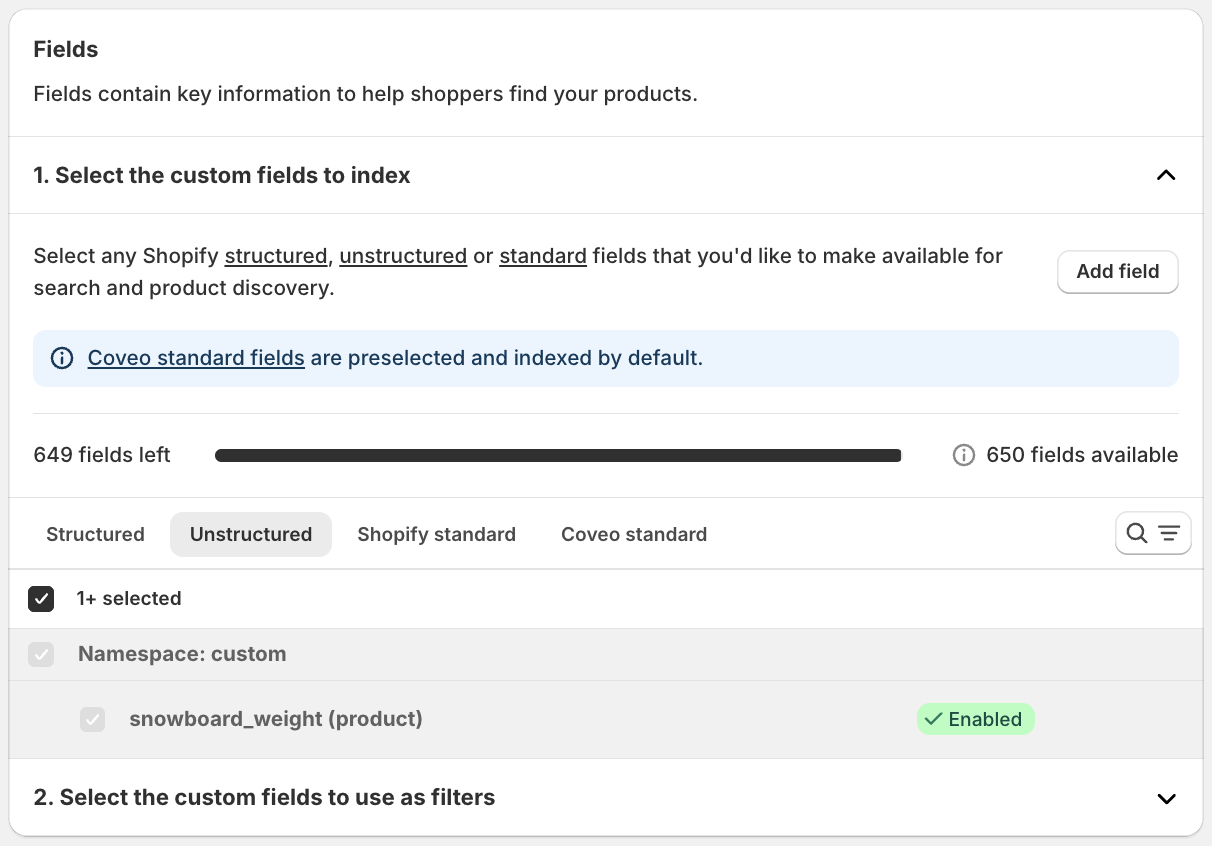
The metafield that you added is automatically selected.
|
|
To edit or remove an unstructured metafield, hover over it and click |
You click Back and then manually launch a sync to apply these changes in the Coveo Platform.
Rename fields
You can rename fields in the Coveo AI Search & Discovery app.
After you rename a field in the app, the next time you sync your Shopify product catalog with the Coveo Platform, a field with the new name will be created in your Coveo organization.
To rename a field
-
In the Coveo AI Search & Discovery app, hover over the field that you want to rename.
-
Click
 and select Rename Coveo field.
 -
Enter a new name that meets the field naming requirements.
-
Click Save.
Delete and recreate fields
You can’t edit field types in the Coveo Administration Console.
If there’s a type mismatch between the standard fields used by the app and fields in your Coveo organization with the same names, you’ll have to delete your existing fields and recreate them with the expected types.
For example, if you have an existing string-type field named ec_price, you’ll see an error when you try to sync because the app expects that field to be a decimal:
To delete and recreate fields
-
In the Administration Console, delete any mappings that are related to the fields you want to replace.
-
On the Fields (platform-ca | platform-eu | platform-au) page, select the field that you want to delete and click Delete in the Action bar, then click Delete again to confirm. Repeat this step for every field that you want to delete.
-
Add one or more new fields. Make sure that every new field uses the correct type.
-
Recreate any mappings related to the new fields.
Tracking IDs and properties
A tracking ID is a unique identifier, such as market_27852734695, which is used to link events so that they can be analyzed and attributed to the right product discovery solution.
A property is equivalent to one tracking ID, except that it has a user-readable display name, such as Europe.
The Coveo AI Search & Discovery app creates one tracking ID and matching property per market.

Storefront associations
A storefront association connects a catalog entity with a specific tracking ID and locale.
The Coveo AI Search & Discovery app creates one storefront association per market and locale combination.
You have three markets: the US, Canada, and a simplified "Europe" that consists of France and Germany. Based on the languages available in each market, there are five sources and therefore five catalog entities.
Both of the European countries in this example have two locales, one for each language that’s configured for the market.
For example, Germany has the locales de-DE-EUR (German in Germany with EUR) and fr-DE-EUR (French in Germany with EUR).
Locales follow the language-country-currency format.
In total, there will be seven storefront associations:

Query pipelines
A query pipeline is a set of rules that modify queries.
The Coveo AI Search & Discovery app creates one query pipeline for each market and product discovery solution combination.
You have three markets: the US, Canada, and Europe. Coveo for Commerce has three product discovery solutions: search, product listings, and recommendations.
There will be ten query pipelines, including the default:

 Very useful
 Not really
 Very useful
 Not really