Build a ChatGPT App with a self-hosted MCP server (Python)
Build a ChatGPT App with a self-hosted MCP server (Python)


|
A TypeScript variant of this guide is also available. See Build a ChatGPT App with a self-hosted MCP server (TypeScript). |
Conversational AI clients such as ChatGPT are emerging as new channels for product discovery. With the Model Context Protocol (MCP), you can connect your Coveo-powered commerce catalog data to these clients, letting shoppers find products through natural-language conversations.
The Coveo Commerce API provides the search, ranking, and merchandising capabilities that power this experience. A self-hosted MCP server acts as middleware, translating conversational queries from ChatGPT into structured Coveo Commerce API requests and formatting the results for display. This guide walks through building that server, pairing it with a rich product-card UI, and connecting it to ChatGPT as an App.
The result is a conversational shopping experience where users ask natural-language questions, receive relevant product results with images and pricing, and click through to product detail pages. You can adapt these patterns to your own stack and requirements.

|
Note
This guide concentrates on a commerce search integration. For other capabilities such as retrieval-augmented generation (RAG), passage retrieval, or content search, adapt the patterns shown here to the corresponding Coveo API endpoints. |
Architecture
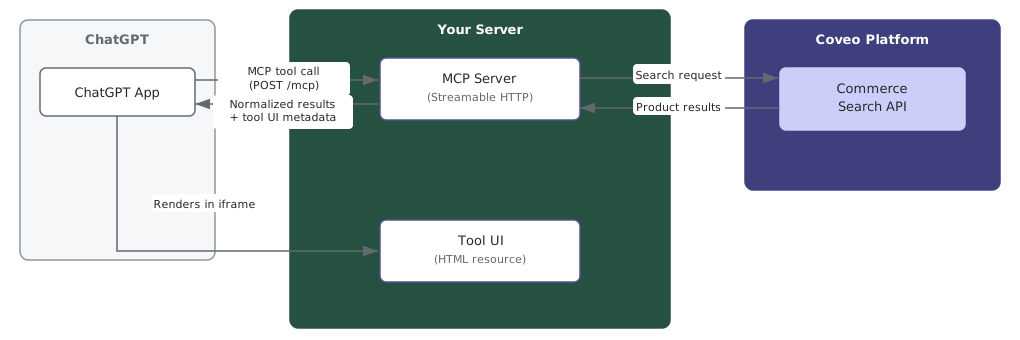
When a user asks a product question in ChatGPT, the ChatGPT App sends an MCP tools/call request over Streamable HTTP (POST /mcp) to your server.
The server parses the natural-language query and any structured constraints (such as brand or price filters), translates them into a Coveo Commerce API search request with the appropriate facet payloads, and returns normalized product results.
ChatGPT uses those results to compose a conversational answer.
Along with the tool results, the server returns a tool UI: a self-contained HTML resource that ChatGPT renders in an iframe beside the conversation. This gives users a visual, interactive product card layout, complete with images, prices, and detail page links, while the conversational response provides the narrative summary. The MCP server operates in stateless mode, meaning each request creates an independent transport with no server-side session state, which simplifies horizontal scaling and is the recommended pattern for ChatGPT Apps.
Prerequisites
-
You have a Coveo organization with catalog data indexed in a Coveo source.
-
You’ve configured a Coveo API key with the Execute queries privilege on the target sources.
-
You have a ChatGPT Plus, Teams, Enterprise, or Education subscription.
-
You’ve installed Python 3.10+.
Phase 1: Build the MCP proxy server
This phase creates a Python-based MCP server that exposes a commerce_search_coveo tool.
When ChatGPT invokes this tool, the server forwards the query to the Coveo Commerce API and returns normalized product results.
The server also demonstrates how to translate natural-language constraints into Coveo facets.
For example, when a user asks for "kayaks under $500", the server extracts the price ceiling and passes it as a numericalRange facet, returning only products within budget.
You can implement other facet types.
The tool description instructs the LLM to pass structured constraints through a facetFilters parameter, and the server adds a regex-based budget extraction as a fallback.
The specific facet fields (such as ec_price) used in this example depend on the fields indexed in your Coveo source. Adapt them to your commerce fields.
Set up the project
Create a project directory and set up a virtual environment:
mkdir coveo-mcp-server && cd coveo-mcp-server
python -m venv .venv
source .venv/bin/activate
Create a requirements.txt file with the following dependencies:
mcp[cli]>=1.26.0
httpx
python-dotenv
Install the dependencies:
pip install -r requirements.txtCreate a .env file with your Coveo credentials:
COVEO_API_KEY=<YOUR_API_KEY>
COVEO_ORGANIZATION_ID=<YOUR_ORG_ID>
COVEO_COMMERCE_TRACKING_ID=<YOUR_TRACKING_ID>
COVEO_COMMERCE_CLIENT_ID=<YOUR_CLIENT_ID>
COVEO_COMMERCE_VIEW_URL=https://www.example.com/
Create the MCP server
Create a server.py file that imports the commerce module, registers it as an MCP tool, and starts the HTTP server.
This thin shell demonstrates the pattern for wiring any API module into an MCP server.
The server also optionally serves a tool UI resource (see Phase 2):
import os
from dotenv import load_dotenv
from mcp.server.fastmcp import FastMCP  from pathlib import Path
from commerce_search import make_commerce_search_request
from pathlib import Path
from commerce_search import make_commerce_search_request  load_dotenv()
  API_KEY = os.environ["COVEO_API_KEY"]
ORG_ID = os.environ["COVEO_ORGANIZATION_ID"]
TRACKING_ID = os.environ["COVEO_COMMERCE_TRACKING_ID"]
CLIENT_ID = os.environ["COVEO_COMMERCE_CLIENT_ID"]
VIEW_URL = os.environ.get("COVEO_COMMERCE_VIEW_URL", "https://www.example.com/")
COMMERCE_ENDPOINT = (
f"https://platform.cloud.coveo.com/rest/organizations/{ORG_ID}/commerce/v2/search"
)
API_KEY = os.environ["COVEO_API_KEY"]
ORG_ID = os.environ["COVEO_ORGANIZATION_ID"]
TRACKING_ID = os.environ["COVEO_COMMERCE_TRACKING_ID"]
CLIENT_ID = os.environ["COVEO_COMMERCE_CLIENT_ID"]
VIEW_URL = os.environ.get("COVEO_COMMERCE_VIEW_URL", "https://www.example.com/")
COMMERCE_ENDPOINT = (
f"https://platform.cloud.coveo.com/rest/organizations/{ORG_ID}/commerce/v2/search"
)  mcp = FastMCP("coveo-mcp-server")
COMMERCE_APP_URI = "ui://coveo/commerce-search"
COMMERCE_APP_HTML = Path("commerce-search.html").read_text() if Path("commerce-search.html").exists() else None
mcp = FastMCP("coveo-mcp-server")
COMMERCE_APP_URI = "ui://coveo/commerce-search"
COMMERCE_APP_HTML = Path("commerce-search.html").read_text() if Path("commerce-search.html").exists() else None  TOOL_DESCRIPTION = (
"Search products in Coveo Commerce and return normalized product results. "
"When the shopper provides structured constraints such as budget, price ceiling, "
"or product attributes, keep the natural-language query concise and pass those "
"constraints through facetFilters. Use range filters for price or budget "
"constraints (for example, field ec_price with max 700) and value filters for "
"other attributes. The available facet fields depend on the commerce fields "
"indexed in the Coveo source."
)
TOOL_DESCRIPTION = (
"Search products in Coveo Commerce and return normalized product results. "
"When the shopper provides structured constraints such as budget, price ceiling, "
"or product attributes, keep the natural-language query concise and pass those "
"constraints through facetFilters. Use range filters for price or budget "
"constraints (for example, field ec_price with max 700) and value filters for "
"other attributes. The available facet fields depend on the commerce fields "
"indexed in the Coveo source."
)  @mcp.tool(
description=TOOL_DESCRIPTION,
metadata={"ui": {"resourceUri": COMMERCE_APP_URI}} if COMMERCE_APP_HTML else {},
@mcp.tool(
description=TOOL_DESCRIPTION,
metadata={"ui": {"resourceUri": COMMERCE_APP_URI}} if COMMERCE_APP_HTML else {},  )
async def commerce_search_coveo(
query: str,
numberOfResults: int = 5,
page: int = 0,
facetFilters: list[dict] | None = None,
)
async def commerce_search_coveo(
query: str,
numberOfResults: int = 5,
page: int = 0,
facetFilters: list[dict] | None = None,  ) -> dict:
return await make_commerce_search_request(
) -> dict:
return await make_commerce_search_request(  query, numberOfResults, page, facetFilters,
api_key=API_KEY,
endpoint=COMMERCE_ENDPOINT,
tracking_id=TRACKING_ID,
client_id=CLIENT_ID,
view_url=VIEW_URL,
)
if COMMERCE_APP_HTML:
@mcp.resource(
uri=COMMERCE_APP_URI,
name="Coveo Commerce Search App",
mime_type="text/html;profile=mcp-app",
query, numberOfResults, page, facetFilters,
api_key=API_KEY,
endpoint=COMMERCE_ENDPOINT,
tracking_id=TRACKING_ID,
client_id=CLIENT_ID,
view_url=VIEW_URL,
)
if COMMERCE_APP_HTML:
@mcp.resource(
uri=COMMERCE_APP_URI,
name="Coveo Commerce Search App",
mime_type="text/html;profile=mcp-app",  )
async def commerce_search_app_resource() -> str:
return COMMERCE_APP_HTML
if __name__ == "__main__":
mcp.run(transport="streamable-http", stateless_http=True)
)
async def commerce_search_app_resource() -> str:
return COMMERCE_APP_HTML
if __name__ == "__main__":
mcp.run(transport="streamable-http", stateless_http=True) 
Details
|
FastMCP from the MCP Python SDK handles tool registration, schema generation, and transport. |
|
Import the commerce module defined in commerce_search.py. This separation keeps API integration logic independent of the MCP framework. |
|
Load credentials from a .env file in the project root. |
|
Coveo Commerce API search endpoint, scoped to your organization. |
|
Load the built tool UI HTML at startup. The file is produced by the UI example project. If missing, the server still works but without rich product cards. |
|
The tool description guides the LLM on when and how to call this tool. Mentioning facetFilters explicitly teaches the model to extract structured constraints from natural language rather than embedding them in the query string. |
|
Link the tool to the tool UI resource so the host renders rich product cards alongside the text response. Omitted when no UI HTML is available. |
|
The LLM populates this with structured filter objects extracted from the user’s message. For example, \{"type": "range", "field": "ec_price", "max": 500} for a budget constraint. |
|
Delegate to the commerce module, passing through the environment credentials. To add another tool, import a second module and register it with another @mcp.tool decorator. |
|
The mcp-app MIME type profile tells the host this resource is a tool UI that should be rendered in an iframe. |
|
Start as a stateless Streamable HTTP server on port 8000. Streamable HTTP is the transport required for remote MCP connections from ChatGPT. The stateless_http=True flag disables session management, which is the recommended pattern for ChatGPT Apps since they don’t maintain MCP session state. |
Create the commerce module
Create a commerce_search.py file that encapsulates the Coveo Commerce API integration.
This module handles budget extraction, facet payload construction, the API request, and response normalization.
It has no dependency on the MCP framework, so you can test and reuse it independently:
import re
import httpx

BUDGET_PATTERNS = [
    re.compile(
        r"(?:budget(?:\s+(?:is|of|around|about|under|below|up\s+to|max(?:imum)?))?\s*\$?)"
        r"(?P<amount>\d[\d,]*(?:\.\d+)?)\b",
        re.IGNORECASE,
    ),
    re.compile(
        r"(?:under|below|less\s+than|up\s+to|max(?:imum)?(?:\s+budget)?|price\s+ceiling)"
        r"\s*\$?(?P<amount>\d[\d,]*(?:\.\d+)?)\b",
        re.IGNORECASE,
    ),
    re.compile(r"\$\s*(?P<amount>\d[\d,]*(?:\.\d+)?)"),
]


def extract_budget_max(query: str) -> float | None:
    for pattern in BUDGET_PATTERNS:
        m = pattern.search(query)
        if m:
            return float(m.group("amount").replace(",", ""))
    return None


def build_facets_payload(
    facet_filters: list[dict],
) -> list[dict]:
    facets = []
    for f in facet_filters:
        if f.get("type") == "range":
            facets.append(
                {
                    "facetId": f["field"],
                    "field": f["field"],
                    "type": "numericalRange",
                    "values": [
                        {
                            "start": f.get("min", 0),
                            "end": f["max"],
                            "endInclusive": True,
                            "state": "selected",
                        }
                    ],
                }
            )
        elif f.get("type") == "value":
            facets.append(
                {
                    "facetId": f["field"],
                    "field": f["field"],
                    "type": "regular",
                    "values": [
                        {"value": v, "state": "selected"} for v in f.get("values", [])
                    ],
                }
            )
    return facets


async def make_commerce_search_request(
    query: str,
    num_results: int = 5,
    page: int = 0,
    facet_filters: list[dict] | None = None,
    *,
    api_key: str,
    endpoint: str,
    tracking_id: str,
    client_id: str,
    view_url: str,
) -> dict:
    effective_filters = list(facet_filters or [])
    budget_max = extract_budget_max(query)

    has_explicit_price = any(
        f.get("type") == "range" and f.get("field") == "ec_price"
        for f in effective_filters
    )
    if budget_max is not None and not has_explicit_price:
        effective_filters.append(
            {"type": "range", "field": "ec_price", "min": 0, "max": budget_max}
        )

    headers = {
        "Authorization": f"Bearer {api_key}",
        "Content-Type": "application/json",
    }
    payload = {
        "query": f"<@- {query.strip()} -@>",
        "perPage": num_results,
        "page": page,
        "trackingId": tracking_id,
        "clientId": client_id,
        "country": "US",
        "currency": "USD",
        "language": "en",
        "context": {"view": {"url": view_url}},
    }

    if effective_filters:
        payload["facets"] = build_facets_payload(effective_filters)

    async with httpx.AsyncClient() as client:
        response = await client.post(
            endpoint,
            headers=headers,
            json=payload,
            timeout=30.0,
        )
        response.raise_for_status()

    data = response.json()
    products = [
        {
            "productId": p.get("ec_product_id"),
            "name": p.get("ec_name"),
            "brand": p.get("ec_brand"),
            "description": p.get("ec_description"),
            "imageUrl": p.get("ec_images"),
            "clickUri": p.get("clickUri"),
            "price": p.get("ec_price"),
            "currency": "USD",
        }
        for p in data.get("products", [])
    ]

    if budget_max is not None and products:
        products = [p for p in products if p["price"] is None or p["price"] <= budget_max]

    result = {
        "query": query,
        "page": page,
        "perPage": num_results,
        "totalCount": data.get("totalCount", 0),
        "products": products,
    }
    if budget_max is not None:
        result["appliedConstraints"] = {"priceMax": budget_max}
    return result
Details
|
Uses httpx for async HTTP. Install with pip install httpx. |
|
Simple regex heuristics that extract a price ceiling from natural language. The LLM can also pass an explicit price filter through facetFilters, making these a server-side fallback. |
|
Convert the portable filter objects into the Coveo Commerce facets array format. The field names (e.g., ec_price) are examples. Adapt them to the fields indexed in your source and pipeline. |
|
The main entry point for commerce queries. Call this from your MCP tool handler. |
|
If the LLM did not pass a price filter but the query mentions a budget, inject one automatically. This merges LLM-structured constraints with server-side inference. |
|
Wrap the query in a no-syntax block so Coveo treats it as literal text, not a query expression. |
|
trackingId and clientId are required Commerce API parameters that associate requests with your storefront configuration. |
|
Include the response body in the error message so API validation errors are visible during debugging. httpx includes the response text in the raised exception by default. |
|
Normalize Coveo field names (ec_name, ec_brand, etc.) to a portable product schema. These field names depend on your commerce fields configuration.
|
|
Post-query safety net: remove any products that exceed the inferred budget. The facet filter handles most cases, but this catches edge cases. |
Start the server
Run the server:
python server.pyThe server starts on http://127.0.0.1:8000/mcp.
|
|
For local development, you can expose your server to the public internet with a tunneling service (for example, ngrok.com or Cloudflare Tunnel). |
Phase 2: Build a tool UI
A tool UI is an HTML view that the host (ChatGPT) renders inside an iframe alongside tool results. Instead of showing raw JSON, ChatGPT can display rich product cards with images, names, brands, prices, and clickable links to product detail pages.
This phase creates a React application that renders Coveo Commerce product results, compiles it to a single HTML file, and serves it as an MCP resource.
|
|
Note
Phase 2 is optional. Without a tool UI, ChatGPT still receives the tool results as structured data and can summarize them in text. A tool UI adds a visual product card rendering alongside the AI-generated response. |
How tool UIs work
The tool UI architecture has three components:
-
Tool: Returns structured data (product results).
-
Resource: Serves an HTML file with the MIME type
text/html;profile=mcp-app. -
Metadata: Links the tool to the resource through a
resourceUriin the tool’s_meta.uifield.
When the host invokes a tool that has a linked resource, it loads the HTML into an iframe and passes the tool input and result to the app at runtime.
Create the React app
Initialize a Vite + React project:
npm create vite@latest coveo-commerce-app -- --template react-ts
cd coveo-commerce-app
npm install @modelcontextprotocol/sdk @modelcontextprotocol/ext-apps vite-plugin-singlefile
Configure Vite to produce a single self-contained HTML file.
In vite.config.ts:
import react from '@vitejs/plugin-react';
import {defineConfig} from 'vite';
import {viteSingleFile} from 'vite-plugin-singlefile';

export default defineConfig({
  plugins: [react(), viteSingleFile()],
}); |
Inline all JS and CSS into a single HTML file. MCP resources must be self-contained. |
Create a product card component in src/App.tsx.
The component uses the useApp hook from the MCP Apps SDK to receive tool lifecycle events:
import {useApp} from '@modelcontextprotocol/ext-apps/react';
import type {CallToolResult} from '@modelcontextprotocol/sdk/types.js';
import {useState} from 'react';

interface Product {
  productId: string | null;
  name: string | null;
  brand: string | null;
  description: string | null;
  imageUrl: string | null;
  clickUri: string | null;
  price: number | null;
  currency: string | null;
}

type Phase = 'waiting' | 'loading' | 'ready' | 'error';

function CommerceApp() {
  const [phase, setPhase] = useState<Phase>('waiting');
  const [products, setProducts] = useState<Product[]>([]);

  const {error} = useApp({
    appInfo: {name: 'coveo-commerce-app', version: '1.0.0'},
    capabilities: {},
    onAppCreated: (app) => {
      app.ontoolinput = () => setPhase('loading');

      app.ontoolresult = (result: CallToolResult) => {
        try {
          const text = result.content?.find((c) => c.type === 'text')?.text;
          const data = text ? (JSON.parse(text) as {products?: Product[]}) : null;
          setProducts(data?.products ?? []);
          setPhase('ready');
        } catch {
          setPhase('error');
        }
      };
    },
  });

  if (error) return <p>Something went wrong: {error.message}</p>;
  if (phase === 'waiting') return <p>Waiting for results...</p>;
  if (phase === 'loading') return <p>Searching products...</p>;
  if (phase === 'error') return <p>Something went wrong.</p>;

  const formatPrice = (price: number | null, currency: string | null) => {
    if (price === null) return '';
    try {
      return new Intl.NumberFormat('en-US', {
        style: 'currency',
        currency: currency ?? 'USD',
      }).format(price);
    } catch {
      return `$${price.toFixed(2)}`;
    }
  };

  return (
    <div style={{display: 'flex', flexDirection: 'column', gap: '1rem'}}>
      {products.map((product: Product) => (
        <article
          key={product.productId}
          style={{
            display: 'flex',
            gap: '1rem',
            padding: '1rem',
            border: '1px solid #e0e0e0',
            borderRadius: '8px',
          }}
        >
          {product.imageUrl && (
            <img
              src={product.imageUrl}
              alt={product.name ?? ''}
              style={{width: 80, height: 80, objectFit: 'cover'}}
            />
          )}
          <div>
            <h3 style={{margin: 0}}>
              <a
                href={product.clickUri ?? '#'}
                target="_blank"
                rel="noreferrer"
              >
                {product.name}
              </a>
            </h3>
            {product.brand && (
              <p style={{margin: '0.25rem 0', color: '#666'}}>
                {product.brand}
              </p>
            )}
            {product.price !== null && (
              <p style={{margin: '0.25rem 0', fontWeight: 'bold'}}>
                {formatPrice(product.price, product.currency)}
              </p>
            )}
            {product.description && (
              <p style={{margin: '0.25rem 0', fontSize: '0.9rem'}}>
                {product.description}
              </p>
            )}
          </div>
        </article>
      ))}
    </div>
  );
}

export default CommerceApp;
Details
|
The useApp React hook from the MCP Apps SDK manages App instantiation, handler registration, and host connection automatically. |
|
Fires when the host begins invoking the linked tool. Use this to show a loading state. |
|
The MCP Apps SDK normalizes host-specific payload wrappers into a standard CallToolResult. Extract the JSON string from the first text content block and parse it to get the product array. |
|
useApp creates the App instance, registers the callbacks via onAppCreated, and calls connect() — replacing the manual new App() + app.connect() pattern. |
|
Locale-aware price formatting. Adjust the locale and currency to match your storefront. |
Build the app:
npm run buildThis produces a single dist/index.html file containing all JavaScript and CSS inline.
Register the resource on the server
Copy the built dist/index.html to your server directory as commerce-search.html.
The Phase 1 server files already include the resource registration and tool metadata linking.
When commerce-search.html is present alongside the server, the server loads it at startup and registers it as an MCP resource with the text/html;profile=mcp-app MIME type.
The metadata.ui.resourceUri on the tool tells the host to load the tool UI HTML alongside the tool result.
Restart the server to pick up the new HTML resource.
Phase 3: Connect the MCP server as a ChatGPT App
With the MCP server running and publicly accessible over HTTPS, add it to ChatGPT as an App. ChatGPT discovers the available tools directly from the MCP server, so no additional tool configuration is needed beyond the connection itself.
|
|
For local development, you can expose your server to the public internet with a tunneling service (for example, ngrok.com or Cloudflare Tunnel). |
Enable developer mode
Developer mode is required to add custom Apps.
-
Log in to ChatGPT.
-
Navigate to Settings > Apps & Connectors > Advanced settings (at the bottom of the page).
-
Toggle Developer mode on.
A Create button appears under Settings > Apps & Connectors.
Create the App
-
In Settings > Apps & Connectors, click Create.
-
Provide the following metadata:
-
Connector name: A user-facing title (for example,
Coveo Commerce Search). -
Description: Explain what the App does. The model uses this text during tool discovery.
-
Connector URL: The public
/mcpendpoint of your server (for example,https://your-server.example.com/mcp).
-
-
Click Create.
If the connection succeeds, ChatGPT displays a list of the tools your server advertises (for example,
commerce_search_coveo). If it fails, see the Apps SDK testing guide for debugging with the MCP Inspector.
Configure authentication
ChatGPT Apps support two authentication modes:
No authentication (development)
By default, your MCP server can operate without authentication. Use this mode during development and testing. No additional configuration is needed in the ChatGPT UI.
OAuth 2.1 (production)
For production deployments that access customer-specific data, implement OAuth 2.1 authentication conforming to the MCP authorization specification.
This requires:
-
An identity provider (such as Auth0 or Okta) that publishes OAuth discovery metadata and supports dynamic client registration with PKCE.
-
A
/.well-known/oauth-protected-resourceendpoint on your MCP server that advertises the authorization server URL. -
Token verification on each incoming request (issuer, audience, expiry, and scopes).
ChatGPT handles the OAuth authorization-code flow with PKCE on behalf of the user.
|
|
Note
ChatGPT Apps don’t support API key authentication. For server-to-server access control during development, you can restrict access at the network level (for example, IP allowlisting or a reverse proxy). |
Use the App in a conversation
-
Open a new chat in ChatGPT.
-
Click the + button near the message composer, then click More.
-
Select your App from the list of available tools. This adds the App to the conversation context.
|
|
To guide ChatGPT’s behavior when using your tools, you can include a system prompt at the start of a conversation or in a ChatGPT Project. For example: This is optional—ChatGPT can infer how to use the tools from their descriptions in the MCP server. |
|
|
Note
To package the experience as a branded, shareable assistant, you can create a custom GPT instead. A custom GPT lets you set a name, icon, and persistent instructions, and share through the GPT Store. The MCP server connection works the same way in both approaches. |
Phase 4: Validate
-
Open a new chat in ChatGPT with the App enabled (click + > More > select your App).
-
Enter a product query that includes natural-language constraints such as a budget, skill level, or intended use. ChatGPT parses these constraints and passes them to the MCP server, which translates them into facet filters (for example, a price-range facet for budget mentions) before calling the Coveo Commerce API.
-
Verify that:
-
ChatGPT invokes the
commerce_search_coveotool. -
The tool returns products from your Coveo commerce catalog with names, prices, and images.
-
If you built the tool UI, the results render as rich product cards with clickable links to product detail pages.
-
-
Test a follow-up refinement query (for example,
Show me the 3 cheapest options) to verify that the conversational flow supports iterative product discovery.
|
|
If ChatGPT doesn’t invoke the tool, verify that the App is connected in Settings > Apps & Connectors and that you’ve added it to the conversation context. |
What’s next
-
See Get started with the Hosted MCP Server for an overview of other available Coveo MCP tools.
-
See the Model Context Protocol specification for the full protocol reference.
 Very useful
 Not really
 Very useful
 Not really