Create and manage a Predictive Query Suggestion (PQS) model
Create and manage a Predictive Query Suggestion (PQS) model

Coveo Machine Learning (Coveo ML) Predictive Query Suggestion (PQS) models provide end users with relevant query completion suggestions. PQS models share the same infrastructure as Coveo Machine Learning (Coveo ML) Query Suggestions (QS) models and add a personalization layer that re-ranks suggestion candidates based on user behavior.
To take advantage of Coveo ML PQS, members with the required privileges must first create their PQS models.
Prerequisites
To be able to create a PQS model, make sure you:
-
Have product data indexed in a Catalog source.
-
Have configured a catalog entity.
-
Ensure that the search interface where you want to integrate the model is configured to log commerce events. More specifically, you must minimally log click and product view events. Note that if your Coveo for Commerce implementation targets the Search API, you must also log search events.
-
Make sure tracked events send a tracking ID value. This is done when initializing the Relay library.
Create a PQS model
-
On the Models (platform-ca | platform-eu | platform-au) page of the Coveo Administration Console, click Add model, and then click the Predictive Query Suggestions card.
-
Click Next.
 Note
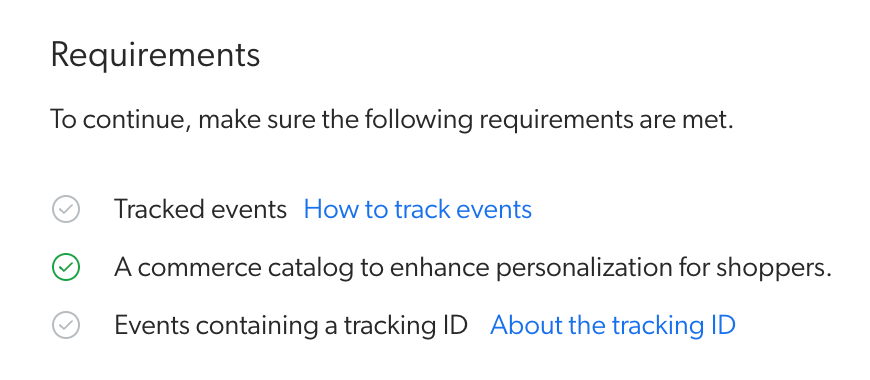
NoteIf your Coveo organization doesn’t meet the minimum requirements for PQS, a Requirements page appears that shows the missing requirements. You must resolve all missing requirements before creating a PQS model. For example, if a Coveo organization contains a catalog entity but doesn’t track events, the Requirements page shows:
-
Under Catalog, select the catalog entity that makes available the products on which to base the predictive query suggestions.
The PQS model relies on the product vector space embedded within the catalog entity selected at this step. Since models associated with the same catalog entity share the same product vector space, Coveo recommends having only one PQS model per catalog entity. This means that you should avoid creating additional PQS models for catalog entities already associated with an existing model. Contact your Coveo Customer Success Manager (CSM) if you have any additional requirements.
-
Under Tracking IDs, select the tracking IDs that identify the storefronts selling the products from the selected catalog entity. If the catalog entity is associated with multiple tracking IDs, you can select multiple tracking IDs if you want the model to use usage analytics data from different storefronts, thus increasing the amount of data available for training.
ExampleIf you chose the
Sportscatalog entity, which is associated with theSportsandOutdoortracking IDs, you can select both tracking IDs to have the model use usage analytics data from both storefronts.
Catalog entities and tracking IDs have a one-to-one relationship, which you can view on the Storefront associations (platform-ca | platform-eu | platform-au) page of the Coveo Administration Console.
-
Click Next.
-
(Optional) In the Learning interval section, you can change the default and recommended values for both Data period and Building frequency.
-
Click Next.
-
(Optional) In the Apply filters on dataset section, you can add filters to refine the data that the model uses to make its recommendations. By default, the model uses the tracking IDs selected in previous steps to scope the dataset to the events recorded on these storefronts, but you can further refine the dataset by adding filters.
By narrowing down the dataset that a model uses, you can better customize relevancy for specific user groups and use cases. You can apply filters on all events, or on every event that belongs to a specific category, such as search, click, view, or custom events.
ExampleYou want your PQS model to return queries that pertain to a specific user group, so you add a data filter to ensure that only a specific set of analytics are used by the model for training purposes.
-
Under Apply filters on dataset, in the Select a dimension dropdown menu, select the dimension on which you want to base the model’s learning.
-
In the Select an operator dropdown menu, select the appropriate operator.
-
In the Select value(s) dropdown menu, add, type, or select the appropriate value.
-
You can optionally add other filters by clicking Add.
The Data volume preview section shows the impact of filters on the data that’s available to train the model. This section includes data gathered only during the last seven days and doesn’t consider the selections from the Learning interval section.
-
-
Click Next.
-
In the Name your model input, enter a meaningful display name for the model.
-
(Optional) Use the Project selector to associate your model with one or more projects.
-
Click Start building.
NoteOn the Models (platform-ca | platform-eu | platform-au) page, under the Status column, in the model row, the value is most probably Inactive.
The model value will change to Active when the model creation is complete (typically within 30 minutes, depending on the amount of usage analytics data to process). The model can only return recommendations when its status is Active.
For more information on Coveo ML model statuses, see the Status column reference.
-
Associate the model with a pipeline to use the model in a search interface.

Make sure to follow the model association leading practices before associating your model with your production query pipeline.
Manage a PQS model
You can edit, delete, or review information for your model.
Edit a PQS model
-
On the Models (platform-ca | platform-eu | platform-au) page, click the model you want to edit, and then click Edit in the Action bar.
-
On the subpage that opens, select the Configuration tab.
-
Under Name, you can optionally edit the model’s display name.
-
(Optional) Use the Project selector to associate your model with one or more projects.
-
Under Tracking IDs, you can change the tracking IDs that you want to use to train the model, but they must still correspond to the catalog entity chosen when configuring the model. A catalog entity and a tracking ID have a one-to-one relationship, which you can view on the Storefront associations (platform-ca | platform-eu | platform-au) page of the Coveo Administration Console.
-
In the Learning interval section, you can change the default and recommended Data period and Building frequency.
-
(Optional) In the Apply filters on dataset section, you can add filters to refine the data that the model uses to make its recommendations. By default, the model uses the tracking IDs selected in previous steps to scope the dataset to the events recorded on these storefronts, but you can further refine the dataset by adding filters.
By narrowing down the dataset that a model uses, you can better customize relevancy for specific user groups and use cases. You can apply filters on all events, or on every event that belongs to a specific category, such as search, click, view, or custom events.
ExampleYou want your PQS model to return queries that pertain to a specific user group, so you add a data filter to ensure that only a specific set of analytics are used by the model for training purposes.
-
Under Apply filters on dataset, in the Select a dimension dropdown menu, select the dimension on which you want to base the model’s learning.
-
In the Select an operator dropdown menu, select the appropriate operator.
-
In the Select value(s) dropdown menu, add, type, or select the appropriate value.
-
You can optionally add other filters by clicking Add.
-
-
Click Save.
NoteSome configuration changes initiate an automatic model rebuild when you save the model. The Models (platform-ca | platform-eu | platform-au) page shows your model’s current Status. Model settings take effect only when its status is Active.
For more information on Coveo ML model statuses, see the Status column reference.
-
Associate the model with a pipeline to use the model in a search interface and test your model to make sure it behaves as expected.
Make sure to follow the model association leading practices before associating your model with your production query pipeline.
Delete a PQS model
|
|
Note
If the model is associated with a query pipeline, make sure to dissociate the model from the query pipeline after deleting it. |
-
On the Models (platform-ca | platform-eu | platform-au) page, click the ML model that you want to delete, and then click More > Delete in the Action bar.
-
In the panel that appears, click Delete.
Review model information
On the Models (platform-ca | platform-eu | platform-au) page, click the desired model, and then click View in the Action bar. For more information, see Reviewing model information.
PQS models reference
Default number of suggestions: 10
If you build your search interface with the Atomic framework, you can change this behavior by using the maxWithQuery and maxWithoutQuery properties of the atomic-search-box-query-suggestions component.
|
|
Note
PQS models inherit the same default |
"Status" column
On the Models (platform-ca | platform-eu | platform-au) page of the Administration Console, the Status column indicates the current state of your Coveo ML models.
The following table lists the possible model statuses and their definitions:
| Status | Definition | Status icon |
|---|---|---|
Active |
The model is active and available. |
|
Build in progress |
The model is currently building. |
|
Inactive |
The model isn’t ready to be queried, such as when a model was recently created or the organization is offline. |
|
Limited |
Build issues exist that may affect model performance. |
|
Soon to be archived |
The model will soon be archived because it hasn’t been queried for an extended period of time. |
|
Error |
An error prevented the model from being built successfully. |
|
Archived |
The model was archived because it hasn’t been queried for an extended period of time. |
|




"Learning Interval" section
In this section, you can modify the following:
Set the Coveo ML model training Building frequency based on the Data Period value. Less frequent for a larger Data Period and more frequent for a smaller Data Period as recommended in the following table.
Data period |
Building frequency |
||
|---|---|---|---|
Daily |
Weekly |
Monthly |
|
1 month |
|
|
|
3 months (Recommended) |
|
||
6 months |
|
||

The more data the model has access to and learns from, the better the recommendations. As a general guide, a usage analytics dataset of 10,000 queries or more typically allows a Coveo ML model to provide very relevant recommendations. You can look at your Coveo Analytics data to evaluate the volume of queries on your search hub, and ensure that your Coveo ML models are configured with a training Data period that corresponds to at least 10,000 queries. When your search hub serves a very high volume of queries, you can consider reducing the data period so that the model learns only more recent user behavior and be more responsive to trends.
A Coveo ML model regularly retrains on a more recent Coveo UA dataset, as determined by the Building frequency and Data period settings, to ensure that the model remains up-to-date with the most recent user behavior.
Required privileges
The following table indicates the privileges required to use elements of the Models page and associated panels (see Manage privileges and Privilege reference).
| Action | Service - Domain | Required access level |
|---|---|---|
View models |
Machine Learning - Models |
View |
Edit models |
Organization - Organization |
View |
Machine Learning - Models |
Edit |
 Very useful
 Not really
 Very useful
 Not really