Multi-market sources
Multi-market sources


|
The multi-market sources feature is in early access. Contact your Coveo representative to have it enabled for your Coveo organization. |
The multi-market sources feature enables a single product source to power multiple catalogs without duplicating items in the index.
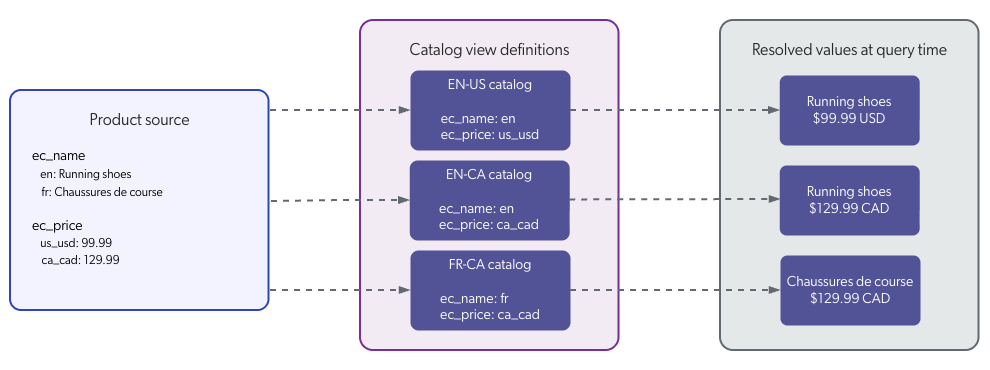
Traditionally, supporting multiple languages, regions, or storefronts in Coveo required duplicating product items across different sources for every language, region, storefront combination. Multi-market sources removes this limitation by allowing multiple localized values to be stored within a single item using dictionary fields. Each dictionary field can contain multiple key-value pairs that represent localized or market-specific versions of the same attribute. For example:
{
  "ec_name": {
    "en": "Running Shoes",
    "fr": "Chaussures de course"
  },
  "ec_price": {
    "ca_cad": 129.99,
    "us_usd": 99.99
  }
}
catalog entities are then configured to retrieve the correct values from these dictionary fields using catalog view definitions. A catalog view definition specifies which dictionary keys to use for each field in a given catalog entity. At query time, the Commerce API reads the catalog view definition for the target catalog entity, selects the matching dictionary key for each field, and returns the corresponding localized values automatically.
Limitations and considerations
-
Stream API only: The multi-market sources feature is currently available only for implementations that use the Stream API to ingest and update catalog data.
-
DNE not supported: Dynamic Navigation Experience (DNE) models aren’t currently supported by multi-market sources.
-
Dictionary context and field aliases are mutually exclusive: The multi-market sources feature uses field aliases internally to resolve dictionary values. The
dictionaryFieldContextparameter must not be used for retrieving values from dictionary fields in search tokens or queries when multi-market sources is deployed. See Use field aliases -
Limited non-commerce feature support: Because multi-market sources relies on dictionary fields, the following features can’t leverage multi-market content:
Implementation steps
To implement multi-market sources, complete the following steps:
Step 1: Create a source
Create a Catalog source using the standard Catalog source setup process.
This source will contain all product data across languages, regions, and storefronts. Multiple catalog entities will be created from this same source.
Step 2: Configure dictionary fields
fields that contain market-specific values (such as localized text or regional prices) must be configured as dictionary fields.
You must configure dictionary fields for any commerce fields that vary across markets, including the standard commerce fields.
Use the Field API to create or update the required fields with the following parameters:
| Parameter | Required for | Description |
|---|---|---|
|
All dictionary fields. |
Enables key-value storage for localized pairs. |
|
Fields that need language-specific search features. |
Requires the field to already be configured as a dictionary field.
The field becomes accessible by key (for example, |
|
Multilingual fields whose content must be free-text searchable. |
Merges the field’s content into the |

|
Note
Fields that store non-linguistic data, such as prices, only need the |
The following example request configures ec_name as a multilingual dictionary field and ec_price as a dictionary field:
PUT /rest/organizations/<ORGANIZATION_ID>/indexes/fields/batch/update HTTP/1.1[
{
"name": "ec_name",
"keyValue": true,
"multilingual": true,
"mergeWithLexicon": true
},
{
"name": "ec_price",
"keyValue": true
}
]Step 3: Design dictionary keys and prepare catalog data
Before ingesting data, decide how to structure the dictionary keys for each field. The keys you choose determine how catalog view definitions resolve values at query time, so they must be consistent across your ingestion pipeline and view definitions.
Dictionary keys for multilingual fields must start with a two-character ISO 639-1 language code.
Additional segments for country and brand, site, or storefront can be appended after an underscore (_).
| Segment | Format | Required | Example |
|---|---|---|---|
Language |
Two-character ISO 639-1 language code. |
Yes |
|
Country |
Two-character country code. |
No |
|
Brand, site, or storefront |
Free-form identifier. |
No |
|
-
Use a shared key (for example,
en) when the value is the same across all markets that share that language. -
Use a regional key (for example,
en_ca) when the value differs by country or storefront. -
Non-multilingual dictionary fields such as prices don’t require a leading language code and can use any key naming convention (for example,
us_usd,ca_cad). -
All keys must contain only lowercase alphanumeric characters or underscores (
_), and keys must be unique within each field. -
Every key referenced in a catalog view definition must exist in the ingested data, or the query returns an empty value for that field.
The following example shows a product prepared for ingestion with both multilingual and non-multilingual dictionary fields:
{
"addOrUpdate": [
{
"documentId": "product://SP-0042",
"objecttype": "Product",
"ec_product_id": "SP-0042",
"ec_name": {  "en": "Running Shoes",
"fr": "Chaussures de course"
},
"ec_description": {
"en": "Running Shoes",
"fr": "Chaussures de course"
},
"ec_description": {  "en_us": "Lightweight trail runner built for all-day comfort.",
"en_ca": "Lightweight trail runner for rugged Canadian terrain.",
"fr_ca": "Chaussures de course légères pour terrains canadiens."
},
"ec_price": {
"en_us": "Lightweight trail runner built for all-day comfort.",
"en_ca": "Lightweight trail runner for rugged Canadian terrain.",
"fr_ca": "Chaussures de course légères pour terrains canadiens."
},
"ec_price": {  "us_usd": 99.99,
"ca_cad": 129.99
},
[...]
}
]
}
"us_usd": 99.99,
"ca_cad": 129.99
},
[...]
}
]
} |
ec_name uses shared language keys (en, fr) because all English-speaking markets display the en value and all French-speaking markets display the fr value. |
|
ec_description uses regional keys (en_us, en_ca, fr_ca) because the description is tailored to each region. |
|
ec_price uses market-currency keys (us_usd, ca_cad) because prices vary by country and currency. |
Step 4: Create catalog entities
Create catalog entities using the standard creation process.
Create a catalog entity for each market you need to serve. Typically, a catalog entity represents a unique combination of language, country, and site. All catalog entities created from the same source must use the same catalog configuration.
The Barca Sports brand operates two country-scoped storefronts: Barca Sports US and Barca Sports CA. The Canadian storefront supports both English and French. Barca Sports also runs a mobile app (Barca Sports App) in both countries. This scenario requires six catalog entities that are all tied to the same source:
| Catalog entity | Source | Language | Country | Storefront |
|---|---|---|---|---|
EN-US |
Barca Sports |
English |
United States |
Barca Sports US |
EN-CA |
Barca Sports |
English |
Canada |
Barca Sports CA |
FR-CA |
Barca Sports |
French |
Canada |
Barca Sports CA |
EN-US-Barca-App |
Barca Sports |
English |
United States |
Barca Sports App US |
EN-CA-Barca-App |
Barca Sports |
English |
Canada |
Barca Sports App CA |
FR-CA-Barca-App |
Barca Sports |
French |
Canada |
Barca Sports App CA |
Step 5: Configure catalog view definitions
After creating a catalog entity, configure its catalog view definition. A view definition determines which dictionary field keys to use for that catalog entity.
To configure a catalog view definition, use the following endpoint:
PUT /api/preview/organizations/<ORGANIZATION_ID>/catalog-management/catalogs/<CATALOG_ID>/view-definitions HTTP/1.1Where:
-
<ORGANIZATION_ID>is the unique identifier of your Coveo organization. -
<CATALOG_ID>is the unique identifier of the catalog entity.
In the request body, provide the view definitions as an array of field-key mappings.
Continuing the Barca Sports example, the following table shows the view definition key mappings for each of the six catalog entities:
| Catalog entity |
ec_name field |
ec_description field |
ec_price field |
|---|---|---|---|
EN-US |
|
|
|
EN-CA |
|
|
|
FR-CA |
|
|
|
EN-US-Barca-App |
|
|
|
EN-CA-Barca-App |
|
|
|
FR-CA-Barca-App |
|
|
|
Example request body for the EN-CA catalog entity
{
  "viewDefinitions": [
    { "field": "ec_name", "key": "en" },
    { "field": "ec_description", "key": "en_ca" },
    { "field": "ec_price", "key": "ca_cad" }
  ]
}
At query time, the Commerce API reads the view definition and retrieves the correct dictionary values for each field.
For example, given the EN-CA view definition above and the following indexed product:
{
  "ec_name": {
    "en": "Running Shoes",
    "fr": "Chaussures de course"
  },
  "ec_description": {
    "en_us": "Lightweight trail runner built for all-day comfort.",
    "en_ca": "Lightweight trail runner for rugged Canadian terrain.",
    "fr_ca": "Chaussures de course légères pour terrains canadiens."
  },
  "ec_price": {
    "us_usd": 99.99,
    "ca_cad": 129.99
  }
}
A query to the EN-CA catalog entity returns:
{
  "ec_name": "Running Shoes",
  "ec_description": "Lightweight trail runner for rugged Canadian terrain.",
  "ec_price": 129.99
}|
|
Each update to a view definition must include the full list of field-key mappings. Any field-key mapping omitted from the request body is removed. |
Step 6: Configure catalog filters (optional)
A catalog filter restricts which products belong to a catalog entity. This is useful when not all products in the source are relevant to every catalog entity. For example, some products may only be available in certain countries, or certain products may not be sold through the mobile app.
To configure a catalog filter, use the following endpoint:
PUT /api/preview/organizations/<ORGANIZATION_ID>/catalog-management/catalogs/<CATALOG_ID>/filter HTTP/1.1Where:
-
<ORGANIZATION_ID>is the unique identifier of your Coveo organization. -
<CATALOG_ID>is the unique identifier of the catalog entity.
In the request body, provide the filter definition:
Example request body
{
  "filter": {
    "field": "ec_allowed_markets",
    "value": "us"
  }
}|
|
Notes
|
Example: Filtering by country
Continuing the Barca Sports example, suppose the Running Shoes product is sold in both the US and Canada, while the Hiking Boots product is sold only in Canada.
Each product includes an ec_allowed_markets filter field:
{
  "ec_product_id": "SP-0042",
  "ec_name": {
    "en": "Running Shoes",
    "fr": "Chaussures de course"
  },
  "ec_allowed_markets": ["us", "ca"]
}
{
"ec_product_id": "SP-0078",
"ec_name": {
"en": "Hiking Boots",
"fr": "Bottes de randonnée"
},
"ec_allowed_markets": ["ca"]
}All six catalog entities filter on ec_allowed_markets:
| Catalog entity | Filter value |
|---|---|
|
|
|
|
In this configuration:
-
The Running Shoes product appears in all six catalog entities.
-
The Hiking Boots product appears only in the four Canadian catalog entities.
Step 7: Ingest data
Send product data to Coveo using the Stream API. Items must include dictionary values for localized attributes, with keys that match the view definitions.
Example request body
{
  "addOrUpdate": [
    {
      "documentId": "product://SP-0042",
      "objecttype": "Product",
      "ec_product_id": "SP-0042",
      "ec_name": {
        "en": "Running Shoes",
        "fr": "Chaussures de course"
      },
      "ec_description": {
        "en_us": "Lightweight trail runner built for all-day comfort.",
        "en_ca": "Lightweight trail runner for rugged Canadian terrain.",
        "fr_ca": "Chaussures de course légères pour terrains canadiens."
      },
      "ec_price": {
        "us_usd": 99.99,
        "ca_cad": 129.99
      },
      "ec_allowed_markets": [
        "us",
        "ca"
      ]
    }
  ]
}|
|
If data was ingested before view definitions were configured, you must re-ingest the data so that the internal catalog views used by analytics and ML models are populated correctly. |
Multilingual system field
The multilingualbody system field aggregates the content of multilingual dictionary fields into a single field that powers free-text search.
Without it, queries like "running shoes" wouldn’t match product text stored inside dictionary keys.
The index automatically creates multilingualbody when dictionary fields are configured.
Only fields configured with all three parameters (keyvalue: true, multilingual: true, and mergeWithLexicon: true) have their content merged into multilingualbody.
Fields with multilingual: true but mergeWithLexicon: false are still accessible as dictionary fields (for example, ec_category.en), but their content isn’t included in free-text search.
The field uses the same language keys sent during indexing.
Example multilingualbody content for the Running Shoes product
{
  "en": "Running Shoes",
  "en_ca": "Lightweight trail runner for rugged Canadian terrain.",
  "en_us": "Lightweight trail runner built for all-day comfort.",
  "fr": "Chaussures de course",
  "fr_ca": "Chaussures de course légères pour terrains canadiens."
}
The Commerce API targets the correct keys from multilingualbody based on the catalog view definitions.
This ensures the right language context is used for free-text search queries.
Step 8: Preview catalog content
Use the preview component of the Catalogs (platform-ca | platform-eu | platform-au) page to inspect the content of a specific catalog entity.
To view a product’s fields, press Alt (Windows) or Option (Mac) and then double-click a product item to open the debug panel with a list of fields and their values.
Step 9: Configure properties and storefront associations
Configure properties and storefront associations to associate each catalog entity with the correct properties.
Step 10: Configure the search token
To query the catalog entity from a storefront and retrieve the correct localized values, you must use search token authentication.
When configuring the search token, include the allowedDictionaryFieldKeys property.
This property grants the search token permission to query specific dictionary fields.
Each field listed in allowedDictionaryFieldKeys must correspond to a dictionary field used in your catalog view definitions.
The value ["*"] allows access to all keys within that field.
The following example grants the search token access to the ec_name, ec_description, and ec_price dictionary fields, as well as the multilingualbody system field for free-text search:
{
  "allowedDictionaryFieldKeys": {
    "ec_name": ["*"],
    "ec_description": ["*"],
    "ec_price": ["*"],
    "multilingualbody": ["*"]
  }
}
Without these entries, the Commerce API can’t resolve the view definition keys, and queries return empty values for dictionary fields.
Query behavior
When a storefront query is executed:
-
The request includes a
trackingIdandlocale, which the Commerce API uses to identify the correct catalog entity based on its associated properties and storefront associations. -
The Coveo Platform resolves the catalog entity associated with the request.
-
The catalog view definition is retrieved.
-
Dictionary fields are mapped to the correct keys using field aliases.
-
Catalog filters are applied.
-
The query retrieves only the products and values relevant for that catalog entity.
Fallback languages
Coveo doesn’t automatically fall back to another language when a translation is missing. If a product doesn’t have a translation for a specific field key, you must populate that key with the fallback value before ingesting the data.
For example, suppose the Running Shoes product has a French translation for ec_name but not for ec_description.
At ingestion time, you populate the fr_ca key of ec_description with the English value:
{
  "ec_name": {
    "en": "Running Shoes",
    "fr": "Chaussures de course"
  },
  "ec_description": {
    "en_ca": "Lightweight trail runner for rugged Canadian terrain.",
    "fr_ca": "Lightweight trail runner for rugged Canadian terrain."
  }
}
In this example, ec_description.fr_ca falls back to the English value, while ec_name.fr uses its actual French translation.
This ensures that queries to French catalog entities return a value for every field instead of empty results.
Search API usage
The Commerce API automatically resolves catalog view definitions and applies catalog filters at query time. The Search API doesn’t have this layer, so you must replicate both behaviors manually using field aliases and query filters:
-
Define field aliases: Configure field aliases that target the same keys and values as the catalog view definition. Each alias maps a dictionary field key to a custom name, functioning as the Search API equivalent of a catalog view definition.
-
Enable free-text search: Define a field alias for
multilingualbodythat targets the correct key for the target market, and include the alias in thefreeTextSearchFieldsparameter. -
Add a query filter: If the catalog entity uses a catalog filter, replicate it at query time. For example, you can use a filter rule in the query pipeline to add
@ec_allowed_markets=="ca"as a constant query expression.
The following example targets the EN-CA market from the Barca Sports scenario:
{
  "fieldAliases": {
    "ec_name": "ec_name.en",
    "ec_description": "ec_description.en_ca",
    "ec_price": "ec_price.ca_cad",
    "multilingualbody": "multilingualbody.en"
  },
  "freeTextSearchFields": ["multilingualbody"]
} |
Field aliases for standard commerce fields, targeting the same keys as the EN-CA catalog view definition. |
|
Field alias for multilingualbody, targeting the language key for free-text search. |
|
The freeTextSearchFields parameter references the multilingualbody alias so that free-text queries match product text stored in dictionary keys. |
|
|
Note
When multi-market sources is deployed, you must use |
 Very useful
 Not really
 Very useful
 Not really