Relevance-Aware Sponsored Product pin rules for search
Relevance-Aware Sponsored Product pin rules for search


|
Contact your Coveo representative to enable Relevance-Aware Sponsored Products in your Coveo organization. |
In the Search manager of the Coveo Merchandising Hub (CMH), merchandisers can define pin ranking rules to make specific products appear in specific numbered positions in the search results for one or more specific queries.
Relevance-Aware Sponsored Products is a CMH feature that lets merchandisers create a special type of pin rule that reserves one or more positions for sponsored products.
A search results page can be viewed as a grid (or list) of products in numbered positions. These numbers correspond to their ranking when they’re returned from the Coveo index.
A pin rule reserves a specific numbered position for a specific product or sponsored product, regardless of that product’s actual ranking. However, pin rules with the same target can conflict with one another, so merchandisers must not create multiple pin rules that target the same position for the same queries.
The first four products returned in the search results for the query canoe are the following:
| 1 | 2 | 3 | 4 |
|---|---|---|---|
|
|
|
|
You create a pin rule to reserve position 2 for the product Aqua Blue canoe.
The first four products in the search results are now the following:
| 1 | 2 (reserved) | 3 | 4 |
|---|---|---|---|
|
|
|
|
Sponsored products can be defined manually in the CMH, or they can be sent by third-party retail-media networks at query time.
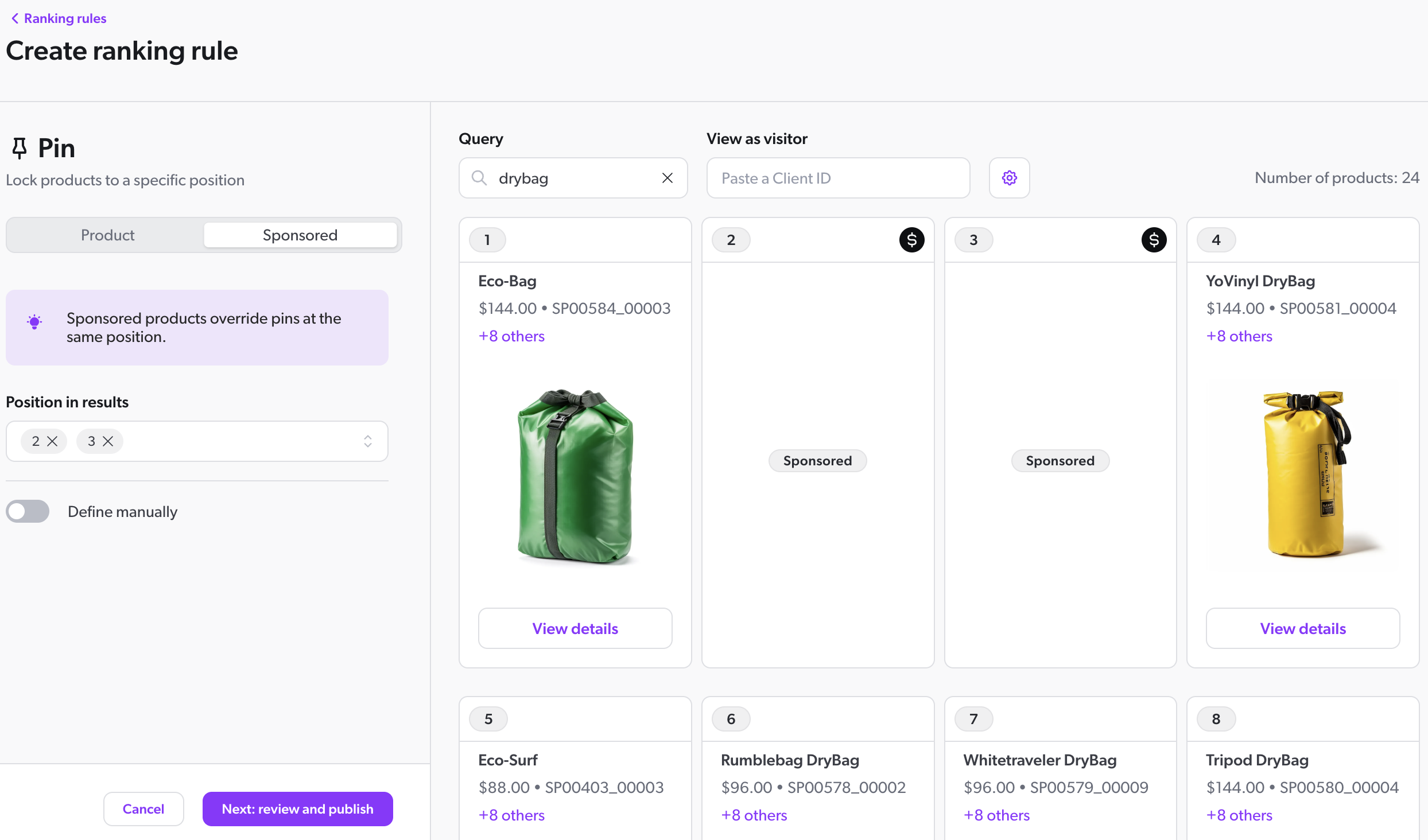
When you preview the search results for a particular query in the CMH, numbered positions that have been reserved for sponsored products will be marked with  in the upper-right corner.
Prerequisites
Before you create rules in the Coveo Merchandising Hub (CMH):
-
Choose the correct property to ensure that your changes affect the intended queries.
Pin rule conflicts
Pin rules override the content that should otherwise appear at a specific position in the search results for a particular query. This includes other product pins or sponsored product pins that target the same position, so merchandisers must not create multiple pin rules that target the same position for the same query.
Pin rule conflicts are resolved as follows:
-
If there’s a conflict between product pins, priority is given to the most recent product pin rule.
-
If there’s a conflict between a product pin and a sponsored product pin, the sponsored product pin always takes precedence. However, if there are no sponsored products to feature in the reserved position, then any product pin rules for that position apply as normal, with priority given to the most recent product pin rule.
-
If there’s a conflict between sponsored product pins, priority is given to the most recent sponsored product pin rule.
On March 1, you create a rule that pins the product "Eco-Bag" at position 2 for the query drybag.
On March 5, you create a sponsored product pin rule that targets position 2.
On March 10, you create another rule that pins the product "Limespace DryBag" at position 2 for the queries drybag and bag.
Regardless of when these pin rules were created, the sponsored product pin rule takes precedence and reserves position 2 for a sponsored product.
When a user searches for drybag, the sponsored product is pinned at position 2 on the search results page.
If a sponsored product isn’t defined, "Limespace DryBag" is pinned at position 2.
Create sponsored product pin rules
To create sponsored product pin rules
-
In the CMH, access the Search manager.
-
From the navigation tabs, select ranking rules and then click Create ranking rule.
-
Under This rule will apply to, define the scope of the rule.
-
Locale: Select the locale that the pin rule applies to. By default, a rule applies to all available locales.
-
Audiences: Select the audience that the pin rule will target. You can choose between predefined audience profiles or create custom profiles. You can only select one audience profile per rule.
The Audience option is currently in early access. Contact your Customer Success Manager (CSM) to enable this option.
-
All visitors: By default, the rule applies to all visitors.
-
Device & technology: Target visitors visiting a storefront using a specific device type. The device type is determined by the information sent by the visitor's browser, not by the device’s screen size. Available options are:
-
Desktop: Encompasses desktop computers and laptops.
-
Mobile: Encompasses all mobile phones.
-
Tablet: Encompasses all tablets.
-
-
Visitor type: Target the visitors who are logged into the storefront or those who aren’t.
-
Your audiences: Create a custom audience profile that you can reuse in other rules sharing the same property. After a custom audience profile is created, it can’t be changed once the rule is published. If all rules containing a custom audience profile are deleted, the custom audience profile will no longer be available as an option when creating new rules.
-
Visitor URL: Target visitors based on the URL of the storefront page they’re on.
-
Referrer URL: Target visitors based on the URL they came from before landing on the storefront.
-
-
-
query: sponsored product pin rules are only available when the rule is scoped to specific queries. If you choose All queries, the pin option is hidden.
To scope the rule to specific queries:
-
Select Specific queries.
-
Select an Operator.
-
Is: This operator identifies queries that exactly match the specified value. For example, you can use it to create a rule that only targets the queryaccessories. -
Contains: This operator identifies queries where the specified value is found within the full value of the query. For example, you can use it to create a rule that targets all queries containing the termaccessories, includingSurf accessoriesandParts & accessories.
-
-
Select one or more queries that the pin rule applies to.
-
Click Done.
-
-
-
Under Choose an action, select Pin.
-
Select Sponsored to use Relevance-Aware Sponsored Products.
-
Under Position in results, select one or more values from the dropdown menu.
In the preview, the position will show the label Sponsored instead of a product, and
 will be visible in the upper-right corner.
 -
(Optional) Enable the Define manually toggle to select items from your index that you want to appear in the reserved positions. Manually defined products are added to the list of available candidates alongside any candidates sent by a third-party retail-media network at query time. If the API candidates can’t fill every reserved position, the most relevant manually defined product that passes the filters fills the remaining spots.
-
Click Next: Review and publish.
-
Review your rule configuration.
 Leading practices
Use the panel on the right to preview how the rule affects the search results for a given locale.
The preview is an approximate simulation that won’t cover every scenario encountered in a live environment.
-
Click Next: Publish.
-
Under Rule name, enter a meaningful name for your rule.
-
Under Choose when to publish, select one of the following:
-
To apply the rule immediately, select Publish now.
-
To set a schedule for the rule, select Set a schedule, and then select the time frame in which the rule should apply.
-
-
Click Publish now.
The rule now applies or will apply as scheduled.
Modify sponsored product pin rules
To modify sponsored product pin rules
-
In the CMH, access the Search manager.
-
From the navigation tabs, select ranking rules.
-
Locate the rule that you want to modify.
-
Click
 , and then click Modify.
 -
You can modify the rule’s scope (Locale, Audiences, or query) or its configuration by clicking Edit on the relevant card. These are the same settings covered in the rule creation section.
The Audience option is currently in early access. Contact your Customer Success Manager (CSM) to enable this option.
-
When you’ve finished editing the rule, or to modify its publishing settings, click Next: Publish.
-
Update the publishing settings, if applicable, and then click Publish now.
The modified rule now applies, or will apply as scheduled.
Copy sponsored product pin rules
To copy sponsored product pin rules
-
In the CMH, access the Search manager.
-
From the navigation tabs, select ranking rules.
-
Locate the rule that you want to copy.
-
Click
, and then click Copy to…. -
In the Copy rule modal that opens, you can choose whether to copy the rule to other properties or queries.
-
To copy the rule to other properties:
-
Select Property and click Next.
-
Use the dropdown menu to select one or more properties.
-
Click Confirm copy.
-
-
To copy the rule to other queries (if applicable):
-
Select query and click Next.
-
Use the dropdown menu to select one or more queries.
-
Click Confirm copy.
-
-
The rule is copied to the target properties or queries.
Delete sponsored product pin rules
To delete sponsored product pin rules
-
In the CMH, access the Search manager.
-
From the navigation tabs, select ranking rules.
-
Locate the rule that you want to delete.
-
Click
, and then click Delete. -
Click Delete again to confirm.
The rule is deleted.
 Very useful
 Not really
 Very useful
 Not really