Result layouts
Result layouts

Result layouts determine the format in which your search results are presented. The Coveo JavaScript Search Framework supports three different layouts, each of which uses its own set of result templates.
Result layouts
List layout (default)
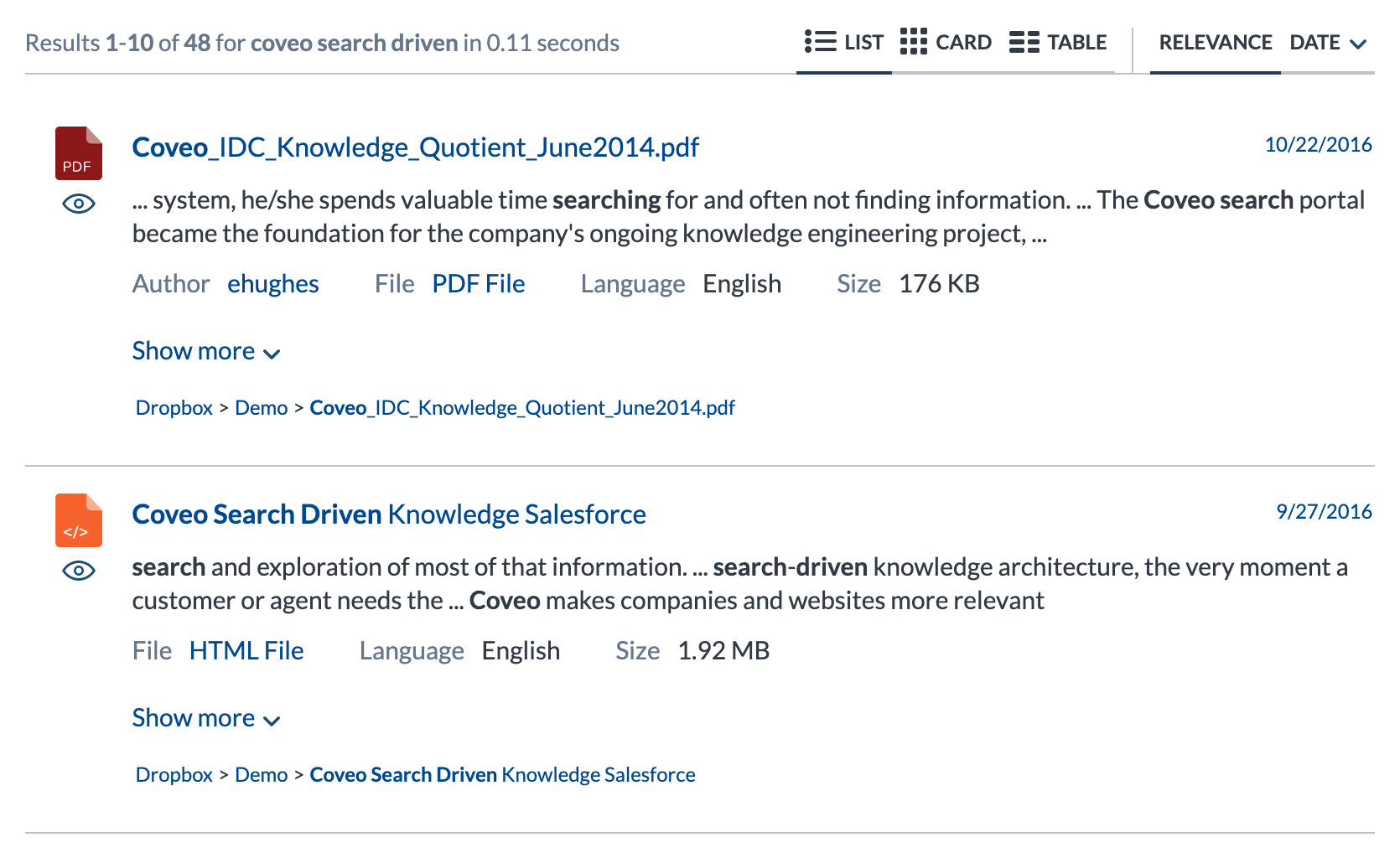

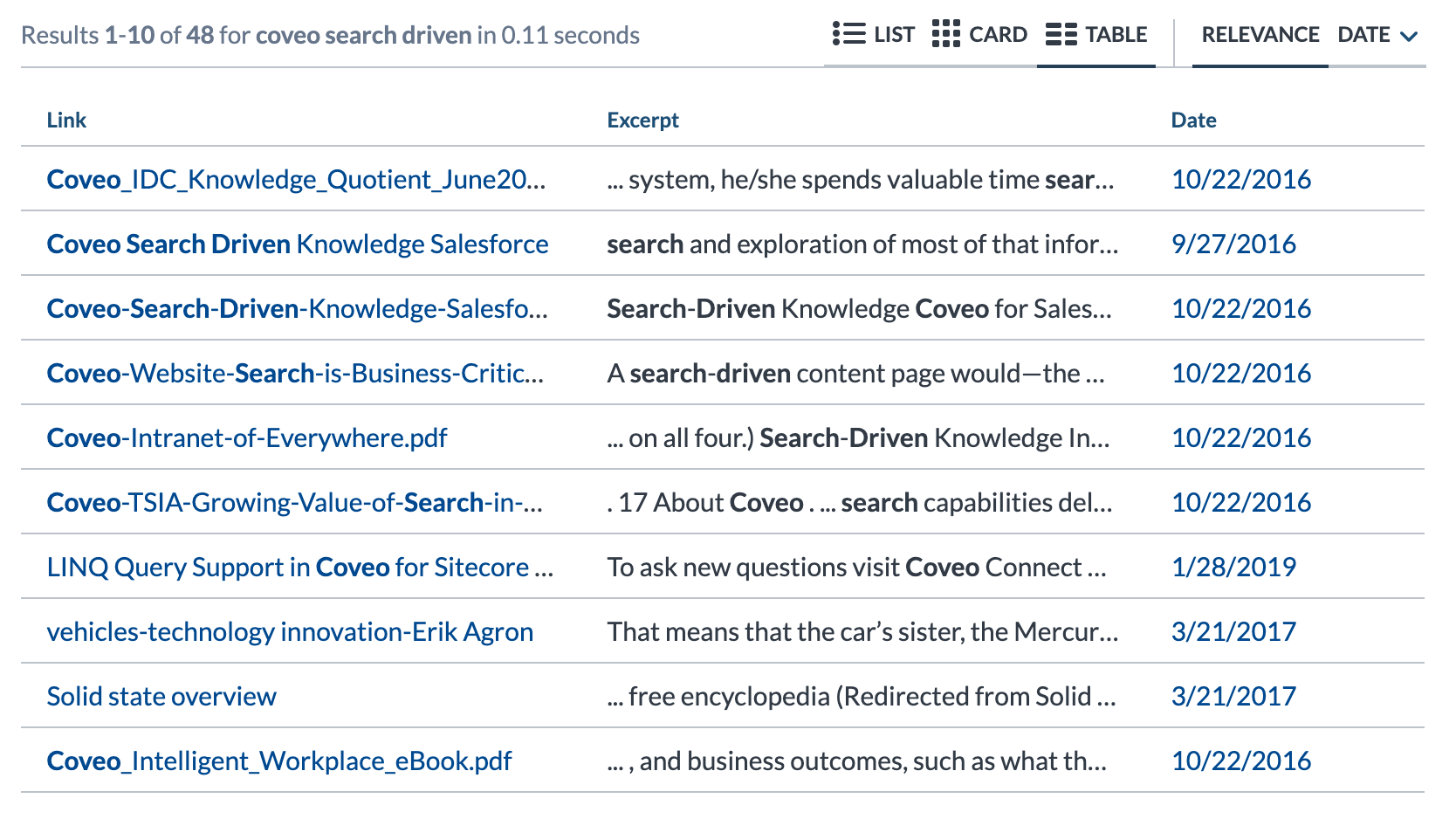
Enabling multiple result layouts
You can include multiple result layouts in your search interface. This is useful to allow end users to switch to the format with which they’re most comfortable.
Step 1: Add distinct ResultList components
For each result layout that you want to activate in your search interface, include a ResultList component and set its layout option to list, card, or table.
<body id="search" class="CoveoSearchInterface">
	<!-- ...  -->
	<div class="coveo-main-section">
		<!-- ... -->
		<div class="coveo-results-column">
			<!-- ... -->
			<div class="CoveoResultList" data-layout="list">
				<!-- ...result templates... -->
			</div>
			<div class="CoveoResultList" data-layout="card">
				<!-- ...result templates... -->
			</div>
			<div class="CoveoResultList" data-layout="table">
				<!-- ...result templates... -->
			</div>
			<!-- ... -->
		</div>
		<!-- ... -->
	</div>
	<!-- ... -->
</body>

|
Note
You can embed result templates within any of your |
Step 2: Add a ResultLayoutSelector component
To allow end users to switch between ResultList components, place a ResultLayoutSelector component inside a coveo-result-layout-section element in the coveo-results-header element.
This component automatically populates itself using all of the ResultList components which have a valid data-layout attribute.
<body id="search" class="CoveoSearchInterface">
	<!-- ...  -->
	<div class="coveo-main-section">
		<!-- ... -->
		<div class="coveo-results-column">
			<!-- ... -->
			<div class="coveo-results-header">
				<div class="coveo-summary-section">
					<!-- ... -->
				</div>
				<div class="coveo-result-layout-section">
					<span class="CoveoResultLayoutSelector"></span>
				</div>
				<div class="coveo-sort-section">
					<!-- ... -->
				</div>
				<!-- ... -->
			</div>
			<!-- ... -->
			<div class="CoveoResultList" data-layout="list">
				<!-- ...result templates... -->
			</div>
			<div class="CoveoResultList" data-layout="card">
				<!-- ...result templates... -->
			</div>
			<div class="CoveoResultList" data-layout="table">
				<!-- ...result templates... -->
			</div>
			<!-- ... -->
		</div>
		<!-- ... -->
	</div>
	<!-- ... -->
</body>
You should now see a result layout selector in the result header of your search interface:

If you remove one of the ResultList components (for example, the one whose layout option is set to table), the selector only displays the remaining layouts:

Setting the default layout for tabs
If you have enabled multiple result layouts in your search interface, you can use the layout option of the Tab component to specify which layout applies by default when an end user selects a given tab in your search interface.
If you don’t specify a value for this option, the List layout applies.
<!-- This code defaults to the Card result layout whenever
		 an end user selects the tab whose "data-id" is "People". -->
<body id="search" class="CoveoSearchInterface">
	<!-- ... -->
	<div class="coveo-tab-section">
		<a class="CoveoTab" data-id="People" data-caption="People"
			 data-expression="@objecttype==user" data-layout="card"></a>
		<a class="CoveoTab" data-id="All" data-caption="All"></a>
	<!-- ... -->
</body>
Setting the default layout without tabs
If you don’t want to include Tab components in your search interface, you can use the changeLayout method of the ResultLayoutSelector component in an afterInitialization event handler to programmatically select a default result layout:
const root = Coveo.$$(document).find("#search");
Coveo.$$(root).on("afterInitialization", () => {
	const layoutSelector = Coveo.$$(root).find(".CoveoResultLayoutSelector");
	Coveo.get(layoutSelector).changeLayout("card");
});
Coveo.init(root);
What’s next?
Learn about result templates and how to use them.
 Very useful
 Not really
 Very useful
 Not really