Search Agent reports and UA events
Search Agent reports and UA events


|
Beta feature
Coveo Search Agent is currently available as a beta offering. Contact your Customer Success Manager for access to this feature. Your use of this feature is subject to the beta and pre-release terms of your agreement with Coveo, including any applicable beta or pre-release provisions therein. To the extent your agreement does not contain specific beta or pre-release terms, Section 8 (Beta Features) of the Coveo Customer Agreement shall apply. This feature is provided "as-is," without warranty or SLA coverage, and may be modified, suspended, or discontinued at any time. You should not use this feature to process sensitive or regulated data. |
To track usage analytics of the Search Agent, Coveo Analytics logs events for actions performed on the Search Agent component in your Coveo-powered search interface.
This article provides instructions on how to create custom dimensions in your Coveo organization to track Search Agent usage analytics events, and provides a reference for the Search Agent events that are tracked by Coveo Analytics.

|
Note
For complete implementation steps for the Coveo Search Agent, see Search Agent implementation overview. |
Add custom dimensions
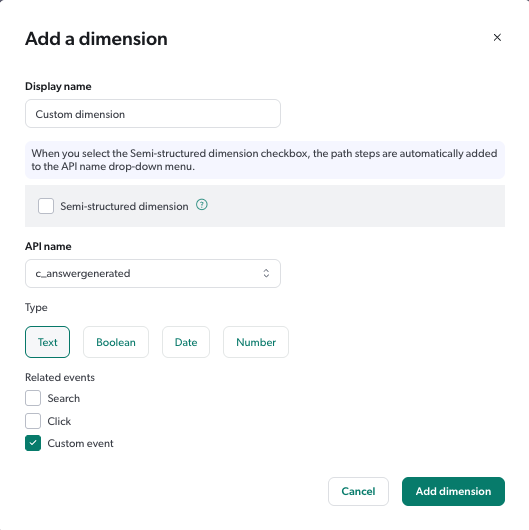
In order for Coveo Analytics to track and log events for actions performed on the Search Agent component, you must add a custom c_answergenerated dimension to your Coveo organization.
Add a dimension, and use the following criteria to create the custom dimension:
-
Make sure that Semi-structured dimension is disabled.
-
Under API name, enter
c_answergenerated. -
Type must be set to Text.
-
Related events must be set to Custom event.
To create the c_answergenerated dimension, the settings are as follows:
Create Search Agent report
You can quickly create a report to analyze the performance of your Search Agent implementation by using the preconfigured Generative Answering Performance dashboard template.
-
If you haven’t done so already, add the custom dimensions to your Coveo organization.
-
Add a dashboard using the Generative Answering Performance template.
Search Agent analytics events
This section lists the custom Coveo Analytics events for the Search Agent.
| Value | Event | ||
|---|---|---|---|
|
The answer was successfully streamed in the search interface. This event won’t be logged if the user initiates another search while the answer is being generated. |
||
In customData: |
An answer was successfully generated for the query. |
||
In customData: |
An answer wasn’t generated for the query because there wasn’t enough relevant information to generate an answer.
|
||
|
A citation link was clicked.
|
||
|
A user hovered over a citation link. |
||
|
A user clicked the thumbs-up icon to provide positive feedback for the generated answer. |
||
|
A user clicked the thumbs-down icon to provide negative feedback for the generated answer. |
||
|
A user clicked the copy button to copy the generated answer to their clipboard. |
||
|
A user closed (hid) the Search Agent component. |
||
|
A user opened (showed) the Search Agent component. |
Inspect your search page
Use your browser developer tools to retrieve what’s being tracked:
-
Open a Coveo-powered search interface that uses the Search Agent.
-
Open your web browser’s developer tools.
NoteThis article uses the Google Chrome developer tools. For browser-specific information, see:
-
Select the Network tab.
-
On the search page, perform a query that will generate an answer.
-
Back in the developer tools window, under the Name column, click the latest
customcall to Coveo Analytics. -
Select the Payload tab. You should now see the tracked Coveo Analytics events.
 Very useful
 Not really
 Very useful
 Not really