Review organization settings
Review organization settings

This is for:
System AdministratorThe Coveo Administration Console Settings (platform-ca | platform-eu | platform-au) page lets you review your organization’s general settings. Organization members with the required privileges can edit some of these settings.
"Organization" tab
The Organization tab contains the following sections:
-
Encryption keys (BYOK) (if your organization has it enabled)
Organization details
On the Settings page, under Organization > Details (platform-ca | platform-eu | platform-au), you can review information and inputs relative to your organization:
-
The Organization name is the name that’s displayed in Coveo to identify your organization. For example, it appears in the organization menu at the top of the Coveo Administration Console.
-
The Organization ID is a permanent and unique identifier for your organization. It’s automatically generated and contains a string of random characters. For example:
companysearch83n293c8ora1b2c3d4e5cvoorg. See Find your organization ID for details. -
The Organization creation date is the date on which the organization was created. Knowing the creation date is useful to determine whether features that were released on specific dates are available in your organization.
-
The Contact email is the email address of the organization contact person. This person receives important emails from Coveo such as notifications for an expiring license or exceeded quotas. They may be required to contact their Coveo representative to manage these situations accordingly.
By default, the contact person is the member who created the organization, but the contact person can be updated depending on your organizational structure.
-
The Allow Coveo to execute performance tests on your models checkbox indicates if you authorize Coveo to perform online and offline tests with your Coveo Machine Learning (Coveo ML) models.
-
The Delete Organization button allows you to delete your organization permanently when you no longer need it. For instance, you might delete an organization created for testing purposes once the test is done.

When you delete an organization, all its resources and indexed content will be lost. This can’t be undone.
Single sign-on
To configure a Security Assertion Markup Language (SAML) single sign-on (SSO) for your Coveo organization, you must first configure your identity provider.
Then, enter the data you obtained during this first step on the Settings page, under Organization > Single sign-on (platform-ca | platform-eu | platform-au). This allows Coveo to work together with your desired identity provider. See Coveo SAML SSO for further details on the SSO configuration process.
Traffic
On the Settings page, under Organization > Traffic (platform-ca | platform-eu | platform-au), you can review from which endpoint the traffic to your organization comes from.
In 2023, Coveo introduced organization endpoints, to which you can now send Coveo API requests.
Although the generic platform endpoints (platform-<REGION>.cloud.coveo.com) will keep working, we now recommend you use the new search, analytics, and administration endpoints for a more seamless interaction with Coveo APIs.
For details on this change, see Organization endpoints.
The Traffic subtab shows the endpoints used to call Coveo APIs and the traffic associated to each one. It also displays the endpoint Coveo recommends to use.
Regions
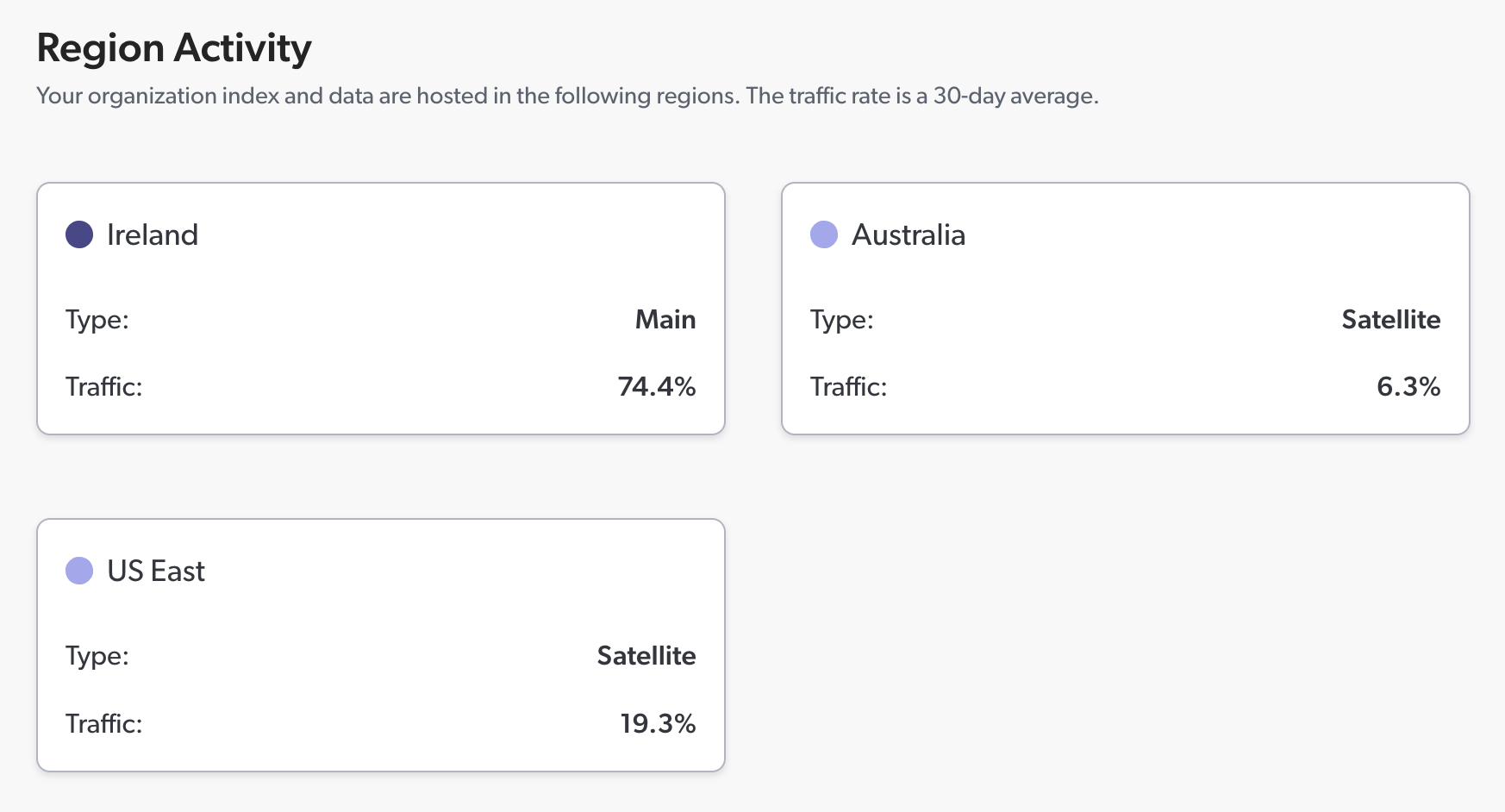
If your organization is deployed in multiple regions or if your license otherwise allows it, you can access the Regions subtab on the Settings page, under Organization > Regions (platform-ca | platform-eu | platform-au).
The Regions subtab displays the regions where your organization is deployed, along with their respective search traffic rates. The analytics traffic, on the other hand, is always sent to your primary main region.
Encryption keys (BYOK)
Coveo automatically encrypts your data using its own encryption key to protect it from unauthorized access.
However, Coveo offers the alternative to encrypt your index data at rest with your own AWS KMS key. For details on this security enhancement, see Bring-your-own-key (BYOK) data encryption at Coveo.
The Encryption keys subtab allows you to manage the encryption keys that you bring to Coveo. For details on managing your encryption keys, see Manage your encryption keys.
"Analytics" tab
Internal event filters
On the Settings page, under Analytics > Internal events (platform-ca | platform-eu | platform-au), you can provide Coveo with your NAT or public IP addresses. Events associated with these addresses are then flagged as internal, that is, triggered by someone in your organization.
Enter a public IPv4 or IPv6 address or a range of addresses in the Classless Inter-Domain Routing (CIDR) notation, and then click Save.
The range of public IP addresses for your enterprise is from 24.19.1.0 to 24.19.1.255.
In the Address input, you enter 24.19.1.0/24.
Once you saved your internal addresses, you can create and apply a named filter on the Is Internal dimension (Is Internal Is not true) to remove your internal events from usage analytics reports.
You can also create and apply the Is Internal Is false filter to only report on external events.

|
Notes
|
Required privileges
The following table indicates the privileges required to view or edit elements of the Settings (platform-ca | platform-eu | platform-au) page. See Manage privileges and Privilege reference for details.
| Tab | Action | Service | Domain | Required access level |
|---|---|---|---|---|
Organization |
View organization details |
Organization |
Organization |
View |
Edit organization details |
Organization |
Organization |
Edit |
|
View SSO configuration |
Organization |
Organization |
View |
|
Single sign-on identity provider |
View |
|||
Edit SSO configuration |
Organization |
Organization |
View |
|
Single sign-on identity provider |
Edit |
|||
View encryption keys |
Organization |
Customer keys |
View |
|
Organization |
View |
|||
Edit encryption keys |
Organization |
Customer keys |
Edit |
|
Organization |
View |
|||
Analytics |
Edit settings |
Analytics |
Administrate |
Allowed |
Organization |
Organization |
View |