About the Administration Console
About the Administration Console

The Coveo Administration Console is a web application allowing its users to manage their Coveo organization.
To access the Administration Console, one must be granted the privilege to see one of its pages, at least. Then, after logging in, they can review certain data or perform certain tasks, depending on the set of privileges they have been granted. For example, they could be allowed to manage the content of your organization or review data.

|
Leading practice
Not all Coveo users in your company or organization need to access the Coveo Administration Console. Most Coveo users in your ecosystem only interact with the Coveo-powered search interfaces you implemented in your intranet, customer support application, customer portal, etc. These end users are only seeking relevant content and don’t need to understand or manage the mechanics providing them their content. Therefore, you should only grant the privilege to access the Coveo Administration Console to coworkers who actually need to review or edit your Coveo organization data and configuration. |
Here’s a breakdown of the Administration Console:
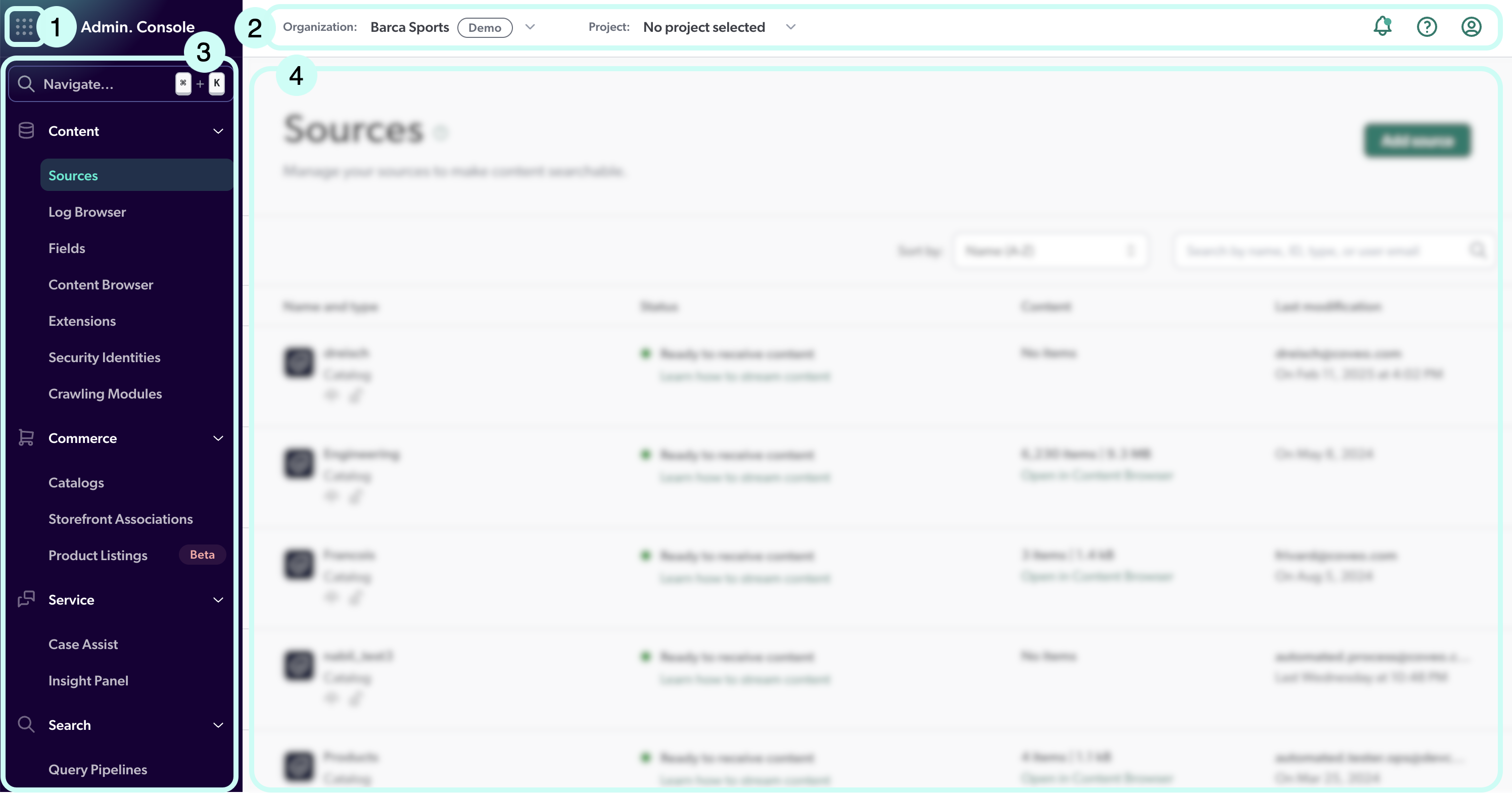
2 Header
5 Page content

|
Note
The Coveo Administration Console is only available in English. |
Application picker
If your license requires you to use more than just the Coveo Administration Console, the application picker lets you switch between your Coveo applications.
The application picker is the  located at the top left of the Administration Console.

If you don’t see the in your Administration Console, your organization is not using any other Coveo applications.
Header
The Administration Console header appears at the top of all pages.

1 Hide/show navigation menu
4 Help center
If a system issue occurs, an alert icon appears in the header:

Organization picker
The organization picker indicates which organization you’re managing with the Administration Console, as well as its type. When you have access to more than one organization, you can switch between organizations through this menu.

Typically, Coveo customers have at least one production organization, which powers their search interfaces. They may also have one or more non-production organizations for testing purposes.
Project filter
The project filter lets you select a project, filtering the Administration Console to display only the resources associated with that project.
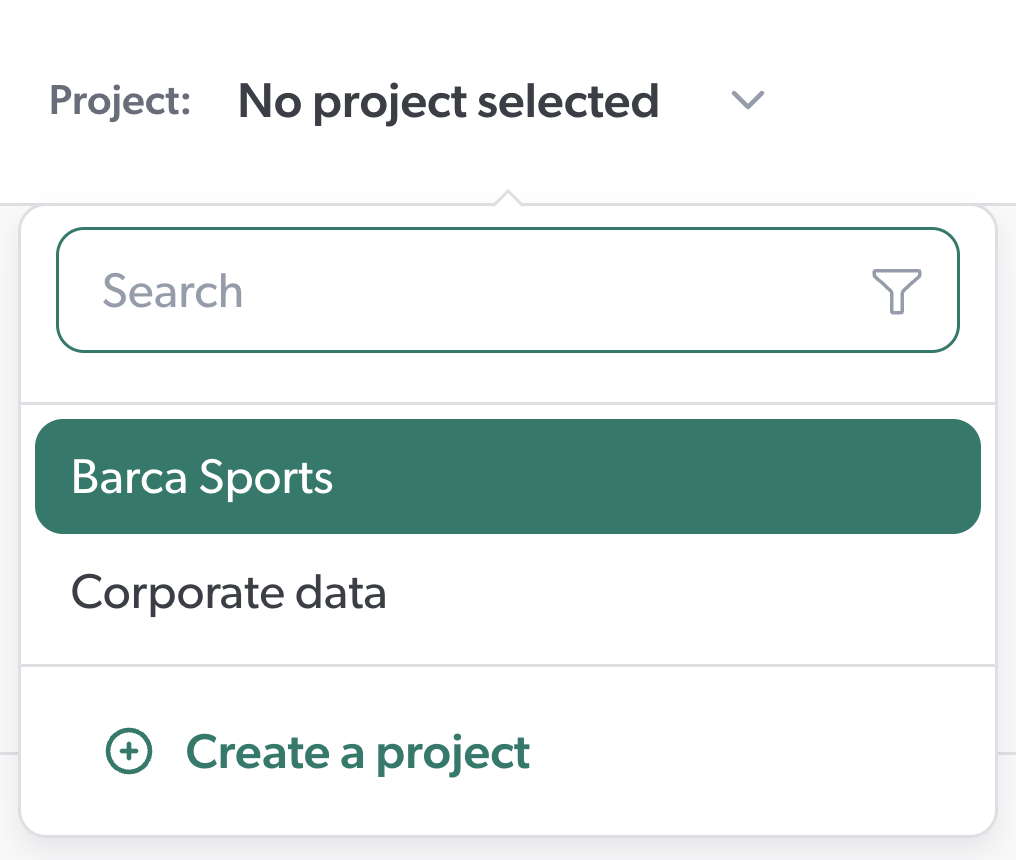
For more information on the projects feature or to have it enabled in your organization, see Manage projects.
User menu
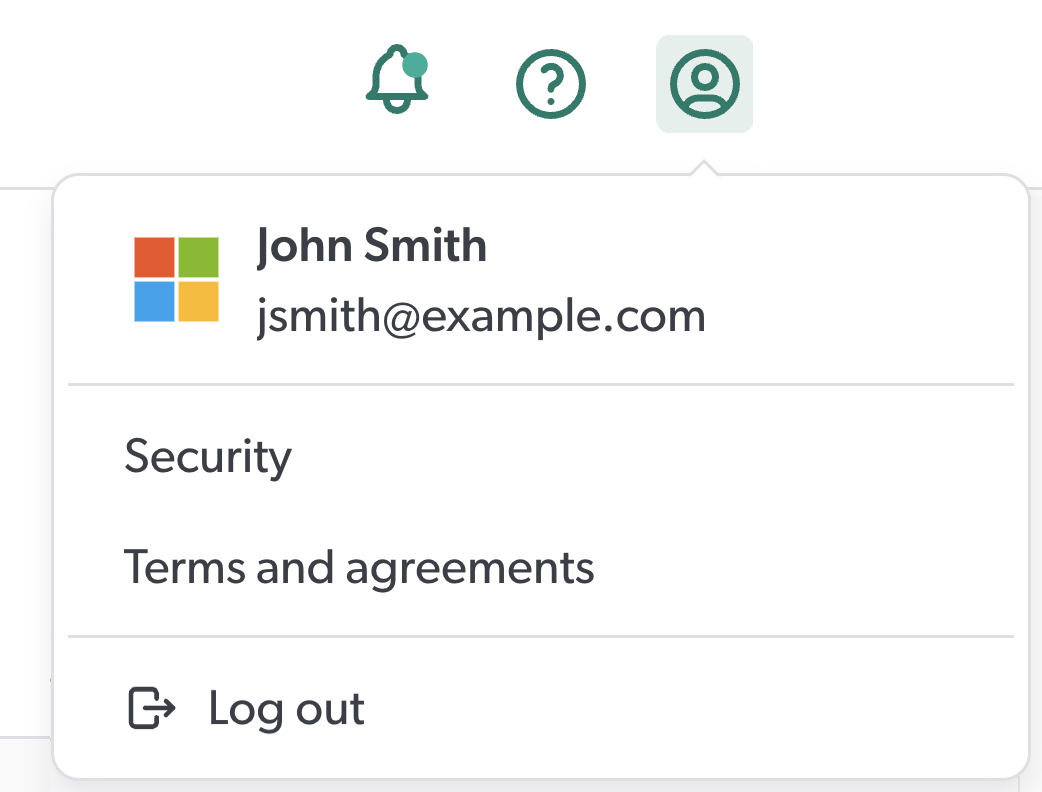
The user menu displays your name, email address, and service provider. It allows you to create user notifications and to log out of the Administration Console. It also contains links to Coveo’s security documentation and terms and conditions.
Home page
The Administration Console home page provides an overview of your organization, including recent activity and key metrics. Important notifications regarding your organization or Coveo’s systems also appear on this page.
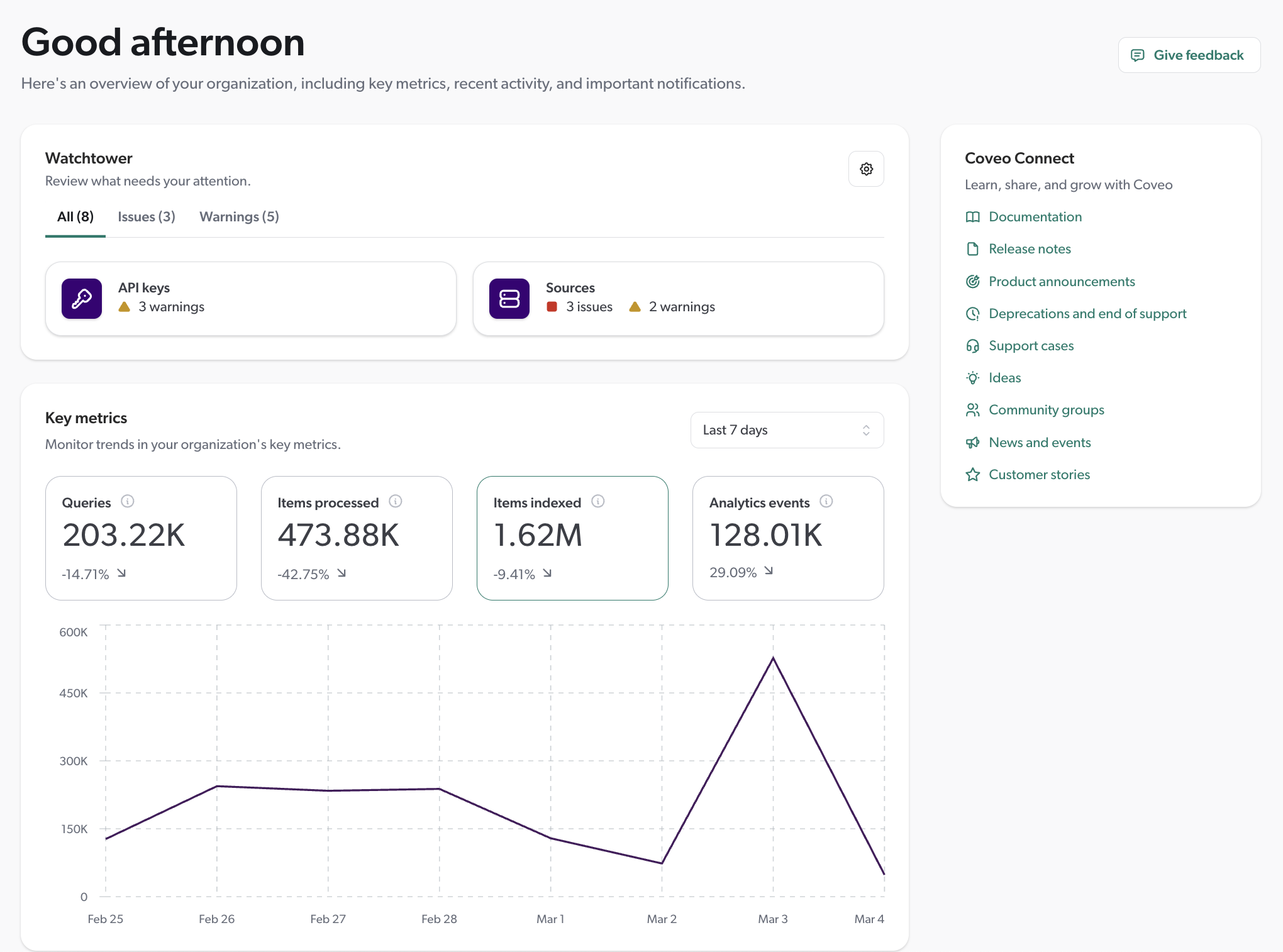
The Watchtower section displays issues and warnings regarding your organization and its resources. On the right side, the Coveo Connect section provides links to Coveo resources and announcements.
On top of the privilege to view the organization, which is required to access the Administration Console, you’ll need the privilege to view activities to see the recent activity section on the home page.
Navigation menu
The Administration Console navigation menu is organized into sections, which contain pages related to a specific aspect of your organization management. A user sees only the pages that their privileges allow them to access.
The following table briefly describes the content of each section.
| Section | Purpose |
|---|---|
Provides an overview of your organization, including recent activity, key metrics, and important notifications. |
|
Allows you to manage sources, fields, and indexing pipeline extensions (IPEs) to optimize content retrieval and searchability. |
|
Allows you to manage catalog entities and storefront associations to enable product discovery on your Coveo-powered storefronts. |
|
Allows you to build intuitive and relevant support portals to help your end users and support agents find the information they need. |
|
Allows you to optimize search results relevance and search experience in general, and manage hosted search pages. |
|
Allows you to manage Coveo Machine Learning models and evaluate their effectiveness and learning process. |
|
Allows you to monitor and measure the usage of your Coveo search solution. |
|
Allows you to review your organization activity and manage how groups, members, and API keys access the organization. |
Supported browsers
The Administration Console is accessible with the supported browsers listed in the following tables.
Desktop
| Browser | Supported versions | ||
|---|---|---|---|
Chrome |
Latest major release and the extended stable version. Older versions are supported for up to one year after their release. |
||
Edge |
Latest major release. Older versions are supported for up to one year after their release. |
||
Safari |
Latest major release. Older versions (including minor versions) are supported for up to one year after their release.
|
||
Mozilla Firefox |
Latest major release and Extended Support Release (ESR). Older versions are supported for up to one year after their release. |
Mobile
| Browser | Supported versions | ||
|---|---|---|---|
Chrome |
Latest major release. Older versions are supported for up to one year after their release. |
||
Edge |
Latest major release. Older versions are supported for up to one year after their release. |
||
Safari |
Latest major release. Older versions (including minor versions), are supported for up to one year after their release.
|
||
Mozilla Firefox |
Latest release and Extended Support Release (ESR) version. Older versions are supported for up to one year after their release. |
 Very useful
 Not really
 Very useful
 Not really