Manage query pipeline conditions
Manage query pipeline conditions

A query pipeline condition determines when a particular query pipeline or an associated component applies to a query. conditions are essential for ensuring that the correct pipelines and components are applied based on specific criteria. This ensures optimal search relevance.
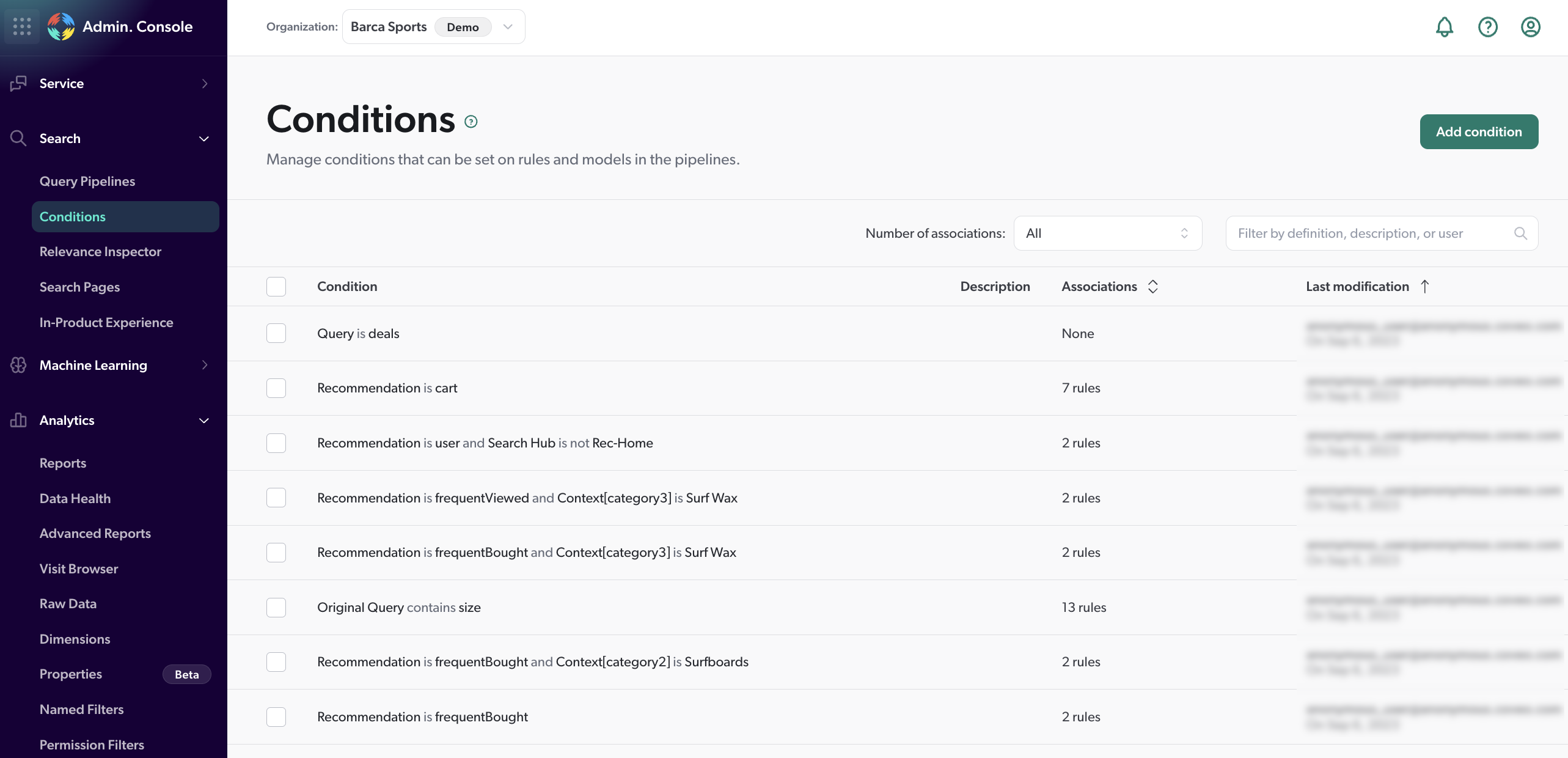
Most pipelines and their components should be associated with a condition to obtain more targeted results. Without a condition, a pipeline or component would apply globally to all queries routed to that pipeline.
Your company, Barca Sports, has a self-service support portal for equipment assembly and troubleshooting.
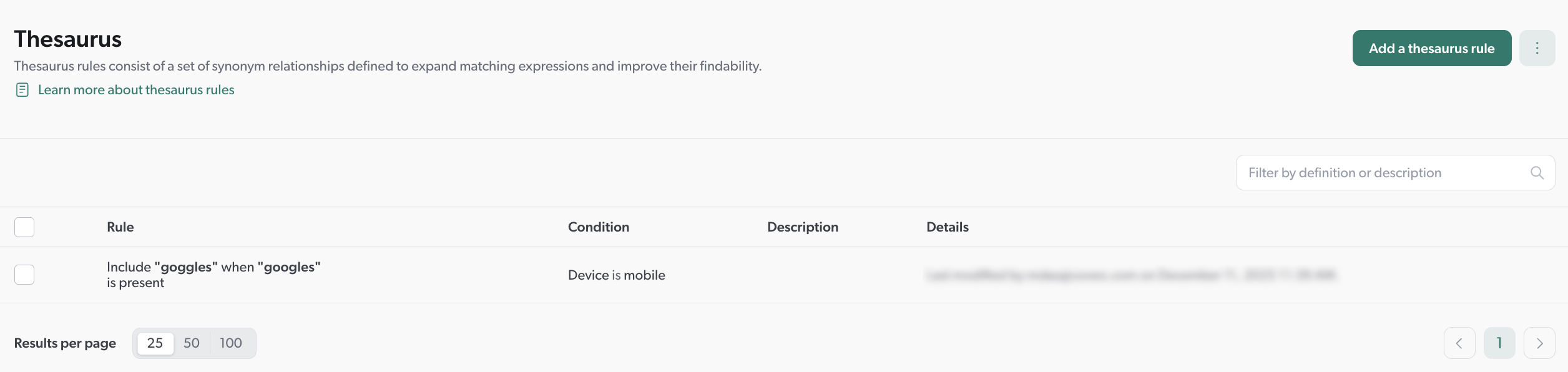
You previously added a thesaurus rule to handle common misspellings of product names.
You notice in your Coveo Analytics report that a recurring theme is for users to query googles instead of goggles when searching for ski goggles on their mobile devices.
To ensure that this particular thesaurus rule is applied to users on mobile devices, you create a condition based on the Device object with the value mobile.
Manage conditions
You can create, edit, and delete query pipeline conditions, as well as add descriptions to help you manage them.

|
Notes
|
Create a condition
-
Access the Add a condition panel by doing one of the following:
-
On the Conditions (platform-ca | platform-eu | platform-au) page, click Add condition.
-
On the Condition section of a query pipeline’s Configuration tab, click Create a new condition.
-
On Add/Edit panel of a query pipeline rule or model association, click Create a new condition.
-
-
Click the first dropdown menu, and then select on which object the condition is based.
-
Click the second dropdown menu, and then select an operator to apply between the selected object and the value.
-
Click the third dropdown menu (if available), and then provide values to filter on by doing one of the following:
-
Select one or more of the available values.
-
Type in a new value, and then select Enter.
-
-
(Optional) Click
 on the right side of the panel to add another condition:
-
In the dropdown menu that appears after the first condition, select the AND or the OR operator to specify how this second condition will be linked to the first one.
-
Repeat the procedure to define the second condition.
-
-
Click Add condition.
Edit a condition

|
Modifying a condition immediately affects all pipeline rules or models that use the condition. |
-
On the Conditions (platform-ca | platform-eu | platform-au) page, select the checkbox next to the condition that you want to edit, and then in the Action bar, click Edit.
-
In the Edit a condition panel, add, modify, or delete condition elements as needed.
-
Click Save.
Set a condition description
-
On the Conditions (platform-ca | platform-eu | platform-au) page, select the checkbox next to the condition to which you want to add a description, and then click Set description in the More menu.
-
In the Set Description panel, enter any information that will help you manage the condition in the future.
-
Click Save. The entered text appears in the Description column.
Edit a condition with code
You can edit a condition that respects the query pipeline language (QPL) syntax.
-
On the Conditions (platform-ca | platform-eu | platform-au) page, select the checkbox next to the condition that you want to edit, and then in the Action bar, click Edit code.
-
In the Edit a condition with code panel that appears, enter the condition using QPL syntax.
-
Click Save.
|
|
Note
The object on which the condition is based appears differently in the Add/Edit a Condition panel dropdown menu than it does as a QPL object on the code editor. Add/Edit a condition panel: 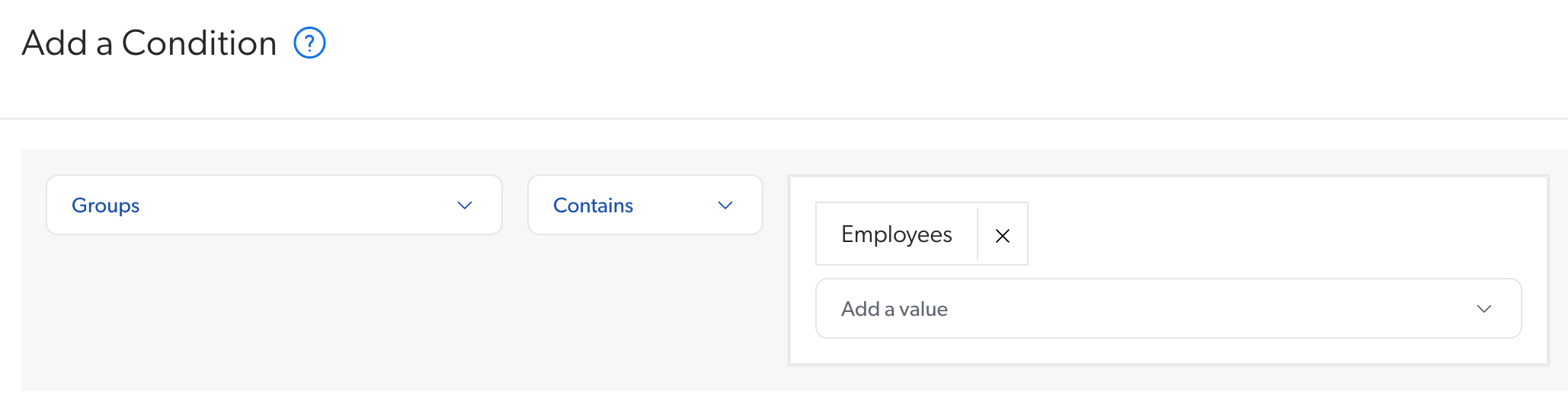
Edit a condition with code panel: 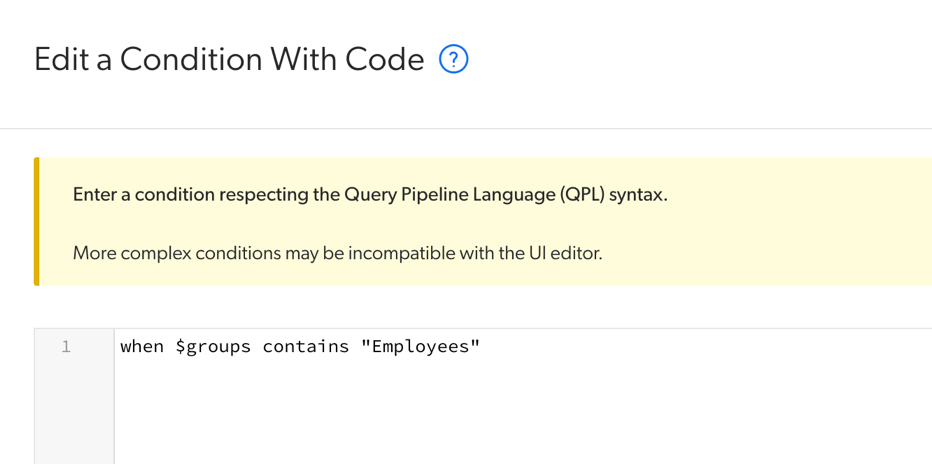
|
Delete a condition
|
|
Deleting a condition removes the condition from all query pipelines, rules, and models using that condition. |
-
On the Conditions (platform-ca | platform-eu | platform-au) page, select the checkbox next to the condition that you want to delete, and then in the Action bar, click Delete.
-
On the Delete this condition? message that appears, click Delete again.
Reference
The following sections describe the available condition objects and operators that you can use when creating query pipeline conditions.
Objects
The Original objects (that is, Original Advanced Query, Original Constant Query, Original Disjunction Query, Original Large Query, and Original Query) use the expression as it was sent prior to being processed by a query pipeline. The Original objects also have regular counterparts, and both option types can be selected in the object dropdown menu of the Add a condition panel.
A user searches dashcam on your support page.
You have a thesaurus rule that replaces dashcam with dash cam.
-
If the condition to your rule is
Original Query is dash cam, it won’t be met since the original user query wasdashcam. -
If the condition to your rule is
Query is dash cam, the condition will be met since the query is processed by the thesaurus rule before being evaluated against the condition.
Advanced Query/Original Advanced Query
Hidden expression used to narrow the search results made by the user.[1]
When the user selects Word Document in a Type facet, the advanced query can be @filetype==doc.
The Advanced Query/Original Advanced Query object is used to create conditions based on a Facet.
To create a condition based on a DynamicFacet, you must use the Filter query from facets object.
Browser
The type of browser on which the search interface runs, such as chrome, firefox, ie, or safari.
Constant Query/Original Constant Query
Hidden expression used to narrow the search results selected by the user.[1]
When the user selects the Support Cases search interface tab, the constant query is (@objecttype==('CaseComment','Case')).
Context
One or more parameters passed by the search interface in a JSON key/value pair format.
Your search interface must pass custom context information with the query.
Click the Context key dropdown menu, and then select a suggestion, or manually enter the desired context key and select Enter or click .
|
|
The keys used in the Context object are case sensitive. |
Your custom context is used to differentiate users by their role relative to your products.
Therefore, you defined your key as userRole and the possible values as end-user, administrator, or developer.
You can define a condition using this key, and one or more of these values.
Device
The type of device on which the search interface runs, such as desktop, mobile, phone, or tablet.
Disjunction Query/Original Disjunction Query
Hidden expression applied with a logical OR operator with other expressions and used to expand the search results, such as, in rare cases, where some search results that don’t match the other expressions must be injected.[1]
Filter Query From Facets
Hidden expression used to narrow the search results made by the user.
-
You want to apply a rule when the
@sourcenamefacet field has the valueBarcaselected; therefore, you create a condition with the following expression:$facetsFilter is "@sourcename==(Barca)" -
You want apply a rule when the
@sourcenamefacet field has the valueJiraand the@filetypefacet field has the valueJiraissueselected; therefore, you combine the two conditions with the following expression:$facetsFilter is "@sourcename==(Jira) @filetype==(Jiraissue)"
The Filter query from facets object is used to create conditions based on a DynamicFacet.
To create a condition based on a Facet, you must use the link Advanced Query/Original Advanced Query object.
Groups
When the user performing the query is authenticated through the REST Search API, the name of the user groups, such as the domain\group form for a Windows user.
Identity
When the user performing the query is authenticated through the REST Search API, the name of the user, such as in the domain\name form for a Windows user.
Language
The language part of the locale query parameter (see Locale).
When the locale query parameter is en-US, the language is en.
Large Query/Original Large Query
Contextual text part of the query which typically contains a case description, a long textual query, or any other form of text that can help refine a query.[1]
Locale
The value of the locale query parameter passed by the search interface, such as the one configured in the browser such as en-US or fr-CA.
Operating System
The operating system of the device on which the search interface runs, such as android, blackberry, ios, osx, or windows.
Query/Original Query
What the end user searches for such as the keywords entered in the search box.[1]
Query Time UTC
The UTC time at which the query was made.
|
|
Note
For this object only, your operator options at next step are Is between and Is not between, and you must enter a date range. |
On your ecommerce website, you want to show certain products at the top of the search results page during your Boxing Day sale.
So, you create a pipeline or pipeline rule with the following condition: Query Time UTC is between Dec 25, 2019 12:00 AM and Dec 27, 2019 11:59 PM.
Recommendation
The identifier of the recommendation interface from which the query originates.
|
|
Note
You can create a condition to ensure that queries originating from a specific recommendation interface are routed to a query pipeline that contains the Content Recommendation (CR) model you want to use to output recommendations for that interface. |
On your ecommerce website, you have a side-panel that lists your top selling products that’s identified as RecommendedProducts.
Referrer
The third level of origin of the query, typically the URL of the page that linked to the search interface from which the query originates (see Origin 3 (Referrer)).
Search Hub
The search interface from which the query was made.
Tab
The search interface tab from which the query was made.
Operators
|
|
Always use positive operators (for example, |
Is/Is not
Whether the condition object on which the condition is based is exactly the value to filter.
The Is/Is not operators are:
-
Case insensitive
-
Interpreting the value to filter on as a string.
-
Search hub is
Customer Service Portal -
Device is not
iPhone
Contains/Doesn’t contain
Whether the condition object on which the condition is based contains the value to filter.
The Contains/Doesn’t contain operators are:
-
Case insensitive
-
Interpreting the value to filter on as a string.
-
Search hub contains
Service -
Device doesn’t contain
iPhone
Matches/Doesn’t match
Whether the condition object on which the condition is based matches the regular expression (regex) to filter.
The Matches/Doesn’t match operators:
-
Are case sensitive.
-
Interpret the value to filter on as a regex.
-
Evaluate to
trueonly if the entire value of the condition object matches the regex.
-
Query matches
^(?i)how do i.*$: Checks if the query starts with how do i, case-insensitive. -
Device doesn’t match
^.*Mac.*$: Checks if the device string doesn’t contain the substring Mac.
|
|
Notes
|
Is empty/Is not empty
Whether the condition object on which the condition is based is empty.
-
The Is empty operator is evaluated to
truewhen the object (for example, Context) is:-
An empty string (for example,
"") -
An empty array (for example,
[])
-
-
The Is not empty operator is evaluated to
truewhen the object (for example, Context) is:-
null -
undefined -
A non-empty string (for example,
" ","foo",123) -
A non-empty array (for example,
["foo"],[" ", "foo"])
-
-
Context [UserRole] is empty -
Context [UserRole] is not empty
See Is empty/Is not empty VS Is populated/Is not populated for further information about the differences between the operators.
Is populated/Is not populated
Whether the condition object on which the condition is based is populated.
-
The Is populated operator is evaluated to
truewhen the object (for example, Context) is:-
A populated string (for example,
"foo",123) -
A populated array (for example,
["123", “foo"])
-
-
The Is not populated operator is evaluated to
truewhen the object (for example, Context) is:-
null -
undefined -
A non-populated string (for example,
"“,” ") -
A non-populated array (for example,
[],["", " "])
-
-
Context [UserRole] is populated -
Context [UserRole] is not populated
See Is empty/Is not empty VS Is populated/Is not populated for further information about the differences between the operators.
Is between/Is not between
The Query Time UTC object time frame.
The Is between / Is not between operators are available only when selecting the Query Time UTC object.
Query Time UTC Is between Oct 30, 2019, 0:00 to Oct 31, 2019, 0:00
Is empty/Is not empty VS Is populated/Is not populated
The Is empty/Is not empty and Is populated/Is not populated operators may look similar, but they each have their own purpose.
The following table indicates how a condition object is evaluated according to the chosen operator (Is populated,Is not populated, Is empty, and Is not empty).
Object state |
Operators |
|||
|---|---|---|---|---|
Is populated |
Is not populated |
Is empty |
Is not empty |
|
|
false |
true |
false |
true |
|
false |
true |
false |
true |
|
true |
false |
false |
true |
|
true |
false |
false |
true |
|
true |
false |
false |
true |
|
true |
false |
false |
true |
|
false |
true |
true |
false |
|
false |
true |
false |
true |
|
false |
true |
false |
true |
|
false |
true |
true |
false |
|
false |
true |
true |
false |
|
false |
true |
false |
true |
|
true |
false |
false |
true |
Required privileges
The following table indicates the required privileges for members to view or edit elements of the Conditions (platform-ca | platform-eu | platform-au) page and associated panels (see Manage privileges and Privilege reference). This includes the ability to manage query pipeline conditions.
|
|
Note
Members with the privilege to view query pipelines (that is, the View all or the Custom access level on the Query Pipelines domain) can review the conditions in read-only mode (see Manage privileges and Query pipelines domain). |
| Action | Service - Domain | Required access level |
|---|---|---|
View pipeline conditions |
Search - Query pipelines |
View |
Edit pipeline conditions |
Analytics - Analytics data |
View |
Search - Query pipelines |
Edit |
 Very useful
 Not really
 Very useful
 Not really