---
title: Create a custom Insight Panel
slug: latest-custom-insight-panels
canonical_url: https://docs.coveo.com/en/quantic/latest/usage/custom-insight-panels/
collection: quantic
source_format: adoc
---
# Create a custom Insight Panel
Coveo offers a [Hosted Insight Panel solution](https://docs.coveo.com/en/m7ak9250/) that delivers a seamless, low-code experience out of the box.
It lets you display contextual recommendations and results related to a Salesforce record (such as [Cases](https://help.salesforce.com/s/articleView?id=service.cases_def.htm&type=5)), helping agents quickly access relevant content.
It draws on [Coveo Machine Learning](https://docs.coveo.com/en/188/) to improve efficiency and resolution quality.
However, there are situations where development teams require more flexibility or integration capabilities than what the Hosted Insight Panel configuration options can provide.
For example, you might need full control over the rendering logic, or to make deep user interface customizations, or to carry out more advanced record-driven interactions.
In such scenarios, consider building a custom Insight Panel using [Quantic components](https://docs.coveo.com/en/quantic/latest/reference/insight-panel-components/).
This article explains how to implement such custom, non-hosted Insight Panels using Coveo Quantic.
It uses the [ExampleInsightPanel](https://github.com/coveo/ui-kit/tree/main/packages/quantic/force-app/solutionExamples/main/lwc/exampleInsightPanel) component from the `solutionExamples` folder in the Quantic project repository.
Use this example as a starting point for your own implementation.
## Prerequisites
* You've installed the Salesforce CLI with [Dev Hub](https://developer.salesforce.com/docs/atlas.en-us.sfdx_dev.meta/sfdx_dev/sfdx_setup_enable_devhub.htm) enabled in your Salesforce organization.
* Although it's not required, we recommend that you [install](https://docs.coveo.com/en/1102/) and [configure](https://docs.coveo.com/en/1153/) [Coveo for Salesforce](https://docs.coveo.com/en/1404/) v4 or later.
This package automatically handles key steps during the [authentication](https://docs.coveo.com/en/2120/) stage.
It can automatically take care of important steps at the [authentication](https://docs.coveo.com/en/2120/) stage.
* You've [installed Coveo Quantic](https://docs.coveo.com/en/quantic/latest/usage#install-quantic).
* You've [created a Salesforce DX project](https://docs.coveo.com/en/quantic/latest/usage#create-a-salesforce-dx-project).
## Create a new Lightning Web Component
Create your LWC (for example, `exampleInsightPanel`) using the [`lightning generate component`](https://developer.salesforce.com/docs/atlas.en-us.sfdx_cli_reference.meta/sfdx_cli_reference/cli_reference_lightning_commands_unified.htm#cli_reference_lightning_generate_component_unified) command:
```bash
sf lightning generate component --name exampleInsightPanel --type lwc
```
Your new LWC should have the following structure:
[listing]
```
exampleInsightPanel/
├── exampleInsightPanel.html
├── exampleInsightPanel.js
├── exampleInsightPanel.js-meta.xml
```
## HTML
The HTML file is where you assemble [Quantic Insight Panel components](https://docs.coveo.com/en/quantic/latest/reference/insight-panel-components/) to create your custom Insight Panel.
These components are designed to offer flexibility for developers needing to tailor the agent experience beyond what the Hosted Insight Panel provides.
The following sample is abbreviated for clarity in this documentation article.
For the full sample, see [exampleInsightPanel.html](https://github.com/coveo/ui-kit/blob/master/packages/quantic/force-app/solutionExamples/main/lwc/exampleInsightPanel/exampleInsightPanel.html) in the Quantic project repository.
```html
```
<1> Attach the `handleResultTemplateRegistration` function on the `onquantic__registerresulttemplates` event thrown to register [result templates](https://docs.coveo.com/en/quantic/latest/usage/custom-ip-result-templates/).
<2> Use the [`QuanticInsightInterface`](https://docs.coveo.com/en/quantic/latest/reference/insight-panel-components/insight-panel-insight-interface/) component and set its `engine-id` and `insight-id` properties.
This component is required to handle the [Headless](https://docs.coveo.com/en/headless/latest/) insight engine and localization configurations.
Most Quantic components require an `engine-id`, and all components that belong to a given interface must have the same `engine-id`.
Sharing this `engine-id` across components is what allows the `QuanticInsightInterface` component to establish the connection between them.
You must have one and only one `QuanticInsightInterface` component per `engine-id` in a given page or Digital Experience.
The `insight-id` property connects the component to a specific [Insight Panel configuration](https://docs.coveo.com/en/m5k70425#retrieve-an-insight-panel-configuration-id).
You'll define the `engineId` and `insightId` variables in your [JavaScript file](#javascript).
<3> Out of the box, Quantic lets you use [Salesforce Lightning Design System](https://www.lightningdesignsystem.com/) (SLDS) styling classes.
This example uses the [Grid utility](https://www.lightningdesignsystem.com/utilities/grid/).
## XML
The [XML configuration file](https://developer.salesforce.com/docs/platform/lwc/guide/reference-configuration-tags.html) is where you define the targets of your LWC.
You also specify the parameters whose values are requested through the [Salesforce Experience Builder](https://help.salesforce.com/s/articleView?id=sf.community_designer_ui.htm&type=5) and can set their default values.
These values take precedence over the values you set in your LWC [JavaScript file](#javascript).
```xml
56.0true <1>
lightning__RecordPagelightning__AppPagelightning__HomePagelightningCommunity__PagelightningCommunity__Default <2>
```
<1> Specifies the [targets](https://developer.salesforce.com/docs/platform/lwc/guide/reference-configuration-tags.html#target) in which your LWC is available.
<2> Expose the properties that you want to be able to edit in the Salesforce Experience Builder.
You can set different values for each target.
You pass these variables to instantiate Quantic components in your [HTML file](#html).
## JavaScript
This is where you connect your [result templates](https://docs.coveo.com/en/quantic/latest/usage/custom-ip-result-templates/) with your main [HTML file](#html) using conditions.
It's also where you define the variables that you use in the HTML file and set their values in the [XML file](#xml).
The following sample is abbreviated for clarity in this documentation article.
For the full sample, see [exampleInsightPanel.js](https://github.com/coveo/ui-kit/blob/master/packages/quantic/force-app/solutionExamples/main/lwc/exampleInsightPanel/exampleInsightPanel.js) in the Quantic project repository.
```javascript
// @ts-ignore
import {
getHeadlessEnginePromise,
} from 'c/quanticHeadlessLoader';
// ...
export default class ExampleInsightPanel extends LightningElement {
/** @type {string} */
@api engineId = 'example-insight-panel'; <1>
/** @type {string} */
@api insightId = '142be676-703c-445f-b2d3-fcc7c0a3ded8'; <2>
connectedCallback() { <3>
this.template.addEventListener(
'quantic__insightinterfaceinitialized',
this.handleInterfaceLoad
);
}
disconnectedCallback() { <4>
this.template.removeEventListener(
'quantic__insightinterfaceinitialized',
this.handleInterfaceLoad
);
}
handleInterfaceLoad = (event) => {
event.stopPropagation();
getHeadlessEnginePromise(this.engineId).then((engine) => {
engine.executeFirstSearch();
});
};
}
```
<1> Define the variables that you use in the [HTML file](#html) and set their default values.
Here, you define a unique identifier for your Headless engine.
<2> This variable stores your [Insight Panel configuration ID](https://docs.coveo.com/en/m5k70425#retrieve-an-insight-panel-configuration-id).
<3> The `connectedCallback` lifecycle hook is called when the [component is inserted into the DOM](https://developer.salesforce.com/docs/platform/lwc/guide/create-lifecycle-hooks-dom.html).
Use it to listen to the `quantic__insightinterfaceinitialized` event, emitted by the `QuanticInsightInterface` component when it has finished loading.
When this event is caught, call the `handleInterfaceLoad` function to execute the first search, ensuring results are displayed.
<4> The `disconnectedCallback` lifecycle hook is called when the component is removed from the DOM.
Use it to remove the event listener that you attached in the `connectedCallback` lifecycle hook.
## CSS
Use SLDS styling classes in your LWC markup.
Add a `.css` file to the root of your project folder for additional styling.
```css
.insight-panel_layout {
background-color: var(--lwc-colorBackgroundAlt, rgb(255, 255, 255));
border-radius: var(--lwc-borderRadiusMedium, 0.25rem);
overflow: hidden;
width: 100%;
max-width: 500px;
margin: auto;
-webkit-box-shadow: 0 2px 2px 0 rgb(0 0 0 / 10%);
box-shadow: 0 2px 2px 0 rgb(0 0 0 / 10%);
}
.insight-panel_search-box {
flex: 1;
}
c-quantic-facet-manager,
c-quantic-results-per-page {
display: none;
}
.insight-panel_body {
min-height: 25rem;
}
```
## Platform token provider
If you were to deploy your LWC now, it would return results.
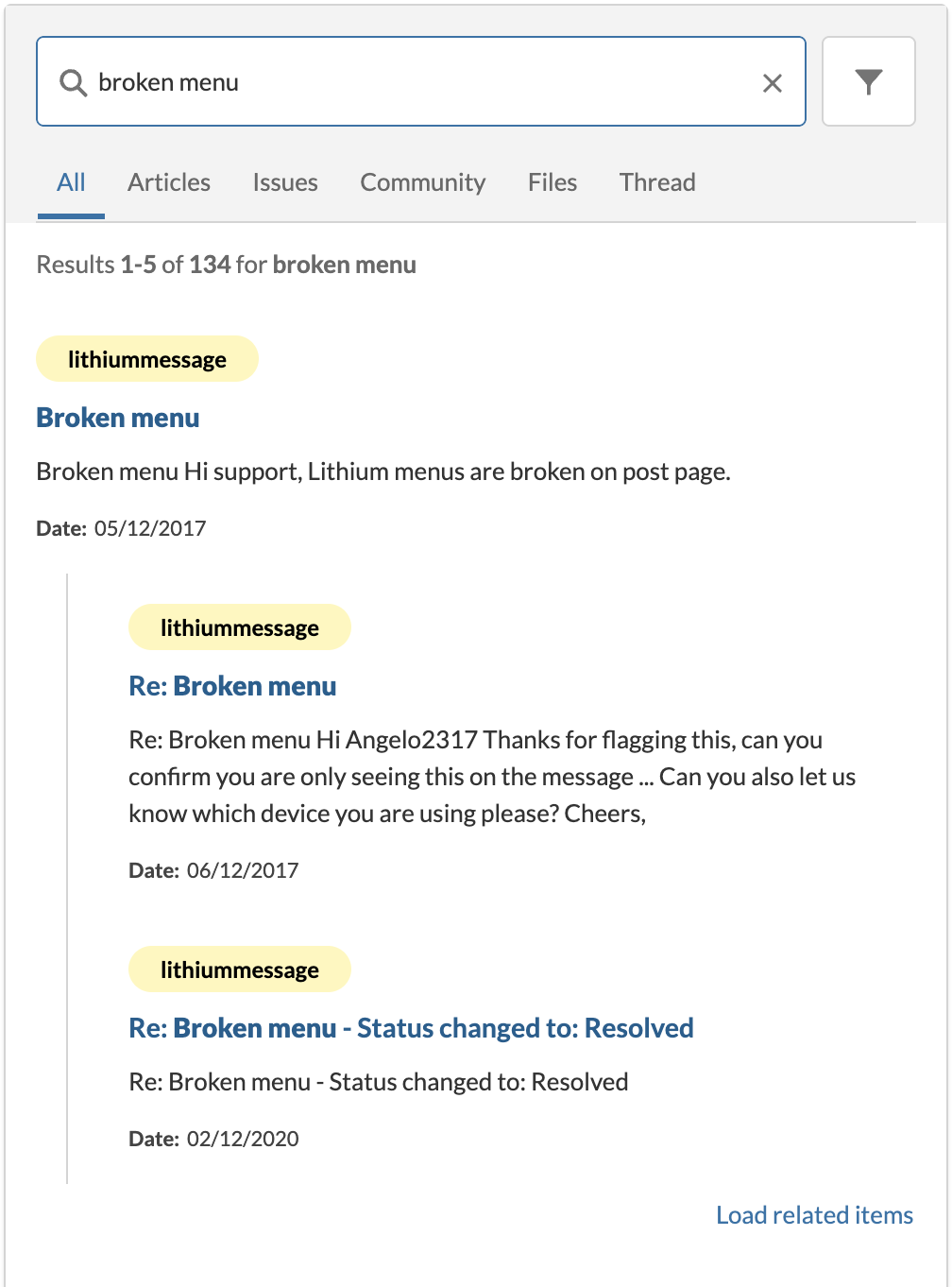
However, these results come from a sample organization which is only meant for testing.
For a real implementation, configure [platform token](https://docs.coveo.com/en/n3ha0170/) authentication in your Insight Panel.
This means that each user gets their own platform token, with appropriate privileges to access your organization's content.
Personalized platform tokens also let you use personalized [Coveo Analytics](https://docs.coveo.com/en/182/) and [machine learning](https://docs.coveo.com/en/188/) features.
If you've [installed](https://docs.coveo.com/en/1102/) and [configured](https://docs.coveo.com/en/1153/) Coveo for Salesforce v4 or a later package in your Salesforce organization, it's typically enough to copy the [`InsightTokenProvider`](https://github.com/coveo/ui-kit/blob/master/packages/quantic/force-app/coveo-token/main/default/classes/InsightTokenProvider.cls) Apex class, along with its [`meta.xml`](https://github.com/coveo/ui-kit/blob/master/packages/quantic/force-app/coveo-token/main/default/classes/InsightTokenProvider.cls-meta.xml) file, into your Salesforce DX project.
This class can automatically fetch your Salesforce users' information to generate platform tokens for them.
This is the best option for most use cases.
If you haven't installed Coveo for Salesforce v4 or a later package, or if the `InsightTokenProvider` Apex class doesn't fit your needs, you'll have to implement your own platform token provider.
You can get started using the [`InsightTokenProvider`](https://github.com/coveo/ui-kit/blob/master/packages/quantic/force-app/coveo-token/main/default/classes/InsightTokenProvider.cls) example, or with the following article: [Generate a custom platform token for the Hosted Insight Panel component](https://docs.coveo.com/en/n81d0055/).
Once you've copied or created your platform token provider Apex class, modify the [Headless](https://docs.coveo.com/en/headless/latest/) configuration in your Quantic installation so that it calls your Apex class.
You can find the [`InsightController`](https://github.com/coveo/ui-kit/blob/master/packages/quantic/force-app/main/default/classes/InsightController.cls) file at `force-app/main/default/classes`.
Locate the following line:
```javascript
return SampleTokenProvider.getHeadlessConfiguration();
```
and modify it so that it leverages your platform token provider instead:
```javascript
return YOUR_TOKEN_PROVIDER.getHeadlessConfiguration();
```
where you replace `YOUR_TOKEN_PROVIDER` with the name of your platform token provider Apex class, such as `InsightTokenProvider` if you copied it from the Quantic project.
If you've retrieved the Quantic project, you can make this change locally.
After you deploy your project, your changes will be effective in your Salesforce organization.
If you haven't retrieved Quantic locally, you can navigate to the `InsightController` file from the [Salesforce Developer Console](https://help.salesforce.com/s/articleView?id=sf.code_dev_console.htm&type=5) and modify it there.
## What's next?
* [Include Relevance Generative Answering](https://docs.coveo.com/en/quantic/latest/usage/custom-ip-useful-coveo-for-salesforce-features#generated-answers).
* [Create Insight Panel result templates](https://docs.coveo.com/en/quantic/latest/usage/custom-ip-result-templates/).
* [Implement custom result actions](https://docs.coveo.com/en/quantic/latest/usage/custom-ip-result-actions/).