---
title: Create custom result actions
slug: latest-create-custom-result-actions
canonical_url: https://docs.coveo.com/en/quantic/latest/usage/create-custom-result-actions/
collection: quantic
source_format: adoc
---
# Create custom result actions
You can use the [`QuanticResultAction`](https://docs.coveo.com/en/quantic/latest/reference/search-components/search-result-action/) component to create custom actions that can be performed on search results.
These are similar to the actions that are available in a Quantic Insight Panel, but they can be used in any search interface.
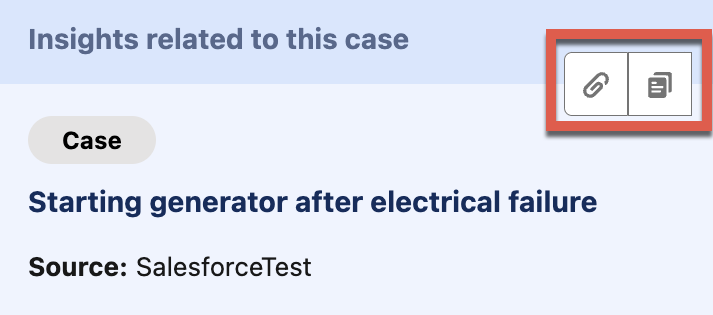
Actions should be located in the `actions` slot in your result templates.
To have more than one result action appear in your search results, include them as children of the [`QuanticResultActionBar`](https://docs.coveo.com/en/quantic/latest/reference/search-components/search-result-action-bar/) component.
```html
<1>
<2>
```
<1> Assuming that your component is named `MyCustomResultAction`, the resulting HTML element would be ``.
<2> The [`quanticResultCopyToClipboard`](https://github.com/coveo/ui-kit/tree/main/packages/quantic/force-app/main/default/lwc/quanticResultCopyToClipboard) component is a premade example of how you can create your own custom result action.
## Implement a custom result action
. Open your project folder in the IDE of your choice.
Create a new Lightning Web Component in `force-app/main/default/lwc`.
In the examples below, the component is named `MyCustomResultAction` and the associated HTML element is ``.
. In the HTML file of your Lightning component, use the `QuanticResultAction` component.
Its [properties](https://docs.coveo.com/en/quantic/latest/reference/search-components/search-result-action#properties) let you define how your custom action will look and behave.
```html
```
In this example, the event `my_custom_event` will be triggered whenever the user interacts with your custom result action button.
> **Note**
>
> The `icon-name` attribute can be set to display any Salesforce [Lightning Design System icon](https://www.lightningdesignsystem.com/icons/).
. In the JavaScript file of your Lightning component, create the logic for your custom event.
The following code is a non-functional example.
For a working implementation, see the [`quanticResultCopyToClipboard`](https://docs.coveo.com/en/quantic/latest/reference/insight-panel-components/insight-panel-result-copy-to-clipboard/) component [JavaScript file](https://github.com/coveo/ui-kit/blob/master/packages/quantic/force-app/main/default/lwc/quanticResultCopyToClipboard/quanticResultCopyToClipboard.js).
```js
import { LightningElement, api } from 'lwc';
export default class MyCustomResultAction extends LightningElement {
@api engineId = 'custom-result-action-engine';
/**
* The result on which your custom result action is to be performed.
* @api
* @type {Result}
*/
@api result;
_loading = false;
connectedCallback() {
this.addEventListener('my_custom_event',this.handleMyCustomEvent);
}
disconnectedCallback() {
this.removeEventListener('my_custom_event',this.handleMyCustomEvent);
}
/**
* Performs my custom action.
* @param {CustomEvent} event
*/
handleMyCustomEvent = (event) => {
event.stopPropagation(); <1>
this._loading = true; <2>
// Execute the logic that performs your custom action.
this._loading = false; <3>
};
}
```
<1> Stops the propagation of the event.
<2> Sets the loading state.
<3> Resets the loading state after the execution of the action.
. Add your new custom result action to your result templates.
The following code is a modified version of the case template included in the Quantic [`exampleSearch`](https://github.com/coveo/ui-kit/tree/main/packages/quantic/force-app/solutionExamples/main/lwc/exampleSearch) component.
```html
[{result.raw.sfcasenumber}]
{result.raw.sfstatus} |
{result.Excerpt}
```
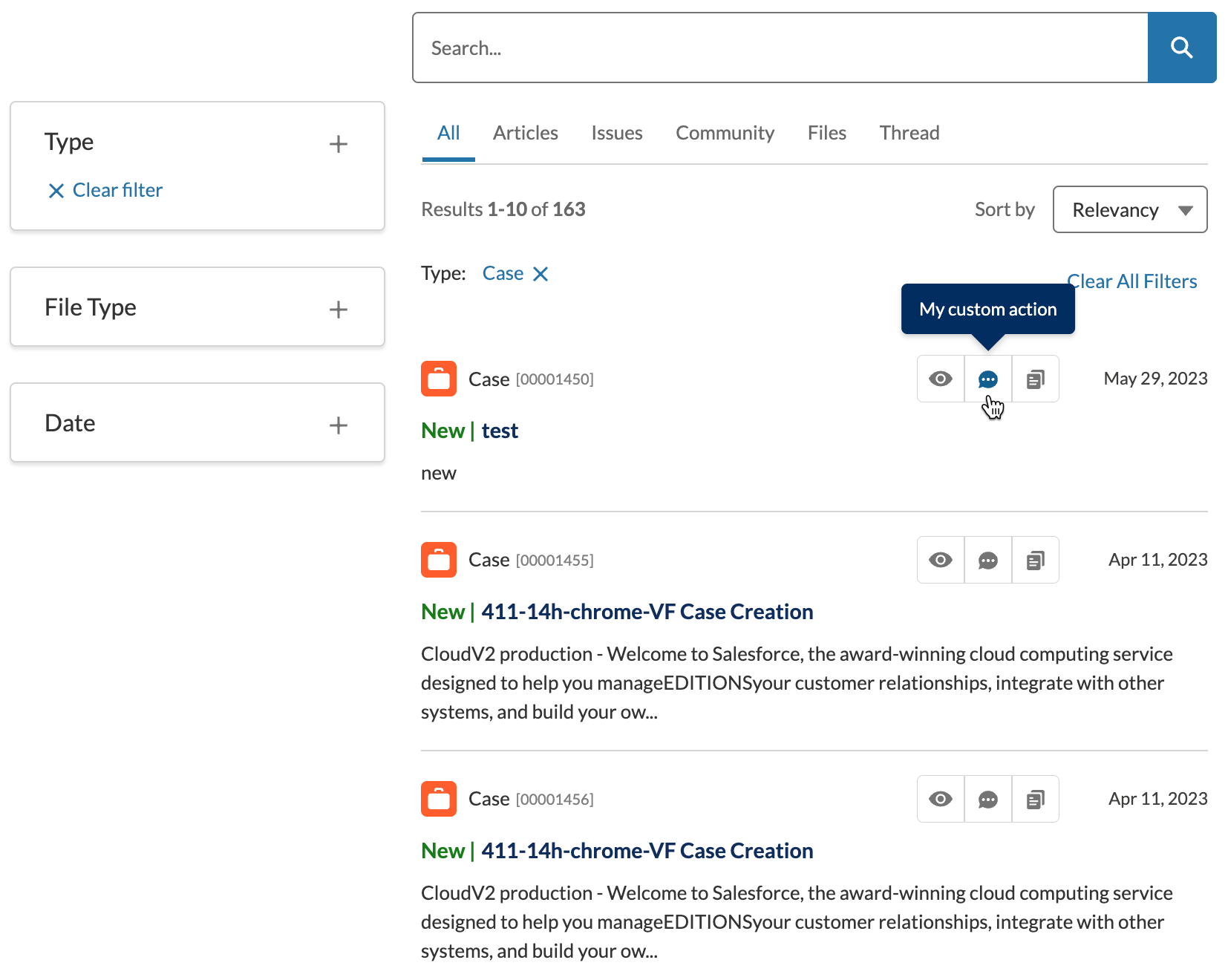
This yields the following result: