---
title: Optimizely
slug: q93b0052
canonical_url: https://docs.coveo.com/en/q93b0052/
collection: integrations
source_format: adoc
---
# Optimizely
+
+
You can integrate Optimizely with Coveo to index selected published content and metadata through the Optimizely Graph API and make it available in a Coveo-powered search experience.
## About Optimizely
[Optimizely](https://www.optimizely.com/) is a digital experience platform for creating and managing content.
## Why use Coveo with Optimizely?
Make selected Optimizely content discoverable alongside content from other systems without changing the Optimizely authoring workflow.
* Help users find the Optimizely content and metadata that are relevant to them.
* Help users refine results by using mapped metadata for filtering, ranking, and result display.
* Present Optimizely content in a Coveo-powered search experience that you can tailor to your users.
## Recommended integration architecture
A Coveo GraphQL API source sends requests to the [Optimizely GraphQL API](https://docs.developers.optimizely.com/platform-optimizely/docs/overview-of-optimizely-graph) and indexes the returned entries and metadata in the [Coveo Platform](https://docs.coveo.com/en/186.md).
A Coveo Atomic search interface can present the indexed content in a website built with Optimizely and send analytics data to the [Coveo Platform](https://docs.coveo.com/en/186.md).
The following diagram shows the recommended Optimizely integration components and their interactions.
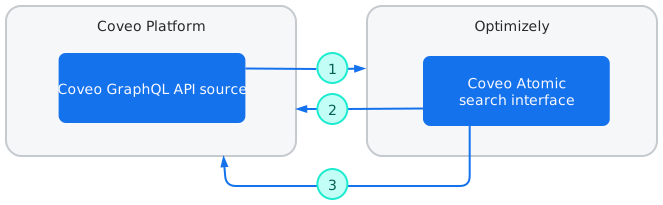
| 1 | The Coveo GraphQL API source retrieves content using the Optimizely GraphQL API. If item-level access permissions don't apply, you can alternatively use a [Coveo Sitemap source](https://docs.coveo.com/en/1967.md) or [Coveo Web source](https://docs.coveo.com/en/malf0160.md). |
|---|---|
| 2 | The Coveo Atomic search interface sends requests to the Coveo Search API. The Search API returns results and AI-generated answers back to the interface. An alternative way to query the Coveo index is through an MCP client-Coveo MCP Server connection. See [AI assistants and agents](https://docs.coveo.com/en/q9ad0472.md) for more information. |
| 3 | The Coveo Atomic search interface sends analytics data to the Coveo Platform, where it can support machine learning models that improve relevance. |
## Prerequisites
Before you start, make sure you have the following:
* An Optimizely Graph environment that contains the content type that you want to [index](https://docs.coveo.com/en/204.md).
* An Optimizely app key and secret when the Graph endpoint requires authentication.
* A tested GraphQL query that returns the selected entries, their metadata, a unique URL for each entry, and a changed field for every indexed entry.
* A [Coveo organization](https://docs.coveo.com/en/185.md) with the [privileges](https://docs.coveo.com/en/228.md) required to create and manage a [GraphQL API source](https://docs.coveo.com/en/o1ae7549.md), fields, and source mappings.
## Integrate Optimizely and Coveo
Follow these steps to configure the Coveo Graph API source and verify the indexed content.
### Step 1: Create a GraphQL API source
Follow the instructions below to add a GraphQL API source that uses the Cloud [content retrieval method](https://docs.coveo.com/en/1612.md).
1. On the [**Sources**](https://platform.cloud.coveo.com/admin/#/orgid/content/sources/) ([platform-ca](https://platform-ca.cloud.coveo.com/admin/#/orgid/content/sources/) | [platform-eu](https://platform-eu.cloud.coveo.com/admin/#/orgid/content/sources/) | [platform-au](https://platform-au.cloud.coveo.com/admin/#/orgid/content/sources/)) page, click **Add source**.
1. In the **Add a source of content** panel, select the **Cloud** (icon:cloud-icon[alt=cloud-icon,width=16]) tab.
1. Click the **GraphQL API** tile.
### Step 2: Configure your source
Configure the Coveo GraphQL API source in the following sections: [Authentication](#authentication-section), [Content to include](#content-to-include-section), and [GraphQL queries](#graphql-queries-section).
The following instructions explain how to configure each section.
#### "Authentication" section
For [basic authentication](https://docs.developers.optimizely.com/platform-optimizely/docs/basic), enter the Optimizely app key in the **Username** field and the app key secret in the **Password** field.
#### "Content to include" section
In the **JSON configuration** box, add the configuration that defines the call to perform against the Optimizely GraphQL API endpoint and how Coveo will handle the response.
See [GraphQL API source configuration reference](https://docs.coveo.com/en/o1ae7549.md) for details.
**Example:**
The following configuration shows how the source could be configured to index article items from your Optimizely service account.
```json
{
"Services": [
{
"Url": "https://cg.optimizely.com/content",
"authentication": {
"username": "@username", <1>
"password": "@password", <1>
"forceBasicAuthentication": "true"
},
"Endpoints": [
{
"paging": {
"pageSize": 2,
"offsetType": "item",
"TotalCountKey": "data.ArticlePage.total"
},
"IndexingAction": {
"ActionOnItem": "Ignore",
"Condition": "NOT(%[my_locale] == \"en\")"
},
"Path": "v2",
"Method": "GET",
"ItemPath": "data.ArticlePage.items",
"SkippableErrorCodes": "404",
"ItemType": "Articles",
"Uri": "https:///%[_metadata.url.default]", <2>
"ClickableUri": "%[_metadata.url.base]%[_metadata.url.default]",
"Title": "%[articleTitle]",
"ModifiedDate": "%[_metadata.lastModified]",
"Body": "%[articleBody.html]",
"Metadata": {
"author": "%[articleAuthors[0]]",
"ec_images": "%[articleHeroImage.url.default]",
"originalUrl": "%[_metadata.url.base]%[_metadata.url.default]",
"my_locale": "%[_metadata.locale]"
},
"QueryParameters": {
"query": "@MyQuery"
}
}
]
}
]
}
```
<1> The `@username` and `@password` placeholders automatically use the credentials you entered in the **Authentication** section without exposing them in clear text.
<2> Replace `` with your actual site URL.
#### "GraphQL queries" section
Configure the GraphQL query you want Coveo to execute to retrieve your content.
1. Click **Add query**.
1. Name your query (for example, `@MyQuery`).
The **GraphQL query** field references your query by its name.
1. In the **GraphQL query** field, enter your query.
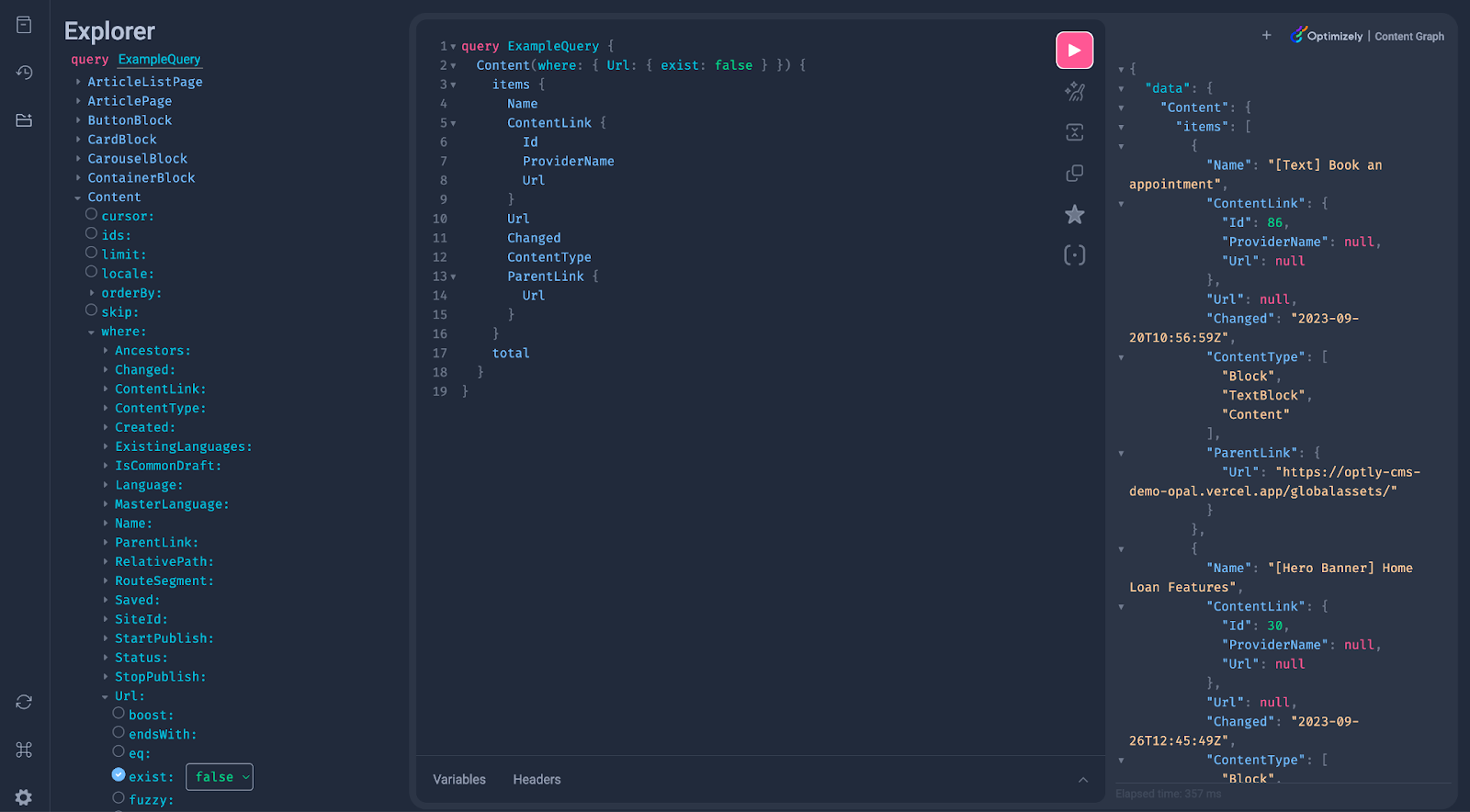
To ensure content freshness, include the `Changed` field in your query so that the source picks up content changes in a timely manner.
+
> **Tip**
>
> To build and test your query, use the Optimizely GraphiQL explorer at `https://cg.optimizely.com/app/graphiql?auth=`.
> Replace `` with your actual single key.
>
> 
### Step 3: Index your Optimizely content
[Build the source](https://docs.coveo.com/en/2039.md), then use the [**Content Browser**](https://platform.cloud.coveo.com/admin/#/orgid/content/browser/) ([platform-ca](https://platform-ca.cloud.coveo.com/admin/#/orgid/content/browser/) | [platform-eu](https://platform-eu.cloud.coveo.com/admin/#/orgid/content/browser/) | [platform-au](https://platform-au.cloud.coveo.com/admin/#/orgid/content/browser/)) to verify the indexed items and metadata.
### Step 4: Create source mappings and fields
The **JSON configuration** extracts item metadata from the API response.
Create the required [source mappings and fields](https://docs.coveo.com/en/1640.md) to index the metadata you want to use in search experiences.
### Step 5: Build the search experience
1. Confirm that Coveo Atomic is the right approach for the Optimizely search experience by following [Choose the right approach](https://docs.coveo.com/en/3368.md).
1. If applicable, follow [Atomic getting started documentation](https://docs.coveo.com/en/atomic/latest/#where-do-i-start) to start building the Coveo Atomic search interface.
> **Tip**
>
> Create your search interface project using the [npm create @coveo/ui](https://docs.coveo.com/en/q8qh2338.md) command line tool.
## Considerations
The provided JSON configuration example doesn't apply access permissions to the indexed items.
To replicate item-level permissions in Coveo, see [Retrieve content with Optimizely Graph](https://docs.developers.optimizely.com/content-management-system/v1.0.0-CMS-SaaS/docs/retrieve-content-using-optimizely-graph?utm_source=chatgpt.com) and [GraphQL API source permission configuration](https://docs.coveo.com/en/n7jg0461.md).
## What's next?
* See [Retrieve content with Optimizely Graph](https://docs.developers.optimizely.com/content-management-system/v1.0.0-CMS-SaaS/docs/retrieve-content-using-optimizely-graph?utm_source=chatgpt.com) and [GraphQL API source permission configuration](https://docs.coveo.com/en/n7jg0461.md) to index permissions for restricted Optimizely content.
* See [Tune relevance](https://docs.coveo.com/en/3371.md) to improve the results returned by the search experience.
* See the [integration directory](https://docs.coveo.com/en/q7ki1127.md) for other Coveo integration opportunities.