---
title: Contentful
slug: q93b0032
canonical_url: https://docs.coveo.com/en/q93b0032/
collection: integrations
source_format: adoc
---
# Contentful
+
+
You can integrate Contentful with Coveo to index selected entries and metadata through the Contentful GraphQL Content API and make the content available in a Coveo-powered search experience.
## About Contentful
[Contentful](https://www.contentful.com/) is a headless content management system that manages structured content and exposes it through APIs.
## Why use Coveo with Contentful?
Make selected Contentful content discoverable alongside content from other systems without changing the Contentful authoring workflow.
* Index the entries and metadata that are relevant to your users.
* Use metadata in search experiences for filtering, ranking, and result display.
* Present Contentful content in a Coveo-powered search experience that you can tailor to your users.
## Recommended integration architecture
A Coveo GraphQL API source sends requests to the Contentful GraphQL Content API and indexes the returned entries and metadata in the [Coveo Platform](https://docs.coveo.com/en/186.md).
A Coveo Atomic search interface can present the indexed Contentful content in a Contentful-powered website and send usage analytics to the [Coveo Platform](https://docs.coveo.com/en/186.md).
The following diagram shows the recommended Contentful integration components and their interactions.
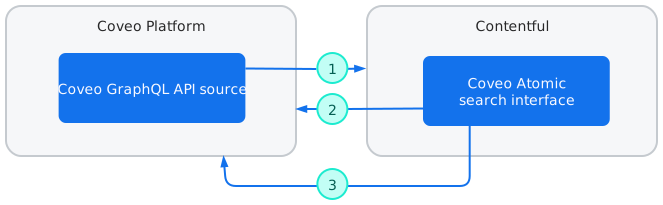
| 1 | The Coveo GraphQL API source retrieves content using the Contentful GraphQL Content API. If item-level access permissions don't apply, you can alternatively use a [Coveo Sitemap source](https://docs.coveo.com/en/1967.md) or [Coveo Web source](https://docs.coveo.com/en/malf0160.md). |
|---|---|
| 2 | The Coveo Atomic search interface sends requests to the Coveo Search API. The Search API returns relevant results to the interface. An alternative way to query the Coveo index is through an MCP client–Coveo MCP Server connection. See [AI assistants and agents](https://docs.coveo.com/en/q9ad0472.md) for more information. |
| 3 | The Coveo Atomic search interface sends usage analytics to the Coveo Platform, where it can support machine learning models that improve relevance. |
## Prerequisites
Before you start, make sure you have the following:
* A Contentful space and environment that contain the entries you want to [index](https://docs.coveo.com/en/204.md).
The Contentful space ID required to configure the GraphQL API request.
* A Contentful API key that can read the selected content.
* A tested GraphQL query that returns the selected entries, their metadata, a unique URL for each entry, and a field that indicates the last time an entry changed.
* A [Coveo organization](https://docs.coveo.com/en/185.md) with the [privileges](https://docs.coveo.com/en/228.md) required to create and manage a [GraphQL API source](https://docs.coveo.com/en/o1ae7549.md), fields, and source mappings.
## Integrate Contentful and Coveo
Follow these steps to configure the Coveo GraphQL API source and verify the indexed content.
### Step 1: Create a GraphQL API source
Follow the instructions below to add a GraphQL API source that uses the Cloud [content retrieval method](https://docs.coveo.com/en/1612.md).
1. On the [**Sources**](https://platform.cloud.coveo.com/admin/#/orgid/content/sources/) ([platform-ca](https://platform-ca.cloud.coveo.com/admin/#/orgid/content/sources/) | [platform-eu](https://platform-eu.cloud.coveo.com/admin/#/orgid/content/sources/) | [platform-au](https://platform-au.cloud.coveo.com/admin/#/orgid/content/sources/)) page, click **Add source**.
1. In the **Add a source of content** panel, select the **Cloud** (icon:cloud-icon[alt=cloud-icon,width=16]) tab.
1. Click the **GraphQL API** tile.
### Step 2: Configure your source
Configure the Coveo GraphQL API source in the following sections: [Authentication](#authentication-section), [Content to include](#content-to-include-section), and [GraphQL queries](#graphql-queries-section).
The following instructions explain how to configure each section.
#### "Authentication" section
Enter your [Contentful API Key](https://www.contentful.com/developers/docs/references/authentication/) in the **API key** box.
#### "Content to include" section
In the **JSON configuration** box, add the configuration that defines the call to perform against the Contentful GraphQL Content API endpoint and how Coveo will handle the response.
See [GraphQL API source configuration reference](https://docs.coveo.com/en/o1ae7549.md) for details.
**Example:**
The following configuration shows how the source could be configured to index article items from the `https://help.barca.group` demo site.
```json
{
"Services": [
{
"Url": "https://graphql.contentful.com",
"Headers": {
"Authorization": "Bearer @ApiKey" <1>
},
"Endpoints": [
{
"paging": {
"offsetType": "item",
"pageSize": 25,
"TotalCountKey": "data.barcaHelpCollection.total"
},
"Path": "content/v1/spaces/", <2>
"Method": "GET",
"ItemPath": "data.barcaHelpCollection.items",
"SkippableErrorCodes": "404",
"ItemType": "Article",
"Body": "%[body]",
"Uri": "https://help.barca.group/article/%[cat_slug]", <3>
"ClickableUri": "https://help.barca.group/article/%[cat_slug]",
"Title": "%[title]",
"ModifiedDate": "%[sys.publishedAt]",
"Metadata": {
"articletags": "%[tags[*]]",
"cat_slug": "%[slug]",
"ec_category": "%[ecCategory[*]]",
"ec_description": "%[ecShortdesc]",
"ec_shortdesc": "%[ecShortdesc]",
"eng_blogimage": "%[engBlogimage.url]",
"objecttype": "Article",
"thumbnailurl": "%[engBlogimage.url]?w=240"
},
"QueryParameters": {
"query": "@MyQuery" <4>
}
}
]
}
]
}
```
<1> The `@ApiKey` placeholder automatically uses the **API key** value you entered in the **Authentication** section without exposing it in clear text.
<2> Replace `` with your actual Contentful space ID.
<3> Each Coveo indexed item must have a unique URL.
Concatenating `https://help.barca.group/article/` with the `%[cat_slug]` dynamic value creates that unique URL.
<4> The `QueryParameters.query` value must match the name of a GraphQL query defined in the [**GraphQL queries** section](#graphql-queries-section).
#### "GraphQL queries" section
Configure the GraphQL query you want Coveo to execute to retrieve your content.
1. Click **Add query**.
1. Name your query (for example, `@MyQuery`).
The **GraphQL query** field references your query by its name.
1. In the **GraphQL query** field, enter your query.
To ensure content freshness, include a date field that gets updated on an item modification so that the source picks up content changes in a timely manner.
+
> **Tip**
>
> To build and test your queries, use the [GraphiQL App](https://www.contentful.com/marketplace/graphiql/).
>
> 
### Step 3: Index your Contentful content
[Build the source](https://docs.coveo.com/en/2039.md), then use the [**Content Browser**](https://platform.cloud.coveo.com/admin/#/orgid/content/browser/) ([platform-ca](https://platform-ca.cloud.coveo.com/admin/#/orgid/content/browser/) | [platform-eu](https://platform-eu.cloud.coveo.com/admin/#/orgid/content/browser/) | [platform-au](https://platform-au.cloud.coveo.com/admin/#/orgid/content/browser/)) to verify the indexed items.
### Step 4: Create source mappings and fields
The **JSON configuration** extracts item metadata from the API response.
Create the required [source mappings and fields](https://docs.coveo.com/en/1640.md) to index the metadata you want to use in search experiences.
### Step 5: Build the search experience
1. Confirm that Coveo Atomic is the right approach for the Contentful search experience by following [Choose the right approach](https://docs.coveo.com/en/3368.md).
1. If applicable, follow [Atomic getting started documentation](https://docs.coveo.com/en/atomic/latest/#where-do-i-start) to start building the Coveo Atomic search interface.
> **Tip**
>
> Create your search interface project using the [npm create @coveo/ui](https://docs.coveo.com/en/q8qh2338.md) command line tool.
## Considerations
The provided JSON configuration example doesn't apply access permissions to the indexed items.
To replicate item-level permissions in Coveo, see [GraphQL API source permission configuration](https://docs.coveo.com/en/n7jg0461.md).
## What's next?
* See [GraphQL API source permission configuration](https://docs.coveo.com/en/n7jg0461.md) to index permissions for restricted Contentful content.
* See [Tune relevance](https://docs.coveo.com/en/3371.md) to improve the results returned by the search experience.
* See the [integration directory](https://docs.coveo.com/en/q7ki1127.md) for other Coveo integration opportunities.