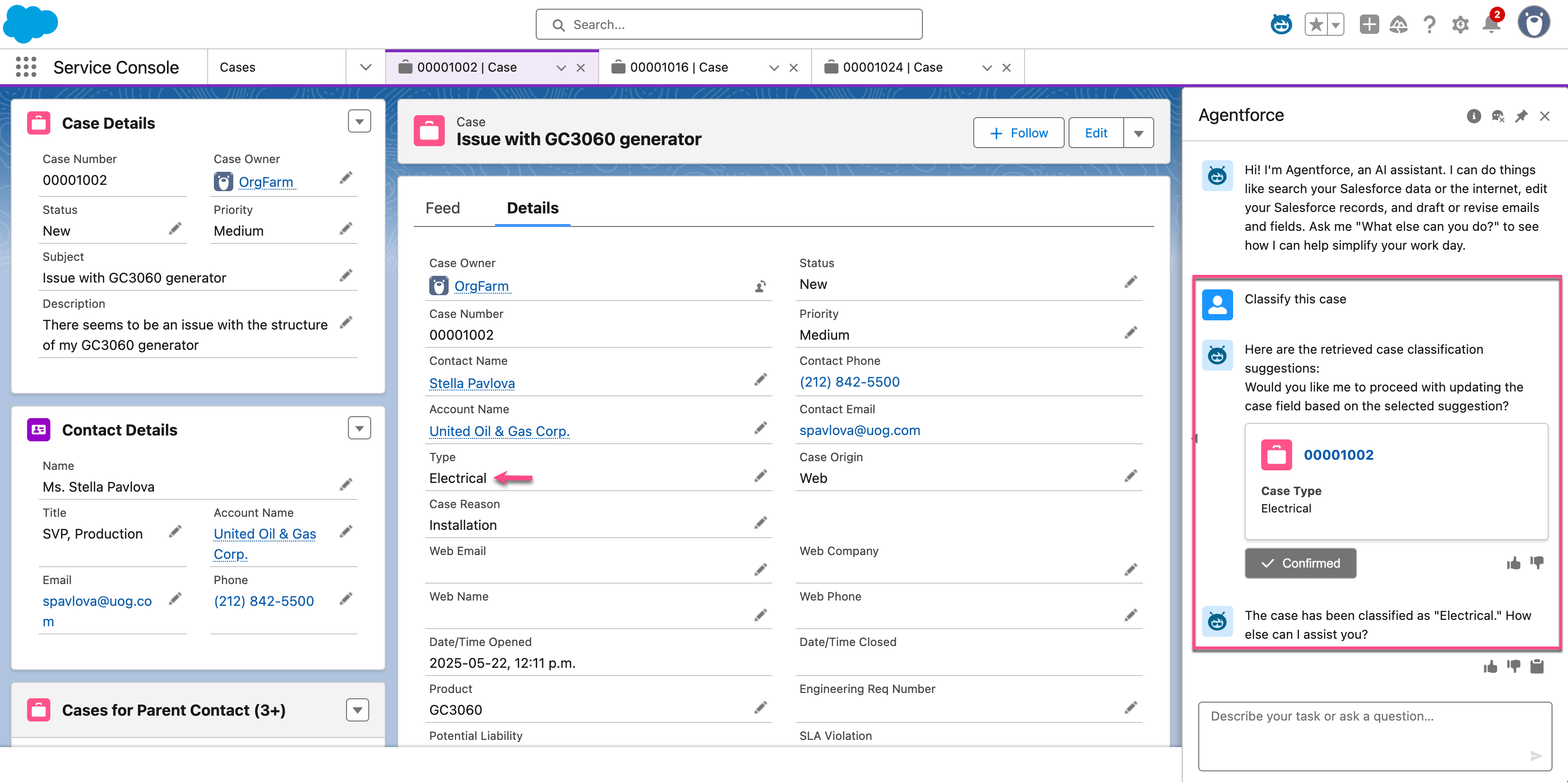
--- title: Set up and deploy the Coveo Case Classification API action slug: p5fa9599 canonical_url: https://docs.coveo.com/en/p5fa9599/ collection: coveo-for-agentforce source_format: adoc --- # Set up and deploy the Coveo Case Classification API action The **Coveo Case Classification API** action brings real-time case classification to your Agentforce AI agents. Built on the [Coveo Machine Learning](https://docs.coveo.com/en/188/) [Case Classification (CC)](https://docs.coveo.com/en/m4596348/) model, this action uses [natural language processing (NLP)](https://docs.coveo.com/en/ncc80129/) to analyze the case subject and description, suggesting the most relevant case classifications directly in the Agentforce chat window. ![Case Classification API action | Coveo for Agentforce](https://docs.coveo.com/en/assets/images/coveo-for-agentforce/case-classification-action-in-service-console.png) This article describes how to configure and use the **Coveo Case Classification API** action in your Salesforce organization. To do so, you must: . [Configure the action](#configure-the-action). . [Deploy the action](#deploy-the-action). Once you've completed these steps, you can [test the action](#test-the-action) to confirm it's working as expected. ## Prerequisites > **Important** > > The Agentforce interface evolves quickly, and updates are added regularly. > Although we strive to keep this documentation current, you may encounter discrepancies between this content and the current state of the Agentforce interface. Before you start, make sure you have: * [Installed Coveo for Agentforce](https://docs.coveo.com/en/p5fa5221/) in your Salesforce organization. * [Enabled Prompt Builder](https://help.salesforce.com/s/articleView?id=ai.prompt_builder_enable.htm&type=5) in your Salesforce organization. > **Tip** > > Assign the **Prompt Template Manager** permission set to users who create and manage prompt templates in the Prompt Builder, regardless of whether they're System Administrator users. * [Created an API key](https://docs.coveo.com/en/1718#create-an-api-key) using the **Anonymous Case Assist** template in the [Coveo Administration Console](https://docs.coveo.com/en/183/) to call the [Coveo Customer Service API](https://docs.coveo.com/en/3321/). > **Tip** > > This template includes the [Analytics data: Push](https://docs.coveo.com/en/1707#analytics-data-domain) and [Use Case Assist: Allowed](https://docs.coveo.com/en/1707#use-case-assist-domain) privileges. * A [Coveo Case Assist](https://docs.coveo.com/en/l2bg0226/) implementation that includes the [Case Classification functionality](https://docs.coveo.com/en/3328#configuring-the-case-classification-functionality). * A valid [Case Assist ID](https://docs.coveo.com/en/3328#retrieving-a-case-assist-id). * A valid [Coveo organization ID](https://docs.coveo.com/en/n1ce5273/). ## Configure the action Configuring the **Coveo Case Classification Apex action** Agentforce action is a two-step process. It involves [setting up the external credential and API key](#set-up-the-external-credential-and-api-key) and [creating a custom metadata configuration](#create-a-custom-metadata-configuration). ### Set up the external credential and API key . From the Salesforce Setup menu, in the Quick Find box, enter `Named Credentials`, and then select **Named Credentials**. . Select the **External Credentials** tab, and then click **Coveo Case Classification Apex action**. . On the page that opens, go to the **Principals** section. . Find the entry for the **CSAPI** principal, click [down] to access the Actions menu, and then select **Edit**. > **Important** > > The **CSAPI** principal must not be deleted. > It's required for the authorization flow to work properly. ![Principal edit menu | Coveo for Agentforce](pass:m[coveo-for-agentforce/csapi-principal.png]) . [[APIKeyRequirement]]On the **Edit Principal** page, under **Authentication Parameter**, click **Add** to create your authentication parameter. > **Important** > > This step assumes that you've already [created an API key](https://docs.coveo.com/en/1718#create-an-api-key) using the **Anonymous Case Assist** template in the [Coveo Administration Console](https://docs.coveo.com/en/183/) (see [Prerequisites](#prerequisites)). > If you haven't, you must complete this task before proceeding. > > {search-hub-recommendation} .. In the **Name** field, enter `apikey`. .. [[PRAPIKey]]In the **Value** field, enter the API key that will be used to call the Coveo Customer Service API. .. Click **Save**. . To reopen the **Edit Principal** page, find the entry for the **CSAPI** principal, click [down] to access the Actions menu, and then select **Edit**. . On the **Edit Principal** page, under **Principal Access**, right-click **CSAPI_Named_Principal_Access**, and then select **Open Link in New Tab** to open the permission set in a new tab. ![Edit principal panel | Coveo for Agentforce](pass:m[coveo-for-agentforce/csapi-edit-principal.png]) > **Tip** > > This permission set is included in the Coveo for Agentforce package to simplify granting access to users who will use the **Coveo Case Classification Apex action** Agentforce action through an Agentforce AI agent. > > Granting access to this external credential is therefore required for all users who will be using this Agentforce action. > Otherwise, the Agentforce AI agent won't be able to use the API key to call the Coveo Customer Service API. > For additional ways to set external credentials, see [Enable User External Credentials](https://help.salesforce.com/s/articleView?id=xcloud.nc_user_external_credentials.htm&type=5). . Under **Permission Set** for the **Coveo Case Classification Authorization Named Principal Access**, click **Manage Assignments** to grant users permission to use the Customer Service API key specified in [step 5b](#PRAPIKey). ![Manage Assignments button | Coveo for Agentforce](pass:m[coveo-for-agentforce/case-classification-manage-assignments.png]) . The setup of the external credential and API key is now complete. You must now [create a custom metadata configuration](#create-a-custom-metadata-configuration). ### Create a custom metadata configuration . From the Setup menu, in the Quick Find box, enter `Custom Metadata Types`, and then select **Custom Metadata Types**. . On the page that opens, scroll to **Coveo Case Classification Apex action Configuration**, and then click **Manage Records**. . Click **New** to create a record. This record will serve as a configuration to call the Customer Service API. ![Record configuration page | Coveo for Agentforce](pass:m[coveo-for-agentforce/csapi-configuration.png]) .. In the **Label** field, enter a descriptive name for your configuration (for example, `Case Classification Configuration`). .. [[config-name]]By default, the **Coveo Case Classification Configuration Name** field is automatically filled by Salesforce based on the information you entered in the **Label** field. Don't modify this value. > **Tip** > > Take note of the configuration name. > Depending on your implementation, you'll need to specify it when creating your [prompt template](#prompt-template) and when defining your topic instructions for the [default Apex action](#cc-default-topic-instructions). .. In the **Case Assist Id** field, enter the [ID of your Case Assist configuration](https://docs.coveo.com/en/3328#retrieving-a-case-assist-id). .. In the **Organization Id** field, enter the [ID of your Coveo organization](https://docs.coveo.com/en/n1ce5273/). .. In the **Field Names Mapping** field, enter the mapping of the Coveo [fields](https://docs.coveo.com/en/200/) and their corresponding Salesforce fields that will be used to classify cases (for example, `{"sfType":"Type", "sfPriority":"Priority"}`). **Click to show mapping details**
Details The format for specifying the mapping of Coveo fields is: `{"":"", ..., "":""}` Where: * `` to `` are the names of the Coveo fields that will be used to classify cases. Depending on the [Case Classification method](https://docs.coveo.com/en/3328#configuring-the-case-classification-functionality) used in your Case Assist implementation, the Coveo field names can be found either in the **Identify fields for classification** section of your Case Assist configuration (Case Similarity) or in the **Fields to provide suggestions** section of your [Case Classification (CC) model configuration](https://docs.coveo.com/en/l57f1282/) (Context Recognition). * `` to `` are the API names (not the labels) of the fields in the `Case` object in Salesforce. Take note that for custom fields, the Salesforce API names end with `\__c` (for example, `{"sfsoftware__c":"Software__c"}`). For more information, see [About objects and fields](https://docs.coveo.com/en/1052#about-object-and-field-names).
.. Click **Save** to save your configuration. ## Deploy the action To deploy the **Coveo Case Classification API** action, you have two options: * (Recommended) [Create a custom prompt template action](#create-a-custom-prompt-template-action-recommended): Choose this option for greater flexibility and control over the action's behavior. * (Out-of-the-box) [Use the Apex action](#use-the-apex-action): Choose this option to set up the action quickly without extensive customization. ### Create a custom prompt template action (Recommended) To create an Agentforce action using a custom prompt template, you must: . [Create a prompt template](#create-a-prompt-template). . [Access your Agentforce AI agent](#access-your-agentforce-ai-agent). . [Create a topic](#create-a-topic). . [Assign Agentforce actions to your topic](#assign-agentforce-actions-to-your-topic). #### Create a prompt template . From the Salesforce Setup menu, in the Quick Find box, enter **Prompt Builder**, and then select **Prompt Builder**. . In the upper-right corner of the builder, click **New Prompt Template**. . On the **New Prompt Template** page, specify the following information: ![Create a prompt template | Coveo for Agentforce](pass:m[coveo-for-agentforce/ccapi-new-prompt-template.png]) .. From the **Prompt Template Type** dropdown menu, select **Flex**. .. [[prapi-prompt-template-name]][[ccapi-prompt-template-name]]In the **Prompt Template Name** field, enter a descriptive name for your prompt template (for example, `Coveo Case Classify`). The **API Name** field is automatically filled by Salesforce based on the information you entered in the **Prompt Template Name** field. Don't modify this value. .. (Optional) In the **Template Description** field, provide a brief description of your prompt template (for example, `Coveo Case Classification flex prompt template`). .. Under **Inputs**, click **Add**, and then specify the following data sources: ... In the **Name** field, enter `caseRecord` as the descriptive name for your case record source. The **API Name** field is automatically filled by Salesforce based on the information you entered in the **Name** field. Don't modify this value. ... From the **Source type** dropdown menu, select **Object**. ... In the **Object** field, select **Case**, and then click **Add**. > **Tip** > > Keep the **Require when template runs** checkbox selected for all data sources. > This ensures that the prompt template action only runs when all required data sources are provided. ... In the next **Name** field, enter `caseClassificationConfiguration` as the descriptive name for your Case Classification configuration source. The **API Name** field is automatically filled by Salesforce based on the information you entered in the **Name** field. Don't modify this value. ... From the **Source type** dropdown menu, select **Free Text**. .. Click **Next** to access the **Prompt Builder**. . [[prompt-template-workspace]]In the **Prompt Builder**, enter your prompt template instructions and specify related resources. > **Important** > > Writing prompt template instructions is an iterative process. > The information in this section isn't exhaustive and only provides an example. > Adjust the information to fit your specific use case. > See [Best Practices for Building Prompt Templates](https://help.salesforce.com/s/articleView?id=ai.prompt_builder_best_practices.htm&type=5) for guidelines and recommendations. > **Warning** > > You must include the `Apex:CoveoAgentforce__InvocableCaseClassifyFlexTemplate` Apex class in your prompt template instructions. > This class calls the Coveo Customer Service API to retrieve case classification suggestions. > The case `Subject` and `Description` fields must also be specified in your prompt template instructions. > > All field references such as `{!$Input:caseRecord.}` in the following example are links to [resources](https://help.salesforce.com/s/articleView?id=ai.prompt_builder_get_to_know.htm&type=5). > You must specify them by selecting **Insert Resource** in the **Prompt** section. > Don't paste them in the instructions. **Example** ```text Context: You're a service agent and knowledge expert looking to help agents solve their cases. Your goal is to help agents classify cases more effectively by making it easier to analyze case information, and ultimately improve their efficiency. Agents rely on your suggestions to classify cases but ultimately decide which classification is most appropriate. Instructions: Retrieve the Case Classification suggestions from the Coveo Customer Service API by calling {!$Apex:CoveoAgentforce__InvocableCaseClassifyFlexTemplate.Prompt}. This Apex class has a method that sends the Subject and Description to an external service API and returns a list of suggested case classifications. When making the call, use the {!$Input:caseRecord.Subject} and {!$Input:caseRecord.Description} fields as input, and include the {!$Input:caseClassificationConfiguration} custom metadata record in the Apex class call. As for the output of this action: - Return only the 3 suggestions that have the highest confidence score. - Display each suggestion in the following format: 1. Suggestion value (confidence score: 0.xxxx) (Round the confidence score to 4 decimal places.) - Include a call-to-action button that allows the user to apply their selected suggestion to the corresponding field. Always start the response with the following: Here are the classification suggestions for case {!$Input:caseRecord.CaseNumber}: Always ask the following before the call to action buttons to update the field: Please select a suggestion to apply to the classification field: Always display buttons to apply the chosen classification by the user to the corresponding field. Always provide the response in HTML rich text format with proper formatting: - Return plain HTML output without wrapping it inside code blocks (``` or ```html). - Use `bold` instead of `**bold**`. - Format superscript text using `number` instead of `^number^`. - For resolution steps, use the following format: Salesforce Field Name Label 1: 1. Option 1 2. Option 2 3. Option 3 Salesforce Field Name Label 2: 4. Option 1 5. Option 2 6. Option 3 Constraints: You must adhere to the following constraints when generating your response: - Provide brief, declarative sentences using the active voice. - Strictly avoid using filler words, slang, and redundant language. - You must write in English unless otherwise specified. - You must follow the given instructions. You must not address any content or generate answers that you don't have data on or basis for. ``` . [[prompt-template]] At the upper-left corner of the Prompt Builder, click **Preview Settings** (![Prompt Builder Preview Settings icon | Coveo for Agentforce](coveo-for-agentforce/prompt-builder-preview-settings-icon-button.png)) to specify your prompt template settings. .. In the **Inputs** section, specify the following information: ... In the **caseRecord** field, enter a case record ID (for example, `00001027`). ... In the **caseClassificationConfiguration** field, enter the name of your Case Classification configuration. Make sure it matches the name of the custom metadata configuration you created in [step 3b](#config-name). .. In the **Output** section: ... Ensure the **Generate Response** option is enabled. ... From the **Response Language** dropdown menu, select **English**. ... Under **On Preview**, ensure the **Expand Resolved Prompt** and **Expand Generated Response** checkboxes are selected. . Click **Save & Preview** to save your prompt template settings and preview the results. For subsequent changes, click **Preview** to see the updated results. . Once you're satisfied with the results, click **Activate** to enable your prompt template. #### Access your Agentforce AI agent . From the Salesforce Setup menu, in the Quick Find box, enter `Agentforce Agents`, and then select **Agentforce Agents**. . On the page that opens, find your Agentforce AI agent, such as Einstein Copilot or Agentforce (Default), click [down] to access the Actions menu, and then select **Open in Builder**. > **Important** > > You can't use Coveo-powered Agentforce actions in a [Service Agent](https://help.salesforce.com/s/articleView?id=ai.agent_setup_explore_types.htm&type=5) at this time. > Use a different agent type to leverage your Coveo-powered actions. . If your Agentforce AI agent is currently active, click **Deactivate** in the upper-right corner of the Agentforce Builder. > **Tip** > > You must always deactivate your Agentforce AI agent to make changes to it. #### Create a topic . In the Agentforce Builder, select **Topics** from the left tab. . Click the **New** actions menu, and then select **New Topic**. . (Optional) In the **Create a Topic** modal, specify the job you want this topic to perform. > **Tip** > > You can skip this step and specify the job you want this topic to perform in the second step of the modal. . Click **Next**. . In the second step of the modal, specify the following information: ![Create a topic page | Coveo for Agentforce](pass:m[coveo-for-agentforce/csapi-create-a-topic.png]) > **Important** > > Creating a topic is an iterative process. > The information in this section isn't exhaustive and is only meant to provide you with an example. > You must adjust the information to fit your specific use case. > See [Best Practices for Topic Instructions](https://help.salesforce.com/s/articleView?id=ai.copilot_topics_instructions.htm&type=5) for guidance on writing effective instructions for your topic. .. In the **Name** field, enter a descriptive name for your topic (for example, `Case Classification`). By default, the **API Name** field is automatically filled by Salesforce based on the information you entered in the **Name** field. .. In the **Classification Description** field, provide a brief topic description (1-3 sentences). Enter text similar to the following: **Example** ```text When a user asks to classify a case, this topic uses the custom Coveo Case Classify prompt template action to get classification suggestions. ``` The description should be clear and concise, providing enough context for the topic's purpose. Agentforce uses this information to determine the topic to use when answering questions. .. In the **Scope** field, give your topic a job description. Enter text similar to the following: **Example** ```text Your job is to retrieve case classifications using the custom Coveo Case Classify prompt template action and return them to the user as suggestions to help classify the case. ``` .. In the **Instruction** field, instruct Agentforce to use your custom prompt template action to retrieve case classification suggestions. **Example** ```text Always use the custom Coveo Case Classify prompt template action to retrieve case classification suggestions. ``` .. In the **Example User Input** fields, add examples of questions that users might ask. > **Tip** > > This section is only available if you're using the [Agentforce (Default) agent](https://help.salesforce.com/s/articleView?id=ai.agent_setup_explore_types.htm&type=5). > If you're using a custom agent, you can skip this step. **Examples** ```text Can you provide classification suggestions for this case? ``` ```text Classify this case. ``` . Click **Next**. . Skip the **Select the actions you want to include in your topic** step. This task is covered in the [next section](#assign-agentforce-actions-to-your-topic-2). . Click **Finish** to create your topic. > **Tip** > > If a **Topic Overlap Detected** warning appears, review your topics to ensure they're distinct. > Make any necessary adjustments to avoid overlap. #### Assign Agentforce actions to your topic . In the **Topics** panel, select the topic you created. . In the **Topic Details** panel, select **This Topic's Actions**. ![Topic details panel | Coveo for Agentforce](pass:m[coveo-for-agentforce/case-classification-topic-details-default-action.png]) . Click the **New** action menu, and then select **Add from Asset Library**. . From the **Add Available Actions** panel, select the **Extract Fields And Values From User Input** and the **Update Record** actions, and then click **Finish**. The **This Topic's Actions** tab now displays the actions you added. ![Topic actions | Coveo for Agentforce](https://docs.coveo.com/en/assets/images/coveo-for-agentforce/case-classification-prompt-template-topic-actions.png) . To add your custom prompt template action to the topic, click the **New** action menu, and then select **Create New Action**. . On the **Create an Agent Action** page, specify the following information: ![Create an agent action modal | Coveo for Agentforce](https://docs.coveo.com/en/assets/images/coveo-for-agentforce/case-classification-create-agent-action-modal.png) .. From the **Reference Action Type** dropdown menu, select **Prompt Template**. .. From the **Reference Action** field, select the prompt template you created (for example, **Coveo Case Classify**). The **Agent Action Label** and **Agent Action API Name** fields are automatically filled by Salesforce. .. Click **Next** and scroll to the **Agent Action Configuration** section. ![Agent Action Configuration panel | Coveo for Agentforce](https://docs.coveo.com/en/assets/images/coveo-for-agentforce/cc-agent-action-configuration-2.png) .. In the **Agent Action Instructions** field, enter a description for your custom action. **Example** [source,text] This custom action retrieves case classification suggestions using the Coveo Customer Service API. Use this action whenever a user asks to classify a case. .. Clear the **Show loading text for this action** checkbox. .. Under the **Inputs** section: ... Provide instructions for the **caseRecord** input. **Example** [source,text] The case record to classify. ... Provide instructions for the **caseClassificationConfiguration** input. **Example** [source,text] The name of the custom metadata type record to apply to the Case Classification configuration. Valid values include the Developer Name "Case_Classification_Configuration" or the fully qualified name "MyNamespace__Case_Classification_Configuration". .. Under the **Output** section: ... Under **Data Type**, select the **Show in conversation** checkbox. ... From the **Output Rendering** dropdown menu, select **Rich Text**. .. Click **Finish** to create your action. The **This Topic's Actions** tab now displays your custom prompt template action. ![Case Classification prompt template action | Coveo for Agentforce](https://docs.coveo.com/en/assets/images/coveo-for-agentforce/cc-prompt-template-action.png) > **Tip** > > If you don't see your custom prompt template action in the list, refresh the page. . Click **Activate** in the upper-right corner of the builder to activate your AI agent. . [Test your custom prompt template action](#test-the-action) to confirm it's working as expected. You've successfully set up and deployed the **Coveo Case Classification API** Agentforce action using a custom prompt template. Your Agentforce AI agent is now able to classify cases in real time, helping agents categorize support cases more efficiently. ### Use the Apex action To deploy the **Coveo Case Classification API** action using the default Apex action, you must: . [Access your Agentforce AI agent](#access-your-agentforce-ai-agent-2). . [Create a topic](#create-a-topic-2). . [Assign Agentforce actions to your topic](#assign-agentforce-actions-to-your-topic-2). #### Access your Agentforce AI agent . From the Salesforce Setup menu, in the Quick Find box, enter `Agentforce Agents`, and then select **Agentforce Agents**. . On the page that opens, find your Agentforce AI agent, such as Einstein Copilot or Agentforce (Default), click [down] to access the Actions menu, and then select **Open in Builder**. > **Important** > > You can't use Coveo-powered Agentforce actions in a [Service Agent](https://help.salesforce.com/s/articleView?id=ai.agent_setup_explore_types.htm&type=5) at this time. > Use a different agent type to leverage your Coveo-powered actions. . If your Agentforce AI agent is currently active, click **Deactivate** in the upper-right corner of the Agentforce Builder. > **Tip** > > You must always deactivate your Agentforce AI agent to make changes to it. #### Create a topic . In the Agentforce Builder, select **Topics** from the left tab. . Click the **New** actions menu, and then select **New Topic**. . (Optional) In the **Create a Topic** modal, specify the job you want this topic to perform. > **Tip** > > You can skip this step and specify the job you want this topic to perform in the second step of the modal. . Click **Next**. . In the second step of the modal, specify the following information: ![Create a topic page | Coveo for Agentforce](pass:m[coveo-for-agentforce/csapi-create-a-topic.png]) > **Important** > > Creating a topic is an iterative process. > The information in this section isn't exhaustive and is only meant to provide you with an example. > You must adjust the information to fit your specific use case. > See [Best Practices for Topic Instructions](https://help.salesforce.com/s/articleView?id=ai.copilot_topics_instructions.htm&type=5) for guidance on writing effective instructions for your topic. .. In the **Name** field, enter a descriptive name for your topic (for example, `Case Classification`). By default, the **API Name** field is automatically filled by Salesforce based on the information you entered in the **Name** field. .. In the **Classification Description** field, provide a brief topic description (1-3 sentences). Enter text similar to the following: **Example** ```text When a user asks to classify a case, this topic uses the Coveo Case Classification API action to get classification suggestions. ``` The description should be clear and concise, providing enough context for the topic's purpose. Agentforce uses this information to determine the topic to use when answering questions. .. In the **Scope** field, give your topic a job description. Enter text similar to the following: **Example** ```text Your job is to retrieve case classifications using the Coveo Case Classification API action and return them to the user as suggestions to help classify the case. ``` .. [[cc-default-topic-instructions]]In the **Instructions** fields, enter text similar to the following: **Examples** * **Instruction 1** (mandatory) ```text Always use the Coveo Case Classification API action to retrieve case classification suggestions. ``` * **Instruction 2** (mandatory) ```text When calling the Coveo Case Classification API action, always use the current case record Subject and Description fields as input. ``` * **Instruction 3** (mandatory) ```text Always use the following as input for the Coveo Case Classification API action: {"caseClassificationConfiguration":{""}} ``` Where `` is the name of the custom metadata configuration you created in the [step 3b](#config-name). * **Instruction 4** (mandatory) ```text Always end your response by prompting the user to select one or more suggestions to apply to the case field, separated by a comma. Always use the Update Record action to update the fields with the selected suggestions. ``` * **Instruction 5** (optional) ```text Always start the response with the following text: Here are the case classification suggestions: ``` * **Instruction 6** (optional) ```text If no suggestions are returned, say you couldn't find classification suggestions for the case record. ``` * **Instruction 7** (optional) ```text Always format your response as follows: Group suggestions by salesforceFieldName. Sort each group by descending confidence score. Insert a newline (\n) after each group. Display no more than 3 suggestions per field. Use continuous index numbering across all fields (don't restart at 1 for each group) Round confidence values to 4 decimal places. Format the output of each suggestion as follows: :\n. (confidence: )\n ... Each suggestion must be on its own line. ``` .. In the **Example User Input** fields, add examples of questions that users might ask. > **Tip** > > This section is only available if you're using the [Agentforce (Default) agent](https://help.salesforce.com/s/articleView?id=ai.agent_setup_explore_types.htm&type=5). > If you're using a custom agent, you can skip this step. **Example** * **Example User Input**: ```text Can you provide classification suggestions for this case? ``` * **Example User Input**: ```text Classify this case. ``` . Click **Next**. . Skip the **Select the actions you want to include in your topic** step. This task is covered in the [next section](#assign-agentforce-actions-to-your-topic). . Click **Finish** to create your topic. > **Tip** > > If a **Topic Overlap Detected** warning appears, review your topics to ensure they're distinct. > Make any necessary adjustments to avoid overlap. #### Assign Agentforce actions to your topic . In the **Topics** panel, select the topic you created. . In the **Topic Details** panel, select **This Topic's Actions**. ![Topic details panel | Coveo for Agentforce](pass:m[coveo-for-agentforce/case-classification-topic-details-default-action.png]) . Click the **New** action menu, and then select **Add from Asset Library**. . From the **Add Available Actions** panel, select the **Coveo Case Classification API**, **Extract Fields And Values From User Input**, and **Update Record** actions, and then click **Finish**. The **This Topic's Actions** tab now displays the actions you added. ![Topic actions tab | Coveo for Agentforce](https://docs.coveo.com/en/assets/images/coveo-for-agentforce/case-classification-topic-actions.png) . Click **Activate** in the upper-right corner of the builder to activate your AI agent. . [Test your default Apex action](#test-the-action) to confirm it's working as expected. You've successfully set up and deployed the default **Coveo Case Classification API** Apex action. Your Agentforce AI agent is now able to classify cases in real time, helping agents categorize support cases more efficiently. ## Test the action . Open a case record in the [Lightning Service Console](https://help.salesforce.com/s/articleView?id=service.console_lex_service_intro.htm&type=5). > **Tip** > > Make sure the record's **Case Details** tab includes the field or fields being suggested by the **Coveo Case Classification API** action. > If it doesn't, use the Object Manager to edit the fields of the Case object accordingly. See [Customizing Case Fields](https://help.salesforce.com/s/articleView?id=service.cases_field_customization.htm&type=5) for details. . Click ![Agentforce icon button](coveo-for-agentforce/agentforce-icon-button.png) in the upper-right corner of the Lightning Service Console to open the Agentforce chat window. . In the Agentforce chat window, enter a request such as `Classify this case`. . From the list of suggestions provided by the action, specify the classification you deem most appropriate for the case (for example, `1`.) . When prompted to confirm whether you want to apply the selected classification to the field suggested by the **Coveo Case Classification API** action, click **Confirmed**. The field suggested by the **Coveo Case Classification API** action in the case record is now updated with the selected classification.