---
title: Configure a search interface for Relevance Generative Answering (RGA)
slug: nb6a0037
canonical_url: https://docs.coveo.com/en/nb6a0037/
collection: leverage-machine-learning
source_format: adoc
---
# Configure a search interface for Relevance Generative Answering (RGA)
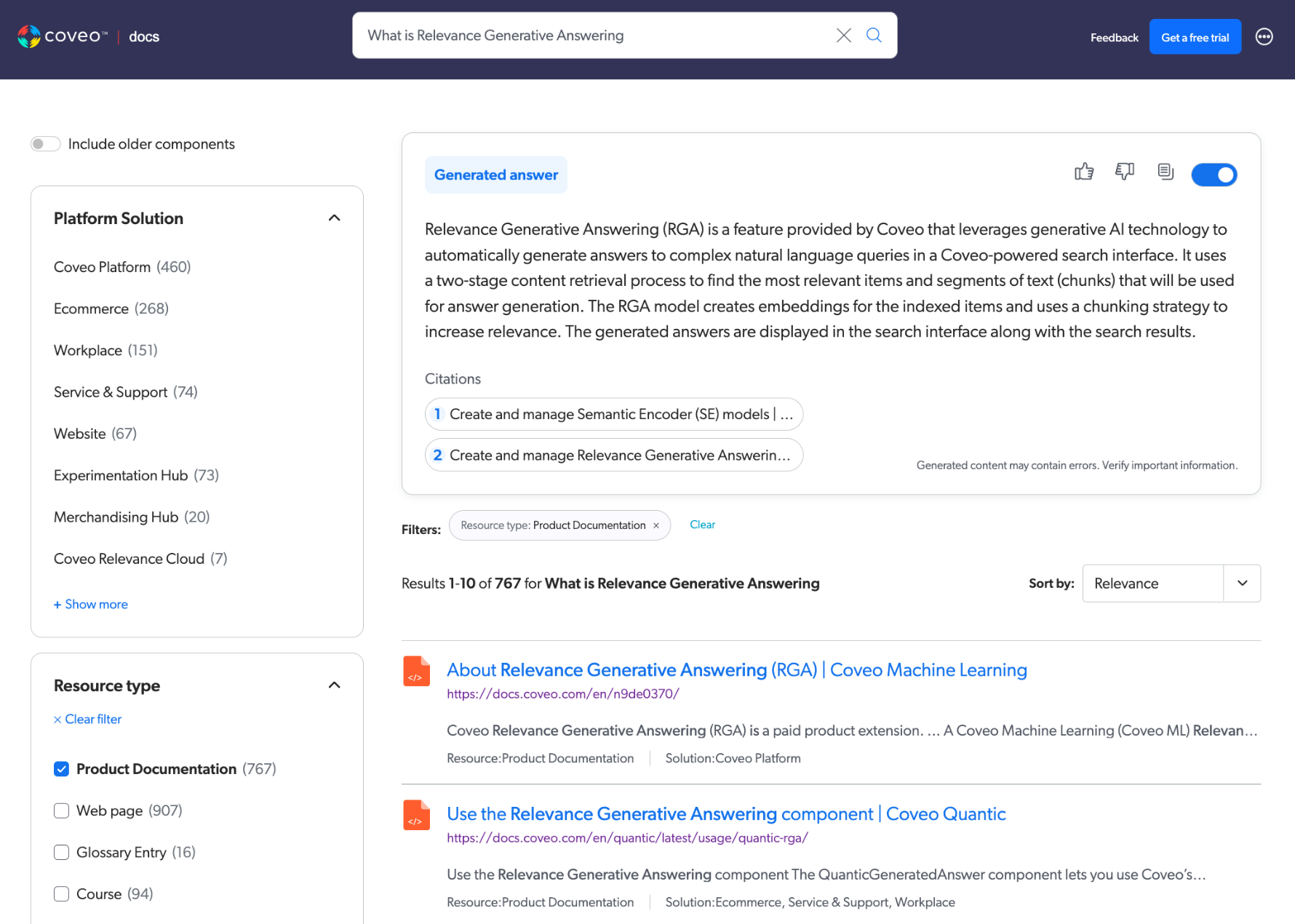
To leverage [Relevance Generative Answering (RGA)](https://docs.coveo.com/en/nbtb6010/) in your [search interface](https://docs.coveo.com/en/2741/), enable the RGA component for the search interface.
The RGA component adds the RGA question-answering experience to your search interface.
For more information, see [RGA component features](#rga-component-features).
> **Note**
>
> To generate answers you must [associate an RGA model to the query pipeline](https://docs.coveo.com/en/nb6a0104/) that's used by your search interface.
> **Important**
>
> If your search interface includes a sorting option, [Relevance Generative Answering (RGA)](https://docs.coveo.com/en/nbtb6010/) works best when results are sorted by relevance, which is the default sorting option.
> Otherwise, an answer may not be generated.
>
> 
> For more information on the reasons why an answer wouldn't be generated, see [When is an answer not generated?](https://docs.coveo.com/en/nb6a0008#when-is-an-answer-not-generated).
## Enable the RGA component
You can enable the RGA component for a [Coveo hosted search interface](#coveo-hosted-search-interface) that was created using one of the builders, and for a [custom Coveo-powered search interface](#custom-search-interface) that was created using the [Coveo Atomic library](https://docs.coveo.com/en/lcdf0264/), [Coveo Headless library](https://docs.coveo.com/en/lcdf0493/), or [Coveo Quantic library](https://docs.coveo.com/en/n9790069/).
### Coveo hosted search interface
If you created a Coveo hosted search interface using the [hosted search page builder](https://docs.coveo.com/en/na2g0545#enable-relevance-generative-answering-rga), [Hosted Insight Panel builder](https://docs.coveo.com/en/n8sa0455#enable-relevance-generative-answering-rga), or [In-Product Experience (IPX) builder](https://docs.coveo.com/en/3160#enable-relevance-generative-answering-rga), enable the **Relevance Generative Answering** option in the builder to add the RGA component to your search interface.
> **Note**
>
> The RGA component appears at the top of the search results page.
### Custom search interface
If you're using a custom Coveo-powered search interface, enable the RGA component as specified in [Coveo Atomic search page](#coveo-atomic-search-page), [Coveo Headless search page](#coveo-headless-search-page), or [Coveo Quantic search page](#coveo-quantic-search-page).
> **Note**
>
> Integration with a [Coveo JavaScript Search Framework](https://docs.coveo.com/en/187/) search interface requires a custom RGA component.
> Coveo maintains and supports an RGA component only for [Coveo Atomic](#coveo-atomic-search-page), [Coveo Headless](#coveo-headless-search-page), and [Coveo Quantic](#coveo-quantic-search-page).
>
> Contact your Customer Success Manager to enable RGA in a [Coveo JavaScript Search Framework](https://docs.coveo.com/en/187/) search interface.
#### Coveo Atomic search page
If your interface uses the [Coveo Atomic library](https://docs.coveo.com/en/lcdf0264/), the interface must include the [`atomic-generated-answer`](https://static.cloud.coveo.com/atomic/v3/storybook/index.html?path=/docs/atomic-generated-answer\--docs) component.
> **Tip**
>
> Coveo recommends that you use the [`textarea`](https://docs.coveo.com/en/atomic/latest/reference/components/atomic-search-box#properties) property of the `atomic-search-box` component to make the search box expand to support long queries.
#### Coveo Headless search page
If your interface uses the [Coveo Headless library](https://docs.coveo.com/en/lcdf0493/), the interface must use the [`GeneratedAnswer`](https://docs.coveo.com/en/headless/latest/reference/interfaces/Search.GeneratedAnswer.html) controller.
#### Coveo Quantic search page
If your Coveo for Salesforce interface uses the [Quantic library](https://docs.coveo.com/en/n9790069/), the interface must include the [`QuanticGeneratedAnswer`](https://docs.coveo.com/en/quantic/latest/reference/search-components/search-generated-answer/) component.
> **Tip**
>
> Coveo recommends that you use the [`textarea`](https://docs.coveo.com/en/quantic/latest/reference/search-components/search-search-box#properties) property of the `QuanticSearchBox` component to make the search box expand to support long queries.
## RGA component features
The RGA component adds the Relevance Generative Answering (RGA) experience to your Coveo-powered search interface.
RGA integrates [generative AI](https://docs.coveo.com/en/n9e90153/) question-answering with traditional search.
A single search box supports both simple and complex natural language user queries, and provides both traditional search results and a generated answer.
When a user enters a query, RGA generates the answer in real time on the search results page.
If the user applies filters to narrow the search results, the answer regenerates on-the-fly based on the selected filters.
The RGA component adds a dedicated area to your search interface that's used to display the generated answer and other RGA-specific user features.
> **Notes**
>
> * User interactions with the RGA component are logged as [Relevance Generative Answering (RGA) UA events](https://docs.coveo.com/en/nb6a0210/).
>
> * [Rich text formatting](https://docs.coveo.com/en/nb6a0104#rich-text-formatting) for the generated answer is enabled by default.
>
> * When an [answer isn't generated](https://docs.coveo.com/en/nb6a0008#when-is-an-answer-not-generated) for a user query, the RGA component doesn't appear in the search results.
> However, if you're using a search interface that was created using the [Atomic library](https://docs.coveo.com/en/lcdf0264/) or [Quantic library](https://docs.coveo.com/en/n9790069/), you can choose to [show a custom message](#show-a-message-when-an-answer-is-not-generated) when an answer isn't generated.
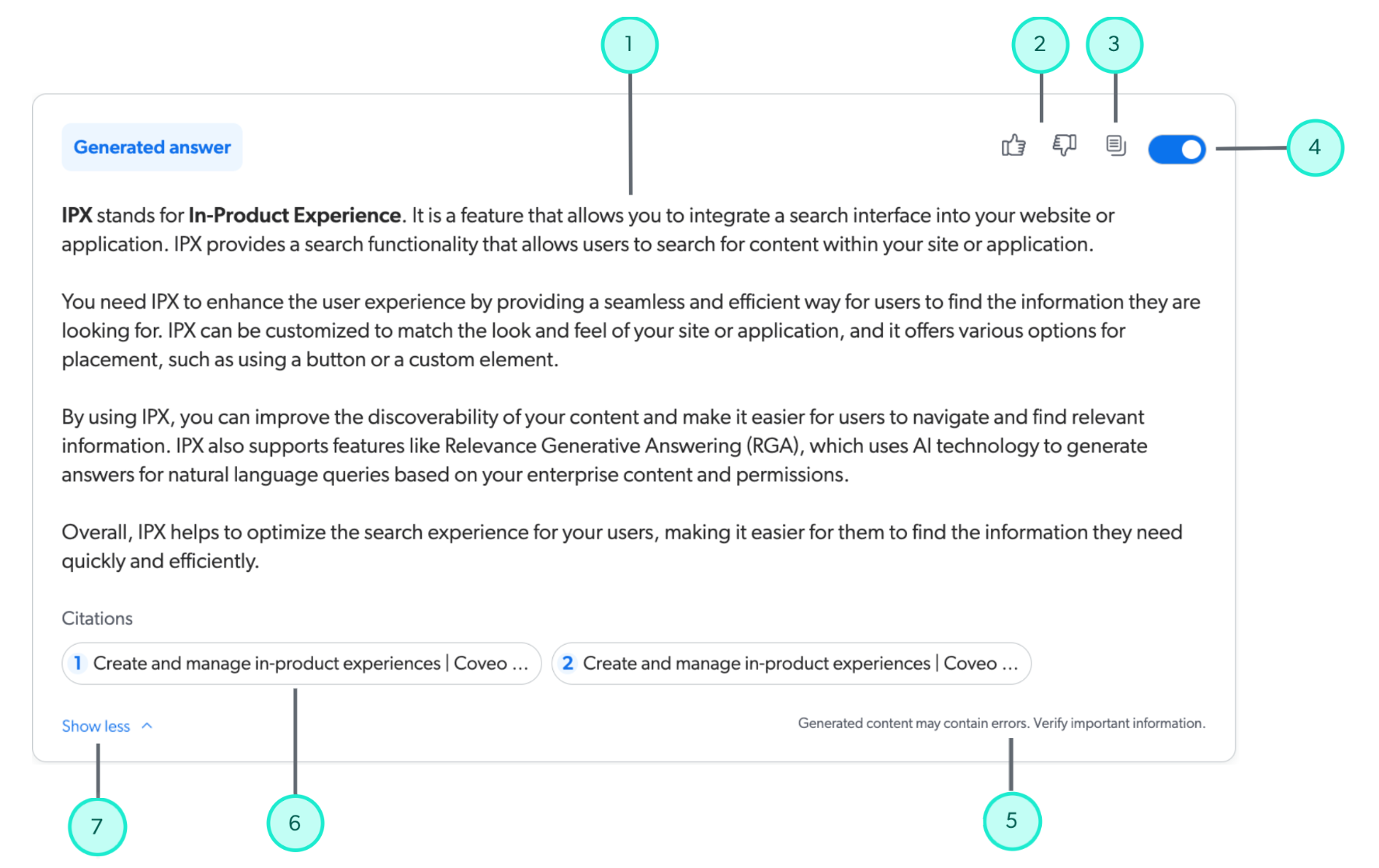
[cols="2"]
|===
|1
|The answer generated by RGA.
|2
|Users can click a thumbs-up or thumbs-down icon to provide feedback on the generated answer.
A [feedback modal](#rga-answer-feedback) appears to provide additional details about the feedback.
|3
|A copy button lets users copy the generated answer to their clipboard.
|4
|Users can choose to show or hide the RGA component in their search interface.
RGA still generates an answer for a user query even when the component is hidden.
In this case, showing the RGA component reveals the generated answer.
|5
|A disclaimer that advises the user to verify important information in the generated answer.
|6
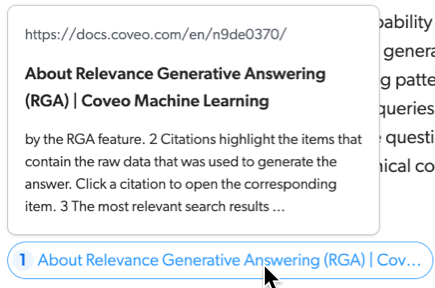
a|Citations highlight the [items](https://docs.coveo.com/en/210/) that contain the text segments ([chunks](https://docs.coveo.com/en/n9de0370#chunking)) that were used to generate the answer.
Hover over a citation to view the chunk, or click a citation to open the item.
An HTML item opens at the exact location of the chunk, which appears highlighted.
> **Notes**
>
> * Set `disableCitationAnchoring` to `true` ([Atomic](https://docs.coveo.com/en/atomic/latest/reference/components/atomic-generated-answer#properties) or [Quantic](https://docs.coveo.com/en/quantic/latest/reference/search-components/search-generated-answer#properties)) if you want items to open without pointing to the chunk location.
>
> * An item may appear more than once in the citations if different chunks from the same item were used to generate the answer.
|7
a|[[show-more]]A **Show more/Show less** feature that lets the user expand and collapse a generated answer.
> **Notes**
>
> * This feature is enabled by default in the builders.
> To disable it, deselect the **Show more / Show less** option in the [Hosted Insight Panel](https://docs.coveo.com/en/n8sa0455#expand-or-collapse-a-generated-answer), [hosted search page](https://docs.coveo.com/en/na2g0545#expand-or-collapse-a-generated-answer), or [IPX](https://docs.coveo.com/en/3160#expand-or-collapse-a-generated-answer) builder.
>
> * If you didn't use one of the builders to create your search interface, use the `collapsible` property in the [Coveo Atomic Library](https://static.cloud.coveo.com/atomic/v3/storybook/index.html?path=/docs/atomic-generated-answer\--docs) or [Coveo Quantic Library](https://docs.coveo.com/en/quantic/latest/reference/search-components/search-generated-answer/) to enable this feature.
> You can also use the `maxCollapsedHeight` property to [set a custom maximum height for the generated answer](#set-a-custom-maximum-height-for-rga-answers).
When the **Show more/Show less** feature is enabled, the RGA component collapses the generated answer and displays **Show more** if the answer exceeds 250 pixels (16 rem) in height.
This is done to limit the height of the RGA component in your search interface during answer generation.
If the generated answer doesn't exceed 250 pixels (16 rem), the answer displays in full and **Show more** doesn't appear.

|===
### RGA answer feedback
RGA includes an answer feedback modal that opens when a user clicks the thumbs-up or thumbs-down icon in the [RGA component](#rga-component-features).
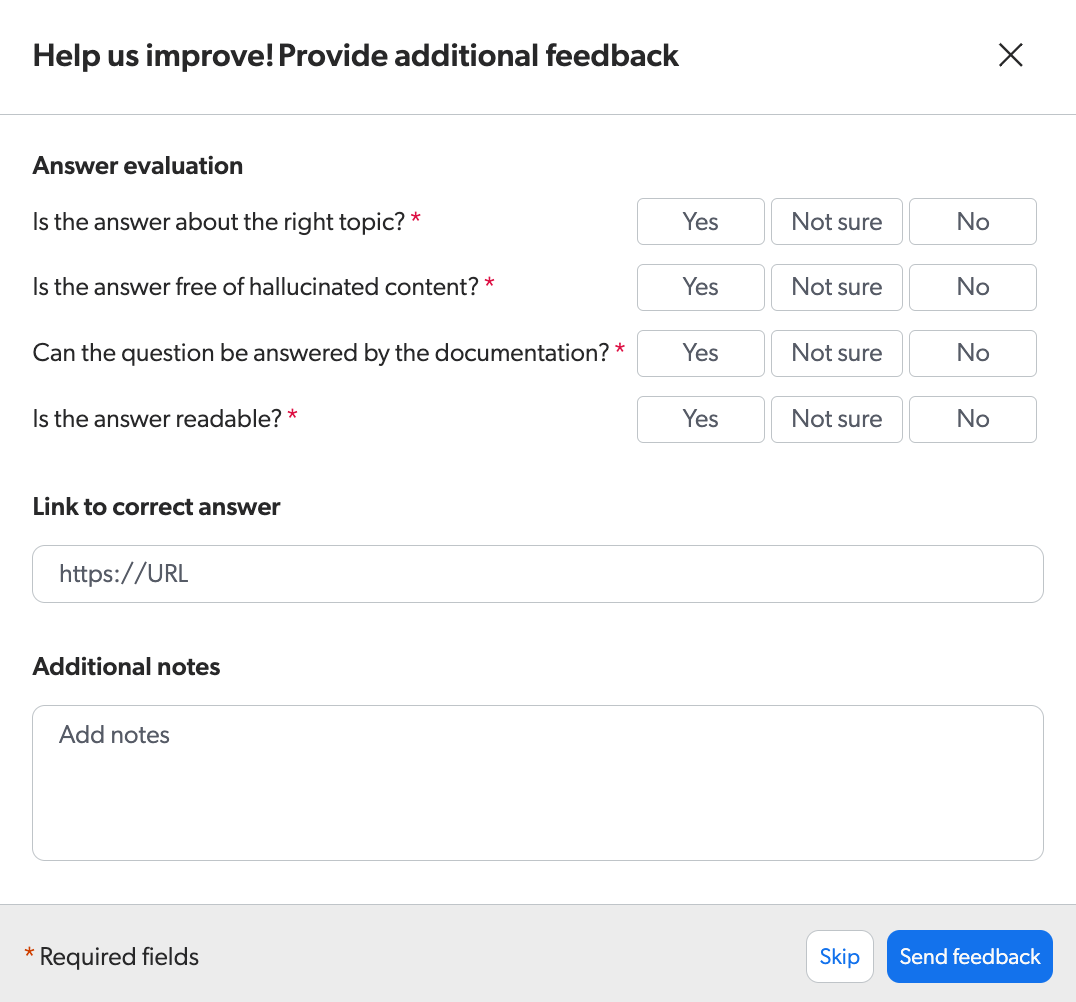
The feedback modal is designed to collect additional details about the generated answer for evaluation and reporting purposes.
Details from the feedback modal are logged as separate [Relevance Generative Answering (RGA) UA events](https://docs.coveo.com/en/nb6a0210#rga-analytics-events).
You use the feedback modal information to better evaluate the generated answers, such as when testing an RGA implementation.
The preconfigured [**Generative Answering Performance** dashboard report template](https://docs.coveo.com/en/nb6a0210#create-an-rga-report) contains a **User Feedback** section that provides a high-level look at the logged feedback details.
For a more detailed analysis, you can use [Snowflake](https://docs.coveo.com/en/o42b0517/) to analyze the question-answer pairs for your RGA implementation.
The additional feedback allows Coveo to collect qualitative information for reporting purposes, which may inform future updates to the [RGA](https://docs.coveo.com/en/nbtb6010/) models but doesn't directly influence current generated answers.
This feedback also helps Coveo have direct visibility on user feedback, automatically monitor [RGA](https://docs.coveo.com/en/nbtb6010/)’s answer quality over time, and derive new user experiences from the data.
### Show a message when an answer is not generated
If you're using a search interface that was created using the [Atomic library](https://docs.coveo.com/en/lcdf0264/) or [Quantic library](https://docs.coveo.com/en/n9790069/), you can display a custom message in the RGA component when RGA doesn't generate an answer for a user query.
The message can also include a link to a support page or other relevant content.
By default, the [RGA component](https://docs.coveo.com/en/nb6a0037#rga-component-features) doesn't appear at all in the search results when an answer isn't generated.
However, if you set a custom message, the RGA component will appear and display your message.
To display a message when an answer is not generated, insert a slot with the name `no-answer-message` along with your custom message inside an HTML element in the [`atomic-generated-answer`](https://static.cloud.coveo.com/atomic/v3/storybook/index.html?path=/docs/atomic-generated-answer\--docs) (Atomic) or the [`QuanticGeneratedAnswer`](https://docs.coveo.com/en/quantic/latest/reference/search-components/search-generated-answer/) (Quantic) component.
> **Note**
>
> This feature requires [Coveo Atomic library](https://docs.coveo.com/en/lcdf0264/) v3.20.0+ or [Coveo Quantic library](https://docs.coveo.com/en/n9790069/) v3.15.0+.
**Examples**
Use a `div` element to add a custom message with a link to a support web page.
* **Atomic**:
```xml
Sorry, an answer couldn't be generated for your query. Retry using a different query or visit our Support page for assistance.
```
* **Quantic**:
```xml
Sorry, an answer couldn't be generated for your query. Retry using a different query or visit our Support page for assistance.
```
### Set a custom maximum height for RGA answers
If you're using a search interface that was created using the [Atomic library](https://docs.coveo.com/en/lcdf0264/) or [Quantic library](https://docs.coveo.com/en/n9790069/), and you're using the `collapsible` property to [collapse the generated answer and display **Show more**](#show-more) when the answer exceeds a certain height, you can set a custom maximum height for the RGA generated answer.
When the `collapsible` property is set to `true`, by default the RGA component collapses the generated answer and displays **Show more** if the answer exceeds 16 rem (Atomic) or 250 pixels (Quantic) in height.
You can use the `maxCollapsedHeight` property in the [`atomic-generated-answer`](https://static.cloud.coveo.com/atomic/v3/storybook/index.html?path=/docs/atomic-generated-answer\--docs) (Atomic) or the [`QuanticGeneratedAnswer`](https://docs.coveo.com/en/quantic/latest/reference/search-components/search-generated-answer/) (Quantic) component to set a custom maximum height for the generated answer.
**Examples**
* **Atomic**:
You want the RGA component to collapse the generated answer when it exceeds 9.5 rem in height.
```xml
```
* **Quantic**:
You want the RGA component to collapse the generated answer when it exceeds 150 pixels in height.
```xml
```