---
title: Add an in-product experience to a website
slug: n44d0184
canonical_url: https://docs.coveo.com/en/n44d0184/
collection: coveo-in-product-experience
source_format: adoc
---
# Add an in-product experience to a website
You can add a Coveo In-Product Experience (IPX) search interface to any of your enterprise web pages and software-as-a-service (SaaS) applications.
When you [create an IPX interface](https://docs.coveo.com/en/3160#create-an-ipx-interface), the IPX configuration automatically includes a dedicated JavaScript loader snippet script.
You can use the loader snippet to embed the IPX search interface into a web page or an application.
> **Note**
>
> If you haven't done so already, [review and optimize your IPX query pipelines and models](https://docs.coveo.com/en/n4c90194/).
To add an IPX interface to a website
. [Configure search token authentication](https://docs.coveo.com/en/n44d0184#configure-search-token-authentication).
. Use your IPX loader snippet to [add the IPX interface to a website](https://docs.coveo.com/en/n44d0184#add-an-ipx-interface-to-a-website).
> **Note**
>
> By default, the IPX search interface uses the latest version of Coveo's Atomic library.
> If you add IPX to a web page that contains another search interface that uses a different version of Atomic, IPX uses your search interface's version of Atomic to avoid conflicts.
> As a result, some IPX components may not function as intended.
>
> In this case, you can choose to isolate or sandbox the IPX search interface in an iframe so that each version of Atomic works independently without conflicts.
> However, using an iframe adds complexity to your implementation and requires a higher level of proficiency.
## Configure search token authentication
You can configure [search token](https://docs.coveo.com/en/1346/) authentication for your IPX search interface using one of the following two methods:
* [**Generic search token authentication**](#generic-search-token-authentication): Use this simple configuration method to use the same generic search token to authenticate all users in your IPX search interface.
This token grants access to publicly available content only.
This means that IPX users will only have access to indexed content that's accessible to everyone, and indexed content that's secured via a repository's permissions system won't appear in search results in IPX.
* [**Advanced search token authentication**](#advanced-search-token-authentication): Use this configuration method to generate a distinct search token for each authenticated user in your IPX search interface so that each user only sees the secured content that they're allowed to access.
Implementing advanced search token authentication requires you to add server-side logic to your website or application.
> **Note**
>
> For a legacy IPX interface, see [Add a legacy IPX interface to a website](https://docs.coveo.com/en/n44d0184#add-a-legacy-ipx-interface-to-a-website).
> Legacy IPX interface configurations appear with a **Legacy Editor** badge on the [**In-Product Experiences**](https://platform.cloud.coveo.com/admin/#/orgid/search/in-app-widgets/) ([platform-ca](https://platform-ca.cloud.coveo.com/admin/#/orgid/search/in-app-widgets/) | [platform-eu](https://platform-eu.cloud.coveo.com/admin/#/orgid/search/in-app-widgets/) | [platform-au](https://platform-au.cloud.coveo.com/admin/#/orgid/search/in-app-widgets/)) page.
>
> 
### Generic search token authentication
This authentication method requires you to create an API key that'll be used as the generic search token to authenticate all users of your IPX search interface.
This means that IPX users will only have access to indexed content that's accessible to everyone.
Indexed content that's secured via a repository's permissions system won't appear in search results in IPX.
The API key is used to authenticate your IPX interface to execute queries in the Coveo Search API and send [Coveo Analytics events](https://docs.coveo.com/en/260/) to Coveo.
If you created multiple IPX interfaces, each IPX interface requires its own API key.
[Create an API key](https://docs.coveo.com/en/1718#create-an-api-key) using the **Anonymous search** [template](https://docs.coveo.com/en/1718#api-key-templates).
> **Important**
>
> When the **API key successfully created** dialog appears, click **Copy** to copy the key value to your clipboard and paste the value to a safe location.
> This is the only time the key value will appear, so make sure to copy it when it appears.
> You'll need the value when adding your IPX interface to your website or application.
### Advanced search token authentication
Advanced search token authentication requires you to add server-side logic to your website or application for the purpose of generating a distinct search token for each authenticated user in your IPX search interface.
This configuration method is used if some or all of your indexed content is secured by a repository's permissions system, and you want IPX users to only see the secured content that they're allowed to access.
## Add an IPX interface to a website
This section describes how to add an IPX interface to a website.
> **Notes**
>
> * For a legacy IPX interface, see [Add a legacy IPX interface to a website](https://docs.coveo.com/en/n44d0184#add-a-legacy-ipx-interface-to-a-website).
> Legacy IPX interface configurations appear with a **Legacy Editor** badge on the [**In-Product Experiences**](https://platform.cloud.coveo.com/admin/#/orgid/search/in-app-widgets/) ([platform-ca](https://platform-ca.cloud.coveo.com/admin/#/orgid/search/in-app-widgets/) | [platform-eu](https://platform-eu.cloud.coveo.com/admin/#/orgid/search/in-app-widgets/) | [platform-au](https://platform-au.cloud.coveo.com/admin/#/orgid/search/in-app-widgets/)) page.
>
> 
>
> * This procedure must be executed by a developer who is allowed to modify code in the target website or application.
>
> * An IPX interface script is loaded asynchronously and uses about three kilobytes of memory.
>
> * You can [test your IPX interface](https://docs.coveo.com/en/n44d0184#test-an-ipx-interface) before adding it your website.
. If you haven't done so already, [configure search token authentication](https://docs.coveo.com/en/n44d0184#configure-search-token-authentication) for your IPX interface.
. Ensure that the domain of your Coveo organization's primary [deployment region](https://docs.coveo.com/en/2976/) is allowlisted in the website or application in which you want to add the IPX interface.
**Examples**
* If your Coveo organization's deployment region is US East, allowlist `platform.cloud.coveo.com`.
* If your Coveo organization is on the [Coveo HIPAA platform](https://docs.coveo.com/en/1853/), allowlist `platformhipaa.cloud.coveo.com`.
. [Retrieve the loader script for your IPX interface](https://docs.coveo.com/en/3160#access-the-ipx-search-hub-value-and-loader-script).
. In the IPX loader script you just copied, complete the script by replacing `API_KEY` with one of the following depending on your chosen [search token authentication method](https://docs.coveo.com/en/n44d0184#configure-search-token-authentication):
** For **generic search token authentication**, replace `API_KEY` with the value of the API key that you [created for your IPX](https://docs.coveo.com/en/n44d0184#generic-search-token-authentication), and then save the completed script.
**Example**
Your IPX loader snippet script is:
```html
```
Your API key value is `xx1xx11x1x-1x11-1111-x1x1-11x111111x11`.
Your completed script is therefore:
```html
```
** For **advanced search token authentication**, you'll need to programmatically inject a generated search token value into `API_KEY`.
The details will depend on your specific implementation.
. Include a snippet similar to what follows in the `` of each page in which you want to add the IPX interface, where you replace `LOADER_SNIPPET` with your complete IPX loader snippet script that includes your API key value (generic search token authentication) or your logic to generate and set search token values (advanced search token authentication):
```html
```
**Example**
If your IPX loader snippet script is:
```html
`
```
The snippet would be:
```html
```
> **Important**
>
> If you chose to display your IPX search interface in a custom element on your web page, the IPX loader script doesn't create the element on your web page in which the IPX search interface renders and appears.
> You must create the element manually.
> The CSS selector that you specify in the IPX builder settings simply targets the element you created.
> For more information see [Set IPX placement](https://docs.coveo.com/en/3160#set-ipx-placement).
. Access the web pages where you added the IPX interface to ensure that it appears as intended.
If you configured your IPX to use the IPX button (see [Set IPX placement](https://docs.coveo.com/en/3160#set-ipx-placement)), and the IPX interface or button is hidden behind another element on your web page, you must adjust the z-value of your IPX interface and button.
To do so, add the following in the `` of the page, where you replace `Z_VALUE` with a z-index value that's greater than the z-index value of the element that's covering the IPX interface or button:
```html
```
**Example**
Your IPX interface and button are hidden behind an element on your web page that has a z-index value of 2000.
Assign a z-index value for the IPX interface and button that's greater than 2000, such as 2001, by adding the following in the `` of the web page:
```html
```
### Add custom context
To provide more personalized and relevant search results, you can set your IPX search interface to send [custom context](https://docs.coveo.com/en/3389/) data along with each user query.
You can then leverage the data in [query ranking expressions (QREs)](https://docs.coveo.com/en/1472/) and [query pipeline conditions](https://docs.coveo.com/en/2793/) to increase the relevance of search results.
See [Manage ranking expression rules](https://docs.coveo.com/en/3375/) and [Manage query pipeline conditions](https://docs.coveo.com/en/1959/) for details on these features.
The data can also help to [train Coveo ML models](https://docs.coveo.com/en/3389#how-contexts-and-coveo-machine-learning-models-work) to boost results based on the context.
To include custom context in a search request that originates from an IPX search interface, create a JSON object in your source code that contains the data, and then call the object when initializing the IPX search interface using the `CoveoIPX.initialize` function.
The context that's passed when the IPX search interface initializes should be static data, such as an authenticated user ID or role.
If the custom context that you want to send is dynamic, such as context based on user action, you can use the `CoveoIPX.addContext` function after initialization to add or overwrite the context you set in the JSON object.
To add custom context:
. In the source code of the web page or application where you added the IPX interface, create a JSON object that contains the custom context to send.
> **Note**
>
> Coveo recommends that your JSON object minimally contains **user** and **app** context.
**Example**
In this example, we created a `myContext` JSON object that contains the custom context.
```js
const myContext = {
"user": {
"email": "user@company.com"
},
"app": {
"title": "Home page"
},
"custom": { }
}
```
. In the `` of each page in which you added the IPX interface, pass the custom context when loading the IPX interface using the following `CoveoIPX.initialize` function, where you replace `CONTEXT` with your JSON object.
```html
CoveoIPX.initialize('API_KEY', )
```
**Example**
If your original IPX loader script is ``, and your JSON object is `myContext`, the modified script is the following:
```html
```
. If required, you can add additional context or overwrite context that you set in the JSON object after initializing the IPX search interface by using the `CoveoIPX.addContext` function.
This is useful when you want to send dynamic context, such as context based on an error code or a click event related to a user action.
**Examples**
* To add context based on a click event:
```js
searchPagesMenu.onclick = () => {
CoveoIPX.addContext({
app: {
menuItem: "searchPages"
}
});
}
```
* To add context based on an error:
```js
errorHandler = (error) => {
console.error("An error occurred", error);
CoveoIPX.addContext({
app: { errorCode: error.code }
});
}
```
. If you haven't done so already, [optimize your query pipelines and models in your IPX](https://docs.coveo.com/en/n4c90194/).
You can leverage the custom context data in [query ranking expressions (QREs)](https://docs.coveo.com/en/3375/) and [query pipeline conditions](https://docs.coveo.com/en/1959/) to personalize and increase the relevance of search results.
> **Note**
>
> Use dot-walking syntax (for example, `user.email`) when referencing a context key in a query pipeline condition [`Context` object](https://docs.coveo.com/en/1959#context).
### Reset the IPX interface
Use the `CoveoIPX.reset` function to reset the IPX interface after it initializes.
This is used primarily to reload the recommendations that appear in the IPX interface based on new context.
When [using IPX Recommendations (IPXRECS)](https://docs.coveo.com/en/n4c90194#recommendation-query-pipeline), the list of recommendations is based on the context, such as click events and [custom context](#add-custom-context), at the time when an IPX interface loads (initializes) on the web page or application.
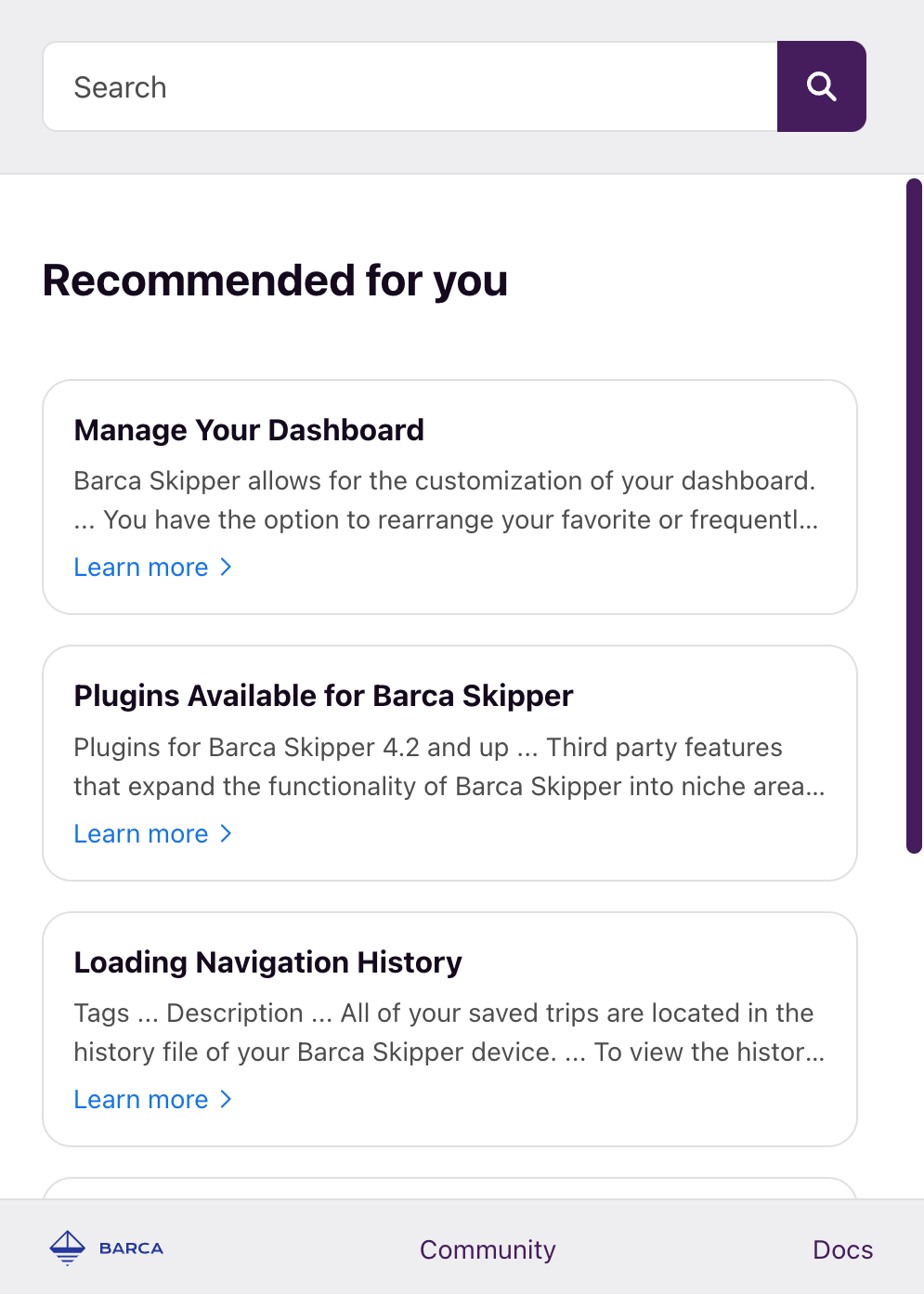
By default, the list of recommendations doesn't change until the IPX interface reloads, no matter what actions are performed by the user.
Moreover, when a user performs a query in an IPX interface, the recommendation list is replaced by search results, and the recommendations don't appear again until the interface reloads.
By resetting the IPX interface after it initializes, the recommendations re-appear and are based on the context (click events and custom events) at the time of the reset.
You can reset an IPX interface whenever your specific workflow requires.
For example, you can reset the IPX interface when a user navigates to a different section in a single-page application (SPA).
When IPX resets, the IPX interface closes and then reloads the new recommendations list when a user opens the IPX interface.
> **Note**
>
> If your IPX interface is [configured to appear in a custom element on your webpage](https://docs.coveo.com/en/3160#set-ipx-placement), the IPX's current state (open/closed) is maintained, and the new recommendations are loaded immediately.
> This means that it refreshes with the new recommendations if the IPX interface is open.
To reset an IPX interface
In the source code of the web page or application where you added the IPX interface, simply call the `CoveoIPX.reset` function when needed.
## Add a legacy IPX interface to a website
This section details how to add a legacy IPX interface to a website.
> **Note**
>
> Legacy IPX interface configurations appear with a **Legacy Editor** badge on the [**In-Product Experiences**](https://platform.cloud.coveo.com/admin/#/orgid/search/in-app-widgets/) ([platform-ca](https://platform-ca.cloud.coveo.com/admin/#/orgid/search/in-app-widgets/) | [platform-eu](https://platform-eu.cloud.coveo.com/admin/#/orgid/search/in-app-widgets/) | [platform-au](https://platform-au.cloud.coveo.com/admin/#/orgid/search/in-app-widgets/)) page.
>
> 
>
> Coveo supports existing legacy IPX interfaces, but you can no longer create new IPX search interfaces using the legacy configuration (see [Create an IPX interface](https://docs.coveo.com/en/3160#create-an-ipx-interface)).
> However, you can still [edit an existing legacy IPX interface](https://docs.coveo.com/en/3160#edit-a-legacy-ipx-interface).
>
> If your IPX interface isn't a legacy configuration, see [Add an IPX interface to a website](#add-an-ipx-interface-to-a-website).
**Show/hide instructions**
Details
[NOTE]
**Notes**
Details
```javascript
// ==UserScript==
// @name IPX Demo Template
// @namespace http://tampermonkey.net/
// @version 0.1
// @description Coveo In-Product Experience
// @author you@name.com
// @match
// @grant none
// @noframes
// ==/UserScript==
(function() {
'use strict';
const script = document.createElement('script');
script.type = 'text/javascript';
script.src = '';
document.getElementsByTagName('head')[0].appendChild(script);
})();
```
Replace `` with the name of your hosting site, and `` with your script URL.