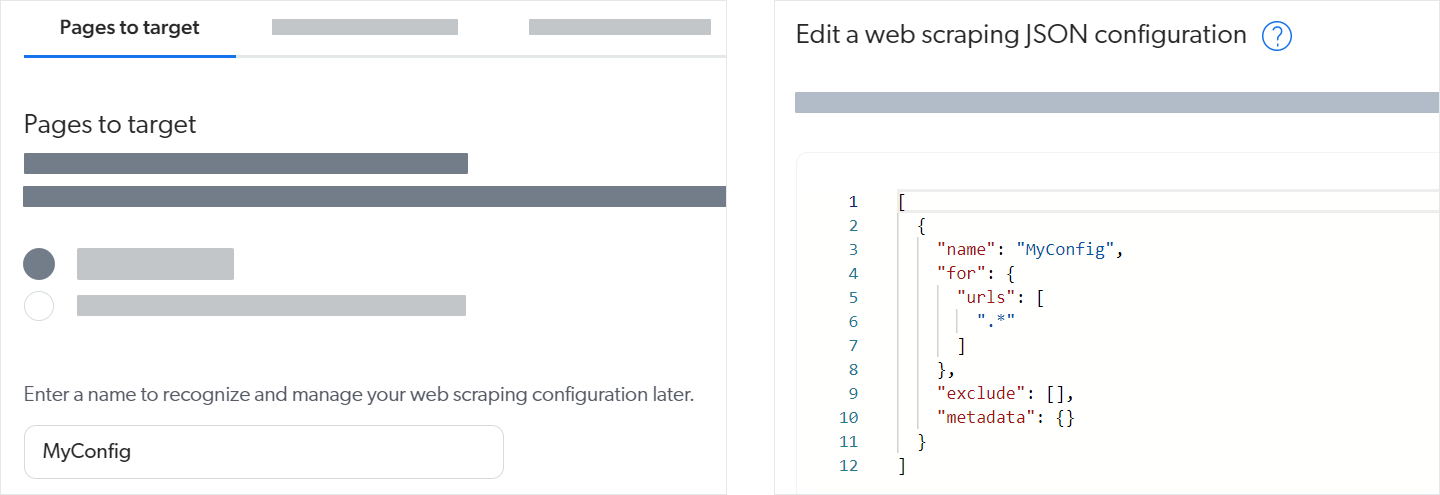
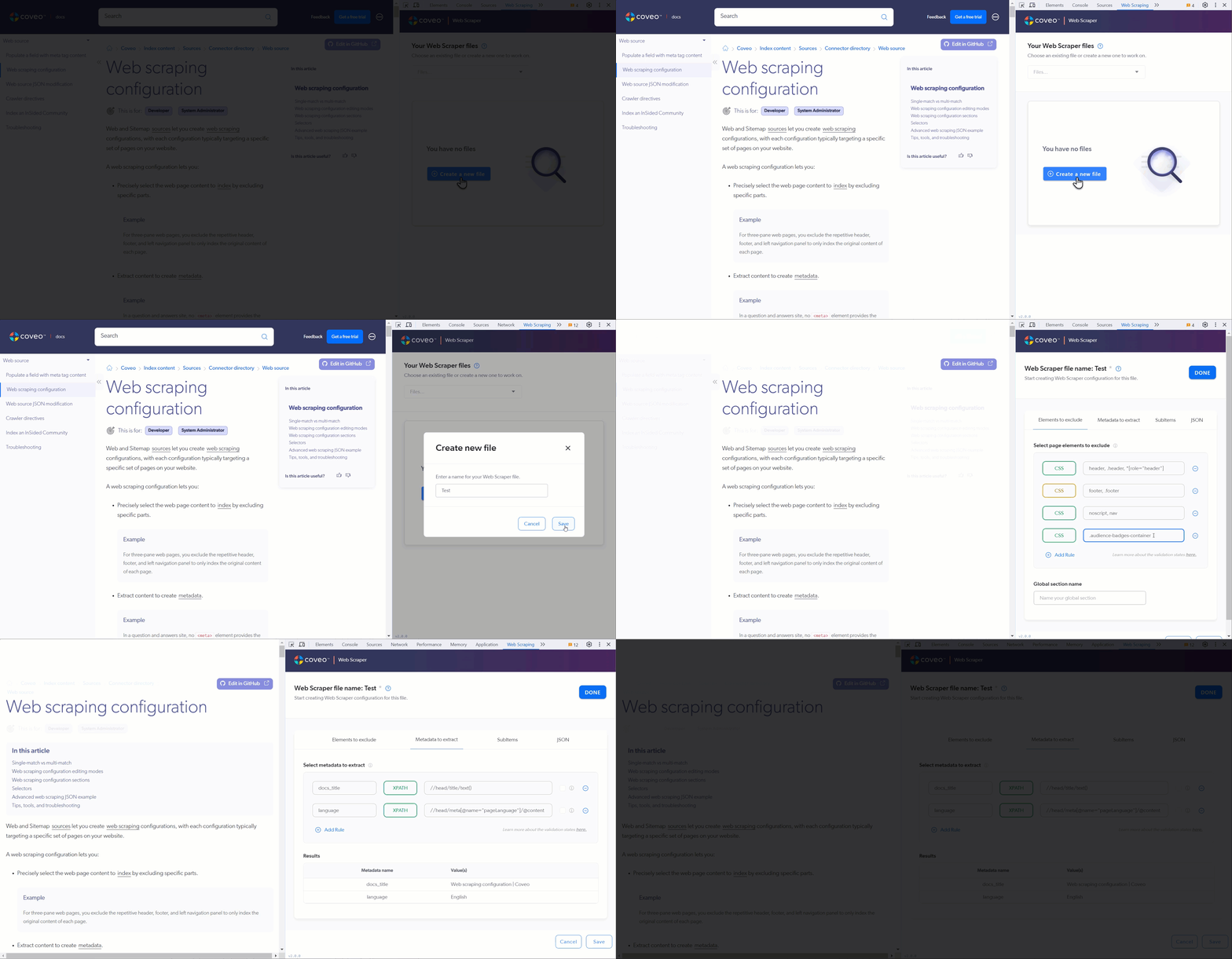
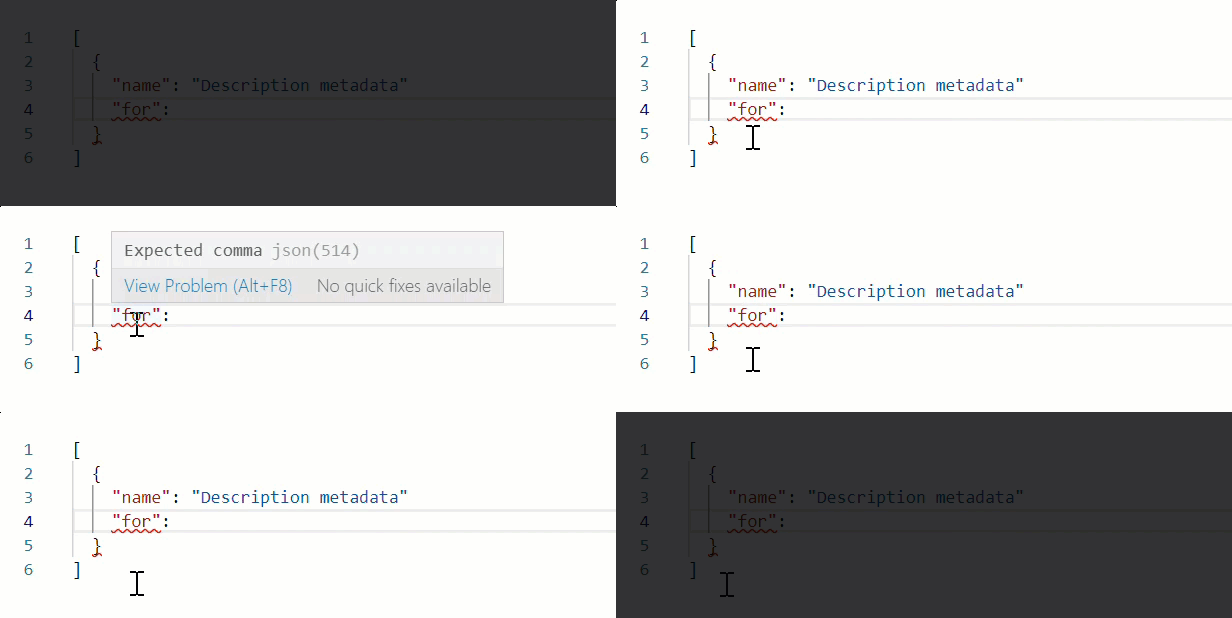
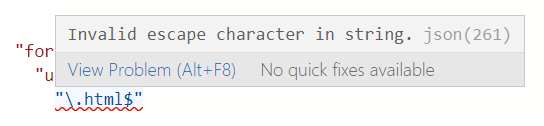
--- title: Web scraping configuration slug: mc1f3573 canonical_url: https://docs.coveo.com/en/mc1f3573/ collection: index-content source_format: adoc --- # Web scraping configuration Web and Sitemap [sources](https://docs.coveo.com/en/246/) allow members with the [required privileges](https://docs.coveo.com/en/3390#required-privileges) to create [web scraping](https://docs.coveo.com/en/2767/) configurations, a powerful tool that improves the quality of search results. You can use web scraping configurations to precisely select the web page content to [index](https://docs.coveo.com/en/204/), exclude specific parts, extract content to create [metadata](https://docs.coveo.com/en/218/), and create sub-items. > **Note** > > The Sitemap source web scraping feature doesn't support the creation of sub-items. > > In the process of creating a Web source, Coveo may detect sitemap files on your site and prompt you to create a Sitemap source instead. > If you need to create sub-items, stick with the Web source. ## Application examples A web scraping configuration lets you: * Precisely select the web page content to [index](https://docs.coveo.com/en/204/) by excluding specific parts. **Example** For three-pane web pages, you exclude the repetitive header, footer, and left navigation panel to only index the original content of each page. * Extract content to create [metadata](https://docs.coveo.com/en/218/). **Example** In a question and answers site, no `` element provides the number of votes for the question, but the value appears on the page. You use a CSS selector rule to extract the string of this value and index it as question metadata. * Create sub-items that become independent items in the index. **Example** In a blog post, you extract comments as sub-items. After creating sub-items, you can apply a web scraping configuration that targets those sub-items specifically. For example, you could set rules to extract specific metadata from the blog post comments. ## Single-match vs multi-match The Web source can apply web scraping configurations in two ways: single-match or multi-match. In single-match mode, the crawler applies only the first matching web scraping configuration. In multi-match mode, the crawler applies all matching web scraping configurations. The animation below demonstrates the application of three web scraping configurations on a culinary website featuring news articles and recipe pages, in single-match mode (left) and multi-match mode (right). ![Animation showing the single-match and multi-match behaviors | Coveo](https://docs.coveo.com/en/assets/images/index-content/single-vs-multi-match-animation.gif) Web sources created before mid-December 2023 were created in single-match mode. All new Web sources are created in multi-match mode. Coveo converted existing single-match sources containing zero or one web scraping configuration to multi-match mode. We recommend you convert any remaining single-match Web source to multi-match mode. If a Web source is currently in single-match mode, the **Web scraping** subtab displays a banner prompting you to convert to multi-match mode. ![Multi-match conversion banner | Coveo](https://docs.coveo.com/en/assets/images/index-content/single-match-switch-message.png) To convert a source to multi-match mode . In the **Web scraping** subtab, click **Switch to multi-match mode**. . Confirm you want to convert the source to multi-match mode. A green **You're currently in multi-match mode** banner will then appear. . Click **Save**. Once your source is fully converted, the **Web scraping** subtab no longer shows the green banner and the subtab description reflects the multi-match mode behavior. ![Web scraping configuration options and description for targeting and processing pages | Coveo](https://docs.coveo.com/en/assets/images/index-content/web-scraping-configuration-description.png) ## Web scraping configuration editing modes The Web source [**Web scraping**](https://docs.coveo.com/en/malf0160#web-scraping-subtab) tab features two modes to manage web scraping configurations: **UI-assisted mode** You can add (+), edit ([edit]), and delete ([delete]) _one_ web scraping configuration at a time with a user interface that makes many technical aspects transparent. UI-assisted mode is easier to use and more mistake-proof than Edit with JSON mode. Use this mode except for sub-item related configurations (which are only supported in Edit with JSON mode). > **Note** > > The Web scraping tab displays a message when the aggregated web scraping configuration contains a sub-item related configuration. > > ![Message shown on the Web scraping tab when sub-items are configured | Coveo](:https://docs.coveo.com/en/assets/images/index-content/sub-items-detected.png) See [Configurations in UI-assisted mode](#configurations-in-ui-assisted-mode). **Edit with JSON mode** The **Edit with JSON** button gives access to the _aggregated_ web scraping JSON configuration of the source. Adding, editing, and deleting configurations directly in the JSON requires more technical skills than using UI-assisted mode. Use this mode to perform sub-item related configurations and when you want to test your aggregated web scraping configuration with the Coveo Labs [Web Scraper Helper](https://docs.coveo.com/en/mc1f3573#3-use-the-right-tools). > **Note** > > The Web scraping tab displays a message when the aggregated web scraping configuration contains a sub-item related configuration. > > ![Message shown on the Web scraping tab when sub-items are configured | Coveo](:https://docs.coveo.com/en/assets/images/index-content/sub-items-detected.png) See [Configurations in Edit with JSON mode](#configurations-in-edit-with-json-mode). ## Web scraping configuration sections The aggregated web scraping configuration consists of a JSON array of configuration objects. Each configuration object can contain the high-level sections (or JSON _properties_) identified in the following JSON schema. Further details on configuring each section through the recommended editing mode are provided further below. [source,txt] .**Aggregated web scraping configuration JSON schema** ``` [ -> Array of configurations. All matching "for" configurations are applied in multi-match mode. Only the first matching "for" configuration is applied in single-match mode. { "name": string, <1> -> Name given to the current configuration object in the array. "for": { <2> -> Specifies which pages to target with the current configuration. This corresponds to the "Pages to target" setting in UI-assisted mode. "urls": string[] -> An array of REGEX to match specific URLs (or a part thereof). "types": string[] -> An array of types when you want to match specific subItems. }, "exclude": [ <3> -> Array of selector objects to remove elements from the page. These selectors can't be Boolean or absolute. This corresponds to the "Elements to exclude" setting in UI-assisted mode. { "type": string, -> "CSS" or "XPATH". "path": string -> The actual selector value. } ], "metadata": { <4> -> Map of selector objects. The key represents the name of the piece of metadata. This corresponds to the "Metadata to extract" setting in UI-assisted mode. "": { -> Replace with the actual metadata name you want to use. "type": string, -> "CSS" or "XPATH" "path": string, -> The actual selector value. "isBoolean": Boolean, -> Whether to evaluate this selector as a Boolean. If the selected element is found, the returned value is "true". This parameter is only supported in "Edit with JSON" mode. "isAbsolute": Boolean -> Whether to retrieve the metadata from the parent page instead of the current subItem. This parameter is only supported in "Edit with JSON" mode. } }, "subItems": { <5> -> Map of selectors. The key represents the type of subItem to retrieve. These selectors can't be Boolean or absolute. This parameter is only supported in "Edit with JSON" mode. "": { -> Replace with the name you want to identify the subItems as. You can target these in latter configuration objects using the "types" property. "type": string, -> "CSS" or "XPATH" "path": string -> The actual selector value. } } }, {...} ] ``` <1> In UI-assisted mode, you can set the configuration name in the [**Configuration info**](#configuration-info) tab. <2> See the [**Configuration info**](#configuration-info) tab. <3> See the [**Elements to exclude**](#elements-to-exclude) tab. <4> See the [**Metadata to extract**](#metadata-to-extract) tab. <5> See the [`subItems` property](#subitems-property). ### Configurations in UI-assisted mode #### Configuration info ![Configuration info | Coveo](index-content/ui-assisted-mode-basic-configuration.png) **Name** Provide a descriptive [`name`](#web-scraping-configuration-sections) for your web scraping configuration as you'll likely set up multiple web scraping configurations for your source. Ideally, the name should reflect both the targeted content and the purpose of the configuration (for example, `KB article - keyword metadata extraction`). **Pages to target** The **Pages to target** settings generate the [`urls`](#web-scraping-configuration-sections) property values for the current web scraping configuration in the aggregated JSON. The `urls` represent the web pages that are targeted by the current web scraping configuration. To target sub-items instead of URLs, see the [`types`](#types-property) property. For each crawled page, either: * All web scraping configurations with matching **Pages to target** rules are applied (that is, in [multi-match mode](#single-match-vs-multi-match)). * Only the configuration associated with the first matching **Pages to target** rules is applied (that is, in [single-match mode](#single-match-vs-multi-match)). When you use the **Apply to all pages** option, Coveo automatically adds an all-inclusive rule behind the scenes for you. As a result, the associated web scraping configuration is applied to all pages of the source (or all remaining pages in single-match mode). When you use the **Apply to pages if they match at least one rule**, you must then add one or multiple rules to specify the pages of the source you want to target (or the pages within the remaining pages in single-match mode). You can use any of the five available types of rules: * **is** and a URL which includes the protocol. For example, `+https://myfood.com/+`. * **contains** and a string found in the URL. For example, `recipes`. * **begins with** and a string found at the beginning of the URL and which includes the protocol. For example, `+https://myfood+`. * **ends with** and a string found at the end of the URL. For example, `.pdf`. * **matches regex rule** and a regex rule that matches the whole URL or a part of it. **Examples** * `\.html$` to capture all pages whose URL ends with `.html` * `+^.*company\.com\/employees\/.++` to capture all employee profile pages like `+https://company.com/employees/Julie-Moreau+` > **Important** > > When using the **matches regex rule** type, test your regular expressions in a tool such as [Regex101](https://regex101.com/) to make sure they match the desired URLs. #### Elements to exclude ![The Elements to exclude tab | Coveo](index-content/ui-assisted-mode-elements-to-exclude.png) The **Elements to exclude** settings generate the [`exclude`](#web-scraping-configuration-sections) property values for the current web scraping configuration in the aggregated JSON. You can specify one or multiple HTML page elements that won't be indexed in the pages targeted by the current web scraping configuration. For each section that you want to exclude from indexing, choose the selector type (CSS or XPATH) and then input the [selector](#selectors) itself. Links in excluded parts _are_ followed, so you can exclude navigation sections such as a table of contents, but the source crawler will still discover the pages listed in the table of contents. **Example** You want to index [Stack Overflow site pages](https://stackoverflow.com/q/11227809). Only the title, the question, and the answers matter to you, so you want to remove the top bar, the header, the top advertisement, the Google add below the title, and the sidebar on the right. Your **Elements to exclude** could be configured as follows: ![Stack Overflow elements to exclude selectors | Coveo](https://docs.coveo.com/en/assets/images/index-content/stack-overflow-example-selectors.png) > **Note** > > Excluding sections may affect the processing performance as the page is reloaded after the exclusion, but the performance hit may be perceived only when you crawl at full speed and the website response is fast (>200,000 items/hour). #### Metadata to extract > **Important** > > The Web source automatically extracts default metadata. > [Review the metadata that's already being extracted](https://docs.coveo.com/en/m9ti0339#view-and-map-metadata-subpage) before configuring web-scraped metadata. ![The Metadata to extract tab | Coveo](index-content/ui-assisted-mode-metadata-to-extract.png) The **Metadata to extract** settings generate the [`metadata`](#web-scraping-configuration-sections) property values for the current web scraping configuration in the aggregated JSON. You can configure one or multiple metadata to extract from the pages targeted by the current web scraping configuration. For each metadata that you want to extract, provide a metadata name, a selector type (CSS or XPATH), and the [**selector**](#selectors) itself. **Example** When indexing [Stack Overflow site pages](https://stackoverflow.com/q/11227809), you want to set metadata for: * The number of votes for the question. * The date and time the question was asked. Your **Metadata to extract** could be configured as follows: ![Stack Overflow metadata to extract selectors | Coveo](https://docs.coveo.com/en/assets/images/index-content/stack-overflow-example-metadata.png) After extracting custom metadata from your source, you can: . [Add fields](https://docs.coveo.com/en/1833#add-a-field) for this new custom metadata. . [Add mappings](https://docs.coveo.com/en/1640/) to populate your fields with the desired metadata you extracted. ### Configurations in Edit with JSON mode #### `subItems` property The `subItems` property defines how to create sub-items when you want to create multiple index source items from a single web page. After indexing, your source will contain one item for the entire web page and as many sub-items as your `subItems` property configuration detects. The `subItems` property is a map of [selectors](#selectors) with each key representing a sub-item [`types`](#types-property) value. When naming your sub-item types, take into consideration that `types` values are mapped to the `@documenttype` field. For each `types` value you define, you must specify a selector `type` (CSS or XPATH) and a `path` (the actual [selector](#selectors) string). > **Note** > > Sub-item indexing doesn't include the CSS, so the Quick view of sub-items shows their content without the formatting. **Example** On a Q&A site, each page contains a question and several answers. You want one item for the question part, and one item for each answer. Your aggregated JSON configuration would contain a configuration object with the following structure: ```json { "name": "Q_and_A", "for": { "urls": [".*"] }, "exclude": [{}], "metadata": {}, "subItems": { "answers": { "type": "", "path": "" } } } ``` where `` and `` are replaced with the appropriate selector type and selector. #### `types` property The `for` property can contain arrays of `urls` and `types`. The `types` array lets you target [sub-items](#subitems-property) you created in a previous configuration object. To create a web scraping configuration that targets sub-items . Create a web scraping configuration below the one in which the sub-items are created. You can perform this step in [UI-assisted mode](#web-scraping-configuration-editing-modes). . In the new web scraping configuration section, in the `for` section, use the `types` parameter to match the sub-item [](#web-scraping-configuration-sections) set in the sub-item creation configuration. . In the new web scraping configuration section, specify the desired web scraping configurations (that is, the `exclude` and `metadata` properties). **Example** You have a web scraping configuration called `Parent` that creates sub-items called `comments`. You want to create a web scraping configuration called `Child` that extracts a `details` metadata from these `comments` sub-items. Your aggregated JSON configuration would have the following structure: ```json [{ "name": "Parent", "for": { "urls": [".*"] }, "exclude": [{}], "metadata": {}, "subItems": { "comments": { "type": "", "path": "" } } }, { "name": "Child", "for": { "types": ["comments"] }, "exclude": [{}], "metadata": { "details": { "type": "", "path": "" } } }] ``` where ``, ``, and `` are replaced with the appropriate selector types and selectors. If you extract metadata from your sub-items, you can then: . [Add fields](https://docs.coveo.com/en/1833#add-a-field) for this new metadata. . [Add mappings](https://docs.coveo.com/en/1640/) to populate your fields with the metadata you extracted. > **Note** > > You can create mapping rules that only apply to a given [sub-item type](https://docs.coveo.com/en/1640#item-type). #### `isBoolean` property The `isBoolean` property is used to return `true` or `false` for the current `metadata` object value rather than what the [selector](#selectors) itself returns. When the selector matches any element on the page, the `metadata` object value is set to `true`, and `false` otherwise. **Example** You want to create a metadata called `questionHasAnswer`. You want `questionHasAnswer` to be set to `true` if the web page contains at least one `
` element. Your aggregated JSON configuration would contain the following metadata configuration object: ```json "metadata": { "questionHasAnswer": { "type": "CSS", "path": "div.answer", "isBoolean": true } } ``` #### `isAbsolute` property When extracting metadata from a sub-item, [selectors](#selectors) are only applied to the sub-item body, by default. Use the `isAbsolute` property to apply the selectors to the parent page instead of the current sub-item. ## Selectors The web scraping configuration supports XPath or CSS (JQuery-style) selector types. Selectors let you select the HTML page elements (or their text content) that you want to include or exclude in your source for a given page. You should know the following about selectors in a web scraping configuration: * You can use either XPath or CSS or both types in the same web scraping configuration. * When no type is specified, Coveo considers it's CSS by default. * By default, if a selector matches many elements, they're returned as a multi-value metadata (an array of strings). * If the selector path matches [DOM](https://en.wikipedia.org/wiki/Document_Object_Model) elements, the elements are returned. * If the selector matches text nodes, such as when you use "[.code]``text()``" in an XPath, only the text values are returned. * You can't chain selectors. > **Leading practice** > > You can use the developer tools of your browser, such as those of Google Chrome: > > * To inspect page elements and get CSS or XPath selector expressions by right-clicking the desired element, selecting **Copy**, and then respectively **Copy selector** or **Copy XPath**. > > * To test the selector on the **Elements** tab search box and see how many elements match your selector. > > ![Chrome DevTools inspecting HTML elements panel](:https://docs.coveo.com/en/assets/images/coveo-platform/chrome-dev-tools-selector-example.png) ### CSS selectors [CSS selectors](https://developer.mozilla.org/en-US/docs/Web/CSS/CSS_selectors) are the most commonly used web selectors. They're used extensively with jQuery (see [Category: Selectors](https://api.jquery.com/category/selectors/)). CSS selectors rely on DOM element names, classes, IDs, and their hierarchy in HTML pages to isolate specific elements. **Example** The following CSS selector selects elements with a class `content`, that are inside a `span`, under a `div` element. `div span .content` The web scraping configuration supports use of CSS selector pseudo-elements to retrieve element text or attribute values. * Inner text Add `::text` at the end of a CSS selector to select the inner text of an HTML element. **Example** The following expression selects the text of a `span` element with a class `title` that's a direct child of a `div` element with a class `post`. `div.post > span.title::text` * Attribute value Add `::attr()` at the end of a CSS selector to select an HTML element attribute value, where `` is the name of the attribute you want to extract. **Examples** * You want to get the URL from a post title link: `div.post > a.title::attr(href)` * For a Stack Overflow website page, you want to extract the asked date that appears in the side bar, but you want to get the date and time in the `title` attribute, not the text. ```html

4 years ago

``` The following expression selects the value of the `title` attribute of the `p` element. `div#sidebar table#qinfo p::attr(title)` When [Shadow DOM content retrieval](https://docs.coveo.com/en/malf0160#execute-javascript-on-pages) is enabled, you can target all shadow root elements in the page using the `>>shadow` selector. **Example** If you have a shadow root element with `
` direct children, you can target these `
` elements using the following selector: `>>shadow > article` The use of the `>>shadow` selector isn't strictly required to target Shadow DOM content in a web scraping configuration. > **Note** > > In [custom login sequences](https://docs.coveo.com/en/3289/), the `>>shadow` selector is required when targeting Shadow DOM elements. ### XPath selectors [XPath](https://developer.mozilla.org/en-US/docs/Web/XPath) lets you select nodes in an XML item in a tree-like fashion using URI-style expressions. While XPath is an older technology and more verbose than CSS selectors, it offers features not available with CSS selectors, such as selecting an element containing a specific value or that has an attribute with a specific value. **Examples** * The following expression returns the value of the `content` attribute for the `meta` element (under the `head` element) that has an attribute `property` with the `og:url` value. `//head/meta[@property="og:url"]/@content` * The following expression returns the class of the paragraph that contains the sentence. `//p[text()='This is some content I want to match the element']/@class` An advantage of XPath over CSS is that you can use common XPath functions such as `boolean()`, `count()`, `contains()`, and `substrings()` to evaluate things that aren't available using CSS. **Examples** * You want to get a date string from a `title` attribute in a `` element that can only be uniquely identified by the parent element that contains the text `question asked`. ```html

question asked: 15 Dec, 12:18

``` You can take advantage of the `contains()` function in the following XPath selector to get the attribute text: `//p[contains(.,'question asked')]/strong/@title` * You want to extract the number of answers in a Q&A page. Each question is in a `
`. You can take advantage of the `count()` method to get the number of answers in the page: `count(//tr[@class='answer'])` > **Note** > > The XPath selector must be compatible with XPath 1.0. ## Advanced web scraping JSON example **Context**: For Stack Overflow website pages, you want to split the question and each answer in separate index items. This enables result folding in the search interface to wrap the answers under the corresponding question item (see [About result folding](https://docs.coveo.com/en/1884/)). **Solution**: You create the following web scraping configuration which: * Excludes non-content sections (header, herobox, advertisement, sidebar, footer). * Extracts some question metadata. * Defines `answer` sub-items. * Extracts some answer metadata. ```json [ { "name": "questions", "for": { "urls": [".*"] }, "exclude": [ { "type": "CSS", "path": "body header" }, { "type": "CSS", "path": "#herobox" }, { "type": "CSS", "path": "#mainbar .everyonelovesstackoverflow" }, { "type": "CSS", "path": "#sidebar" }, { "type": "CSS", "path": "#footer" }, { "type": "CSS", "path": "#answers" } ], "metadata": { "askeddate":{ "type": "CSS", "path": "div#sidebar table#qinfo p::attr(title)" }, "upvotecount": { "type": "XPATH", "path": "//div[@id='question'] //span[@itemprop='upvoteCount']/text()" }, "author":{ "type": "CSS", "path": "td.post-signature.owner div.user-details a::text" } }, "subItems": { "answer": { "type": "CSS", "path": "#answers div.answer" } } }, { "name": "answers", "for": { "types": ["answer"] }, "metadata": { "upvotecount": { "type": "XPATH", "path": "//span[@itemprop='upvoteCount']/text()" }, "author": { "type": "CSS", "path": "td.post-signature:last-of-type div.user-details a::text" } } } ] ``` ## Tips, tools, and troubleshooting Working efficiently and using the proper tools will help you successfully and more rapidly develop a web scraping configuration. Here are a few pointers: ### 1- Use UI-assisted mode whenever possible * UI-assisted mode generates regexes for you, handles character escaping, and validates your input values. UI-assisted mode is simpler and more mistake proof than Edit with JSON mode. * Create a web scraping configuration in UI-assisted mode, even if you need to use Edit with JSON mode for some configurations later. For example, the left image below shows that you can just provide the configuration name in UI-assisted mode and save to have the web scraping configuration JSON structure (right image below) created for you. ![Minimal configuration in UI-assisted mode produces entire configuration structure | Coveo](https://docs.coveo.com/en/assets/images/index-content/minimal-web-scraping-config.png) ### 2- Work incrementally * Use a test source that includes only a few typical pages to test your web scraping configuration as you develop it. [rebuilding](https://docs.coveo.com/en/2712/) this test source will be quick. Once the configuration works as desired for your test source, apply it to more or all of the items and validate the results. * Incrementally add web scraping properties to your JSON configuration. Save functional web scraping configurations so you can roll back your changes, if necessary. ### 3- Use the right tools * Use the [**Content Browser**](https://platform.cloud.coveo.com/admin/#/orgid/content/browser/) ([platform-ca](https://platform-ca.cloud.coveo.com/admin/#/orgid/content/browser/) | [platform-eu](https://platform-eu.cloud.coveo.com/admin/#/orgid/content/browser/) | [platform-au](https://platform-au.cloud.coveo.com/admin/#/orgid/content/browser/)) to validate your configuration changes (see [Inspect search results](https://docs.coveo.com/en/2053#inspect-search-results)). * Use the [**Export to Excel**](https://docs.coveo.com/en/2053#export-to-excel) option to view field values for many items at a time. * Use the Coveo Labs [Web Scraper Helper](http://url.coveo.com/webscraper) available on the Chrome Web Store to test web scraping configurations. -- . Open the web page you want to test. . Open the Coveo Web Scraper Helper. . Create a file or use a saved file. . Test your **Elements to exclude** selectors. The helper hides the HTML elements that match the selectors you provide. . Test your **Metadata to extract** selectors. In the **Results** area, the helper displays the values it finds with your selectors. ![Coveo Web Scraper Helper in action | Coveo](https://docs.coveo.com/en/assets/images/index-content/scraper-helper-animation.gif) -- * When working in Edit with JSON mode, the Web source validates your web scraping configuration JSON in real time, underlining content in red whenever it encounters an unexpected character. Hover over an error for more details. For example, note the missing comma at the end of line 3 in the following example: ![Real-time JSON validation | Coveo](https://docs.coveo.com/en/assets/images/index-content/json-validation-error.gif) * Test your regular expressions in a tool such as [Regex101](https://regex101.com/) to make sure they match the desired URLs. If you copy your regex back into the aggregated web scraping JSON afterward (in Edit with JSON mode), remember to escape backslash (`\`) characters. -- ![Missing escape character | Coveo](https://docs.coveo.com/en/assets/images/index-content/missing-escape-character-in-regex.png) ![Properly escaped backslash | Coveo](https://docs.coveo.com/en/assets/images/index-content/escaped-character-in-regex.png) -- ### 4- Get help The [Troubleshooting Web source issues](https://docs.coveo.com/en/n1ab5310/) article will help you solve most web scraping configuration-related problems.