---
title: Populate a field with meta tag content
slug: mc1f0259
canonical_url: https://docs.coveo.com/en/mc1f0259/
collection: index-content
source_format: adoc
---
# Populate a field with meta tag content
Recording [metadata](https://docs.coveo.com/en/218/) with your [indexed](https://docs.coveo.com/en/204/) [items](https://docs.coveo.com/en/210/) in the [Coveo Platform](https://docs.coveo.com/en/186/) is a three-step process:
. Extracting a piece of metadata from your content.
. Creating a [field](https://docs.coveo.com/en/200/).
. Creating a [mapping](https://docs.coveo.com/en/217/) rule to index the piece of metadata in that field.
A Web [source](https://docs.coveo.com/en/246/) automatically extracts some metadata for you (that is, step 1).
Knowing which [metadata is automatically extracted](#automatically-extracted-metadata) can spare you from doing the first step needlessly.
Alternatively, you can [set up a web scraping configuration](https://docs.coveo.com/en/mc1f3573/) to extract metadata yourself.
## Automatically extracted metadata
The HTML `content` attribute of `` tags is extracted when the tag is keyed with one of the following attributes: `name`, `property`, `itemprop`, or `http-equiv`.
**Example**
The HTML of a web page contains `++` in its `` section.
When the Web source indexes this page, it automatically extracts a `viewport` metadata whose value is `width=device-width, initial-scale=1.0`.
> **Tip**
>
> The [View and map metadata](https://docs.coveo.com/en/m9ti0339/) feature lets you see all the metadata currently extracted from your content, whether indexed (that is, mapped to a field) or not.
>
> 
## Store `` tag metadata in a field
If you have the [necessary privileges](https://docs.coveo.com/en/1707/), you can store an automatically extracted `` tag metadata with your [indexed](https://docs.coveo.com/en/204/) [items](https://docs.coveo.com/en/210/) as follows:
. On the [**Fields**](https://platform.cloud.coveo.com/admin/#/orgid/content/fields/) ([platform-ca](https://platform-ca.cloud.coveo.com/admin/#/orgid/content/fields/) | [platform-eu](https://platform-eu.cloud.coveo.com/admin/#/orgid/content/fields/) | [platform-au](https://platform-au.cloud.coveo.com/admin/#/orgid/content/fields/)) page, click **Add field**.
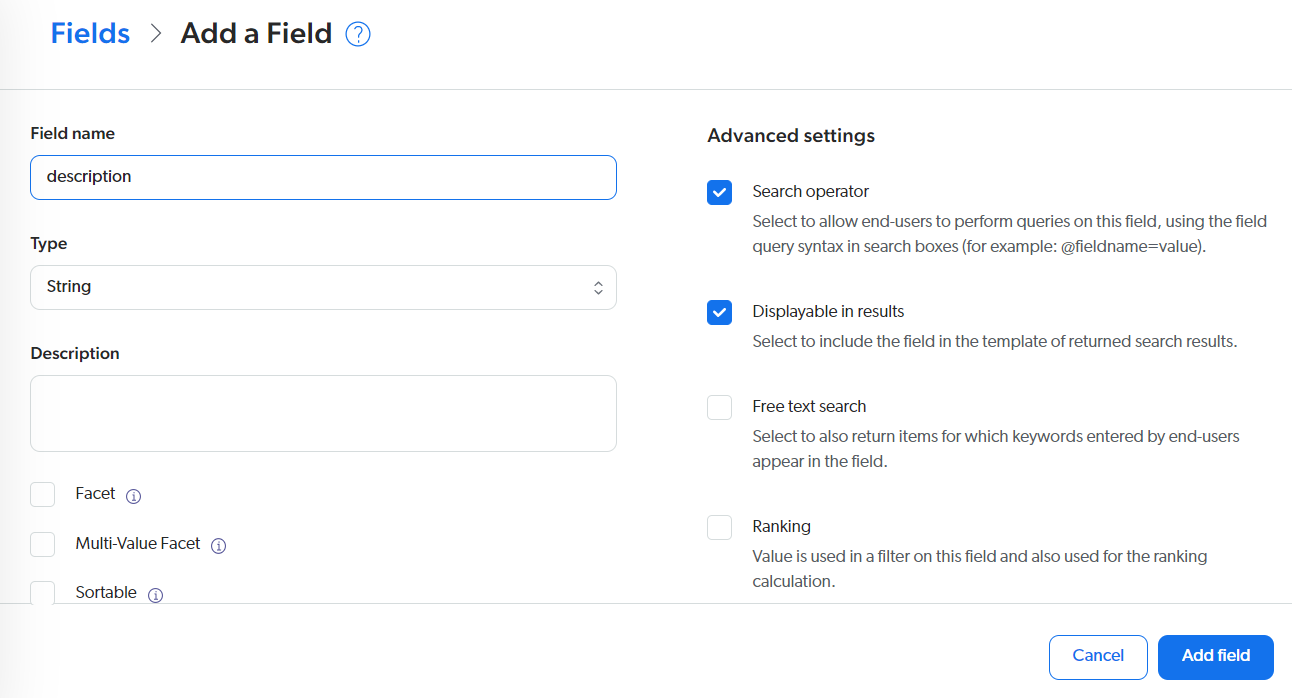
. In the **Add a field** panel, provide a field name.
[Specify other field settings](https://docs.coveo.com/en/1833#field-options) as necessary.
. In the [**Sources**](https://platform.cloud.coveo.com/admin/#/orgid/content/sources/) ([platform-ca](https://platform-ca.cloud.coveo.com/admin/#/orgid/content/sources/) | [platform-eu](https://platform-eu.cloud.coveo.com/admin/#/orgid/content/sources/) | [platform-au](https://platform-au.cloud.coveo.com/admin/#/orgid/content/sources/)) page, click your source, and then click **Mappings** in the Action bar.
. In the **Edit mappings** panel, click **Add** > **Mapping**.
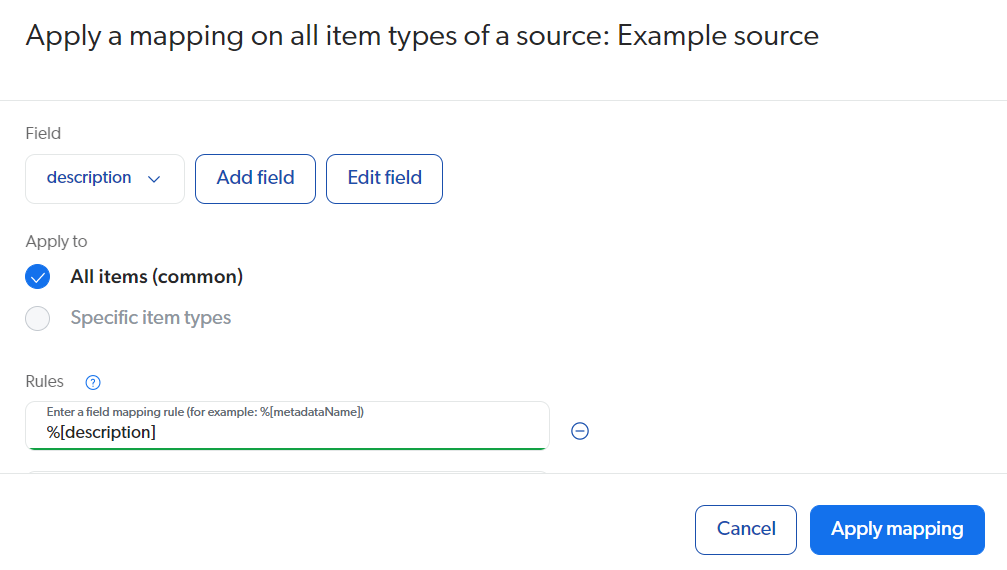
. In the **Apply a mapping on all item types of a source** panel, [create a mapping rule](https://docs.coveo.com/en/1640#manage-mappings) which specifies the name of the metadata to be used to populate the field.
Click **Apply mapping** when you're done.
> **Notes**
>
> * For help with mapping rules, see [Mapping rule syntax reference](https://docs.coveo.com/en/1839/).
>
> * For metadata names with colons (:), [specify the origin explicitly in the mapping rule](https://docs.coveo.com/en/1839#origin).
> The colon is the delimiter for the origin of the metadata (for example, `%[og:title:crawler]`).
. [Rebuild](https://docs.coveo.com/en/2039#rebuild) your Web source.
. [Inspect a few items](https://docs.coveo.com/en/2053#inspect-search-results) in the Content Browser to make sure that the field is properly populated.
## What's next?
Use your field in an [Atomic](https://docs.coveo.com/en/lcdf0264/) [search interface](https://docs.coveo.com/en/2741/) as follows:
* Add your field to the [`fieldsToInclude`](https://docs.coveo.com/en/atomic/latest/reference/components/atomic-search-interface#properties) property of the `atomic-search-interface` component.
* Use your field in a [`atomic-field-condition`](https://static.cloud.coveo.com/atomic/v3/storybook/index.html?path=/docs/atomic-field-condition\--docs) component.
For example, you can create a condition to display the field value in search results only when the item has a value for that field.
* Use the type-specific Atomic result component to display your field values in search results (for example, [`atomic-result-text`](https://static.cloud.coveo.com/atomic/v3/storybook/index.html?path=/docs/atomic-result-text\--docs), [`atomic-result-number`](https://static.cloud.coveo.com/atomic/v3/storybook/index.html?path=/docs/atomic-result-number\--docs)).
> **Tip**
>
> See the code sample of the [`atomic-result-fields-list` interactive example](https://static.cloud.coveo.com/atomic/v3/storybook/index.html?path=/story/atomic-result-fields-list\--default).